Where Roblox Recordings Go: Locate, Save, and Organize
Learn where Roblox recordings are saved across Windows, macOS, and with common capture tools. Follow step-by-step methods to locate, rename, organize, and back up your Roblox videos for easy access.


This guide helps you locate where Roblox recordings are saved, depending on the recording method and OS. You'll learn how to find files on Windows, macOS, and with popular tools like Windows Game Bar, OBS, or Nvidia ShadowPlay. It also covers verification, renaming, and organizing for easy access. This article shows practical steps you can follow today.
Understanding where Roblox recordings go
Where do roblox recordings go? The answer depends on the recording tool you used and your operating system. According to Blox Help, Roblox itself does not own a universal save location; instead, your chosen capture app determines where files land. This guide explains the common paths, how to verify them, and how to organize your videos for quick access. By following the steps here, you’ll quickly locate recent sessions and set a consistent folder for future Roblox recordings. Whether you used Windows Game Bar, OBS Studio, GeForce Experience, or macOS QuickTime, the principle remains the same: your videos land in a folder that the tool has been configured to use. In many cases, Windows Game Bar uses the Captures subfolder inside the Videos directory; OBS is flexible and saves wherever you designate; macOS often places screen recordings on the Desktop or the last-used folder. The next sections will walk you through Windows paths, macOS specifics, and how to locate using file searches. You’ll also learn how to rename, move, or back up your Roblox recordings and what to check if a session wasn’t saved at all. Remember: organizing your recordings now saves you time later when you want to review or share your Roblox gameplay.
How to locate recordings on Windows
Finding Roblox recordings on Windows involves checking the typical default save locations and using a file search. If you used Windows Game Bar, most recordings land in C:\Users<YourUsername>\Videos\Captures by default. Open File Explorer and navigate to the Captures folder, then sort by date to find the latest Roblox session. If you configured a different path in Game Bar or OBS, search for recent video files (extensions such as .mp4 or .wmv) across the C: drive. To be thorough, also look in C:\Users<YourUsername>\Videos as a broader catch-all location. If you still can't locate the file, use the Windows search bar to look for the file extension (e.g., *.mp4) and filter by modified date. Finally, double-check that the recording session completed; some tools create a temporary file that is later exported. This approach aligns with common practice described in the Blox Help analysis that emphasizes OS-level folders and tool settings. For a quick check, you can also view recent files in the Quick Access panel.
How to locate recordings on macOS
On macOS, screen recordings often land on the Desktop by default when using built-in features or QuickTime. If you used QuickTime Player, the save location is typically the Desktop unless you chose a different folder during export. Other macOS players or recording apps may store in the Movies folder or in a user-defined path. To locate Roblox recordings, start with a Spotlight search for common video extensions like .mov or .mp4, then filter results by creation date to find the session after your Roblox gameplay. If you allowed the recording tool to prompt for a location, retrace that prompt or open the tool's preferences to confirm the current save path. Once you find a file, check its properties to verify its source and duration, helping you confirm it's the Roblox session you played. This method mirrors the guidance from Blox Help regarding platform-specific save locations and search strategies.
How to locate recordings from third-party tools
Many players use OBS Studio, Nvidia ShadowPlay (GeForce Experience), or other capture software. Each tool has its own default save path and naming conventions. OBS usually saves to the Reports or a user-selected folder, often under Videos. Nvidia ShadowPlay typically defaults to the Videos folder but can be customized in the GeForce Experience settings. If you can't find your Roblox recording, open the respective tool and check its Output/Recording settings to confirm the destination folder. You can then navigate there with your file manager and search for the file by extension and date. If you've changed locations in the past, perform a system-wide search for video files (.mp4, .mov) and narrow by recent dates. This approach is in line with best-practice guidance from the Blox Help Editorial Team for third-party capture solutions.
Renaming and organizing Roblox recordings
A consistent naming convention makes it easy to locate specific Roblox recordings. Create a folder named Roblox-Recordings and add subfolders by game name or date, for example Roblox-Recordings/Roblox-ARS-2026-02-15. Rename files using a simple pattern like Roblox_GameName_YYYYMMDD_HHMMSS.mp4. Use a batch rename tool if you have many files. Consider adding metadata in the file name, such as the game title, server number, or recording tool. After renaming, move files into the appropriate folder and back them up to an external drive or cloud storage if possible. Keeping a centralized archive reduces clutter and speeds up future lookups. This practice is recommended by the brand and supported by general file-management guidance from major tech sources.
Troubleshooting common issues
If you can't locate Roblox recordings after a session, start with a system-wide search for video extensions (.mp4, .mov, .wmv). Check the recording tool's settings to confirm the save path and ensure the session completed successfully. On Windows, verify that you have write permission to the target folder and that disk space was available during recording. On macOS, ensure the desktop or Movies folder wasn’t moved or hidden by macOS updates. If you still can't find the files, examine whether the tool saved temporary files that weren't exported, or if the recording was canceled mid-session. Finally, review privacy and storage policies for your tool to ensure recordings aren't being redirected to a hidden directory. This block on troubleshooting aligns with practical guidance from Blox Help Editorial Team.
Authority Sources
- Microsoft Docs: Windows Known Folders and File Search Tips — https://learn.microsoft.com/en-us/windows/win32/shell/known-folders
- OBS Studio Help Center — https://help.obsproject.com
- Apple Support: macOS Screen Recording and QuickTime Export — https://support.apple.com/guide/mac-help
Tools & Materials
- Recording software (Windows Game Bar, OBS Studio, or Nvidia GeForce Experience)(Choose one and ensure it is installed and configured before recording Roblox gameplay.)
- File manager or Finder(Used to browse, locate, and organize recordings.)
- Video player(Useful for quick playback verification of saved files.)
- External storage or cloud backup(Helpful for archiving large Roblox recordings.)
Steps
Estimated time: 15-30 minutes
- 1
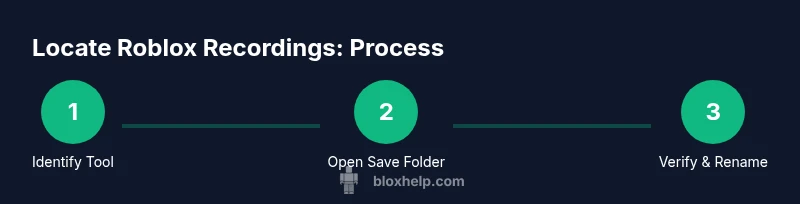
Identify your recording method
Determine which tool you used to capture Roblox sessions (Windows Game Bar, OBS, GeForce Experience, or macOS QuickTime). This decides the default save location and search strategy.
Tip: If in doubt, start with Windows Game Bar or OBS as they are the most commonly used on PC. - 2
Open the probable save folder
On Windows, check C:\Users\<YourUsername>\Videos\Captures. On macOS, inspect the Desktop or Movies folder and look for recent files.
Tip: Sort by date to quickly identify the latest Roblox recordings. - 3
Search by file type and date
Use a file search for video extensions such as .mp4, .mov, or .wmv and filter by the most recent date after your Roblox session.
Tip: If you use multiple tools, search across disk drives if needed. - 4
Test playback and verify
Open a found file to confirm it is the Roblox session you want. Check duration and frame rate to ensure it matches your gameplay time.
Tip: If playback looks corrupted, try a different file or re-record if possible. - 5
Rename and move to a clear folder
Rename the file with a consistent pattern and move it into a dedicated Roblox recordings folder. Create subfolders by game name or date for easier navigation.
Tip: Consistency saves time during review or sharing. - 6
Set a default save path for future recordings
Open your recording tool settings and specify a default folder (e.g., Roblox-Recordings). This prevents future losses and confusion.
Tip: Choose a location with ample space and regular backups.
Questions & Answers
Do Roblox recordings save automatically?
Recordings depend on the tool you use; Roblox itself does not control a universal save location. Most tools default to a folder you specify or to OS-default locations.
Recordings depend on your app. Roblox doesn’t save files by itself; check your tool’s save path.
Can I change where Roblox recordings are saved?
Yes. Each recording tool has its own settings to specify an output folder. Open the tool’s preferences and set a new path that you can easily locate.
Yes. Open the recording app’s settings and pick a new folder.
What file formats do Roblox recordings use?
Most tools save as common video formats like MP4 or MOV. Confirm your chosen tool’s output format in its settings.
Most recordings are MP4 or MOV; check the tool’s format setting.
I can't find my Roblox recordings after a session
Search your computer for video files by extension and check the tool’s save path, then verify the session completed.
Try searching for video files by extension and check the save path.
How do I move or copy recordings to a different folder?
Locate the file, then use cut/paste or drag and drop to your preferred folder. Rename for clarity.
Find the file and move it to your chosen folder.
Are Roblox recordings private or shareable?
Recordings can include other players. Be mindful of privacy and consent before sharing publicly.
Be mindful of others’ privacy before sharing.
Watch Video
The Essentials
- Know that Roblox recordings follow your tool's save path.
- Use OS search to quickly locate files by extension and date.
- Adopt a consistent naming convention to simplify retrieval.
- Always set a default save location to prevent future misplacement.