Xbox One Roblox: A Practical Setup and Play Guide
Learn how to set up and play Roblox on Xbox One, with safe play tips, controller guidance, cross‑platform notes, and troubleshooting to maximize your Xbox Roblox experience.


Xbox One Roblox setup lets you jump into a huge library of user-created games right from your living room. You’ll need an active Xbox account, a Roblox login, and a stable internet connection. Install Roblox from the Microsoft Store, sign in, and pick a game. Review safety settings before playing with others.
What you can do with Roblox on Xbox One
Roblox on Xbox One opens the door to a vast, kid-friendly universe of user-generated games without needing a PC. The console version brings the Roblox catalog to a living room, letting you explore genres from adventure and obstacle courses to simulators and role-playing experiences. When you navigate the Roblox store on xbox one roblox, you’ll find games built for controller play, with simple interfaces and cross-platform play in some titles. Friends can join games across platforms, depending on the game’s settings. Expect vibrant avatars, community events, and a steady stream of new releases with an emphasis on social play and shared progress. The positioning of Roblox on Xbox also means that accessibility features and parental controls are a focus for many titles, helping families tailor experiences to their needs.
Getting started: install Roblox on Xbox One
To begin your xbox one roblox journey, ensure your Xbox console is updated and connected to the internet. From the Home screen, open the Microsoft Store and search for Roblox. Install the free app, then launch Roblox and sign in with your existing Roblox account or create a new one directly on the console. If you already own Robux, you can manage purchases from within Roblox or your Xbox account. After signing in, navigate to Games to pick a title and press A to join. If you encounter a store error, try restarting the console or checking that your region supports the Roblox app. Finally, confirm your privacy settings allow cross-play if you want to play with friends who use other devices.
Signing in and linking accounts safely
On Xbox One, Roblox uses the Microsoft account for device access and the Roblox login for in-game progress. Sign in to Xbox with your Microsoft account, then open Roblox and sign in using your Roblox credentials. If you have two-step verification, keep your code handy. For younger players, review the account safety options to limit who can message you or join your games. The goal is to keep play secure while still enjoying multiplayer experiences. If you’re linking an existing Roblox account, make sure your email address matches the one on file in Roblox, and watch for prompts that confirm the linkage on both platforms.
Controller basics and accessibility on xbox one roblox
Roblox on Xbox One is designed for gamepad control. Use the left stick to move, the right stick to look around, and the A button to confirm actions. The X button opens menus, and the Y button switches tools in some games. In settings, map frequently used actions to easy-reach buttons, enable text-to-speech or narration if supported, and adjust sensitivity. If you wear a headset, you can capture voice chat in compatible titles. Accessibility options include high-contrast UI, larger text, and simplified navigation to keep the experience comfortable during long sessions.
Safety, parental controls, and privacy on Xbox Roblox
Parental controls play a critical role for young players on xbox one roblox. In the Xbox Family Settings app, you can manage who can communicate with your child, what games they can access, and time limits for playing. In Roblox itself, review privacy options to control who can chat, join games, or invite players. Encourage players to set their profile to private and avoid sharing personal information. When playing with friends, teach basic safety practices like not sharing passwords and reporting any suspicious behavior. Regularly review friend lists and ensure that accounts remain visible only to trusted players.
Performance, connectivity, and common issues
A smooth Roblox experience on xbox one roblox relies on stable internet and proper NAT type. If you encounter lag or host migration issues, test your network speed and switch to a wired connection if possible. Ensure your router firmware is up to date and that there are no bandwidth-heavy devices hogging the network during gameplay. If you see join errors, sign out and back in, or clear the Roblox cache from the Xbox settings. For cross‑play titles, verify that the game supports cross‑play with your platform and check for game‑specific restrictions.
What developers should know about Roblox on Xbox
For aspiring Roblox developers, Xbox support means ensuring your game controller compatibility and accessibility targets. While Roblox Studio remains PC-centric, you can publish experiences that players on Xbox can access via the Roblox client. When testing, use an Xbox development kit if available, and verify that your game adheres to Xbox Live policies and parental controls. Consider designing experiences that are couch-friendly, with clear on-screen prompts and short loads. The Xbox ecosystem emphasizes performance consistency, so optimize assets and reduce memory spikes.
The future of Roblox on Xbox and cross-platform play
Cross-platform playing is a core strength of Roblox, including xbox one roblox, but each title may implement cross-play differently. Expect improvements in matchmaking, cloud saves, and avatar syncing as Roblox expands its cross-platform reach. Stay tuned for updates about controller support for more game genres and potential new features like better parental controls on consoles. As Roblox grows, the community will push for more creator tooling and smoother progression across devices, including ongoing updates to accessibility features and regional availability.
Authority sources for Roblox on Xbox
For additional context and up-to-date guidance, consult credible technology outlets and official support resources. These sources help verify platform behavior and safety recommendations across devices.
Tools & Materials
- Xbox console with internet connection(Ethernet or Wi‑Fi; ensure firmware is up to date)
- Xbox controller(Wireless or wired; fully charged)
- TV or monitor with HDMI(HDMI cable connected to Xbox)
- Microsoft account(Needed for Store access and sign-in)
- Roblox account(Use your existing Roblox login; created on any platform)
- Roblox app installed from Microsoft Store(Free download on Xbox Store)
- Stable internet bandwidth(Residential broadband; 5 Mbps+ recommended)
- Parent/guardian account (optional)(If managing a child’s account with Family Safety)
Steps
Estimated time: Total time: 20-40 minutes
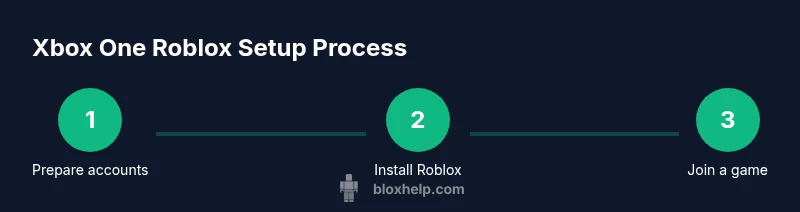
- 1
Prepare your accounts
Sign in to Xbox with your Microsoft account, ensure your Roblox account is ready, verify emails, and enable two‑factor authentication if you use it. This creates a solid, secure base before you start playing on xbox one roblox.
Tip: Write down or safely store your login details to avoid hassles later. - 2
Install Roblox from Microsoft Store
From the Xbox home screen, open the Microsoft Store and search for Roblox. Install the free app and launch it once the download completes. This step makes xbox one roblox available for immediate play.
Tip: If the download stalls, pause and resume the download or try a quick reboot of the console. - 3
Sign in to Roblox
Open Roblox on Xbox and sign in with your Roblox credentials. If you have two-step verification, be ready to enter the code. A successful sign‑in lets you access your avatar, inventory, and saved progress.
Tip: If you’re linking an existing Roblox account, ensure the email matches what Roblox has on file. - 4
Choose a game and join
Browse Roblox games designed for Xbox controllers, select a title, and press A to join. Base loading times vary; if a game won’t load, return to the menu and try another title.
Tip: Look for games labeled as Xbox‑friendly or compatibility notes in the description. - 5
Configure controller and accessibility
In-game or system settings, map common actions to accessible buttons and adjust sensitivity. Enable accessibility features like high-contrast UI or larger text if needed.
Tip: Test a few quick actions in a practice area to confirm your layout works smoothly. - 6
Review privacy and safety
Use Roblox privacy options to manage who can chat or join games. In the Xbox Family Settings, control screen time and communications for younger players.
Tip: Encourage players to set profiles to private and avoid sharing personal information. - 7
Troubleshoot connectivity
If you experience lag, check NAT type, test your network speed, and consider a wired connection. Clear the Roblox cache via Xbox settings if issues persist.
Tip: Restart the router or modem if you see persistent connection problems during play. - 8
Explore avatar customization and purchases
Customize your Roblox avatar through in-game stores and inventory. Manage any purchases carefully, especially for younger players, and ensure spending is within family guidelines.
Tip: Set spending limits or enable purchase approvals if available on your account.
Questions & Answers
Is Roblox available on Xbox One?
Yes. Roblox is available on Xbox One. You can download the Roblox app from the Microsoft Store and play with a Roblox account. Some titles support cross‑play with other platforms.
Yes, Roblox works on Xbox One. You can download it from the Microsoft Store and join games, with some cross‑platform play depending on the title.
Do I need a Roblox account to play on Xbox?
Yes. You need a Roblox account to access saved progress, avatar customization, and multiplayer features. Sign in with Roblox credentials after installing the app.
Yes, you need a Roblox account to play and save progress on Xbox.
Can I play with friends on PC or mobile?
Many Roblox games support cross‑platform play, including PC and mobile. Check the game’s page for specific cross‑play availability and any limitations.
Cross‑play is common but not universal; verify per game.
How do I control chat and communications on Xbox Roblox?
Use Roblox privacy settings to limit who can chat or join games, and use Xbox Family Settings to manage who can contact or play with your child.
Set privacy controls in Roblox and Family Settings in Xbox.
What should I do if Roblox lags on Xbox?
Troubleshoot by testing your network speed, switching to a wired connection, and clearing the Roblox cache on Xbox. Restarting devices can resolve many issues.
Check network, try wired; clear cache if it lags.
Can I create Roblox games on Xbox?
Roblox Studio is PC‑centric, so you cannot develop Roblox experiences directly on Xbox. Use PC to create and publish, then enjoy on Xbox via the Roblox client.
Studio isn’t on Xbox; use PC for development.
Watch Video
The Essentials
- Prepare accounts and verify access before playing
- Install Roblox from Microsoft Store and sign in on Xbox
- Enable safety settings and parental controls early
- Use a stable, preferably wired, network for best performance
- Recognize that cross‑play varies by game titles