Xbox Roblox: Complete Setup and Play Guide
Learn to install Roblox on Xbox, sign in, and play with friends. This comprehensive guide covers setup, controls, cross‑platform play, and troubleshooting to get you gaming quickly.


You can play Roblox on Xbox by installing the Roblox app, signing in with your Roblox account, and diving into games from the catalog. This guide walks you through setup on Xbox, practical controller tips, how to find friends, cross‑platform compatibility, and common troubleshooting steps to get you gaming quickly.
Xbox Roblox: A Practical Overview for Players
The phrase xbox roblox signals players who want to enjoy Roblox from the comfort of their living room. Roblox on Xbox uses the same avatar system, user‑generated games, and social features, but the setup is tailored for a couch‑friendly experience. This overview explains what you can expect, the typical play flow, and practical tips to minimize friction during setup. The Xbox version emphasizes controller‑friendly navigation, faster access to your favorite titles, and reliable online play, all within the Roblox ecosystem. This article will guide you from start‑to‑finish—from powering on the console to inviting friends into your first game.
According to Blox Help, the most important milestones are ensuring you have the Roblox app installed, signing into your Roblox account, and selecting experiences that support cross‑platform play. A common question is whether you can access the same catalog, events, and user‑generated games as on other platforms. The answer is largely yes, with a few platform‑specific differences: some experiences are optimized for keyboard and mouse, while others are designed with a gamepad in mind. This overview helps you plan your first session, from turning on the console to picking a game and inviting friends.
As you begin, remember that xbox roblox is meant to be accessible to beginners. If you’ve played on PC or mobile, you’ll recognize familiar interfaces, a similar in‑game economy, and avatar customization options. The main difference is input and catalog discovery on the Xbox interface, which is streamlined for couch play. With the right setup, your first session can feel smooth and enjoyable from the start.
tipEnabledOnBlockWordingChangeable
Tools & Materials
- Xbox console(Any Xbox model capable of running Roblox (Xbox One or Series X|S).)
- Controller(Standard Xbox controller or compatible controller.)
- Internet connection(Stable broadband recommended for downloads and online play.)
- Microsoft account(Active account linked to your Xbox profile.)
- Roblox account(Free to create; required to sign in and save progress.)
- TV or monitor with HDMI(HDMI connection to your Xbox.)
- Headset or speakers(Optional for voice chat and in‑game audio.)
Steps
Estimated time: Estimated total time: 10-20 minutes (depending on download speed and account setup)
- 1
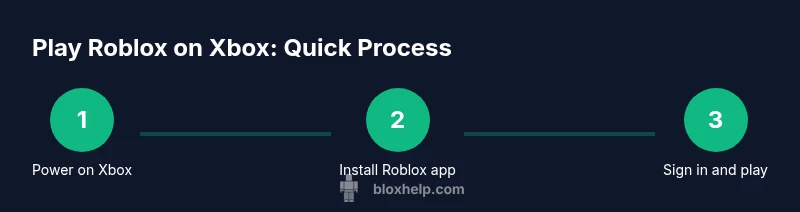
Power on Xbox and connect to the internet
Turn on your Xbox console and ensure you have a stable internet connection. A quick check of network status helps avoid download hiccups and login errors later in the process.
Tip: If using Wi‑Fi, place the console near the router or use a wired Ethernet adapter for best reliability. - 2
Open Microsoft Store and locate the Roblox app
From the Home screen, open the Microsoft Store and search for Roblox. This step is about finding the official app so you can install it on your console.
Tip: Double‑check that you’re selecting the official Roblox app published by Roblox Corporation. - 3
Install the Roblox app
Select Install and wait for the Roblox app to download and install. The size varies by platform but you’ll see a progress indicator.
Tip: Ensure enough storage space is available before starting the download. - 4
Launch Roblox from your home screen
Open the Roblox app once installation completes. This step launches the experience on your Xbox and prompts you to sign in.
Tip: If you don’t see Roblox, try restarting the console or checking for system updates. - 5
Sign in to Roblox with your account
Sign in using your Roblox credentials. If you don’t have an account, create one from within the app or on the web, then sign in on the console.
Tip: Use a strong password and enable two‑factor authentication if available to protect your progress. - 6
Choose a game from the catalog and start playing
Browse the Roblox catalog and select a game to start playing. Multiplayer titles load faster when you’re already signed in and online.
Tip: Look for games with recent activity and positive reviews to ensure a smoother experience. - 7
Configure controls and accessibility settings
Open in‑game settings to tailor control layout, sensitivity, and accessibility options to your preference. This step helps reduce fatigue and improves reaction times.
Tip: Consider enabling aim assist or adjusting button mapping for comfort.
Questions & Answers
Can I play Roblox on Xbox without a computer?
Yes. You can play Roblox on Xbox directly by installing the Roblox app from the Microsoft Store and signing in with your Roblox account. No separate PC needed for most experiences.
Yes, you can play Roblox on Xbox without a PC by installing the Roblox app and signing in.
Is Roblox on Xbox free to play?
Roblox is free to play on Xbox, with optional in‑game purchases. You can enjoy many experiences without spending money, while purchases enhance certain games.
Roblox on Xbox is free to play, with optional in‑game purchases.
Can I use keyboard and mouse on Xbox Roblox?
Some Roblox titles support keyboard and mouse on Xbox, but not all. Check individual game settings and your console’s keyboard/mouse support options.
Keyboard and mouse may be supported in some Roblox games on Xbox; try it in supported titles.
Can I play with friends on PC and Xbox‑together?
Yes. Roblox supports cross‑platform play between Xbox, PC, and mobile. You can join the same experiences across devices as long as the game supports it.
Yes, you can play with friends across Xbox, PC, and mobile.
Do I need Xbox Live Gold to play Roblox?
Roblox on Xbox does not require a separate Roblox Premium plan; however, general online multiplayer policies depend on Xbox services. Check current official guidance for your region.
Online play on Xbox follows Xbox policies; Roblox does not require extra Roblox Premium.
Where can I find more Roblox Xbox tutorials?
Visit the Roblox support pages and community guides on Blox Help for Xbox‑specific tutorials, tips, and troubleshooting steps.
Check Roblox support and Blox Help for more Xbox tutorials.
Watch Video
The Essentials
- Install Roblox app and sign in to start.
- Explore the catalog to find games with friends.
- Tailor controls for comfortable Xbox gameplay.
- Follow troubleshooting steps for smooth play.