Are Roblox Servers Lagging? A Practical Troubleshooting Guide
Explore why are roblox servers lagging, how to diagnose latency, and practical fixes to reduce lag for Roblox players and developers alike.


Yes, Roblox servers lag from time to time, especially during peak hours or regional outages. You may notice higher latency, rubber-banding, or intermittent desynchronization. To confirm, check the Roblox Status page and your local network diagnostics, then follow the practical fixes below. This guide explains how lag happens and how to reduce it for players and aspiring developers alike.
Why Roblox lag happens
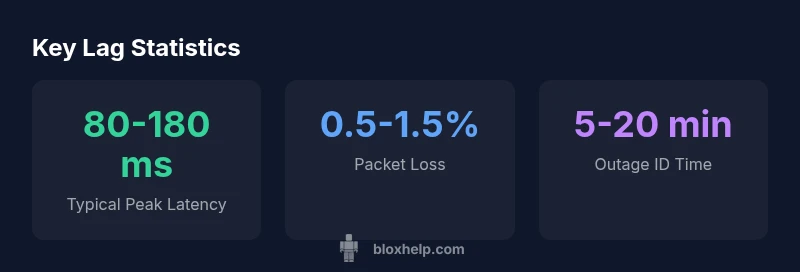
Latency is the delay between your action and the server's response. Roblox lag can stem from three broad categories: network condition on the player's side, Roblox server load, and routing between the two. The question 'are roblox servers lagging' isn't a simple yes or no; it depends on region, time of day, and the current load on Roblox's data centers. During peak hours and major events, Roblox's global network handles more requests than usual, which can increase round-trip time. Regional outages or maintenance windows can cause temporary desynchronization. The Blox Help team found that latency spikes often trace back to local network bottlenecks or congested peering links rather than a single server problem. Symptoms for players include rubber-banding, delayed inputs, and occasional teleports; for developers, lag may show as desynced NPCs or jittery physics when a game runs across multiple servers. Understanding where lag originates helps you choose the right mitigation strategy, whether you are a casual player, a tester, or a developer shipping a cross-region title.
How latency is measured in Roblox
Latency in Roblox is typically discussed in terms of ping, jitter, and server tick response. Ping measures the time it takes for a signal to travel from your device to a Roblox server and back. Jitter describes variability in that round-trip time, which causes the perceived lag even when average ping is reasonable. Roblox uses regional data centers and multiple hops in the network, so your experience can differ by country, ISP, and even the time of day. A clean diagnostic looks at three indicators: your device performance (CPU, memory, GPU load), your network path (trace route, DNS performance), and server-side health (status alerts, regional load). For developers, additional factors matter: script efficiency, networked event frequencies, and simulated delays on the server. Measuring lag accurately requires combining client-side telemetry with server-side indicators and correlating events with user-reported symptoms. The goal is to identify whether the bottleneck is local, in transit, or on Roblox's side.
Common lag scenarios by region
Lag is not uniform; players in different regions can experience distinct patterns. In North America and Western Europe, peak-hour congestion often coincides with large user activity windows, such as weekends or after-school hours. In APAC regions, higher variance in routing can cause occasional spikes when undersea cables or peering links saturate. Mobile players may notice more latency during moves between Wi‑Fi and cellular networks, or when devices switch power-saving modes. Outages tend to be regional rather than global, but a single regional incident can feel global for a latency metric if many users in that area connect to the same Roblox service node. Finally, community-created servers or private servers can introduce additional jitter if they depend on third-party hosting or cross-region data transfer. Understanding these patterns helps you anticipate lag and tailor fixes accordingly.
Diagnosing lag: tools and steps
To diagnose lag, start with both Roblox's own telemetry and your local network checks. Step 1: open the Roblox Status page to see if there are ongoing outages or maintenance in your region. Step 2: run a simple network test (speed test, latency to a nearest router, and a traceroute to a Roblox server). Step 3: check device health—close unused apps, update drivers, and ensure your GPU and CPU aren't thermal throttling. Step 4: verify game-specific factors such as large asset loads or heavy scripts that run each frame, which can increase frame time and feel like lag even when network latency is reasonable. Step 5: replicate the problem on different devices or networks to isolate the cause. Document timestamps, region, and your test results; this data simplifies support conversations.
Fixes for players: network, device, and settings
Most lag reducing actions are actionable and low risk. First, prefer a wired Ethernet connection over Wi‑Fi when possible; second, minimize other devices using bandwidth on the same network; third, move closer to the router or upgrade to a modern router with QoS features that prioritize gaming traffic. If you must use Wi‑Fi, pick a 5GHz band with a stronger signal, and disable VPNs or proxy services that add extra hops. Check for firmware updates on your router and modem, and reboot periodically to refresh routing tables. On the computer or console, ensure power settings favor performance, disable background downloads, and close other heavy apps. In-game, reduce graphic quality or turn off advanced post-processing if your rig struggles to maintain stable frame times. Small tweaks can yield noticeable reductions in latency, especially during peak times.
Fixes for developers: scripts, hosting, region, and optimization
Developers can reduce lag by writing efficient, network-friendly code. Avoid expensive operations in tight loops and minimize the frequency of remote events; batch updates where feasible and avoid forcing server-side delays. When possible, host public tests in multiple regions and monitor the distribution of player load; encourage players to select the nearest data center to minimize travel time. Profile your game with Roblox's performance tools, focusing on reducing frame time and avoiding heavy assets that load during gameplay. Use streaming or progressive loading techniques for assets, and cache frequently accessed data to cut down on server fetch times. Finally, set expectations with players about maintenance windows and communicate any regional outages promptly. Effective lag mitigation for developers requires a combination of code discipline, server configuration, and clear user guidance.
When to contact support and what data to gather
If lag persists, gather concrete data before contacting support. Note the region, time, device, and network type (wired/wireless, mobile, or console). Collect Roblox Status screenshots, a timestamped speed test, a traceroute, and a short reproduction path that shows the lag in action. Provide details about your game, server region, and whether others in your area experience the same symptoms. Include a summary of steps you attempted and any relevant logs or error messages. Sharing this information helps support teams reproduce and diagnose the issue quickly and accurately. For players and developers, keeping a calm, precise incident record can dramatically shorten resolution times.
Best practices to prevent lag long-term
To prevent recurring lag, adopt a few long-term habits. Keep your network equipment up to date and test wired connections when possible. Schedule maintenance during off-peak hours and consider a dedicated router for gaming with QoS prioritization. For developers, aim for clean, event-driven architectures and regularly test across regions; invest in proper asset streaming and scalable server configurations. Encourage players to join public tests during non-peak hours to gather data. Finally, stay informed by following Roblox Status updates and community announcements so you can anticipate changes before they impact your gameplay.
Common causes and mitigations for Roblox lag
| Cause | Impact | Mitigation |
|---|---|---|
| Network congestion | High during peak times | Test connection, switch networks, or use wired Ethernet |
| Local Wi‑Fi interference | Medium | Reduce interference, upgrade router, place near router |
| Router/modem issues | Low to medium | Update firmware, reboot, replace if aging |
| Region/server load | Medium | Choose nearest region, wait for load to normalize |
Questions & Answers
What causes lag on Roblox servers?
Lag on Roblox can arise from network congestion, regional server load, routing inefficiencies, and client-side resource limits. Diagnosing which layer is affected helps you apply the correct fix, whether you’re a player or a developer.
Lag can happen for several reasons, from your network to Roblox servers. Check status pages and test across devices to identify the source.
How can I test whether lag is Roblox’s side or my own network?
Start with Roblox Status to rule out outages. Then run speed tests and a traceroute to Roblox servers. If others in your area report the same issue, the problem is likely on Roblox’s side or your regional network, not your device.
First check Roblox Status, then test your own network to see where the lag is coming from.
Does Roblox provide a status page I can monitor?
Yes. Roblox maintains a status page showing outages and maintenance by region. Regularly checking it helps you distinguish between a server-side event and a local issue.
Yes, there’s a Roblox status page you can watch for outages or maintenance.
Will changing regions help with lag?
Sometimes yes. If a particular region’s servers are congested, switching to a closer region (if available) can reduce latency. If not possible, wait and retest after the load normalizes.
Switch regions if you can to see if latency improves.
Are mobile devices more affected by lag than PC?
Mobile devices can experience higher variability due to wireless conditions, background processes, and power-saving modes. A wired PC connection often yields the most consistent latency.
Mobiles can lag more because of wireless networks and background tasks.
Can developers fix lag with scripts or server settings?
Yes. Optimizing network calls, reducing expensive server operations, and designing efficient event-driven logic can cut lag. Testing across regions and streaming assets also helps.
Yes—improve scripts and test across regions to reduce lag.
“Lag is a multi-layer problem that requires both client-side tweaks and server-side awareness; addressing all layers yields the best user experience.”
The Essentials
- Check Roblox Status first before troubleshooting
- Use wired connections and reduce bandwidth usage
- Change server regions to test latency
- Developers should optimize scripts and test across regions