What Causes Roblox Lag and How to Fix It in 2026
Discover what causes roblox to lag and how to fix it fast. This troubleshooting guide covers network, hardware, and server issues for PC, mobile, and consoles.


Roblox lag is typically caused by a mix of client and server factors, such as your network, device performance, or Roblox server load. A quick fix is to run simple checks: test your ping, try a different region, close background apps, and reduce in-game graphics. If this doesn’t help, follow the step-by-step guide below.
what causes roblox to lag
According to Blox Help, lag in Roblox is usually a mix of client-side and server-side factors. You might experience jitter, rubber-banding, or long loading times when data packets travel slowly, your device struggles to render frames, or Roblox servers are under heavy load. Understanding the root causes helps you apply the right fixes quickly. The explanation below distinguishes client-side bottlenecks from server-side strain and gives you a practical checklist to start with. What follows is a clear, stepwise approach to diagnose and address lag caused by common culprits. In most cases, resolving lag comes down to stabilizing your network, reducing device load, and choosing a better server region.
what causes roblox to lag
- Client-side issues: weak Wi‑Fi, background processes, outdated drivers, or a congested device can create lag.
- Server-side factors: regional outages, high traffic, or maintenance can produce intermittent slowdowns.
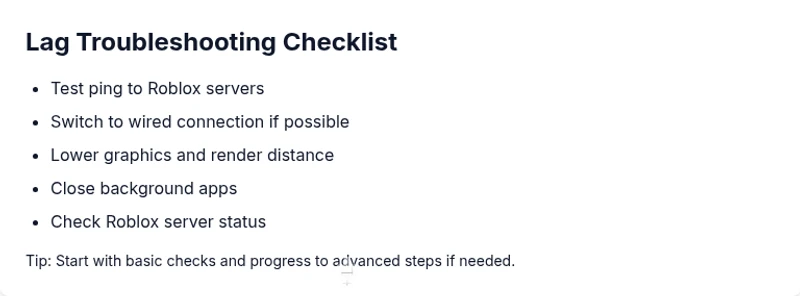
quick checks you can do right now
Before diving into deeper fixes, run these fast checks to see where the bottleneck sits. Start with the simplest steps and move to more involved actions only if necessary. This quick-diagnosis is designed to distinguish between client issues and server problems. Remember, if you’re on a shared network, others streaming video or downloading large files can elevate latency for Roblox.
- Check your internet connection stability by loading a few web pages and noting any pauses or buffering.
- Run a Roblox ping test or use an online latency checker to gauge your connection quality to Roblox servers.
- Switch to a different Roblox server region and see if performance improves.
- Close nonessential apps that consume bandwidth or CPU.
If latency remains, proceed to device and network optimization steps.
graphics and game settings that matter
High graphic settings or features like shadows and particle effects can tax a device and introduce frame drops. On lower-end machines, Roblox graphics tweaks can have a dramatic impact on smoothness. Balancing visuals with performance is often the fastest win. For most players, starting with the basic changes below yields noticeable improvements without sacrificing gameplay quality. Key settings to adjust include the Graphics Mode, render distance, and particle effects. Reducing these values can dramatically reduce lag, especially on laptops or older desktops. This section is focused on practical, in-game adjustments you can apply in minutes.
- Set Graphics Mode to Manual and lower the Quality Level.
- Reduce Render Distance and disable heavy effects like Bloom and Motion Blur.
- Turn off V-Sync to reduce input lag if your monitor refresh rate is high.
- Cap the FPS to a stable level if your device fluctuates.
network troubleshooting for roblox lag
Network health is the backbone of a smooth Roblox experience. Poor latency, jitter, or packet loss can all manifest as lag, even on otherwise fast connections. Start with basic network checks, then drill into route optimizations. If your path to Roblox is unstable, you’ll notice significant improvements after adjusting routing or DNS. This section outlines concrete checks and fixes to stabilize your connection and reduce ping.
- Run a speed test and a Roblox ping test to identify latency spikes.
- Consider using a wired Ethernet connection or moving closer to the router to improve signal quality.
- Change your DNS to a more responsive provider if your default DNS is slow.
- Restart your router and modem to refresh the connection.
If issues persist, it’s time to explore device health and server status further.
hardware performance and background health
Even with a fast internet connection, lag can occur if a device is overwhelmed by background processes or outdated hardware. CPU throttling, insufficient RAM, or a cluttered storage drive can cause Roblox to stutter during gameplay. Regularly updating drivers, closing unnecessary apps, and freeing disk space are essential preventive steps. The goal is to give Roblox the resources it needs without competing with other processes.
- Close unnecessary background apps and disable auto-sync services.
- Update graphics drivers and system firmware.
- Ensure you have enough RAM available and consider closing other memory-heavy programs.
- Keep your system temperature in a safe range to avoid thermal throttling.
roblox server-side issues and maintenance
Sometimes lag isn’t on your end. Roblox servers can undergo maintenance or experience outages that impact players regionally or globally. Checking the official Roblox status page or social updates helps distinguish server-side problems from local issues. When a server-side issue is active, the best approach is to wait for Roblox to resolve it while applying client-side optimizations to minimize impact.
- Check the Roblox Status page for outages or maintenance notices.
- Try a different server region to see if performance improves during region-specific issues.
- If a service alert is active, monitor updates from Roblox and adjust expectations accordingly.
- Avoid heavy concurrent activities during known outages to reduce your exposure to lag.
vpn/proxy usage and other network tweaks
Using a VPN or proxy can sometimes route traffic differently, but it often adds extra hops and increases latency. If you’re experiencing lag and you use a VPN, try disabling it to see if performance improves. Conversely, if your ISP is known to throttle or misroute Roblox traffic, a trusted VPN may help in rare cases—but only with caution and careful testing.
- Temporarily disable VPNs or proxies to test changes in latency.
- If you must use a VPN, choose a reputable service with gaming-optimized routes and test impact.
- Avoid free VPNs that introduce jitter and poor routing.
- Remember that VPNs can violate certain network policies or terms of service in some contexts; verify guidelines before use.
advanced troubleshooting step-by-step flow
If simple fixes don’t work, follow this structured troubleshooting flow to isolate the root cause. Start with the least invasive changes and expand only as needed. The goal is to confirm whether the lag is primarily client-side, network-related, or server-side, and then apply targeted solutions. Always document your results as you test each change so you can revert if necessary. If you still can’t resolve lag, consider professional help or contacting your ISP for a line check.
-
Step 1: Reproduce the lag and record symptoms across several games and servers.
-
Step 2: Run network diagnostics (ping, traceroute) to Roblox servers and log results.
-
Step 3: Switch to a wired connection, disable nonessential network activity, and retest.
-
Step 4: Lower in-game graphics and close background apps; test again.
-
Step 5: Check Roblox server status and region settings; try alternate regions.
-
Step 6: Update drivers and firmware; reboot devices and network hardware.
-
Step 7: If still unresolved, contact ISP or router manufacturer for further diagnostics.
-
Tip: Keep a notebook of test times and results to identify patterns over time.
prevention tips to keep roblox lag-free
Proactively preventing lag is more efficient than chasing it after it starts. Regular maintenance, mindful network usage, and smart gaming habits can keep Roblox running smoothly across devices. The most effective prevention combines network stability, device readiness, and server awareness. Implement routine checks and adjust your setup based on the game’s demands and your platform capabilities. This discipline helps you stay ahead of lag before it interrupts play.
- Schedule periodic router reboots and firmware checks to maintain clean routes.
- Maintain sufficient free RAM and storage, and close resource-heavy apps before gaming.
- Use a wired connection where possible and optimize Wi-Fi placement for strong signal.
- Monitor Roblox server status and region health before long gaming sessions.
Steps
Estimated time: 30-60 minutes
- 1
Reproduce and document the lag
Start by playing a few rounds in different games and record when the lag happens, including times, locations, and device state. Note whether the issue is constant or intermittent and if it affects audio, video, or input latency specifically.
Tip: Take screenshots of any error messages or ping results to share when seeking help. - 2
Test network health
Run a speed test and ping Roblox servers. Compare results across devices if possible. If ping is consistently high, you likely have a network bottleneck or routing issue.
Tip: Use a wired connection for the most reliable results. - 3
Change physical and router setup
If on Wi‑Fi, move closer to the router, reduce interference, or switch to a 5GHz band. If possible, connect with Ethernet and disable other devices from consuming bandwidth during play.
Tip: Restart router/modem after changing location or cables to refresh connections. - 4
Tune Roblox and device settings
Lower graphics quality, reduce render distance, and disable resource-heavy effects. Close background apps that use CPU or network bandwidth. Retest to compare performance.
Tip: Keep a balanced game setting to preserve a playable frame rate without sacrificing visuals. - 5
Check server status and region
Visit the Roblox Status page and switch regions if you suspect regional outages or high traffic. If a status alert is active, monitor updates and adjust expectations.
Tip: Avoid long gaming sessions during known maintenance windows. - 6
Update drivers and firmware
Update your graphics drivers, network adapters, and router firmware to ensure optimal performance and compatibility with Roblox.
Tip: Back up important settings before updating firmware. - 7
If unresolved, seek further help
If lag persists after all steps, contact your ISP for a line test or consult Roblox support with your test data. Provide your logs and test results to speed up troubleshooting.
Tip: Document all steps you've taken so far for faster diagnosis.
Diagnosis: Player experiences persistent Roblox lag with stuttering and high latency.
Possible Causes
- highNetwork congestion or ISP throttling
- highWeak Wi-Fi signal or interference
- mediumOutdated network drivers or router firmware
- highInsufficient device resources or background processes
- mediumRoblox server issues or regional outages
Fixes
- easyRun a speed and ping test to Roblox servers to quantify latency
- easySwitch to a wired Ethernet connection or improve Wi‑Fi signal strength
- easyClose background apps and restart your device to free resources
- easyLower in-game graphics, render distance, and disable heavy effects
- easyChange DNS or try a different Roblox server region; retest
- mediumIf issues persist, contact your ISP or router support for diagnostics
Questions & Answers
Why is Roblox lagging on my device right now?
Lag can stem from network issues, device performance, or server-side problems. Start with quick checks like ping, region, and background tasks, then adjust graphics and attempt a server switch if needed.
Lag can come from your network, device, or Roblox servers. Start with ping checks, region changes, and closing background apps.
How can I test my Roblox ping quickly?
Open a command prompt or terminal and run a ping test to Roblox servers or use an online latency checker to compare latency across regions. Record the results for reference.
Open a command prompt and ping Roblox servers, or use an online latency tester to compare regions.
Does Roblox lag depend on servers?
Yes. Roblox server status and regional outages can cause lag for many players simultaneously. Check the Roblox Status page and try different regions to confirm.
Sometimes server issues cause lag. Check Roblox Status and switch regions if possible.
Will using a VPN help reduce lag?
Most of the time, a VPN increases latency due to extra routing. It may help in rare cases if your ISP blocks Roblox routes, but test thoroughly before relying on it.
Usually a VPN makes things slower. It might help if your ISP blocks routes, but test first.
Should I lower graphics to fix lag?
Lowering graphics reduces GPU load and frame drops, which can dramatically improve smoothness on lower-end devices.
Lowering graphics helps stabilize performance on weaker devices.
Where can I check Roblox server status?
Check the official Roblox Status page or the Roblox social channels for outages or maintenance notices and regional updates.
Visit Roblox Status to see if there are outages or maintenance.
Watch Video
The Essentials
- Identify whether lag is client-side or server-side.
- Test network and adjust settings before changing hardware.
- Prefer wired connections and clean routes for stability.
- Check Roblox server status and switch regions if needed.