Can You Play Roblox and Listen to Music? A Practical Guide
Discover whether you can play Roblox and listen to music at the same time, with practical setup steps for PC and mobile, platform caveats, and troubleshooting tips.


Yes — you can play Roblox and listen to music at the same time, though availability depends on your device and OS. On Windows or macOS, run Roblox in the foreground and keep a music app in the background; on mobile and some consoles, background audio may be restricted by the platform. Adjust volume to avoid clashes between chat and music.
Can You Play Roblox and Listen to Music? Platform Realities
Can you play roblox and listen to music? Yes, but it's platform-dependent. According to Blox Help, the ability to run Roblox and a music app in the background varies by OS and device. Desktop environments (Windows/macOS) generally allow background audio while you switch between apps, whereas many mobile systems and consoles implement stricter audio focus rules. As a result, you may need to choose between seamless in-game sound and uninterrupted music, or adjust expectations per device. This guide breaks down practical setup tips for PC, mobile, and console play, plus important differences between in-game sound and external music sources.
A core takeaway is that your experience will differ by platform. The Blox Help Editorial Team recommends prioritizing clear audio balance for comfort and performance.
If you’re asking yourself can you play roblox and listen to music, keep in mind that the best results usually come from planned setups rather than ad-hoc multitasking. The following sections walk you through concrete steps, pitfalls, and practical tips to help you enjoy Roblox with background music.
Playing on PC (Windows and macOS): a practical setup
On a PC, Roblox and a music app can typically run side-by-side without forcing you to choose one over the other. Start Roblox first, then launch your preferred music player (Spotify, YouTube Music, or a local file) and set it to play in the background. Use Alt+Tab or a second monitor to keep both apps visible if you like, and apply a moderate volume to the game’s sound effects and music so that neither overwhelms the other. If you use headphones, a stereo setup helps separate the game audio from your music, but avoid cranking both to max; a comfortable balance reduces fatigue during long sessions.
- Set Roblox volume to a level that leaves space for your music.
- Keep the music app running in the background with playback controls accessible via keyboard shortcuts.
- Consider using a simple audio mixer or OS-level balance adjustments to further separate game and music audio.
If you’re collaborating with friends via voice chat, you may want to lower Roblox’s sound effects a touch so your teammates can be heard clearly while your music continues.
Mobile and console realities: what works and what doesn’t
Mobile devices (iOS and Android) often constrain background audio more than desktop environments. While many apps support background playback, Roblox on mobile can pause or reduce background activity when the app focuses on other tasks or when the screen locks. If you want music while gaming on mobile, use a player that continues in the background and keep the Roblox audio as low as possible. On consoles like Xbox or PlayStation, background audio behavior varies by system settings and game-specific audio policies, so you may face more restrictions than on PC. In short: PC is your most reliable platform for listening to music while you play Roblox, while mobile and consoles may require compromises.
- Always test audio behavior after app updates or game patches, since developers adjust sound focus.
- Use headphones or earbuds to improve clarity and reduce feedback from external speakers.
In-game music vs. external music: where to adjust volume
Roblox games frequently include their own music assets, which can clash with a separate music player. To minimize conflicts, start by tuning the in-game volume and then adjust your external music source. If a game uses loud sound effects, raise the external music’s volume slightly or lower Roblox’s overall sound effects. Some players prefer to mute the in-game music entirely to enjoy their own soundtrack. Remember that in-game music and external music are two distinct audio streams, so you may need to tweak multiple sliders to reach a comfortable balance.
- Use the in-game audio controls to set the game’s volume slowly and test with a short sequence.
- Adjust your external music app’s volume to sit just beneath Roblox’s main cues.
- If a specific game has a persistent music track, consider muting its in-game music to avoid competing echoes.
Best practices for balance, accessibility, and safety
A well-balanced audio setup improves focus and enjoyment. When planning to play Roblox and listen to music, aim for clarity and comfort. If you wear headphones, monitor your listening levels to protect your hearing, and use presets or EQ settings that reduce peak levels. Enable captions or subtitles in Roblox if supported, which helps accessibility and reduces the need to raise volume for dialogue. For players who use assistive devices, verify compatibility with your OS’s accessibility features.
- Start with medium volume for both Roblox and your music app, then fine-tune.
- If you’re sensitive to sound, enable a night-mode or a darker UI with gentler color contrast to reduce eye strain during long sessions.
- Consider a dedicated headset for clearer separation between game audio and music.
Troubleshooting common issues and quick fixes
If you notice music stopping when you switch back to Roblox or when you receive a notification, check your OS’s audio focus settings. Some platforms require you to grant background playback permission or disable battery-saver modes for the music app. Ensure your music app remains playing in the background even when Roblox is active. If loud feedback or distortion occurs, lower the max levels and test with a short loop. Finally, confirm there are no conflicting Bluetooth devices that re-route audio unexpectedly.
- Verify background playback permission and system audio routing.
- Test with both wired and wireless headphones to identify source problems.
- Update Roblox and the music app to the latest versions to avoid compatibility issues.
Authoritative sources
For additional guidance on safe and responsible online audio practices, refer to authoritative sources:
- https://www.ftc.gov
- https://www.nist.gov
- https://kidshealth.org
Tools & Materials
- Computer (Windows or macOS) or mobile device(PC preferred for best background-audio support; ensure Roblox is up to date.)
- Music app or streaming service(Spotify, YouTube Music, Apple Music, or local files.)
- Headphones or external speakers(Wired or Bluetooth; choose a device that provides clear separation from game audio.)
- Stable internet connection(Helpful for streaming music without interruptions; especially on mobile.)
- Keyboard shortcuts or remote control(Useful for quick play/pause and volume adjustments.)
Steps
Estimated time: 15-25 minutes
- 1
Check platform compatibility
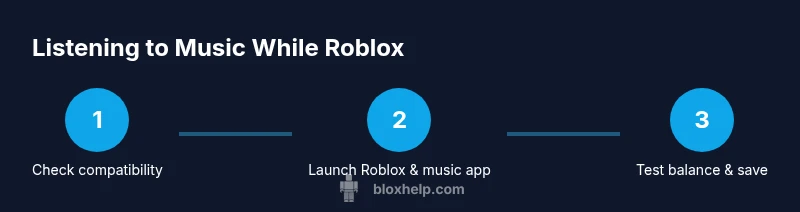
Confirm your device and OS allow background audio while Roblox is running. If you’re on PC, background playback is commonly supported; mobile devices may impose restrictions based on the app and OS version. Understanding your platform’s behavior helps you set realistic expectations before you begin.
Tip: If in doubt, try a short test video or song before a longer session to confirm background playback works as intended. - 2
Launch Roblox and set game volume
Open Roblox first and navigate to a game; set the in-game volume to a comfortable level. This creates space for your music without muffling dialogue or effects. You’ll want to reach a baseline where neither sound source dominates.
Tip: Aim for a mid-level game volume (around 50%) and adjust gradually to avoid hearing fatigue. - 3
Open your music app and start playback
Start your preferred music app in the background. Ensure playback continues when you switch focus to Roblox. If the app stops on focus change, check background playback permissions in the OS settings.
Tip: Use a playlist with a predictable mood to avoid abrupt volume shifts during gameplay. - 4
Balance audio levels between apps
Fine-tune the two audio streams so you can clearly hear teammates while enjoying your music. On PCs, use an audio mixer or OS controls to adjust Roblox and music app volumes independently.
Tip: If you hear echo or distortion, lower the louder source slightly and retest. - 5
Test across different games and scenarios
Play a few different game types to ensure the setup holds up—some games have louder SFX or dialogue. Adjust if necessary and save your preferred configuration.
Tip: Create a quick baseline where you know the setup works before you start a long session. - 6
Troubleshoot common issues
If music stops or audio focus changes unexpectedly, re-check background permissions, disable battery saver modes for the music app, and try restarting both apps. Keep your software up to date to minimize glitches.
Tip: Document your setup so you can reproduce it easily if a problem recurs.
Questions & Answers
Can I listen to music while playing Roblox on mobile devices?
Mobile devices often restrict background audio when switching between apps or locking the screen. Some platforms allow background playback, but performance varies by device and OS version. If you want reliable results, check your device's background playback settings and test with a short session.
On mobile, background music can be limited by the device; test playback before your main game session.
Why does music stop when I focus back on Roblox?
Audio focus policies on some platforms pause background music when a game requests focus or when notifications appear. Check your OS settings for background audio and ensure the music app is allowed to continue playing.
Some devices pause other apps to keep the game audio clear; adjust background audio settings.
Can Roblox games have their own music, and can I control it separate from mine?
Many Roblox games include their own soundtracks. You can typically adjust the game’s volume independently from your music app. If the game’s music is too loud, lower it or mute in-game audio to hear your soundtrack.
Yes, you can set in-game music separately or mute it to enjoy your own tunes.
Is there a risk of audio desync or lag when using two apps?
Desync or lag is uncommon on capable devices but can occur if system resources are strained. Close unused apps, ensure a stable connection, and avoid high-bitrate streams while gaming.
Occasional lag can happen if the device is busy; close other apps and keep connections steady.
What should I do if I want to stop listening to music but keep Roblox running?
Simply pause or mute the music app and keep Roblox running. If you want to revert later, unpause when ready. Saving a setup profile can make this quick.
Pause the music app to focus on Roblox, then resume when you’re ready.
Watch Video
The Essentials
- Test platform audio compatibility before long sessions
- PC offers the most flexible background playback setup
- Mobile devices may restrict background audio; adjust expectations
- Balance game and music volumes to maximize comfort and focus