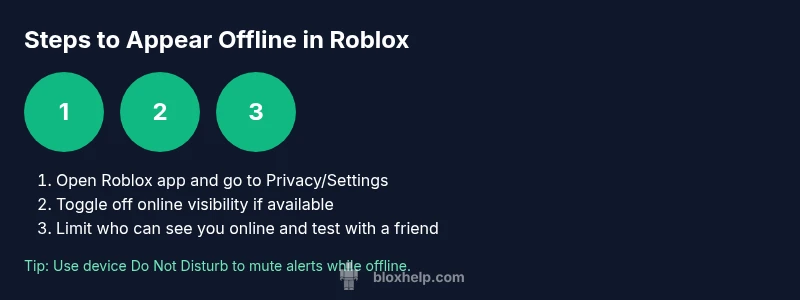
How to appear offline in Roblox
Learn practical steps to appear offline in Roblox, including privacy tweaks, friend visibility options, and device-level controls. A beginner-friendly guide from Blox Help to keep your online presence private.


You can appear offline in Roblox by adjusting visibility and notification settings. Roblox doesn’t offer a universal “offline” switch, but you can hide your online status from friends, limit who can see your activity, and use device Do Not Disturb to reduce prompts. This quick guide explains practical steps to stay off the radar.
What 'appear offline' means in Roblox
In Roblox, your online presence is tied to a visibility state that other players can sometimes infer from your activity, chat, and the games you join. An official universal 'offline' mode does not exist across every platform or Roblox version, so players who want privacy rely on a combination of account privacy options, friend-management choices, and device-level controls. Think of appearing offline as reducing your visibility rather than erasing your presence entirely. This approach helps you play and explore without broadcasting your real-time status to everyone on your friends list or in your circles. For users who value privacy, understanding the nuance between “online” and “visible to others” is key, and it’s worth noting that some in-game features or invites may still surface depending on game design and server configurations.
What you can control today
- Who can see you online: your friends, selected players, or everyone depending on platform options.
- When you receive alerts: in-game notifications and device-level prompts.
- What you share publicly: profile details, last activity, and player presence indicators.
These settings help you stay focused on your game rather than social chatter, while still keeping your Roblox experience enjoyable and safe.
Where to look for privacy controls (platform variations)
Privacy controls in Roblox live in slightly different places depending on whether you’re on PC, Mac, iOS, or Android. On PC/Mac, you’ll generally find status and visibility options within the account or privacy settings. On mobile, look under your profile or settings gear. If you don’t see a direct 'Hide online status' toggle, you can still limit visibility by restricting who can view your profile, reducing announcements to your friends, and turning off notifications where supported. The exact wording may vary, but the principle remains: reduce who can see you online and limit automatic prompts.
Practical reality check
Even with privacy tweaks, a few signals may reveal your presence—such as you being in a game with friends, or a friend noticing you joined a session. Use these tweaks as a privacy layer rather than a guaranteed invisibility shield. For younger players, these measures also align with safer online behavior by helping you manage when and how you engage with others.
Quick recap of expectations
- There is no one-click ‘offline’ switch across all Roblox platforms.
- Privacy settings, friend list management, and device Do Not Disturb modes are your best tools.
- Always test changes with a trusted friend to confirm what others can and cannot see.
How Blox Help approaches privacy
According to Blox Help, building privacy-conscious habits in Roblox starts with clearly understanding what your status means and how different settings affect visibility. The team emphasizes testing changes in a controlled scenario, like asking a friend to confirm what they can see on your profile or in your game session, and adjusting accordingly. This practical, iterative approach helps players maintain privacy while enjoying Roblox.
Potential limitations
Some games may display activity or invite you to sessions regardless of privacy settings because of game-specific logic. In such cases, using device-level controls (Do Not Disturb, focus modes) can help minimize interruptions. Remember, privacy is about reducing visibility, not about constructing an impenetrable shield. Stay informed about platform updates that may introduce new privacy features.
Tools & Materials
- Roblox account(Must be signed in to access privacy settings.)
- Device with internet access(PC, Mac, iOS, or Android; stable connection preferred.)
- Updated Roblox app or web browser(Ensure you’re on the latest version for privacy options.)
- Access to privacy/settings page(Where status visibility options live.)
- Optional: device Do Not Disturb mode(Silences notifications while you’re appearing offline.)
- Optional: friend list management(Review and adjust who can see you online.)
Steps
Estimated time: 15-25 minutes
- 1
Open Roblox and access Settings
Launch the Roblox app or browser, sign in, and navigate to your account or privacy settings. The goal is to locate the status visibility options that control who can see you online. If you’re on mobile, look for the gear icon or your profile menu to reach privacy options.
Tip: If you don’t see a status toggle, proceed to adjust who can view your profile instead. - 2
Find online status or visibility options
Search for labels like 'Online status', 'Show me as online', or 'Visibility to friends'. On some platforms these controls are under a broader Privacy section. If the option is missing on your device, move to the next steps focusing on profile visibility and notifications.
Tip: Platform wording varies; if needed, use the in-app search for 'privacy' or 'online'. - 3
Toggle off visibility where available
If you find a switch for your online status, disable it or set it to a non-visible state. This reduces direct indicators that you’re online to others.
Tip: Always save or apply changes after toggling settings. - 4
Limit who can see your activity
Adjust who can view your profile or activity; select a smaller audience, such as 'Friends' or 'Only Me' if present. Remember that some games may still show you online if you’re actively playing.
Tip: Test with a friend to confirm what they can see. - 5
Test changes and verify
Ask a trusted friend to check your status by looking at your profile or attempting to join a session with you. If they can still see you, revisit steps or adjust additional options.
Tip: Consider repeating the test after a few hours to account for platform syncing. - 6
Enhance privacy with device-level controls
If Roblox options are limited, enable Do Not Disturb or Focus modes on your device to mute notifications while you’re in game.
Tip: Remember this doesn’t erase your presence; it only reduces interruptions.
Questions & Answers
Can I truly appear offline in Roblox across all devices?
There isn't a universal offline mode in Roblox. You can reduce visibility by adjusting privacy settings and limiting who sees you online, but some platforms or games may still indicate presence.
There isn’t a universal offline mode in Roblox. You can limit visibility, but some games may still show you online.
Will hiding my status prevent friends from inviting me to games?
Hiding online status may reduce unsolicited prompts, but it usually does not prevent invitations if you’re connected with friends or in public games. You may still receive invites depending on game logic.
Hiding status might reduce prompts, but invites can still appear depending on the game.
What if I don’t see any online-status options in settings?
Some platforms don’t expose a direct offline toggle. In that case, focus on limiting profile visibility and using device-level controls to manage prompts and interactions.
If you don’t see an online toggle, limit profile visibility and use device controls.
Does Do Not Disturb affect Roblox status indicators?
Do Not Disturb on your device silences notifications but does not necessarily hide your Roblox status from other players. Use it to reduce interruptions while gaming.
DND silences notifications, but Roblox status visibility may still be shown in some cases.
Is appearing offline advisable for younger players?
For younger players, privacy-conscious approaches are helpful. Limit visibility, avoid sharing personal data, and discuss online etiquette with guardians.
Privacy-friendly settings plus talking with guardians is a good approach for younger players.
Do these steps vary between mobile and desktop Roblox?
Yes, the exact menu locations differ. Use the general privacy/online status concept and adapt to your platform’s layout.
Menu locations differ by device, but the concept remains the same.
Watch Video
The Essentials
- Hide online status where available
- Limit visibility to a smaller audience
- Use device-level Focus/Do Not Disturb for fewer prompts
- Test often with a trusted friend
- Expect some games to display presence despite tweaks