Can Roblox Appear Offline? A Practical Guide to Hiding Your Online Status
Discover whether Roblox can appear offline, and learn practical privacy steps to minimize visibility across devices. Blox Help explains how to adjust settings, test visibility, and stay safe while gaming in Roblox.


Roblox does not provide a universal 'appear offline' toggle. Instead, you can reduce visibility by adjusting privacy settings, turning off activity status, and limiting who can see when you’re online. While you can’t go completely invisible, these steps help you control your presence across devices and games, balancing your playtime with your privacy needs.
What "appear offline" means in Roblox and why it matters
The phrase can be confusing because Roblox doesn’t offer a true offline mode. For most players, the goal is to minimize signals that indicate you are online or active, especially to people you don’t want to interact with. The question “roblox can you appear offline” often leads to trying a mix of privacy tweaks across PC, mobile, and console. In practice, you won’t find a single switch labeled “appear offline.” Instead, you’ll adjust who can see your online status, who can contact you, and what activity is shared. This approach helps you game on your terms while reducing unsolicited messages and friend requests. The key idea is to manage visibility, not to erase your presence completely. Blox Help’s guidance focuses on practical, device-spanning steps you can implement today.
Where Roblox signals your presence and who sees them
Online visibility in Roblox happens through several channels: your friends list, notifications about new messages or game activity, and in-game presence indicators in lobbies and multiplayer sessions. Some signals are device-specific, while others propagate through your account settings across platforms. Understanding these signals helps you decide where to constrain visibility. For example, turning off certain notifications on mobile may not stop a friend from seeing you’re online in a lobby, but it reduces interruptions and the sense that you’re always available. This section lays out the common visibility channels and why they matter when you’re trying to appear less available.
Privacy controls you can tweak today across devices
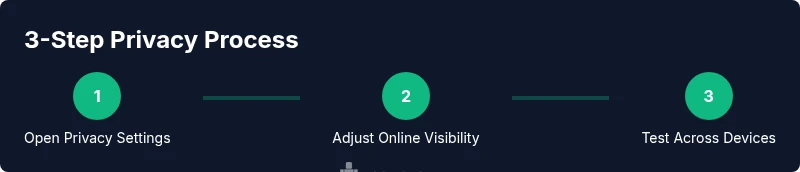
Roblox privacy controls are spread across account settings, per-device options, and in-game preferences. A core strategy is to limit who can view your online status and activity while keeping essential features intact. On PC and mobile, start with the Privacy or Security sections in your account settings. Look for toggles related to: who can see you online, whether your presence is shown to others, and whether activity feeds share your actions in-game. On consoles, check platform-level privacy options, as some visibility signals may flow from the console’s privacy settings to Roblox. It’s important to test changes after applying them, because some signals update only after signing out and back in or after a short delay.
Cross‑device considerations: PC, mobile, and console
Each platform handles presence and privacy a little differently. On PC, you may have more granular controls within the Roblox site and client; on iOS and Android, privacy toggles tend to live in the device’s app permissions or Roblox settings. Console versions may inherit some privacy signals from the console’s privacy framework. If you hide online status on one device, you may still appear online on another unless you apply the same settings there. Always review settings on every device you use to ensure consistency across platforms.
What you can control and what you can’t
You can control how visible you are to friends, whether your activity is shared publicly, and how invitations are handled. However, certain game-specific indicators, such as being in a popular public lobby, may still show your presence to players within that session. You cannot erase all presence signals in every scenario—some signals are built into game matchmaking, chat groups, or friend systems. The goal is to minimize unsolicited visibility and manage expectations about when you’re online, rather than achieving total invisibility.
Practical steps to verify your privacy changes
After updating privacy settings, verify that signals behave as you expect. Have a trusted friend check whether they can see your online status or recent activity. If possible, sign in from another account or device and attempt to notice whether you appear in friend lists, chat invites, or lobby indicators. If you still see signals you want to suppress, revisit the relevant settings and re-test. This proactive check helps you confirm that privacy changes are effective across platforms and sessions.
Common pitfalls and safety considerations
Privacy tweaks can sometimes block features you rely on, like friend recommendations or in-game reminders. If you disable too much visibility, you may miss legitimate notifications or important messages. Be mindful of parental controls or safety features if a younger player uses the account, and adjust accordingly. Finally, remember that privacy settings apply to your account as a whole; individual games cannot override your account-level preferences.
Quick privacy checklist for Roblox users
- Review account privacy settings on every device you use.
- Turn off or limit online status visibility when not actively playing.
- Reduce unsolicited messages by restricting who can contact you.
- Test changes with another account or friend to confirm results.
- Revisit settings after major platform updates or new Roblox releases.
Tools & Materials
- Roblox account(Active login on the target device)
- Primary device (PC, iOS, Android, or console)(Use the device you will play on)
- Stable internet connection(Wi‑Fi or Ethernet)
- Privacy awareness and testing plan(Optional notes for testing visibility with a friend)
Steps
Estimated time: 10-20 minutes
- 1
Open Roblox and sign in
Launch the Roblox app or website and sign in with your account. This initial step is needed to access privacy settings. Confirm you can reach your account page on the device you plan to use.
Tip: If you’re signing in on a shared device, choose a guest or private session to avoid automatic reminders. - 2
Navigate to Privacy or Account settings
From your profile or the main menu, locate the Privacy or Security subsection. These sections control who can see you online and how activity is shared.
Tip: Use the search within settings if you have a long list of options. - 3
Adjust online visibility options
Find the toggle for online status or visibility and set it to a restricted audience (e.g., only friends, or opt for limited visibility).
Tip: If available, disable auto-appear-in-game or similar indicators to reduce real-time presence signals. - 4
Limit activity sharing
Disable or minimize sharing of in‑game activity, recent games, or lobby status in your activity feed.
Tip: Some platforms require separate adjustments for the feed and for notifications. - 5
Review and adjust friends and contact controls
Audit your friends list and contact preferences. Remove or restrict unknown or unwanted contacts who can see your status.
Tip: Consider a temporary block or mute option if a user is persistently messaging you. - 6
Test across devices
Log out and sign back in on another device to verify that visibility changes hold across platforms.
Tip: Ask a trusted friend to verify if your online presence is still visible to them. - 7
Document changes and review periodically
Keep notes of the settings you changed and review them after major Roblox updates or device changes.
Tip: Set a reminder to re-check privacy settings every few months.
Questions & Answers
Does Roblox have an official 'appear offline' option?
There isn’t an official offline toggle in Roblox. You can minimize visibility by adjusting privacy settings and limiting who can see you online.
Roblox doesn’t offer an official offline mode; privacy controls help you reduce visibility instead.
How can I hide my online status from friends?
Modify privacy settings to restrict who can view your online status and activity. After changes, verify with a friend to ensure visibility is reduced.
Adjust your privacy settings to limit who can see your online status, then test with a friend.
Will turning off online status affect matchmaking or multiplayer?
In most cases, privacy changes don’t remove you from multiplayer lobbies, but they can reduce who gets notified about your presence.
Privacy tweaks usually don’t stop you from playing with others, but they can limit presence signals.
Can I appear offline on mobile but not on PC?
Privacy settings often apply per device. Check settings on each platform to ensure consistent visibility controls.
Check each device’s Roblox settings to keep your privacy consistent.
Is my presence data stored by Roblox?
Roblox collects presence data as part of account activity for service functionality. Privacy controls influence what is shown to others, but data handling remains.
Roblox stores presence data, but you can control what’s visible through settings.
Are there risks to tweaking privacy settings?
Mostly minor inconveniences like fewer alerts or friend recommendations. Balance privacy with features you rely on.
Tweaking privacy may reduce notifications; weigh privacy against needed features.
Watch Video
The Essentials
- Know there is no true offline mode in Roblox.
- Use platform privacy controls to reduce online visibility.
- Test changes on multiple devices to ensure consistency.
- Regularly review friends/contact settings to maintain privacy.
- Expect some signals to persist in certain in-game contexts.