How to Check If Roblox Needs an Update
Learn how to verify whether Roblox needs an update across PC, mobile, and consoles with practical steps, tips, and troubleshooting guidance from Blox Help.


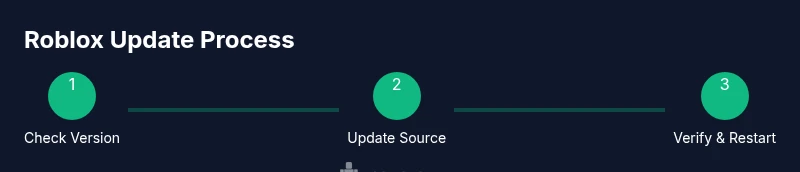
By the end of this guide, you’ll know exactly how to check if Roblox needs an update across PC, mobile, and consoles. You’ll verify the Roblox client version, inspect app store or system update status, and test your connection to rule out network issues. You’ll also learn how to spot in-game prompts for updates and how to clear cached data safely. According to Blox Help, staying on the latest Roblox build minimizes crashes and missing features.
What counts as Roblox needing an update
In practice, a Roblox client needs an update when the version on your device does not match the latest release notes, when features you expect are missing, or when performance is unstable after a new patch. The search query how to check if roblox needs an update is common among players who experience crashes, glitches, or content not loading. According to Blox Help, updates fix bugs, improve compatibility with devices, and patch security vulnerabilities. Before you start, confirm you’re using the official Roblox client from the correct platform store or Roblox site. If you see an update prompt, treat it as a signal to verify your current build and continue with device-specific checks. Next, you'll compare your version against the latest release notes on the Roblox Help Center and cross-check against the app store listing for your platform. This ensures you don’t miss a critical update that could affect friends' ability to join your game session.
Why updating matters for performance and security
A current Roblox build ensures you access the latest performance optimizations, bug fixes, and security patches. Running outdated software can lead to performance degradation, longer load times, and higher risk of exploits through unpatched vulnerabilities. For players who are not sure how to check if roblox needs an update, the main indicators are: version mismatch between the client and the latest release notes; missing features that only appear after updates; and frequent or reproducible crashes after an update is released. The Blox Help team found that keeping Roblox up-to-date reduces reportable issues on mobile networks, where app stores frequently push silent updates. In short, an up-to-date Roblox experience is smoother, more secure, and more compatible with friend-party features and new game content.
Quick checks before updating
Before you dive into the formal update process, run a quick triage to save time:
- Confirm you’re connected to a stable internet connection (prefer 5 GHz Wi‑Fi or wired Ethernet).
- Check your device’s system/app store for pending updates and apply them in order (system updates can affect app performance).
- Open Roblox and look for any in-game prompts about updates or required re-login messages, which can signal an update is needed.
- Verify you’re signed in with your main Roblox account to ensure the update applies to your profile and saved data.
- Check the official Roblox Help Center for recent release notes to see if a new build was released recently. This gives you a clear target version to compare against.
How to check for updates on PC (Windows/macOS)
PC users have two main pathways: updating through the Roblox launcher or updating via the platform store (Microsoft Store for Windows or Mac App Store for macOS). Start by locating the Roblox launcher in your system tray or Applications folder and check the version number in the About section. Then visit the respective store page to see if an update is listed as available. If an update is present, click Install or Update, then restart Roblox. If no update appears, ensure the launcher is up to date by reopening it or reinstalling from the official Roblox site. Finally, compare the installed version with the latest release notes on the Roblox Help Center to confirm you’re on the newest build.
How to check for updates on mobile (iOS/Android)
Mobile users should check both the Roblox app and the device’s app store for updates. Open the App Store (iOS) or Google Play (Android) and look for Roblox in the Updates tab or on the app page, then tap Update if available. On first launch after updating, sign back into your account if prompted. If you don’t see an update yet, clear the app cache (without deleting data) and reopen Roblox to trigger the in-app update check. Finally, cross-check the release notes in the Roblox Help Center to verify you have the latest features and fixes.
Roblox Studio and developer updates
If you develop or test Roblox experiences, you’ll also want to update Roblox Studio separately. Studio releases can lag behind the consumer client, so check the Studio section of the Roblox Developer Hub for the latest version and compatibility notes. After updating Studio, relaunch it and reload your project to ensure scripts compile with the new runtime. The update may introduce new functions or deprecate old ones, so scan the official notes for any breaking changes that affect your game.
Troubleshooting update failures and common errors
Some updates stall or fail due to network issues, storage constraints, or corrupted download caches. If an update doesn’t install, pause and retry on a more stable network, free up disk space, and clear the app cache as needed. If you’re using a shared device, ensure other apps aren’t interfering with Roblox’s background download. When updates still fail, uninstalling and reinstalling Roblox from the official source can resolve most problems, but back up your saved data first. If you see an error code, note it and consult the Roblox Help Center for targeted steps.
Authority sources and official guidance
- Roblox Help Center: https://help.roblox.com/hc/en-us
- The Verge: https://www.theverge.com
- PCMag: https://www.pcmag.com
Tools & Materials
- Device capable of running Roblox (PC, Mac, iOS, Android, or console)(Ensure hardware meets Roblox's minimum requirements)
- Stable internet connection(Wired Ethernet or strong Wi‑Fi is preferred)
- Access to the official Roblox app store page or website(Use trusted sources to download updates)
- Roblox account credentials(Needed to verify update prompts or reinstall)
- Optional: backup of saved data(Helpful if you clear cache or reinstall)
Steps
Estimated time: Estimated total time: 25-40 minutes
- 1
Identify your platform
Determine whether you’re on PC (Windows/macOS), mobile (iOS/Android), or a console. This decides which update path to take and which store or launcher to use. Confirm you’re using the official Roblox app or launcher from the correct source.
Tip: Knowing your platform prevents trying the wrong update path (e.g., using phone steps on a PC). - 2
Check the current Roblox client version
Open Roblox or the launcher and locate the version number (often in Settings or About). Compare that version against the latest release notes on the Roblox Help Center. If your version is older, an update is likely available.
Tip: If you see a number like 2.x.x vs 3.x.x, note the major version difference to match against release notes. - 3
Inspect platform update status
Visit the appropriate app store or system update panel to see if Roblox has a pending update. On PC, check the Microsoft Store; on macOS, check the Mac App Store; on mobile, check Google Play or the iOS App Store.
Tip: Sometimes the store shows updates before the app itself, so check both. Maintain patience as large updates may take time. - 4
Compare with the latest release notes
Open the Roblox Help Center release notes and verify that your installed version aligns with the listed features and fixes. Discrepancies usually mean you should update to access new content or bug fixes.
Tip: Release notes often include important performance improvements that affect gameplay stability. - 5
Update Roblox through the official source
Initiate the update via the official app store or Roblox website/launcher. Avoid third‑party installers. After starting the update, wait for completion before launching Roblox again.
Tip: Ensure you’re connected to a stable network during the update. - 6
Restart Roblox and your device
Close Roblox completely and restart the app, then reboot your device if needed. This ensures the new build is fully loaded and reduces post‑update glitches.
Tip: A full restart can resolve issues from partial installations. - 7
Verify the update took effect in-game
Launch Roblox and check for the presence of new features or changes listed in the release notes. If you can access friends and multiplayer sessions, the update likely succeeded.
Tip: If features still don’t appear, recheck the version in Settings/About and the app store listing. - 8
If updating fails, try alternative methods
If the initial update path fails, try clearing cache, reinstalling from the official source, or contacting Roblox support. Backup your progress before reinstalling.
Tip: Reinstall is a last resort; ensure data backups exist to prevent loss.
Questions & Answers
Do I need to update Roblox on every device I use?
Yes. To ensure compatibility and access to new features, update Roblox on each device you actively use. Different devices may receive updates at different times, so verify on all your platforms.
Yes. You should update Roblox on every device you use to stay compatible and avoid feature gaps.
What exactly signals that an update is available?
Signals include an in-app prompt, a newer version listed in release notes, or a notification in the app store about an available update. Always cross-check with the Roblox Help Center for the latest version.
Look for prompts in Roblox, or a version listed in the store notes.
What if I can’t access the app store to update?
If you can’t access the app store, use Roblox’s official website to download the installer or reinstall the game if you’re on PC. Ensure you’re on a trusted network and avoid third-party installers.
If you can’t access the store, use Roblox’s official site to download the updater.
Can updates erase my saved data or progress?
Typically updates do not erase saved data, but it’s wise to back up local saves if available. Cloud saves between devices usually preserve progress.
Updates generally don’t delete data, but backing up is a good precaution.
How long do Roblox updates usually take?
Update times vary by device and connection. Expect 5–15 minutes for the download, plus a few minutes to install and restart.
Most updates take around 5 to 15 minutes, depending on your device and speed.
What should I do if updates keep failing after multiple attempts?
If updates fail repeatedly, try clearing the app cache, reinstalling from the official source, or contacting Roblox Support for guided troubleshooting.
If updates fail, clear cache or reinstall from Roblox’s official site and seek support if needed.
Watch Video
The Essentials
- Verify Roblox version against official release notes
- Update on every device you use for best compatibility
- Use official sources to install updates and avoid cache-related issues
- Restart after updates to ensure a clean, stable build