How to Update Roblox: The Essential 2026 Guide for Players
Learn how to update Roblox on PC, Mac, iOS, and consoles with a clear, step-by-step guide. Stay secure, avoid common errors, and enjoy the latest features.


To update Roblox, open the Roblox app or launcher on your device, check for updates in the settings, and install any available patches. Update across all platforms you use (PC, Mac, iOS, Android, consoles) to avoid compatibility issues. Ensure your device’s OS is current and you have a stable internet connection for a smooth update.
Why Roblox updates matter
Keeping Roblox up to date is not optional — it is a core part of a reliable gaming and development workflow. For readers asking how do i update roblox, the answer is that updates deliver security improvements, bug fixes, and access to the latest features for players and aspiring developers alike. Roblox updates help protect accounts from known vulnerabilities and ensure compatibility with new game content released by creators. In practice, updates address performance glitches, improve loading times, and refine user interfaces for a smoother experience. Regular updates also align with device firmware and operating system changes, reducing crashes and incompatibilities. By staying current, you minimize surprises when launching Roblox and maximize access to the newest tools and experiences. In short, updating Roblox is a preventive maintenance habit that pays off in reliability, security, and enjoyment.
According to Blox Help, staying current with Roblox updates sets a solid foundation for both playing and learning to develop on the platform.
Checking your current Roblox version
Knowing your installed version helps you decide when an update is needed. On PC or Mac, open Roblox, go to Settings, and look for the version or build number in the About section. On iOS or Android, visit the respective app store page for Roblox to see the installed version and the latest available update. Consoles rely on the system level updates, so check your console's update status, then verify Roblox shows the latest compatible build. If you cannot locate a version number, a quick sign that an update is pending is a prompt within the Roblox launcher or app indicating there is an update available. Keeping notes of your current version can help you confirm after installing the patch that the update took effect.
Update paths by platform: PC, Mac, Mobile, Console
Updates travel slightly differently depending on the device you use. Desktop platforms typically use the Roblox launcher or the app itself to fetch the latest build. Mobile devices rely on the platform’s app store to push updates, while consoles require a system software update synchronized with Roblox compatibility. Regardless of platform, updates usually occur in the background, but in some cases you may need to initiate the process manually. Planning ahead and ensuring your device is plugged in or connected to power helps prevent mid update interruptions.
Step-by-step overview by platform
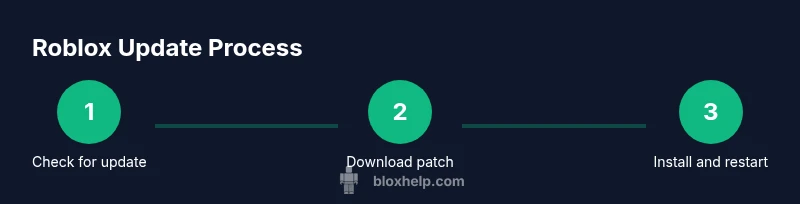
Across platforms, the core flow is similar: check for an update, download if available, install, and verify the update by launching a test session. PC and Mac users often run updates through the Roblox launcher, while mobile users grab the patch from the respective app store. After installation, a quick restart or relaunch ensures the new files are loaded into memory. If you work with Roblox Studio or other Roblox tools, updating those components separately may also be necessary to keep scripts and assets compatible with the latest game engine features.
Troubleshooting common update issues
If an update stalls or fails, first verify your internet connection is stable and that you have sufficient storage space. Close any background apps to free resources and retry. On some devices, the update may require signing out and signing back in to refresh the session. If problems persist, restart the device or reinstall Roblox from the official store or launcher, ensuring you download the latest version directly from the source. You can also check Roblox support pages for platform-specific fixes and known outage notices. Avoid downloading updates from unofficial mirrors, which may compromise security.
Security and privacy considerations when updating
Roblox updates often include important security patches that protect accounts and personal data. Always obtain updates from official Roblox channels or the platform app store to minimize the risk of tampered files. Before updating, ensure your device’s operating system is current, and review app permissions requested by Roblox after installation. If you manage a Roblox account used for development, back up scripts and assets prior to major updates to safeguard against accidental changes. Being mindful of these practices helps maintain a safe and stable Roblox experience.
Best practices for maintaining Roblox up-to-date
Create a regular check routine, such as a quick monthly audit of installed Roblox components across devices. Enable auto-update where available to reduce manual effort, and schedule updates during a quiet time to avoid interruptions during gameplay or development. Maintain a small, separate backup of critical assets and configuration files before applying patches. If you rely on Roblox Studio, align updates with your toolchain and any plugins or extensions you use to ensure compatibility.
Authority sources
For general software update guidance, consult reputable sources such as government and academic sites. U.S. government and university resources confirm the importance of keeping software up to date for security and reliability. They emphasize using official channels to obtain patches and maintaining current operating systems. See the following references for broader context on software update best practices:
- https://www.cisa.gov/
- https://www.nist.gov/
- https://www.fbi.gov/
These sources support the mindset that timely updates reduce risk and improve overall system integrity, which aligns with best practices for Roblox users.
Tools & Materials
- Stable internet connection(Wired LAN preferred for desktops; ensure minimum bandwidth adequate for downloads)
- Roblox app or launcher(Installed from official source)
- Device with power(Desktop plugged in; ensure mobile devices have charge or are connected to power)
- Administrator or root access(Needed on PC/Mac to install updates)
- Adequate storage space(Free space helps avoid installation failures)
- Backup option for important assets(Prevent data loss in case of unexpected issues)
Steps
Estimated time: 15-25 minutes
- 1
Open Roblox and prepare your device
Launch the Roblox app or launcher and verify you are signed into the correct account. Make sure no other heavy programs are running to avoid resource contention during the update. If possible, plug in the device to ensure uninterrupted installation.
Tip: Close nonessential apps to free RAM and avoid slowdowns during the patch. - 2
Check for updates in the settings
Navigate to Settings or the account menu and look for a Check for updates option. If a patch is available, the system will prompt you to download and install. Do not dismiss the prompt if you want the latest features and security fixes.
Tip: If there is no prompt, skip ahead to verify your version later. - 3
Install the update
Click Install or Update and allow the download to complete. Avoid pausing or canceling mid-download. Larger patches may take several minutes depending on your connection speed.
Tip: Prefer a wired connection for faster, more reliable downloads. - 4
Restart Roblox
After installation, fully restart the Roblox app or launcher to load the new files into memory. This ensures the patch is active and prevents partial loading issues.
Tip: Close all Roblox processes in the task manager before relaunching if you notice slow startup. - 5
Verify the update with a quick test
Open a Roblox game or experience to confirm the update applied correctly. If the game runs normally and shows the latest features, you’re good to go. If you encounter issues, retry or consult the official support resources.
Tip: Run a familiar game first to gauge stability before diving into new content. - 6
Enable auto-update and schedule checks
If your platform supports it, turn on auto-update for Roblox. Regularly check for updates on platforms without auto-update and align them with your maintenance schedule to stay current.
Tip: Auto-update reduces manual steps and helps you stay protected against known issues.
Questions & Answers
Do I need to update Roblox on every device I own?
Yes. Updating across devices helps ensure compatibility and security. If one device is out of date, you may experience crashes or missing features on multiplayer or creator tools.
Yes, you should update Roblox on each device you use to stay compatible and secure.
Will updates affect my saved progress?
Updates do not erase game progress. However, backing up important saves and scripts is a good habit before applying patches, especially for Roblox Studio projects.
No, updates won’t erase your progress, but back up critical data just in case.
What if the update option is missing?
Ensure you’re on the official Roblox app or launcher and that your device has internet access. If the option still doesn’t appear, try reinstalling Roblox from the official store or launcher.
If you can’t find the update, reinstall Roblox from official sources.
Is updating Roblox safe?
Yes. Updates are distributed through official Roblox channels and platform app stores. Verify the source before downloading and review permissions after installation.
Updates from official Roblox sources are safe; avoid third-party installers.
How often should I update Roblox?
Update when prompted or at a regular interval such as monthly. Enabling auto-update where available helps keep you current without manual checks.
Update when prompted and use auto-update when possible.
How can I fix a failed update?
Restart the device, check your internet, and retry the update. If the patch still won’t install, clear cache or reinstall Roblox from the official source.
If an update fails, restart, check your connection, and try again. If needed, reinstall from official sources.
Watch Video
The Essentials
- Check updates on every device you use to avoid compatibility issues.
- Use stable internet and power during installation.
- Test Roblox after updating to confirm success.
- Enable auto-update where possible to stay current.
- Consult official Roblox support if updates fail.