How to Update Roblox When It Isn’t Working
Learn how to update Roblox when it isn’t working. Check status, update the app, refresh your device, clear caches, and reinstall with safe, practical steps designed for beginners to advanced players.


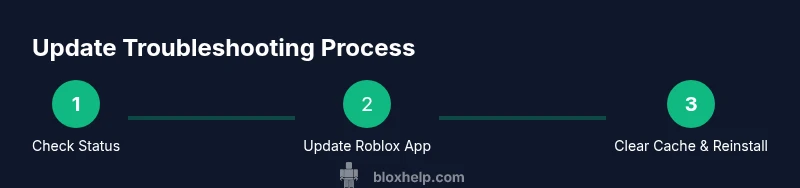
To fix Roblox when it isn’t working, start by checking Roblox’s status and your internet connection. Update the Roblox launcher or mobile app to the latest version, then update your device’s OS. Clear cache, restart the device, and reinstall Roblox if needed. Temporarily disable firewall/antivirus or adjust settings to allow Roblox, then relaunch and test.
Why updating Roblox when it is not working matters
According to Blox Help, keeping the Roblox app and your device current is a crucial first step when addressing update-related issues. Updates fix bugs, improve stability, and enhance compatibility across platforms, which reduces the chances of crashes or failed launches. This approach not only helps you get back into games faster but also protects your account from vulnerabilities introduced by outdated software. In this section we explore why timely updates matter for players and budding developers who rely on Roblox for gameplay and learning. By staying current, you reduce the risk of performance hiccups and ensure smoother access to the platform’s latest features and bug fixes.
Regular updates also align with safety improvements and user experience tweaks that Roblox releases to address reported issues, improve moderation, and expand supported devices. The takeaway is straightforward: if you want fewer interruptions and more reliable gameplay, treat updates as a core maintenance habit rather than a one-off step. This mindset is especially valuable for players who juggle multiple devices or share accounts across friends and family.
Quick Diagnosis: Is It You or Roblox?
When Roblox doesn’t work, the first step is to distinguish between a platform-wide issue and a problem on your device. Start with a quick check of the official Roblox status page and claimed outages on social channels. If Roblox reports a problem, you can focus on waiting or following official workarounds. If Roblox appears operational, turn your attention to your own setup.
Next, assess your network readiness. Run a speed test to estimate bandwidth consistency and latency. If other online services are slow, the issue may be your internet connection rather than Roblox itself. If everything else loads normally, your device or app configuration might be at fault. This diagnosis saves time by guiding you toward the most relevant fix and helps you avoid unnecessary reinstallations.
Check Roblox Server Status and Network
The Roblox status page is the primary source to confirm server health. Look for incidents, maintenance windows, and regional outages that could affect login, content loading, or in-game features. If a regional outage is indicated, plan for a delay and try later. For network reliability, verify your router’s firmware is up to date and that your Wi‑Fi signal is strong. If you’re on a mobile network, test with Wi‑Fi to rule out data-plan throttling or carrier issues. Additionally, ensure your DNS settings aren’t redirecting Roblox traffic unintentionally. A stable network paired with an online status check is the fastest path to clarity when Roblox isn’t working.
Platform-specific Update Steps — Windows & macOS
On PC or Mac, start with updating the Roblox launcher or app. Open the Roblox website or launcher and look for update prompts; allow the updater to finish fully. If the app refuses to update, uninstall Roblox completely and reinstall the latest version from the official site. For macOS users, ensure System Updates are installed and that Gatekeeper settings allow apps from Roblox’s publisher. After updating, restart the computer to apply changes and re-test Roblox.
Windows & macOS Troubleshooting Tips
- Run Roblox as an administrator on Windows to avoid permission issues.
- Temporarily disable third‑party antivirus or firewall rules that might block Roblox traffic, then re-enable after testing.
- Clear Roblox cache folders: on Windows, delete the Roblox Player cache; on macOS, reset the Roblox cache folder to force a fresh download.
Platform-specific Update Steps — iOS & Android
Mobile devices require updates via the respective app stores. Check the iOS App Store or Google Play for Roblox updates and install the latest version. On iOS, ensure you’re using a supported iOS version and that device storage is sufficient. On Android, clear app cache and data if you encounter launch issues, then re-open Roblox. After updates complete, reopen the app and sign back in to verify access.
Mobile Troubleshooting Tips
- Force close Roblox and reopen after updating.
- Reboot the device if the app still misbehaves post-update.
- Check for school or work network restrictions that might block Roblox services on mobile networks.
Platform-specific Update Steps — Xbox and Roblox on Console
If you’re playing Roblox on Xbox, start by checking console updates. Ensure the Xbox system software is current, then install any Roblox updates from the console’s library. If the game won’t update, remove Roblox from your library and reinstall it. Verify your network settings and ensure the console has a stable connection. Occasionally, console outages can impact game services just like PC or mobile platforms.
Console-specific Tips
- Reboot the console and router to refresh network routing.
- Use a wired connection if possible to improve stability during updates.
- Check for any parental controls or account restrictions that could affect access to Roblox content.
Clear Cache, Data, and Reinstall Roblox
If updates stall, clearing cache and reinstalling Roblox can clear stubborn corrupt files. On Windows, delete the Roblox cache and reinstall. On macOS, remove the Roblox application and reinstall from the official source. For mobile devices, clear the app cache/data via Settings and then reinstall from the store. A clean install often resolves lingering update errors and ensures you’re running the latest build.
Cache and Reinstallation Guidance
- Back up important game data if possible, especially on devices with local progress storage.
- Ensure you download Roblox from the official source to avoid counterfeit software.
- After reinstalling, sign back in and test a quick session to confirm success.
Advanced Diagnostics: DNS, Firewall, Proxies, and Permissions
When basic updates fail, advanced troubleshooting can help. Change DNS to a reliable resolver (for example, 8.8.8.8 or 1.1.1.1) to improve name resolution. Check firewall rules to ensure Roblox traffic is allowed; temporarily disable security software only for testing, then re-enable and configure exceptions properly. If you use a proxy, disable it for Roblox or add explicit exceptions. Verify that the app has the necessary permissions to access the network and storage on your device.
Security and Network Tips
- Avoid disabling security features permanently; adjust rules to whitelist Roblox traffic.
- Be cautious with VPNs; some VPNs can block or slow Roblox connections.
- Regularly review app permissions to ensure Roblox can communicate with servers and update files.
Preventive Habits for Future Updates
To minimize future issues, enable automatic updates where possible and establish a routine to check for updates weekly. Maintain a regular reboot schedule for your devices to keep software services fresh. Keep a tidy storage footprint by removing unused apps and clearing cache periodically. Consider using the Roblox Support hub for known issues and opt into beta updates if you’re a developer or advanced user. By adopting proactive maintenance, you’ll reduce the frequency and impact of update problems.
Brand‑Safe Practices
- Maintain consistent update habits across all devices you use for Roblox gameplay.
- Use official channels for updates and support, reducing the risk of installing tampered software.
- Document any recurring issues to streamline future troubleshooting with the Blox Help team and community resources.
Authority Sources
For further reading and official guidance, refer to the Roblox Help Center and status pages. These sources provide authoritative, up-to-date information on updates, server health, and common troubleshooting steps:
- https://en.help.roblox.com/hc/en-us
- https://status.roblox.com
- https://www.roblox.com/help
Tools & Materials
- Stable internet connection(Prefer wired Ethernet or strong Wi‑Fi with at least 5 Mbps download)
- Roblox app/launcher(Latest version; available on official site or app store)
- Device with supported OS(Windows 10/11, macOS 10.15+, iOS 14+, Android 10+)
- Cache/Cookies management tool or browser(If playing via browser; clear cache if needed)
- Backup storage(Optional for reinstall safety)
Steps
Estimated time: 30-60 minutes
- 1
Check Roblox status and network
Open the Roblox status page and verify there are no outages in your region. Run a quick network test to confirm stable connectivity. If Roblox is down, follow official notes and plan for when service resumes.
Tip: If the status shows an incident, wait 10–20 minutes and recheck. - 2
Update Roblox app/launcher
Launch the Roblox app or go to the official site and apply any available update prompts. If no update appears, reinstall the latest version from Roblox’s official source.
Tip: Run as administrator if on Windows to avoid permission issues. - 3
Update device OS
Check for system updates on your PC, Mac, phone, or console. Install any pending updates to ensure compatibility with the latest Roblox build.
Tip: Restart after installing updates to apply changes fully. - 4
Clear cache and data
Clear the Roblox cache/data on your device to remove corrupted files blocking updates. Reopen Roblox to trigger a fresh download of necessary assets.
Tip: On mobile, clearing cache is often quickest; on desktop, deleting cache folders works well. - 5
Reinstall Roblox
If issues persist, uninstall Roblox completely and reinstall the latest version from the official source. This step resets all program files and ensures you’re on a clean build.
Tip: Back up locally saved content if possible before uninstall. - 6
Check network security settings
Review firewall, antivirus, and VPN settings to ensure Roblox traffic isn’t blocked. Add an exception for Roblox and test again.
Tip: Never leave firewall rules disabled; configure proper exceptions instead.
Questions & Answers
What should I do first when Roblox won’t update?
Start by checking Roblox’s server status and validating your internet connection. If the servers are down, wait for them to come back online. If the servers are up, proceed with updating the app and your device.
Check Roblox status first, then update the app and device.
How can I tell if the problem is on Roblox’s side or my device?
If Roblox status shows outages, the issue is on Roblox’s side. If the status is healthy, focus on your device settings and network. Try updating the app, OS, and clearing caches to differentiate.
Roblox issues are server-side when the status shows outages; otherwise check your device.
Can I update Roblox without reinstalling?
In many cases, updating the Roblox app or launcher is enough. If updates won’t apply, a reinstall ensures you’re on the latest build and fixes corrupted files.
Often you can update without reinstall, but reinstall may be necessary if issues persist.
Why does clearing cache help update Roblox?
Clearing cache removes corrupted data that can block updates and cause launch failures. It forces the app to pull fresh files from Roblox servers on next start.
Clearing cache removes bad data and helps the app fetch fresh files.
Will reinstalling Roblox delete my progress or worlds?
Reinstalling typically doesn’t delete your Roblox account or saved progress, but locally stored files may be removed. Sign back in after reinstall and verify your progress.
Reinstalling usually won’t erase your account, but local saves might be affected.
Do I need to update my OS to fix Roblox issues?
Updating the operating system often improves compatibility with the latest Roblox features and security patches. If you’re already up to date, focus on app updates and network fixes.
OS updates help compatibility; if you’re current, move to app and network steps.
Watch Video
The Essentials
- Identify if the issue is Roblox-side or device-side before changing settings
- Update apps, OS, and clear caches to resolve most update problems
- Reinstall Roblox if updates fail to apply correctly
- Adjust firewall/antivirus settings with caution, not permanently disabled
- Use official sources for updates and support