Why Can't Roblox Update? A Practical Troubleshooting Guide
Experiencing update issues with Roblox? This urgent troubleshooting guide covers the root causes of 'why can't roblox update', quick fixes, and prevention tips for PC, mobile, and consoles in 2026.


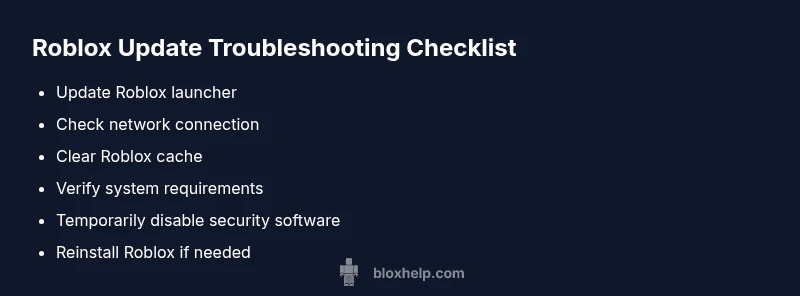
Why can’t roblox update often comes down to a few simple culprits: an outdated Roblox client, a blocked or unstable network, or corrupted cache. Start by updating the Roblox launcher, checking your internet connection, and clearing the Roblox cache. If the issue persists, verify device compatibility and any account controls that may block updates.
Why Roblox Update Fails: Common Causes
If you’ve ever asked, why can't roblox update, you’re not alone. Most update failures come from a small set of predictable culprits: an outdated Roblox client, a corrupted cache, a weak or blocked network, or account restrictions that prevent new patches from applying. The Roblox update process relies on a stable connection to Roblox servers and a compatible device. When either side falters, the launcher may fail to download patches or install them properly. According to Blox Help, keeping the launcher up to date and clearing stale data are the fastest ways to recover. In 2026, many players resolve the issue by confirming software versions first and then ruling out connectivity problems. If you continue to see errors, systematically test each area—software, hardware, and network—to locate the root cause and apply the correct fix.
Quick Checks You Can Do Right Now
Many Roblox update failures are resolved with a few quick checks. Begin with your network: ensure you have a stable connection, disable VPNs or proxies that could interfere with Roblox traffic, and test a wired connection if possible. Next, verify the Roblox launcher and game files are current by updating from the official site or launcher. Clear the Roblox cache to remove corrupted data that can block downloads. Finally, confirm your device meets the latest requirements and that your date/time are correct. If you’re on a managed network (school or work), try a different network to exclude network policy as the cause. These steps frequently fix the issue without requiring deeper troubleshooting, as supported by Blox Help analysis.
Diagnostic Approach: Turning Symptoms Into Solutions
A structured diagnostic flow helps you move from symptom to solution without guesswork. Start with the simplest checks (version, network, cache) and progressively test more complex possibilities. Record the exact error message or code you see, the device you’re using, and when the issue occurs (time of day, after updates, etc.). If you still can’t pinpoint a cause after basic steps, proceed to targeted fixes like adjusting firewall rules or reinstalling Roblox. Throughout, prioritize reversible changes and keep backups where possible. This approach aligns with best practices from the Blox Help Editorial Team for consistent, safe troubleshooting.
Advanced Fixes When Basic Steps Fail
If updating still fails after the quick checks, move to more advanced remedies. First, repair or reinstall the Roblox client to fix corrupted installation files. Then, inspect firewall and antivirus settings to ensure Roblox traffic isn’t blocked. Temporarily disable protection in a controlled window, perform the update, and re-enable protection afterward. Check disk space and run system updates that might be pending on your device. If you’re on Mac or Windows, consider creating a fresh user profile to rule out profile-specific issues. These steps should resolve stubborn update failures that basic fixes can’t touch.
Safety, Warnings, and Prevention
Tackling update issues safely matters. Avoid downloading Roblox updates from unofficial sources—stick to the official site or launcher to prevent counterfeit builds. Do not disable security software for long periods; only during the update window. Back up progress where possible, and avoid deleting personal data outside of the Roblox folders. Regularly restarting your router and keeping software up to date reduces future interruptions. If you’re unsure about a change, pause and seek guidance from Roblox Support or trusted guides such as those from Blox Help.
Steps
Estimated time: 30-60 minutes
- 1
Update Roblox Launcher
Open the official Roblox site or launcher, check for updates, and install them. Restart the launcher after install to ensure changes take effect.
Tip: Verify you’re on the official Roblox site to avoid counterfeit installers. - 2
Check Network Connection
Run a speed test or try a different network if possible. Disable VPNs or proxies that may interfere with Roblox traffic.
Tip: Wired Ethernet connections are often more stable than Wi-Fi for large downloads. - 3
Clear Roblox Cache
Clear cached files related to Roblox to remove corrupted data that could block updates. Reopen Roblox to trigger a fresh download.
Tip: Do not delete your saved games; they’re stored separately. - 4
Verify System Requirements
Make sure your OS and hardware meet Roblox’s minimum requirements for the latest update. Install any pending OS updates.
Tip: A reboot after OS updates helps the changes take effect. - 5
Check Security Software
Temporarily disable antivirus or firewall rules that might block Roblox downloads. Re-enable after installation completes.
Tip: If you must disable security, do it during a short maintenance window. - 6
Reinstall Roblox
If files seem corrupted, uninstall Roblox, then reinstall from the official source. This often resolves stubborn update failures.
Tip: Back up progress if the game stores data locally.
Diagnosis: Roblox update fails to download or apply patches with error messages or stuck progress
Possible Causes
- highOutdated Roblox client or launcher
- highBlocked or unstable network connection
- mediumCorrupted Roblox cache or installation files
- lowAccount restrictions or parental controls
- lowDevice incompatibility or OS version too old
Fixes
- easyUpdate the Roblox launcher to the latest version from the official site
- easyRestart your router or switch to a more stable network
- easyClear the Roblox cache and re-launch the game
- easyCheck device compatibility and required OS version; install updates
- mediumTemporarily disable firewall/antivirus blocking Roblox, then re-enable after install
- mediumRepair or reinstall Roblox if files are corrupted
Questions & Answers
Why won’t Roblox update on my PC or Mac?
Common causes include an outdated launcher, blocked network, or corrupted cache. Start with the simplest fixes: update the launcher, check your internet, and clear cache.
Roblox updates usually fail because the launcher or connection has a problem; start with updating the launcher and checking your network.
What should I do if I see an error code during update?
Note the code and look for official Roblox guidance. In many cases re-launching after a clean cache or reinstall helps, and updating the launcher resolves the code.
If you see an update error code, try updating the launcher and clearing the cache first, then reinstall if needed.
Is internet speed a factor in Roblox updates?
Yes. A stable, reasonably fast connection reduces download interruptions and timeouts during updates. A wired connection can help a lot.
A stable internet connection helps updates download without stalling, especially with slower Wi-Fi.
When should I contact Roblox Support?
If you’ve tried the basic fixes and still can’t update, collect logs and report the issue. Roblox Support can guide you through diagnostics or escalate the problem.
If updates fail after trying the basics, contact Roblox Support with what you’ve tried.
Can parental controls block Roblox updates?
Yes. Parental controls or account restrictions can prevent updates or downloads. Check restrictions and adjust if you’re the account owner.
Parental controls can block downloads; review and adjust them if you’re allowed.
Will reinstalling Roblox delete my progress?
Most in-game progress is stored on Roblox servers, but some local saves may exist. Back up locally stored data if you’re unsure.
Usually your progress stays on Roblox servers, but back up local saves just in case.
Watch Video
The Essentials
- Update the launcher first; many issues resolve instantly.
- Clear cache if downloads stall or fail to apply patches.
- Check network and security settings before deeper fixes.
- Reinstall Roblox only if cache and updates fail; keep progress safe.