How to Fix Low Memory on Roblox: Step-by-Step Guide
Learn practical steps to fix low memory issues in Roblox. From quick fixes to graphics tweaks, this beginner-friendly guide helps you keep Roblox games running smoothly.


This guide helps you fix low memory issues in Roblox with step-by-step memory fixes. Start with quick actions (close unnecessary apps, restart Roblox, update the client) and progress to deeper tweaks (graphics optimization, cache clearing, and memory monitoring). If needed, consider hardware or storage upgrades for sustained performance.
Why memory issues happen in Roblox
Roblox uses a large portion of your system RAM to load textures, scripts, and assets for smooth gameplay. When the game competes with other applications for memory, you can notice stuttering, longer load times, or crashes. According to Blox Help, many players encounter memory pressure when background programs are active or when Roblox runs on hardware with limited RAM. In practice, the solution is twofold: give Roblox enough headroom on the system and reduce other memory drains. Start by identifying top memory consumers on your device, then apply targeted tweaks to Roblox and your OS.
Quick fixes you can try now
If Roblox is currently acting up, begin with the simplest fixes:
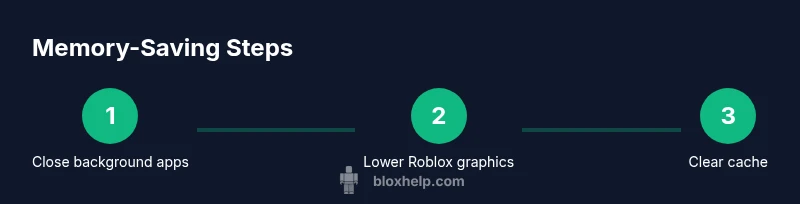
- Close nonessential apps and browser tabs to free RAM.
- Restart Roblox to clear temporary memory caches.
- Update Roblox to the latest client, which often contains memory-management improvements.
- Clear Roblox caches if you notice stale assets or texture glitches.
- Restart your computer if the system has been on for a long time or you still experience issues after the above steps. Pro tip: perform these steps in order and re-test Roblox after each one to gauge impact.
How to optimize Roblox settings for memory efficiency
Lowering in-game settings dramatically reduces memory pressure. Start with these adjustments in the Roblox settings menu:
- Graphics Quality: set to Low or Medium as a baseline.
- Enable/disable Textures: turn off or reduce texture resolution where possible.
- Shadows and Post-Processing: disable shadows, bloom, and anti-aliasing.
- Rendering mode: try DirectX 11 if you experience driver-related memory leaks, otherwise keep the default.
- Frame options: reduce Maximum FPS to a value that still feels responsive; this cuts down peak memory usage during bursts. After applying each change, launch a short test game segment to confirm improved smoothness without sacrificing essential visuals.
Manage background apps and system resources
Beyond Roblox settings, manage memory at the OS level:
- On Windows, open Task Manager (Ctrl+Shift+Esc) and end tasks for nonessential programs.
- On macOS, use Activity Monitor to quit memory-heavy apps and monitor RAM pressure.
- Disable or delay startup programs that launch automatically at boot.
- Ensure there is adequate free disk space; the system uses disk cache and virtual memory that rely on available storage.
Platform-specific tips: Windows, macOS, and mobile
Windows: keep graphics drivers up to date; enable dedicated graphics processor for Roblox if available; adjust power settings to High Performance while playing. macOS: ensure System Integrity Protection isn’t restricting Roblox; quit unused apps and monitor Memory Pressure in Activity Monitor. Mobile (iOS/Android): close background apps, clear Roblox cache via in-app settings if available, and keep device storage reasonably free; memory behavior differs on mobile, so avoid long background sessions with many apps running.
Free up storage and memory with in-game actions
Freeing up storage helps with memory allocation for Roblox, especially when large asset caches exist. Consider:
- Deleting or moving unused files to external storage.
- Reinstalling Roblox if cache corruption is suspected.
- Regularly restarting devices after extended play sessions to reclaim memory from the OS cache. Note: Back up important files before deleting anything. After performing these steps, verify Roblox stability with a short test run.
When to upgrade hardware or reinstall Roblox
If you consistently hit memory walls, a hardware upgrade may be warranted. Consider increasing system RAM capacity where feasible and ensuring ample fast storage (SSD) for caching and game data. Reinstall Roblox only if you encounter persistent corruption or performance regressions after all other tweaks; this can clear deeply cached data and fix stubborn leaks.
How to monitor memory usage during Roblox play
You can actively monitor memory to verify improvements:
- Windows: open Task Manager, switch to the Performance tab, and watch the Memory gauge while Roblox runs.
- macOS: use Activity Monitor and check the Memory tab for RAM usage by Roblox.
- On mobile, use the built-in device memory tools or developer options to view app RAM impact. If you notice Roblox memory staying high after tweaks, revert to a previous settings combination and retest.
Tools & Materials
- Latest Roblox client(Ensure you are signed in and updated to the latest version.)
- PC or Mac with up-to-date OS(Check for OS updates and security patches.)
- Task Manager / Activity Monitor(Used to monitor memory during play.)
- Stable internet connection(Reduces download throttling and assets loading hiccups.)
Steps
Estimated time: 60-90 minutes
- 1
Close unnecessary programs
Before launching Roblox, close nonessential applications to free up RAM and reduce background activity. This helps ensure Roblox has enough headroom to load assets smoothly.
Tip: Use the Task Manager or Activity Monitor to identify memory hogs and quit them one by one. - 2
Update Roblox to the latest version
Open Roblox and check for updates; installing the latest client can fix memory leaks and improve efficiency. Updates often include performance fixes.
Tip: Restart Roblox after updating to ensure all new files are loaded correctly. - 3
Restart your computer
A clean reboot clears memory fragmentation and resets background services that may linger. This gives Roblox a fresh environment to run.
Tip: Wait 1–2 minutes after boot before launching Roblox to allow the OS to settle. - 4
Lower Roblox graphics settings
In Roblox settings, reduce Graphics Quality, disable textures or shadows, and lower FPS caps to decrease peak memory usage during play.
Tip: Test with a short in-game run and tune until you find a balance between visuals and stability. - 5
Clear Roblox cache
Clear cache folders to remove corrupted or stale assets that can consume memory. Do not delete personal data or saved games.
Tip: Back up caches if you’re unsure; deleting the wrong files can cause issues. - 6
Manage startup programs
Disable nonessential startup services to free memory at boot. This reduces the time Roblox spends competing for resources on startup.
Tip: Only disable services you recognize; some are necessary for system stability. - 7
Check storage space and free up space
Ensure there is adequate free disk space for virtual memory and caching. Low disk space can reduce available memory for Roblox caching.
Tip: Move large files to an external drive if your primary drive is near capacity. - 8
Test memory usage and adjust
Run Roblox for a short period and monitor memory usage. If it remains high, tweak graphics further or revert to a prior configuration that performed better.
Tip: Keep a simple change log to reproduce successful configurations.
Questions & Answers
What causes low memory errors in Roblox?
Low memory errors in Roblox are often caused by insufficient RAM, memory leaks in the Roblox client, or many other programs competing for RAM. Updating Roblox and closing other apps typically resolves most cases.
Roblox memory errors usually happen when your computer doesn't have enough RAM or other apps are hogging memory; updating Roblox and closing other programs often fixes it.
How do I know if Roblox is using too much memory?
Use Task Manager on Windows or Activity Monitor on macOS to view memory usage by Roblox. If Roblox consistently takes a large share of memory during play, adjust settings or close other apps.
Open your task manager to see Roblox's memory use; if it's consistently high, tweak settings or close other apps.
Will lowering graphics affect gameplay?
Lower graphics reduces memory usage and can improve stability, especially on systems with limited RAM. You may lose some visual fidelity, but gameplay will generally be smoother.
Lower graphics cuts memory use and can make Roblox run smoother, though visuals may be less sharp.
Does upgrading RAM help Roblox?
Increasing RAM can help with memory-hungry games like Roblox, especially if your current RAM is near capacity or you run many background apps.
More RAM can improve Roblox performance if your system is memory-starved.
Can these fixes help on mobile devices?
Yes, but steps differ. Close background apps, free storage, and consider clearing Roblox cache via the in-app options if available. Mobile memory behavior varies by device.
On mobile, close other apps, free storage, and clear Roblox cache if possible.
How do I clear Roblox cache safely?
Navigate to Roblox cache folders and delete cache files, being careful not to remove essential data. Clearing cache can resolve corrupt assets that consume memory.
Delete Roblox cache files from the cache folder; avoid deleting important personal data.
Watch Video
The Essentials
- Close unnecessary apps to free memory.
- Update Roblox to benefit from memory fixes.
- Lower graphics to reduce peak memory usage.
- Monitor memory with Task Manager or Activity Monitor while playing.
- The Blox Help team recommends a systematic approach to memory fixes for stable Roblox sessions.