How to Fix Roblox Error Code 403: Quick, Clear Guide
Learn how to fix Roblox error code 403 quickly with a proven diagnostic flow, immediate fixes, and prevention tips. Blox Help breaks down causes and steps for a speedy recovery.


Error code 403 on Roblox indicates an access restriction, usually due to login state, account restrictions, or regional blocks. Quick fixes include signing out/in, clearing cache and cookies, updating the Roblox app, trying a different network, and checking account status. If the issue persists, contact Roblox Support with context about the error code 403.
What Roblox Error Code 403 Means and Why It Occurs
Roblox error code 403 signals that access to the requested resource is forbidden. This isn’t a simple network hiccup; it usually points to an access restriction tied to your account, device, or network. The Blox Help team emphasizes that 403 is most often tied to account status (suspensions, parental controls, or regional restrictions) rather than a temporary server glitch. If you see 403, start by validating your login state and reviewing any messages from Roblox about your account. Understanding that the error is about permission helps you target the right fix instead of chasing phantom network issues.
Immediate Factors Behind 403: Quick Context for Roblox Players and Developers
The common thread across many 403 cases is restricted access. For players, this can mean an account suspension, a temporarily blocked region, or parental controls that limit gameplay. For developers using Roblox Studio, 403 can surface when attempting to publish or test content from an IP or region that Roblox restricts. In all cases, the underlying idea is that Roblox is denying access on purpose, not due to a random error. This nuance is crucial when deciding between a simple cache clear and a deeper account review.
Clear, Actionable Quick Fixes You Can Try Now
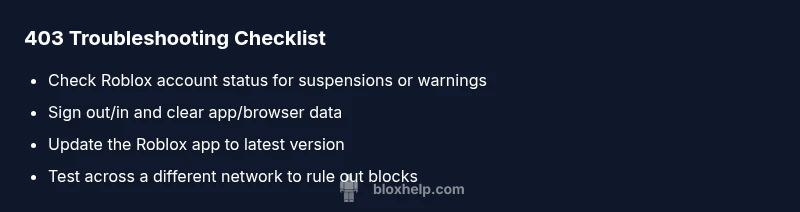
To address how to fix roblox error code 403 quickly, start with these quick fixes in order of impact:
- Sign out from all devices, then sign back in on the device you’re using.
- Clear your app or browser cache and cookies; relaunch Roblox and test access.
- Ensure your Roblox app is updated to the latest version and restart the device.
- Switch to a different network (e.g., mobile hotspot) to rule out IP-related blocks.
- Check your account status and any warnings or messages from Roblox Support about suspensions or parental controls.
Step-By-Step Fix for the Most Common Cause: Account or Parental Controls
If the error persists after quick fixes, follow this detailed fix for the most common cause (account-related restrictions):
- Verify your account status by visiting the official Roblox support page and reviewing any recent messages about suspensions or warnings.
- Sign out of Roblox and clear all data from the device’s storage related to Roblox apps or browsers.
- Reinstall or update the Roblox app to ensure you’re running a clean, current build.
- Log back in with the same credentials and perform a minimal test (e.g., load a main menu, then attempt a game).
- Review parental controls and family safety settings on the account and adjust as needed.
- If access remains blocked, contact Roblox Support with a short, precise description of the 403 error and steps you’ve already tried.
Other Possible Causes and How to Address Them
Beyond account restrictions, the 403 error can stem from regional blocks, server-side policy changes, or misconfigured device settings. If you suspect a regional issue, check Roblox’s regional status pages or official announcements. For developers, ensure your IP is not part of a restricted range and that Roblox Studio permissions align with the project you’re attempting to access. Finally, confirm your date and time settings are correct on the device, as skewed clocks can trigger permission failures.
Safety Tips and When to Seek Help
Never bypass restrictions with VPNs or proxy services; Roblox’s terms of service prohibit evading access controls, and doing so can lead to longer blocks or account penalties. If you’ve tried all steps and still see 403, reach out to Roblox Support with the exact error code, device type, time of occurrence, and any screenshots. This helps the support team diagnose quickly and may speed up resolution.
Prevention: Best Practices to Avoid Roblox Error 403 in the Future
Proactive steps save time:
- Regularly update the Roblox app and system firmware.
- Maintain a clean login session and avoid multiple concurrent logins on sensitive actions.
- Use a stable network and avoid dynamic IP churn when playing at peak times.
- Monitor any account notices or parental-control warnings and address them promptly.
- Document steps that trigger 403 so you can replicate the issue for support if needed.
Steps
Estimated time: 25-45 minutes
- 1
Verify account status
Open Roblox Support and review any recent warnings or suspensions related to your account. Take note of any notices and required actions. This step helps determine if 403 is caused by an account restriction.
Tip: Capture screenshots of any messages to speed up support review. - 2
Sign out and clear data
Sign out from all devices, then clear app/browser cache and cookies to remove stale session data that could trigger permission errors.
Tip: Restart the device after clearing data to ensure changes take effect. - 3
Update and relaunch
Update the Roblox app to the latest version available, then relaunch and test a basic action (e.g., open the main menu) before attempting a game.
Tip: A fresh install reduces risk of corrupted files causing 403. - 4
Test different network
If possible, connect to a different network (mobile data or another Wi-Fi) to determine if the block is network-related.
Tip: Avoid using VPNs; they can violate terms and complicate diagnosis. - 5
Check parental controls
If parental controls are active, verify restrictions and modify them to allow gameplay as appropriate for the account.
Tip: Document the exact controls you changed for reference when contacting support. - 6
Contact Roblox Support
If 403 persists, submit a support ticket with a concise description, time of occurrence, device details, and steps already tried.
Tip: Provide a direct link to the affected game or page if possible to speed up troubleshooting.
Diagnosis: Roblox error code 403 when trying to join a game or load content
Possible Causes
- highAccount-level restriction or suspension
- mediumIP block or firewall blocking Roblox servers
- lowRegional content restriction or policy change
Fixes
- easyCheck account status on Roblox support and review any suspension notices
- easySign out/in and clear cache/cookies on your device
- easyTest access on a different network (e.g., mobile data) to rule out network blocks
- mediumIf access remains blocked, contact Roblox Support with context and steps tried
Questions & Answers
What does Roblox error code 403 mean?
Roblox error 403 means access is forbidden. It usually points to account restrictions, regional blocks, or a blocking policy rather than a temporary server fault. Start by checking your account status and recent warnings from Roblox.
Roblox 403 means access is forbidden, often due to account restrictions or regional blocks; check your account and settings first.
Is Roblox error 403 permanent or fixable quickly?
403 is often fixable by addressing account status, network settings, or parental controls. In many cases, a quick sign-out, cache clear, and retest resolve the issue.
403 is usually fixable after checking account status and clearing data; quick actions can often resolve it.
Should I use VPN to bypass a 403 error?
No. Using VPNs or proxies to bypass a 403 can violate Roblox terms and may worsen the problem or lead to penalties.
Avoid VPNs; they can break rules and worsen access issues.
What information should I provide when contacting Roblox Support about 403?
Include device type, operating system version, exact time of occurrence, steps tried, and screenshots of the error message to speed up resolution.
Provide device details, timing, steps you took, and screenshots when contacting support.
Can regional restrictions cause Roblox error 403?
Yes, regional blocks or policy changes can trigger 403 access denial. Check regional status updates from Roblox and adjust expectations accordingly.
Regional blocks can trigger 403, so check Roblox updates for your region.
What’s the first thing to try when I see 403?
Sign out, clear cache, update the app, and sign back in. If the issue continues, test on a different network.
First, sign out, clear data, update, and test on another network if needed.
Watch Video
The Essentials
- Diagnose 403 as an access permission issue, not a random glitch
- Start with account status and simple cache clears
- Test across networks before deeper troubleshooting
- Escalate to Roblox Support with precise details