Why Roblox Can’t Chat: Quick Troubleshooting Guide Today
Discover why Roblox can’t chat and how to diagnose chat restrictions, account status, and network issues with step-by-step fixes from Blox Help. Immediate actions, safety tips, and prevention for smoother chats.


Most chat blocks in Roblox are caused by a temporary safety flag or a network issue. The quickest fix is to sign out and back in, verify your account status, and check your internet connection. If the problem persists, try clearing the app cache or playing in a different device.
Understanding Roblox Chat Controls and Common Block Scenarios
If you’ve ever wondered why roblox can t chat, you’re not alone. Roblox’s chat system is designed to protect players, especially younger users, and it can be blocked by safety flags, account status, or connectivity problems. In this section, we outline the most common scenarios that lead to chat restrictions and how to identify which one is affecting you. You’ll learn to distinguish between a temporary moderation flag, a device or network issue, and a platform-wide service problem. With this clarity, you can target the right fix in minutes rather than hours.
By recognizing the signs—for example, a game-wide chat outage versus a single friend’s message you can’t send—you’ll save time and frustration. This primer also helps you navigate the language Roblox uses in notifications, and how to interpret in-game popups related to chat. The goal is to empower you to move from confusion to action with confidence, using practical checks backed by Blox Help Analysis, 2026.
Finally, we’ll remind you that changes to chat status can happen quickly as safety flags are updated or as network health fluctuates. Keep this guide handy so you can quickly triage the issue and restore conversation with your Roblox friends.
Quick Wins You Can Try Right Now
When chat is blocked, start with the easiest steps first. These quick wins often resolve the issue without needing to dive into account settings or device resets.
- Sign out of Roblox on all devices and sign back in. A fresh session can clear transient blocks tied to your current login state.
- Check your account status to ensure you’re not under a temporary moderation hold or age-related restriction.
- Verify your parental controls and privacy settings if you’re a younger player or if someone else manages your account. Some settings can restrict who you can chat with or what you can say.
- Test in a different device or platform (mobile, PC, console) to determine if the block is device-specific or platform-wide.
- Clear the app cache on mobile or reinstall Roblox on the device where the issue persists. This can fix corrupted data that prevents chat from sending.
- Confirm your internet connection is stable. A weak or intermittent connection can cause messages to fail to send and appear as if chat is blocked.
If you still can’t chat after these steps, it’s time to dive deeper into account status, safety flags, and Roblox support channels. These checks are safe, quick, and often resolve the majority of common blocks.
Note: If you find yourself blocked due to a safety flag, you may need to address the underlying policy reason before chat can resume. The goal is to restore normal communication as soon as possible.
Check Account Status and Parental Controls
Account status and parental controls are frequent culprits behind why roblox can t chat. If your account was flagged for safety reasons or if a guardian has imposed chat restrictions, you’ll see messages indicating chat is disabled or limited.
Start by visiting your Roblox account settings:
- Open the Roblox app or website and go to Settings -> Privacy/Account Restrictions.
- Look for any restrictions on chat, direct messaging, or team chat. Some flags are time-based; others may be tied to age verification.
- If you are a minor and a parent or guardian manages the account, confirm what restrictions are in place and whether they’ve changed recently.
If a parental control is active, you may need to request an exception or have the guardian adjust the controls. For moderation flags, you typically must complete age verification or wait for the flag to expire. Always document the steps you take and the date you tested each change, so you can share a clear history with Roblox Support if needed.
Network and Device Checks
Sometimes the barrier to chat isn’t the account at all, but the network or device you’re using. A flaky connection, VPN, or firewall can produce symptoms that look like a chat block.
Checklist:
- Switch between Wi-Fi and cellular data to see if chat returns on one network but not the other.
- Disable VPNs or proxies temporarily; Roblox chat features may be blocked by non-standard network routes.
- Check for any firewall or security software that might block Roblox traffic and whitelist Roblox domains if necessary.
- Update to the latest Roblox client and ensure your device OS is current. Outdated software can cause incompatibilities with chat features.
- If you’re on a console, verify that your account is linked and that the console’s chat settings permit communication.
A successful test across networks and devices confirms the problem is isolated to one environment, making targeted fixes easier. If issues persist, proceed to the next diagnostic steps focused on moderation and safety flags.
How Roblox Moderation and Safety Flags Work
Roblox uses automated safety systems and human review to protect players, which means chat may be blocked if the system detects potential policy violations or risky behavior. Flags can be temporary or longer-term depending on the incident and your account history.
Key points:
- Safety flags trigger chat restrictions until you address the underlying issue, such as removing risky content or completing verification checks.
- Age-appropriate controls may automatically limit who you can chat with or what you can say until you verify your account.
- Repeated violations can lead to longer or permanent chat limitations, so it’s important to review the Roblox Community Standards and your recent messages for anything that might have triggered a block.
What you can do:
- Review recent messages and behavior to identify any policy breaches.
- If you believe the block is a mistake, prepare to submit an appeal with logs and timestamps of the incident. Roblox Support can help guide you through the appeal process.
When to Contact Roblox Support and What to Gather
If blocking persists after you’ve completed all basic checks, it’s time to contact Roblox Support. A concise, well-documented report speeds up resolution.
Before you reach out, gather:
- Your Roblox username and the account email on file.
- The approximate date/time you first noticed the block and what you were doing just before it appeared.
- Screenshots or copies of any chat error messages.
- A list of devices and networks you’ve used to access Roblox during the incident.
How to contact:
- Use Roblox Support Center and submit a ticket. Include all gathered information and a brief summary of the steps you’ve already tried.
- For urgent cases, reference the diagnosticFlow steps and include the error codes if shown in-game notifications.
- If you’re part of a family account, have the guardian or parent contact support on your behalf when appropriate.
Patience is key; response times can vary, but a structured report improves your odds of a quick, accurate resolution.
Prevention: Keep Chat Open and Safe for the Long Term
The best way to reduce future chat issues is a proactive approach that combines good account hygiene, device maintenance, and awareness of Roblox policies.
Preventive steps:
- Regularly update the Roblox client and device OS to minimize compatibility issues.
- Review and adjust privacy and safety settings to fit your usage while staying compliant with Roblox standards.
- Keep a log of changes you make to account status or parental controls so you can revert if needed.
- Discuss with guardians about appropriate chat practices and set expectations for online interactions.
- If you frequently switch devices, sign out fully and sign back in after any major shift to ensure consistent session state.
Following these practices helps keep chat open, reduces false positives from safety flags, and makes it easier to recover from blocks when they occur.
Steps
Estimated time: 20-40 minutes
- 1
Verify you can log in
Start by confirming you can log into Roblox successfully. If login fails or you see errors, fix those first before addressing chat. This ensures you’re troubleshooting a chat-specific issue, not an access problem.
Tip: If you can’t log in, reset your password or use account recovery to regain access. - 2
Check for active chat restrictions
Go to Settings > Privacy to see if chat or direct messaging is restricted. Note any age-based controls or guardian-imposed limits. If you’re under parental controls, you’ll need authorization to adjust them.
Tip: Document any restriction codes or messages you see. - 3
Review safety flags and recent activity
Inspect recent messages or actions that might have triggered a flag. If you’ve posted content that Roblox flagged, you may need to wait or appeal after reviewing the Community Standards.
Tip: Avoid repeating content that may violate policies while troubleshooting. - 4
Test network conditions
Switch networks (Wi‑Fi, mobile data) and disable any VPNs to see if chat returns. Check if games load normally without chat issues. Network health often influences messaging reliability.
Tip: A simple ping test can reveal latency spikes affecting chat. - 5
Clear cache and update client
Clear the Roblox app cache on mobile or desktop, then update to the latest version. A corrupted cache or outdated client can block chat features unexpectedly.
Tip: Always back up settings before reinstalling. - 6
Reinstall and re-authenticate
Uninstall Roblox, reinstall, and sign back in. This resolves many stubborn chat blocks caused by corrupted data or stale sessions.
Tip: Do not reuse an old installation package; download the latest version from the official store. - 7
Escalate to Roblox Support if needed
If issues persist after all steps, open a support ticket with the gathered information. Provide timestamps, logs, and what you’ve tried so far to speed up resolution.
Tip: Include your main topic query to help routing to the right team.
Diagnosis: User reports Roblox chat is blocked or messages fail to send across games
Possible Causes
- highAccount safety block or moderation flag
- mediumNetwork connectivity issues
- lowOutdated Roblox client or device cache
Fixes
- easySign out and back in on all devices; verify account status
- easyTest chat on a different device or network
- easyClear app cache or reinstall Roblox on affected device
Questions & Answers
What does a chat block look like in Roblox?
A chat block typically shows a notification that chat is disabled or restricted for your account or device. You may also see a generic error message when attempting to send a message. Suspenders can be time-based or policy-based depending on the trigger.
Roblox will show a chat-disabled message or error if chat is blocked due to safety flags or account controls.
Why can’t I chat after signing in normally?
If you can sign in but not chat, it’s often due to an active safety flag, parental controls, or a network issue blocking chat traffic. Run through account checks, then test the network and device. If needed, contact Roblox Support with your findings.
If you can log in but can’t chat, check safety flags, parental controls, and your network.
Will chat blocks ever expire on their own?
Some chat blocks are temporary and will lift after a cooldown period or after you address the underlying reason (like updating verification). Others, especially policy violations, may require action or an appeal to restore chat.
Some blocks lift automatically after a cooldown; others need action or an appeal.
Do parental controls apply on all devices?
Parental controls can apply across devices if the account is linked and settings are synchronized. For consistent access, guardians should review controls on every device used to access Roblox.
Parental controls can affect chat on every device if linked to the account.
How long do chat blocks last typically?
Durations vary by the reason for the block. Some are temporary, while others depend on moderation decisions. Check the notification for specific timelines and follow up if the block seems excessive.
Block lengths vary; check the alert you receive for timelines and follow up with support if unclear.
Should I reinstall Roblox to fix chat issues?
Reinstalling can fix corrupted data and reset session state, often resolving stubborn chat problems. Ensure you download the latest version and back up settings where possible.
Reinstalling often fixes stubborn chat problems by refreshing files and data.
Watch Video
The Essentials
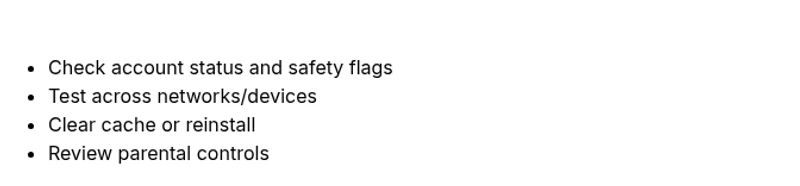
- Check chat status and network first
- Verify account controls and safety flags
- Test across devices before deep fixes
- Gather logs when contacting support