How to unblock Roblox: A Practical Step-by-Step Guide for 2026
Learn how to unblock Roblox across networks, devices, and accounts with a practical, step-by-step guide for 2026. Includes checks, safety tips, and troubleshooting suggestions from Blox Help.


You can unblock Roblox by diagnosing the block source and applying the correct fixes. Start with your network, device, and account settings, then follow a clear, step-by-step process. This guide helps Roblox players unblock roblox quickly and safely, with practical checks, bite-sized actions, and warning signs to avoid repeats. Keep your expectations realistic and back up important data before changes.
What blocking Roblox means
When Roblox access is blocked, it usually means one of three things is happening: a network-level restriction (at home, school, or public Wi-Fi), a device-level setting (parental controls or OS restrictions), or an account-level block (safety or age restrictions on the Roblox account). Understanding which of these is in play is the first and most crucial step. According to Blox Help Editorial Team research, most access issues fall into these categories rather than being a random outage. By framing the problem this way, you can target the right settings without wasting time testing unrelated fixes. In practice, this means asking: Is Roblox blocked on all devices connected to this network? Is the issue present on just one device? Or is Roblox blocked for a specific account only? Answering these questions early will save you time and frustration as you work through the troubleshooting path.
Key takeaways from this section:
- Network-level blocks often require router or DNS changes.
- Device-level blocks involve parental controls or OS restrictions.
- Account blocks relate to safety settings or age gates.
This structure helps you move efficiently toward a fix that sticks and minimizes future disruption to your Roblox play. The Blox Help team recommends starting with the simplest, least invasive fixes before escalating to more involved changes.
Common sources of blocks
Blocks can originate from several places, and identifying the origin guides every subsequent step. Common sources include: the local Wi‑Fi network blocking access to Roblox domains, the modem or router firewall blocking traffic to Roblox servers, parental controls that restrict the Roblox app or website, and Roblox account restrictions tied to age or safety settings. On school or workplace networks, district firewall policies or proxy configurations may also block Roblox. Another frequent cause is corrupted DNS caches, which can misroute Roblox requests. By mapping the block to a source, you can apply the precise remedy without overhauling your entire setup.
Practical signs to look for:
- Roblox loads partially or times out with a DNS error.
- The problem occurs on some devices but not others.
- A school or workplace message mentions policy blocks or a firewall.
Pro tip from the Blox Help Editorial Team: document the exact error messages (e.g., DNS probe finished NXDOMAIN, ERR_CONNECTION_RESET) to speed up support conversations and avoid guesswork.
Quick checks you can perform today
Before making changes, perform a few quick checks to narrow down the cause. Reach for these in this order: (1) Try a different network (e.g., mobile hotspot) to see if Roblox is accessible there. (2) Clear Roblox app cache or browser cache and try again. (3) Test the Roblox site on multiple browsers to rule out a browser-specific issue. (4) Restart your router and device—this can refresh stale connections that contribute to access issues. (5) Check parental controls and child accounts for Roblox-specific restrictions. (6) Review any recent updates to security software that may be blocking Roblox connections. Through these checks, you can often identify whether the block is network, device, or account related and plan the next fixes accordingly. As you work through these tests, keep a short log of what you changed and the outcome to avoid repeating steps.
In short, these quick checks can save time and set you up for a targeted fix. They also serve as a baseline so you can measure progress as you apply more involved changes later in the guide.
Step-by-step: unblock Roblox on your home network
This section walks you through fixes that commonly clear network-level blocks on a typical home network. Start with non-invasive steps and escalate only if needed. First, verify whether your DNS is working correctly by switching to a clean, family-safe DNS (for example, a reputable public DNS with safe filtering). If issues persist, access your router admin panel and check firewall rules or port blocking that might prevent Roblox traffic. Disable any VoIP or VPN features temporarily to test whether they were contributing to the block. Finally, you can apply a safe DNS filter to ensure Roblox traffic reaches Roblox servers without altering broader network behavior. These steps are repeatable on most routers and will often clear many common blocks. Remember to document each change so you can revert if something goes wrong. The Blox Help team emphasizes keeping security in mind—only change router settings you understand and always back up current configurations first.
Key steps to follow:
- Change DNS to a trusted, family-friendly option.
- Review firewall rules for Roblox-related domains and ports.
- Disable VPNs/proxies temporarily to test.
- Reconnect and test Roblox access after each change.
Tip: After completing these steps, reboot your router and device to ensure all settings take effect.
Step-by-step: unblock Roblox on school or work networks
On school or work networks, you may be dealing with centralized enforcement. The steps are more nuanced because changes may require IT approval. Start by requesting access or explaining the educational or recreational purpose of Roblox usage. If permitted, ask for exceptions for Roblox domains or whitelisted domains. If you must work around restrictions, avoid unauthorized proxies or VPNs as they can violate policy and risk security. Instead, propose official exemptions or a supervised testing environment with a tech administrator. For many users, the quickest path is to test Roblox on a personal mobile hotspot to confirm that the block is network-based, then present that result to the IT department as a basis for policy review. This approach respects school or workplace policies while giving you a clear path to access when allowed.
Practical notes:
- Do not bypass security controls without consent; this can breach policy.
- Prepare a short case for why Roblox access is beneficial (education, collaboration, or coding practice).
- If an exemption is granted, document it and keep it limited to Roblox traffic only.
- Always use safe, legal methods to access content on shared networks.
Organizing with IT makes it more likely to yield a formal resolution that sticks.
Step-by-step: unblock Roblox on a device
Device-level blocks can be caused by OS parental controls, safety settings, or apps that prevent Roblox from running. Start by turning off any temporary blocklists or time limits that may have triggered. Then review device privacy settings and reset network permissions for Roblox. On iOS or Android, make sure Roblox has permission to access the internet, storage, and notifications, as sandboxed settings can inadvertently block connections. If you use built-in parental controls, temporarily relax them to test access, then reapply a balanced policy. On desktop, clearing DNS cache and flushing the DNS resolver can also fix stale entries that block Roblox. As you adjust settings, test Roblox after each change to identify exactly which setting resolves the issue. The goal is to restore access without compromising safety.
Helpful reminders:
- Always back up parental-control configurations before changes.
- If you can, test on another device to confirm the issue is device-specific.
- Re-test after each change to avoid accumulating unnecessary adjustments.
Safety, privacy, and policy considerations
Blocking Roblox can intersect with safety and policy considerations, especially for younger players. Make sure you understand the reasons behind any block—whether it is age-based safety features, school network policy, or parental controls. When adjusting settings, protect personal data and avoid sharing sensitive login details or bypass tools. Use legitimate, opt-in controls and consult the Roblox Support page or your network administrator if you’re unsure. The goal is to maintain a safe gaming environment while enabling access to Roblox in appropriate contexts. This section also highlights the importance of privacy during troubleshooting—avoid exposing credentials and monitor the data that changes might expose.
Practical guidance:
- Limit changes to what is necessary to unblock Roblox.
- Seek official policy guidance before attempting workarounds.
- Use parental controls as intended and adjust them responsibly.
- If you suspect a security breach, reset passwords and enable two-factor authentication.
Note from the Blox Help Editorial Team: safety and compliance come first; unblock Roblox only through approved channels and documented settings.
Testing access and troubleshooting after changes
After applying fixes, test Roblox access in multiple environments to verify the fix is robust. Check from different devices, networks, and browsers to ensure consistency. If Roblox loads, proceed to play a few quick rounds to confirm latency and stability; if it lags, revisit DNS, firewall, or router rules as needed. Keep an eye on error messages that appear during testing; these clues help refine future adjustments. If access remains blocked, review the log of changes you made and consider stepping back to a known good configuration or seeking help from Roblox Support or the network administrator. Continuous testing reduces the chance of recurring blocks and confirms that your fix is durable.
Key testing steps:
- Validate access on at least two devices.
- Confirm stability for 10–15 minutes of continuous play.
- Document any error codes and outcomes for future reference.
- If ongoing, escalate to IT or Roblox Support with logs.
Final note: consistent testing helps you catch latent blocks early and maintain smoother Roblox experiences over time. As always, the Blox Help team is here to guide you through the process.
Long-term prevention and maintenance
To reduce future blocks, implement sustainable network and device practices. Establish a simple change log to record settings modified for Roblox access. Consider using a family-safe DNS and applying consistent firewall rules that allow Roblox traffic while maintaining security. If using a school or public network, set expectations for policy-compliant use and discuss potential exemptions with the administrator. Regularly review parental controls and device restrictions to ensure they reflect your child’s current age and needs. Keeping these systems aligned minimizes recurring blocks and promotes ongoing access to Roblox for learning and play. In short, plan, document, and monitor changes to prevent future interruptions. The Blox Help team reiterates that proactive, policy-aligned management yields the best long-term results.
AUTHORITY SOURCES
- https://www.fcc.gov/
- https://www.consumer.ftc.gov/
- https://www.ed.gov/
Note: These sources provide guidance on online safety, network policy, and parental controls, which can help inform your unblocking strategy while staying compliant with legal and educational guidelines.
Tools & Materials
- Router admin credentials(Needed to modify firewall rules or DNS on your home network)
- Computer or smartphone(Used to test access after changes)
- DNS change guidelines (e.g., family-safe DNS)(If you’re troubleshooting network blocks at home)
- Parental-control app/feature access(To review/apply settings permitting Roblox access)
- Roblox account information (email/phone)(For account-based blocks and recovery)
Steps
Estimated time: 45-60 minutes
- 1
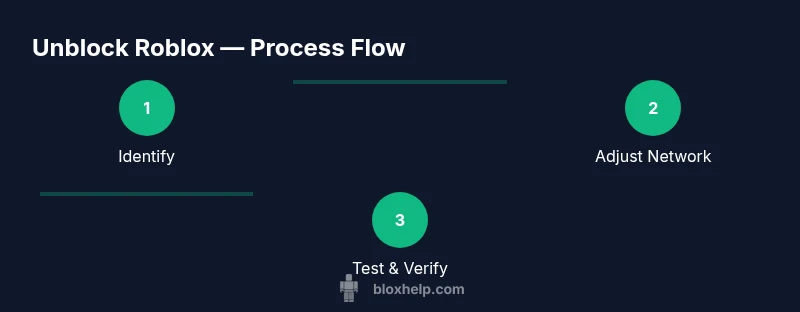
Identify the block source
Observe symptoms across devices and networks to determine if the block is network-, device-, or account-related. Document error messages and timing to guide the next fixes.
Tip: Create a quick log of what you changed and when to avoid backtracking later. - 2
Test a different network
Connect a phone hotspot or another network to see if Roblox becomes accessible. If it works on another network, the issue is network-specific.
Tip: Testing on a different network saves time diagnosing the root cause. - 3
Reset and refresh devices
Restart routers and devices, clear caches, and reset network settings if needed. This can fix stale routes and corrupted DNS caches.
Tip: After a reset, re-check Roblox before making further changes. - 4
Adjust DNS and firewall rules
Switch to a trusted DNS and review router firewall rules to allow Roblox traffic. Do not disable security features—modify only Roblox-related entries.
Tip: Back up current router settings before making changes. - 5
Review parental controls
Inspect device and account-level parental controls for Roblox restrictions. Temporarily relax settings to test access, then apply a balanced policy.
Tip: Document any changes and set a time-bound window for testing. - 6
Check Roblox account settings
Log into Roblox and verify age, safety, and permission settings. If age gating is the cause, adjust within policy limits or contact support.
Tip: Have recovery email and phone ready for verification if needed. - 7
Test access across devices
Try Roblox on a PC, mobile, and tablet to confirm the fix is robust. If one device remains blocked, focus on device-specific settings.
Tip: If a single device remains blocked, wipe app data or reinstall if necessary. - 8
Escalate when needed
If access persists, reach out to IT or Roblox Support with a clear log of changes, error messages, and testing outcomes.
Tip: Provide concise, factual details to speed up resolution. - 9
Plan a maintenance routine
Set a routine for monitoring Roblox access, updating parental controls, and reviewing network policies to prevent future blocks.
Tip: Schedule regular checks and keep a short change-log.
Questions & Answers
What should I do first if Roblox is blocked at home?
Start with quick checks: test on another network, clear caches, and restart devices. If the issue persists, review DNS settings and router firewall rules for Roblox traffic. Document error messages to guide further fixes.
First, test on a different network and clear caches, then review DNS and router rules. If it still doesn't work, note the error messages for more fixes.
Why is Roblox blocked on school Wi‑Fi?
Many schools block Roblox to manage bandwidth or safety. You may request an exemption through IT with a clear use case or test Roblox on a personal device with a mobile hotspot.
Schools often block Roblox to control bandwidth or safety. You can ask IT for an exemption or use a personal hotspot for testing.
Can I unblock Roblox without changing parental controls?
Sometimes the cause is account- or device-level restrictions rather than parental controls. Check each control level step by step and only adjust what is necessary, documenting every change.
It's possible the issue isn't parental controls. Check device and account restrictions one by one and only adjust what’s needed.
Is it safe to use a VPN to unblock Roblox?
Using a VPN can violate policy on many networks and may introduce security risks. Prefer official exemptions or personal testing environments and consult policy guidelines before attempting VPN use.
A VPN can breach network policies and pose security risks. Seek official exemptions or use personal testing instead.
How do I contact Roblox Support for blocked access?
If you suspect an account-related block, contact Roblox Support with your account email, device details, and a description of the issue. Include any error codes and steps you’ve already tried.
Reach Roblox Support with your account email, device, error codes, and what you’ve tried so far.
What error codes indicate a DNS problem?
Common DNS-related errors include NXDOMAIN or DNS_PROBE_FINISHED_NXDOMAIN. These messages point to DNS resolution failures; switching to a trusted DNS can resolve them.
NXDOMAIN errors usually mean DNS resolution failed; try a trusted DNS to fix it.
How long should a router reboot take when applying changes?
Most routers reboot within a minute or two. If changes seem not to apply after reboot, re-check settings and consider resetting to factory defaults as a last resort.
Reboots usually finish in a couple of minutes. If it fails, review the settings again or reset as a last resort.
Watch Video
The Essentials
- Identify block type first and tailor fixes.
- Test changes incrementally to isolate the cause.
- Prioritize safe, policy-compliant methods.
- Document steps and results for future reference.
- Use official guidance and support when needed.