How to Fix Roblox Not Launching: A Practical Guide
Struggling with Roblox not launching? This comprehensive guide walks you through verified fixes—from cache cleanup to driver updates—so you can get back to your gaming sessions quickly and safely.


You will learn the exact steps to resolve Roblox not launching on Windows, macOS, and mobile. You'll need a stable internet connection, admin access on the PC or device, and the ability to reinstall Roblox if necessary. This guide covers common causes, from corrupted cache to outdated drivers, and provides safe, proven fixes you can apply today.
Why Roblox Not Launching Happens and Common Causes
According to Blox Help, Roblox not launching is usually caused by a combination of corrupted cache, outdated software, or conflicting security settings. Minor issues like a stalled update or a temporary server hiccup can block the game from starting. The most persistent problems tend to involve corrupted Roblox files, misconfigured permissions, or outdated GPU drivers. By understanding these culprits, you can target your fixes more efficiently and avoid wasting time on unrelated steps. Blox Help analysis shows that cache buildup and driver mismatches are frequent culprits across Windows, macOS, and mobile platforms. Keeping your system aligned with Roblox’s requirements reduces the risk of future launch failures.
In addition to technical causes, consider seasonal or regional outages that Roblox themselves may experience. If Roblox servers are down, a user-side fix won’t resolve the issue. Checking Roblox’s official status page or social channels can save you from chasing problems that aren’t on your end. This guide frames fixes in a practical sequence so you can rule out common causes quickly and build up to more advanced steps only if needed.
To ensure you’re following a field-tested approach, this article integrates practical steps with platform-specific tips and safety reminders.
Tools & Materials
- Stable internet connection(Wired Ethernet preferred; if using Wi‑Fi, ensure you have strong signal (at least 3 bars).)
- A device that meets Roblox minimum system requirements(Windows 10/11 or macOS 10.12+; mobile devices should run the latest supported OS version.)
- Administrative access on the device(Needed to install or repair Roblox components and run certain steps.)
- A second device or browser (optional)(For cross-checking server status or downloading Roblox installers.)
- Roblox launcher and Roblox Player installers(Have the latest Roblox launcher ready to reinstall if needed.)
- Popular antivirus/firewall software you use(Will be adjusted temporarily to test launcher behavior.)
- Keyboard and mouse or controller(Optional for gameplay; not necessary for troubleshooting.)
- Backup of saved games or progress(Helpful before performing invasive steps like reinstallation)
Steps
Estimated time: 60-90 minutes
- 1
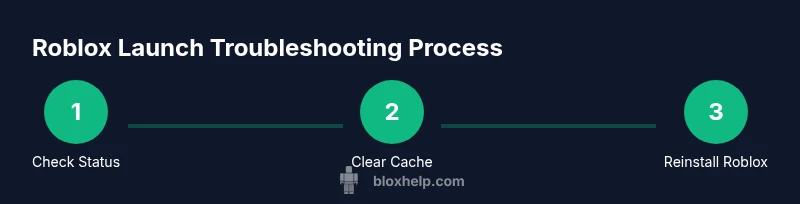
Check Roblox server status and your network
Verify whether Roblox services are experiencing outages by visiting the official Roblox Status page or trusted social channels. If a service disruption is reported, wait until it’s resolved before attempting further fixes. If the servers are up, move to the next steps. This check saves time and avoids chasing a user-side fix for a server issue.
Tip: Bookmark Roblox Status and check it quickly if launch issues recur. - 2
Clear Roblox cache and reset app data
Close Roblox fully, then clear the app cache and temporary files on your device. On Windows, you can clear Roblox cache by deleting the AppData oblox folder; on macOS, remove Roblox caches from Library/Caches. Reopen Roblox to see if the problem is resolved.
Tip: Clearing cache can fix corrupted files without reinstalling the whole app. - 3
Reinstall Roblox to refresh all game files
Uninstall Roblox completely, then download the latest installer from the official site and reinstall. This replaces potentially corrupted files and ensures you have a clean, working version.
Tip: After reinstalling, launch Roblox once to verify if the issue is resolved before restoring any saved data. - 4
Update drivers and system software
Update your GPU drivers and install the latest Windows or macOS updates. Outdated graphics drivers and missing system patches can prevent Roblox from launching or cause instability during startup.
Tip: Use the manufacturer’s official updater to avoid bundled malware. - 5
Adjust security software and permissions
Temporarily disable any overly strict antivirus or firewall rules that may block Roblox components. Add Roblox to allowed apps if available, then retry launching. If it works, re-enable protection and adjust rules more specifically.
Tip: Only disable protection briefly to test, then re-enable and fine-tune rules. - 6
Run Roblox as administrator and verify game integrity
Right-click the Roblox launcher and choose Run as administrator to grant full access. If your platform supports it, verify the integrity of game files or launcher cache through the launcher settings to detect and replace corrupted files.
Tip: Administrator privileges can resolve permission-based launch blocks.
Questions & Answers
Why would Roblox not launch after a recent update?
A faulty update can corrupt launcher files or introduce incompatibilities with your device. Reinstalling the latest Roblox launcher typically resolves this, and ensuring your OS and drivers are current helps prevent recurrence.
A bad update can corrupt files. Reinstall the launcher and update your OS and drivers to fix it.
Can antivirus software block Roblox from starting?
Yes. Some security programs may block Roblox components. Temporarily disable protection or add Roblox folders to the allowed list, then test launching again.
Security software can block Roblox. Try whitelisting Roblox or temporarily disabling protection to test.
Is Roblox down frequently, and how can I tell?
Roblox outages are infrequent, but can happen. Check the official Roblox Status page for real-time updates and plan troubleshooting after confirmation of service availability.
Outages are rare; check the Roblox Status page for updates before troubleshooting.
Will clearing cache erase my progress or settings?
Clearing cache does not delete your Roblox account data or settings; it removes local temporary files that can cause launch problems. You may need to sign back in afterward.
Clearing cache won't erase your account, but you’ll need to sign in again.
What should I do if Roblox still won’t launch after all fixes?
If issues persist, collect logs and contact Roblox Support with details about your device, OS, and steps already tried. Sometimes a platform-specific patch is needed.
If it still won’t launch, reach out to Roblox Support with your device and steps tried.
Watch Video
The Essentials
- Identify whether the issue is server-side before diving into fixes
- Clear cache and reinstall to resolve file corruption
- Update drivers and security software to align with Roblox requirements
- Run with elevated permissions and validate integrity for a clean startup