What to Do If Roblox Is Not Working: Quick Fix
Facing Roblox not working? This urgent troubleshooting guide delivers a fast quick fix, a clear diagnostic flow, and step-by-step actions to restore play and prevent future outages.


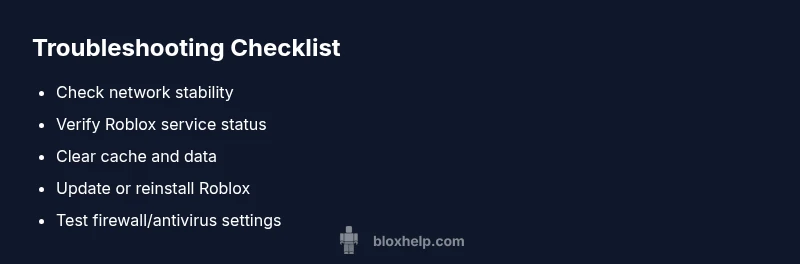
Quick fix: If Roblox is not working, start with fast checks you can do in minutes. First, confirm your internet is stable and that Roblox servers aren't down. Then restart your device and the Roblox launcher, clear cache, and re-login. If this doesn't resolve it, follow the full diagnostic flow below for step-by-step guidance on what to do if Roblox is not working.
What to do if roblox is not working
Facing Roblox not working can derail your gaming session, but you can triage quickly without risking account safety. Start by ruling out three broad categories: network connectivity, Roblox service status, and client-side issues on your device. This mental model helps you quickly identify whether the problem is local or systemic. In the following sections, you’ll find concrete checks, commands, and practical examples to diagnose the root cause and get back to playing fast. Remember: calm, methodical steps beat frantic random fixes every time.
Quick network checks you can perform now
Begin with the simplest checks. If your Wi-Fi is unstable or you’re on mobile data, switch to a reliable connection or use a wired Ethernet when possible. Run a quick speed test and ping a known Roblox server (you can ping the ip of a regional Roblox server if you know it) to gauge latency. Temporarily disable VPNs or proxy services, as they can add hops and packet loss. Restart your router, then reboot your device. If other apps load slowly or fail too, the issue is likely network-related; if Roblox behaves oddly while everything else works, the problem is more likely client-side or server-related.
Verify Roblox service status and account health
Always check official signals first. Visit the Roblox status page to confirm outages or maintenance windows. Follow Roblox on social channels for real-time updates and community reports. If the status shows degraded service or maintenance, your only option is to wait and retry. Additionally, verify your Roblox account health: ensure you’re signed in to the correct account, your password is current, and two-factor authentication (if enabled) is functioning. Out-of-sync accounts or blocked sessions can masquerade as game failures, so sign out and sign back in to reset the session.
Clear cache, cookies, and reset app data
Corrupted cache data can cause loading errors or login problems. On Windows, clear the Roblox cache from the AppData folder and restart the launcher. On macOS, remove the Roblox cache from Library/Caches and re-launch. For mobile devices, clear the Roblox app storage and reconnect. After clearing, log back in and test a simple game load. If you’re on a console, reinstalling the game app can similarly purge stale data that interferes with startup.
Update and reinstall Roblox for a clean slate
Software drift, mismatched versions, or partial updates can break compatibility. Check for Roblox updates on your platform and install any pending patches. If problems persist, uninstall Roblox completely and perform a fresh install. This ensures you’re running the latest build with all essential files intact. After reinstalling, sign back in and try a simple game first to confirm baseline functionality before attempting more complex games.
Diagnostic flow: symptom → diagnosis → solutions
Use a structured flow to map symptoms to likely causes and fixes. If the game won’t launch, you may have a login/session issue or a client-side problem. If pages load slowly or services fail to respond, focus on network or server status. If crashes occur mid-game, the issue could be GPU drivers or memory limits. This flow helps you quickly isolate the root cause and apply the most effective fix with minimal steps.
Step-by-step fixes for the most common cause
- Confirm you’re on a stable network; switch to a stronger connection. 2) Restart your device and the Roblox launcher. 3) Clear Roblox cache and sign back in. 4) Update Roblox to the latest version. 5) Temporarily disable firewall/antivirus to test compatibility (re-enable after test). 6) If the issue persists, reinstall Roblox and test in a new user profile if possible. Each step reduces variables and brings you toward a quick resolution.
Safety tips, warnings, and best practices
Never share your password or codes received via chat. Only use official Roblox channels for updates. When testing firewall or antivirus settings, re-enable protections after confirming whether they were the culprit. Do not alter system files beyond guided steps. If you’re unsure at any point, stop and seek help from trusted sources such as Roblox Support or the Blox Help community.
Prevention and long-term reliability tips
Keeping software up to date, maintaining a clean cache, and avoiding unstable networks dramatically reduces future issues. Enable automatic updates for both Roblox and your device’s OS. Regularly review account security settings, and keep a secondary device ready for testing to rule out device-specific problems. Establish a quick play-check routine after major updates to catch issues early.
Steps
Estimated time: 60-75 minutes
- 1
Verify internet and primary device connectivity
Run a quick speed test and ping a Roblox server. If your connection is unstable, switch networks or improve your router placement. A stable base network is the foundation for all subsequent fixes.
Tip: If you’re on Wi‑Fi, try a short wired test to confirm the issue isn’t wireless interference. - 2
Check Roblox service status and account
Open the Roblox status page and official channels to see if outages are reported. Sign out of Roblox and sign back in to refresh the session. Ensure you’re using the correct account and that your password is current.
Tip: A simple relogin can resolve many login and session timeout problems. - 3
Clear cache and data for Roblox
Clear the Roblox cache on your device. On mobile, clear app storage; on desktop, delete the Roblox cache folder and restart. This eliminates corrupted data that can block launches or cause errors.
Tip: Back up any important data before clearing local app data. - 4
Update or reinstall Roblox
Check for available updates and install. If issues persist, uninstall Roblox completely and reinstall the latest version. A fresh install avoids lingering corrupted files.
Tip: Use the official download source to avoid tampered installers. - 5
Check firewall/antivirus settings
Temporarily disable firewall or antivirus to test if they block Roblox. If Roblox works, create an exception rather than leaving protections off. Re-enable protections after testing.
Tip: Don’t leave security software disabled longer than needed. - 6
Test with a different device or account
If possible, try Roblox on another device or with a different account to isolate whether the problem is device-specific or account-related.
Tip: A cross-device test can reveal where the fault lies more quickly.
Diagnosis: Roblox app won't launch or keeps crashing, with or without error messages
Possible Causes
- highNetwork connectivity issues (unstable Wi-Fi, high latency, VPN/proxy interference)
- highRoblox service outage or maintenance on the server side
- mediumCorrupted cache, outdated launcher, or corrupted game data
- lowAccount/session problems or login errors
Fixes
- easyTest a different network or switch to wired Ethernet; restart router and device
- easyCheck Roblox status page and official social channels; wait if outages are reported
- easyClear Roblox cache and cookies, reinstall the Roblox launcher/app if needed
- mediumUpdate Roblox to the latest version and ensure OS compatibility; reinstall if problems persist
- easySign out of all devices and sign back in; reset session with a new login if necessary
Questions & Answers
Why won't Roblox load even after restarting my device?
This can happen due to stale session data, cache issues, or a temporary outage. Start with logging out and back in, clearing cache, and checking the Roblox status page before moving to reinstall if needed.
If Roblox won’t load after a restart, sign out and back in, clear cache, and check for outages before reinstalling.
How do I know if Roblox is down for everyone?
Check the official Roblox status page and social channels; third-party outage trackers can help corroborate. If outages are reported, you should wait and retry when status improves.
Check Roblox status pages and official channels to confirm outages before taking action.
What if I can’t log into my Roblox account?
Verify your password, reset it if needed, and ensure two-factor authentication is functioning. If the issue persists, sign out from all devices and re-authenticate.
If you can't log in, reset your password and re-authenticate across devices.
Should I delete Roblox data on my phone to fix issues?
Deleting app data can fix stubborn issues but will log you out and reset local settings. Use this as a last resort after backing up progress.
Deleting data resets the app; use it only after other fixes fail.
When should I contact Roblox Support?
If outages persist after service status checks, or if you suspect account compromise, contact Roblox Support with your device type and steps taken. They can investigate on their end.
Contact Roblox Support if problems persist after checks or you suspect account issues.
Can antivirus software cause Roblox to fail to load?
Some antivirus programs block Roblox processes. Add Roblox to the safe list after confirming the issue, then test again.
Antivirus can block Roblox; add it to safe list and retry.
Watch Video
The Essentials
- Verify network before diving into apps
- Use the diagnostic flow to pinpoint causes
- Keep Roblox and OS updated to prevent issues
- Reinstall if data corruption is suspected
- Contact support if all else fails