How to Whisper on Roblox: Private Chat Guide
Learn how to whisper on Roblox with in-game private chat, private messages, and Spatial Voice where available. A practical, beginner-friendly guide covering setup, step-by-step whispering, troubleshooting, safety, and advanced tips for creators.


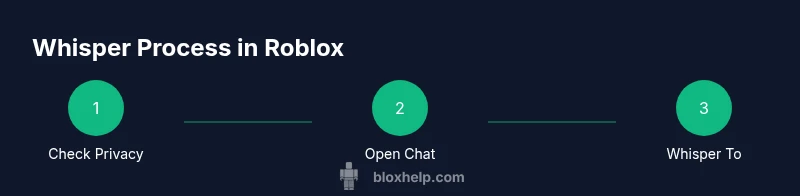
To whisper on Roblox, use the game's private chat option or the built-in message feature if the game supports it. Open the chat, select a recipient (from your friends or by typing their username), choose Whisper or Private Message, and send. Privacy settings and age restrictions can limit who you can reach. If the game supports Spatial Voice, enable it to whisper via voice as well.
What is Whisper in Roblox?
Whispering on Roblox refers to private communication offered by some games or the Roblox platform itself. Unlike global chat, whispers are intended to stay between you and a specific player or a small group, reducing noise and helping you focus on a conversation. Not every game supports a whisper feature, and some titles rely solely on standard private messaging or the broader in-game chat. When whisper functionality is available, it typically appears as a distinct option in the in-game chat menu or on a player’s profile. For players new to Roblox, it’s important to understand that whispering is subject to Roblox chat filters, age-based privacy settings, and game-specific rules. If you’re trying to communicate with someone who doesn’t have whisper enabled, you may need to use private messages outside of the game. This guide focuses on practical methods you can use across games that support whispers, as well as safe approaches when whispers aren’t available.
If you’re learning how to whisper on roblox, remember to verify that the game you’re in supports private or direct messages. This is not a universal feature; some titles disable whispers to maintain a controlled chat environment. In such cases, the recommended alternative is a private message from the other player’s profile, or using a group chat created by friends. In all cases, keep your communications respectful and aligned with Roblox community guidelines.
Important note: the exact wording, button labels, and flow can vary from game to game. Always check the in-game help or settings if you’re unsure how to initiate a whisper. The key concept to grasp is that whispers exist only where the game or platform allows them, and you may need to adapt to the specific UI of each game.
descriptionPlaceholder":null
note":null
Tools & Materials
- Device with Roblox installed (PC, mobile, or console)(Ensure the app is up to date for the latest chat and privacy features.)
- Stable internet connection(Whispering requires an active connection to Roblox servers.)
- Active Roblox account with chat access(Some accounts have age-restricted or privacy-restricted chat settings.)
- Recipient's username or a friend on your list(Whispers usually work best with friends or people you know. If you don’t have the name, use the in-game friends roster or the recipient’s profile.)
- Headphones or microphone (optional for Spatial Voice)(Spatial Voice requires a mic and compatible device.)
Steps
Estimated time: 15-25 minutes
- 1
Check chat permissions and privacy settings
Open your Roblox account settings and review the privacy controls. Confirm that you’re allowed to chat with others in your region and age range, and verify whether private messages or whispers are enabled for your account. If restrictions exist, you may need a guardian or account owner to adjust them. This upfront check saves you from fruitless attempts in-game.
Tip: If you’re under 13, some chat features may be limited by default. - 2
Launch Roblox and join a game that supports whispers
Start Roblox on your device and enter a game known to include private chat or whisper options. If whispers aren’t visible, try a different game or check the game’s help section to confirm supported features. This step ensures you’re testing whispering in a compatible environment.
Tip: Some games hide chat during intense combat or cutscenes, so be mindful of timing. - 3
Open the in-game chat interface
In most titles, the chat bar is at the bottom of the screen. Tap it to reveal typing input, and look for a recipient selector or a Whisper/Private Message option. If the game uses a roster, you may need to choose a friend first.
Tip: If the chat bar doesn’t appear, try pressing the slash key (/) on PC or tapping the chat icon on mobile. - 4
Select the recipient for your whisper
Choose the person you want to whisper to from your friends list or by typing their username. Some games require you to be friends to whisper; others let you target any player with a private message option.
Tip: Double-check the username to avoid sending the message to the wrong person. - 5
Choose Whisper or Private Message option
Tap or select the Whisper option if available; if not, choose Private Message. Some games label this as “Direct Message” or “Whisper to Player.
Tip: If Whisper isn’t listed, you can still send a private message via the recipient’s profile. - 6
Type and send your message
Enter a concise, respectful message. Keep it clear and to the point to avoid miscommunication. Send by pressing Enter or following the game’s send command.
Tip: Avoid sharing personal data; Roblox chat filters are in place for safety. - 7
Wait for a response and manage expectations
Give the recipient time to respond, especially if they’re in a different time zone or in a busy game. If there’s no reply, consider following up later or using a different method.
Tip: If you don’t get a reply, don’t spam; use a single polite follow-up. - 8
If Whisper is blocked, use alternatives or adjust settings
If the feature is unavailable in-game, use private messages via the user’s profile or adjust privacy settings to allow messages from friends. For voice communication, enable Spatial Voice if supported by the game and device.
Tip: Not all players can receive whispers due to parental controls or account settings.
Questions & Answers
Can I whisper to any player on Roblox?
Not always. Whisper availability depends on the game’s features and your account privacy settings. Some games restrict whispers to friends or in-game groups.
Whispering depends on the game and your settings; not every player can be whispered to.
What if I don’t see the Whisper option in-game?
It may not be supported by the game. Try using Private Messages from the player's profile or check the in-game help for supported chat features.
If Whisper isn’t visible, use private messages or check the game’s help.
Is whispering safe for younger players?
Yes, when used with the platform’s safety settings. Avoid sharing personal information and stick to friendly, game-related chat. Always follow Roblox’s community guidelines.
Whispering is safest when you follow the rules and don’t share personal info.
Can I use voice whisper (Spatial Voice) across devices?
Spatial Voice requires a headset, a compatible device, and a game that supports it. Availability varies by region and account age.
Spatial Voice is device- and game-dependent; check device compatibility.
How do I whisper if the game doesn’t support it?
Use private messages from the recipient’s profile or communicate via a mutual friend list if allowed. Games may offer limited chat options.
If whispers aren’t supported, private messages from profiles are your fallback.
What privacy settings affect whispering?
Account privacy, age, and guardian settings can restrict who you can contact. Review these in your Roblox account settings and adjust with care.
Your privacy settings can limit whispering; review and adjust if needed.
Watch Video
The Essentials
- Verify game supports whispers before trying.
- Use Whisper or Private Message when available; otherwise private messaging is the fallback.
- Respect safety guidelines and avoid sharing personal data.
- Spatial Voice is device-and-game dependent—enable only if supported.
- When in doubt, consult the game’s help or settings for whisper options.