Roblox Error Code 524: Quick Fix Guide
A practical guide to diagnosing and fixing Roblox error code 524 quickly, with common causes, quick fixes, and safety tips for players and developers.


Roblox error code 524 signals an access block to a game or experience. Quick fix: review privacy and parental controls, confirm your region/age, and try a different network. For a full fix set, see our step-by-step guide. According to Blox Help, these checks resolve many 524 blocks without broader system changes.
What Roblox error code 524 means for players
Roblox error code 524 indicates that access to a particular experience or game is blocked for your account or device. In practice, this often shows up when the game owner has restricted entry, your account privacy or parental controls are preventing access, or your region or age settings trigger a block. The result is a failed join attempt with the 524 message, which can be frustrating but is typically resolvable with targeted checks on permissions, settings, and network context. Based on Blox Help analysis, focusing first on permissions and owner settings commonly resolves the issue without broader system changes. The goal is to restore the necessary permissions while keeping your account secure and compliant with Roblox policies.
Symptoms and who is affected
Players who encounter 524 often report 'You are blocked from entering this experience' when attempting to join a game, a private server, or a limited demo. The issue can occur on any platform—PC, mobile, or console—and may appear after a change in parental controls, a new account age setting, or after returning to a previously accessible game that was recently updated by the owner. In some cases, the error is temporary and tied to Roblox servers or anti-cheat measures, especially during high-traffic periods. If you see 524 repeatedly across multiple games, it’s more likely tied to your account permissions than a single game’s configuration.
Common causes behind error code 524
- Game access restrictions by the owner: some experiences are set to private or require an invite.
- Privacy settings or parental controls: account or family settings can block joining unknown games.
- Region or age-based restrictions: certain experiences block users from specific locations or age groups.
- Temporary Roblox security blocks: unusual activity or token issues can trigger a temporary block.
- Network context: VPNs, proxies, or IP inconsistencies can prompt a denial.
Quick fixes you can try now
- Try a different game: switch to an open/public experience to verify if 524 is game-specific.
- Verify your account privacy and parental controls: ensure Roblox is allowed to join experiences.
- Sign out and back in: refresh your session tokens and retry.
- Clear cache and data: on mobile or desktop, remove outdated cache that might block authentication.
- Switch networks: disable VPNs, switch from mobile data to Wi-Fi or vice versa to rule out network blocks.
- Check game status: verify the game isn’t temporarily closed or in maintenance.
Step-by-step overview for the most common cause (owner restrictions)
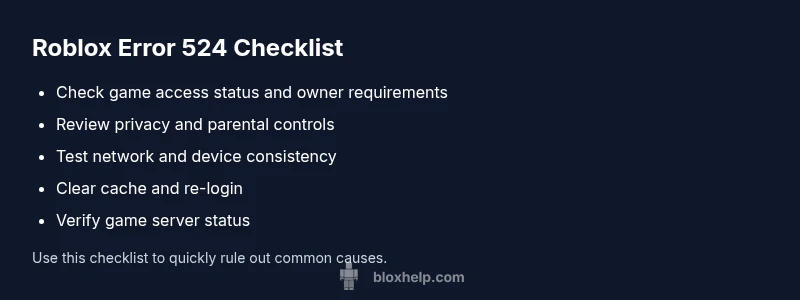
This overview explains how to approach a restricted experience access request, which is the most common root cause for error code 524. It is not a substitute for direct permission or an owner invite. Start by confirming whether the game is private or invitation-only, then request access or an invite link from the owner. If you are the owner, review the experience settings to allow access for friends or the public. After updates, sign back in and attempt to join again. If the issue persists, continue with the deeper troubleshooting steps below to rule out other factors.
- Confirm ownership status: contact the game owner or host to request access or an invite.
- Request an invite link or join permissions if required: adhere to the owner's rules.
- If you are the owner: verify the experience settings to allow friends or public access.
- Re-test access after owners grant permission or settings updated.
- Monitor for changes: if 524 recurs, proceed to the deeper troubleshooting steps below.
Additional troubleshooting and best practices
- Keep software up to date: ensure Roblox client and OS are current.
- Use a stable network: prefer a reliable connection to reduce token errors.
- Avoid cookie issues and ad-blockers interfering with Roblox's login flow.
- When in doubt, contact Roblox Support with your account ID, region, and the affected game details.
- Document the error: time, device, game, and steps you took to reproduce 524.
Steps
Estimated time: 20-40 minutes
- 1
Verify game access status
Open the Roblox game page to check if the experience is marked private or requires an invite. If it is owner-controlled, you will need permission from the owner to join.
Tip: If you can’t determine ownership, ask the game community or take a screenshot of the access label to share with the owner. - 2
Review your account privacy settings
Navigate to your Roblox account settings and confirm who can join you and who can join your experiences. Ensure you haven’t accidentally blocked all strangers or restricted joining new games.
Tip: Set privacy to a level you’re comfortable with while testing access. - 3
Check parental controls and family accounts
If you have a family account, verify that parental controls aren’t blocking Roblox experiences. Temporarily relaxing restrictions can help confirm if they’re the cause.
Tip: Remember to re-enable restrictions after testing. - 4
Test on an alternative network or device
Switch networks (Wi-Fi to mobile data or vice versa) or try a different device to rule out network-based blocks or device-specific issues.
Tip: A mobile hotspot is a quick test option. - 5
Sign out, clear cache, and re-login
Sign out of Roblox, clear your app or browser cache, then sign back in to refresh your authentication tokens.
Tip: Use a fresh browser or app session to avoid stale tokens. - 6
If the issue persists, contact support with context
Collect details like your username, region, device, game name, and the exact error message. Submit a ticket to Roblox Support or the game owner for direct assistance.
Tip: Provide reproducible steps and timestamps to speed up resolution.
Diagnosis: User cannot join a Roblox game and sees error code 524
Possible Causes
- highGame access restricted by the owner
- highPrivacy settings or parental controls blocking access
- mediumRegion or age-based restrictions
- mediumTemporary Roblox security blocks or token issues
- lowNetwork context issues (VPN/proxy/IP blocks)
Fixes
- easyCheck if the game is private or invite-only and request access or an invite
- easyReview and adjust privacy/parental controls to allow joining experiences
- easyTest with a different device/network to rule out regional or IP-related blocks
- easySign out, clear cache, and sign back in to refresh tokens
- hardIf the issue persists, contact support with details and affected games
Questions & Answers
What does Roblox error code 524 mean exactly?
Error 524 usually indicates an access block to a specific Roblox experience, often due to owner restrictions, privacy controls, or regional/age settings. It’s not a generic system error, but a permissions-related block.
Error 524 means you’re blocked from joining a game due to access permissions or restrictions.
Can I fix error 524 by myself, or do I need help?
Many 524 cases can be resolved by adjusting privacy or parental controls, verifying region/age settings, and testing different networks. Some scenarios require the game owner to grant access or adjust the experience’s settings.
Most users can fix it by checking permissions and trying a different network, but some cases need the game owner’s help.
Should I clear cache or reinstall Roblox to fix 524?
Clearing cache and re-logging can resolve token or session issues linked to 524. Reinstalling is a last resort if cache clears don’t help and you’ve updated all other settings.
Clearing cache and re-logging usually helps; reinstall if problems persist.
When should I contact Roblox support for 524?
If permissions and network checks don’t resolve 524 after a reasonable troubleshooting window, contact Roblox Support and provide your username, region, device, and affected game details.
If you’ve tried the steps and 524 still shows, reach out to Roblox Support with your details.
Does error 524 affect all games or just one?
Error 524 is typically game-specific, tied to a particular experience or owner settings rather than a global account problem. If it repeats across many games, it could indicate broader account settings.
Usually it’s game-specific, but if many games show it, you may have a wider account or network issue.
Watch Video
The Essentials
- Check if the game is private or invite-only
- Review privacy/parental controls and region settings
- Test across networks/devices to isolate the cause
- Refresh tokens by signing out/in and clearing cache
- Contact support with precise context if needed