Roblox Errors: Urgent Troubleshooting Guide
Learn to diagnose and fix Roblox errors quickly with a proven troubleshooting flow. Quick fixes, step-by-step guides, and safety tips for players and developers.


Most Roblox errors stem from connectivity issues, outdated game/client files, or account problems. Start with the simplest fixes: check your internet connection, restart Roblox and your device, and make sure Roblox Studio/app is up to date. If the error persists, switch networks, clear cache, and verify game integrity where possible. When in doubt, contact Roblox Support and log incident details for faster help.
Understanding Roblox errors
Roblox errors are messages or symptoms that stop the game or creator tools from loading, connecting, or running as expected. In practice, most issues fall into a few core categories: network/connectivity problems, client or server file mismatches, device compatibility or performance bottlenecks, and account-related blocks such as login or regional restrictions. When you encounter an error, note the exact wording, any error codes, and the moment it occurs (startup, loading a game, or while scripting). This helps you distinguish user-side issues from server-side outages. The Blox Help team often sees errors caused by temporary service disruptions or outdated software on a device. A clear timeline of what happened and what you’ve tried accelerates diagnosis if you need support.
Common error categories in Roblox
Roblox errors generally fall into several categories you can classify quickly:
- Connectivity and network: DNS issues, NAT restrictions, or unstable Wi‑Fi.
- Client/file issues: outdated Roblox client, corrupted game files, or missing updates.
- Server status: platform outages or maintenance that affect many players.
- Account and regional blocks: login problems, region restrictions, or security holds.
Understanding which bucket your issue sits in helps you pick the right fixes and avoid wasted time chasing the wrong cause.
Quick fixes you can try immediately
Start with the easiest steps and progress to more involved checks only if needed. These fixes cover the most common Roblox errors and can usually be completed in under 15 minutes:
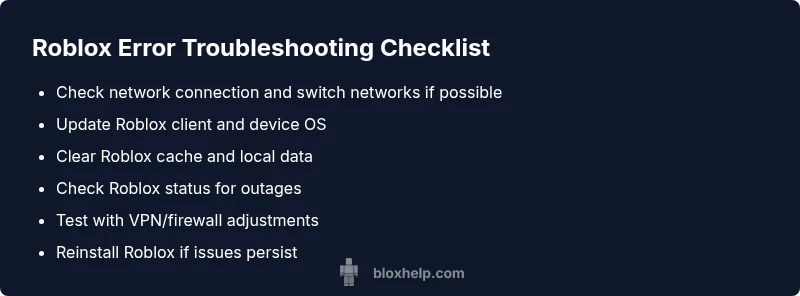
- Check your internet connection and try a different network if possible (cell data, another Wi‑Fi).
- Restart Roblox and, if needed, reboot your device.
- Update the Roblox app/client to the latest version and ensure your OS is up to date.
- Clear Roblox cache or local app data to remove corrupted files.
- Temporarily disable VPNs or firewall blocks to test whether traffic is being blocked.
- Check the Roblox status page for outages and wait if they’re experiencing problems.
If these steps don’t resolve the issue, move to the more advanced diagnostics below.
Diagnostic flow overview: from symptom to solution
A structured flow helps you identify the root cause without guesswork. Start with the symptom, then map it to likely causes, and apply fixes in the order of likelihood. By documenting the steps you take, you create a repeatable process that can be shared with friends or support agents. This approach also helps you distinguish intermittent issues from persistent ones, so you don’t overreact to a brief outage.
Key idea: begin with simple checks and escalate to targeted actions only as needed. This keeps you moving quickly and minimizes downtime for players and developers alike.
Advanced checks and logs you can collect
When basic fixes fail, gathering data becomes essential. Collect information such as:
- Exact error messages or codes displayed by Roblox.
- Time of occurrence and whether it happens on a specific game or all games.
- Device type, OS version, and Roblox client version.
- Network details: Wi‑Fi vs. cellular, router model, and whether VPNs or proxies are used.
- Any recent changes: new software, firewall updates, or network reconfigurations.
With this information, you can compare patterns, reproduce the issue, and provide precise context to support teams. If you’re a developer, reproduce the error in a controlled environment and log your console output for scripting-related problems.
Prevention and best practices to minimize Roblox errors
Proactive habits reduce the frequency and impact of Roblox errors. Consider these ongoing practices:
- Enable automatic updates for the Roblox client and keep your device OS current.
- Regularly clear cache after major updates or when you notice slow performance.
- Use a stable, high-quality internet connection and avoid congested networks during heavy gaming.
- Maintain backups of local data and save files, especially for game development work in Roblox Studio.
- Keep a simple incident log for recurring issues so you can spot patterns over time.
By adopting consistent maintenance routines, you’ll experience fewer disruptions and faster recovery when issues arise.
Final quick-check list for outages and support readiness
Before reaching out to support, run through this short checklist to ensure you have everything needed:
- Confirm the issue persists across multiple games and accounts.
- Note the exact error message and timing.
- Provide device details, Roblox version, and network type.
- Check the Roblox status page and regional outage notices.
- If possible, reproduce the issue on another device or network to isolate variables.
Steps
Estimated time: 15-25 minutes
- 1
Check network connection
Verify your device has a reliable internet connection. Run a speed test, switch from Wi‑Fi to mobile data if possible, and ensure other apps can load online content. A momentary spike or router issue can trigger Roblox errors.
Tip: If you’re on Wi‑Fi, try a short speed test and connect via Ethernet or a different network if available. - 2
Restart apps and device
Close Roblox completely and relaunch it. If the problem persists, reboot your device to clear temporary states that may block loading or authentication.
Tip: Make sure no background updates are interrupting the process; wait a few seconds after reboot before opening Roblox. - 3
Update Roblox and OS
Check for updates for the Roblox client and install any available OS updates on your device. Outdated software can cause compatibility errors and failed connections.
Tip: Enable automatic updates if possible to reduce future friction. - 4
Clear cache/local data
Clear Roblox cache or local app data to remove corrupted files that may block startup or game loading. Reopen Roblox and test again.
Tip: Back up any saved files if your device stores user data outside the cloud. - 5
Test with VPN/firewall adjustments
If you use a VPN or firewall, temporarily disable them to determine if traffic is being blocked. Some networks block Roblox traffic on certain ports.
Tip: If disabling works, reconfigure the security tools to allow Roblox traffic rather than leaving them off. - 6
Reinstall and verify status
If none of the above fix the problem, reinstall the Roblox client to ensure a clean install. Also verify the platform status and wait if Roblox reports a service outage.
Tip: Keep evidence handy (error messages, timestamps) when you contact support.
Diagnosis: Roblox client shows a connection error or fails to load a game
Possible Causes
- highPower/network issue
- mediumOutdated Roblox client or game files
- lowAccount restrictions or regional blocks
- lowServer-side outage or maintenance
- mediumBlocked by firewall/VPN or corrupted cache
Fixes
- easyCheck internet connection and router; try a different network if available
- easyUpdate the Roblox app/client and your device OS to the latest versions
- easyClear Roblox cache and local data to remove corrupted files
- easyTemporarily disable VPNs or firewall blocks to test traffic flow
- easyCheck Roblox status page for outages; wait if service is down
- mediumReinstall Roblox if issues persist after all prior steps
Questions & Answers
What is the most common Roblox error and how do I fix it?
The most common Roblox errors are network or client-related. Start by checking your internet connection, updating Roblox, and clearing the cache. If issues persist, test another network and verify Roblox status.
Most Roblox errors come from connectivity or outdated apps. Start with the basics like checking your network and updating Roblox, then clear cache if needed.
How can I tell if the problem is on Roblox's side or my connection?
Check the Roblox status page for outages. If others report the same issue, it’s likely server-side. If status is green but you still have problems, focus on your network, device, or firewall settings.
Check Roblox status first. If it's down for everyone, you just wait; otherwise, investigate your network and device settings.
Does clearing cache affect saved game progress?
Clearing cache can remove corrupted data that blocks loading, but it usually does not delete cloud-synced progress. Local saved data may reset, so back up if possible before clearing.
Clearing cache clears temporary files and usually won’t erase cloud progress, but local saves might be affected. Back up first.
Should I reinstall Roblox if errors keep occurring?
Reinstalling often resolves stubborn issues caused by corrupted files. Ensure you have a stable connection and re-verify system updates after reinstall.
If the error keeps coming back after basics, reinstall Roblox and update everything again.
What details should I share when contacting Roblox Support?
Provide the exact error message, time of occurrence, device and OS version, Roblox version, and steps you’ve already tried. Include any relevant logs or screenshots.
When you contact support, include the error text, when it happened, and your device details for faster help.
Can VPNs help with Roblox connections or cause more problems?
VPNs can either help by routing around a local issue or cause blockages due to port restrictions. Test without VPN to see if it resolves the problem.
VPNs can both help and hinder. Test without it to see if the issue clears up.
Watch Video
The Essentials
- Start with quick fixes and escalate as needed
- Differentiate between network, client, and server issues
- Collect precise data before contacting support
- Keep software updated to prevent recurrence
- Document incidents to spot patterns