Roblox Issue Troubleshooting: Quick Step-by-Step Guide
Facing a Roblox issue? This urgent troubleshooting guide walks you through a diagnostic flow, practical fixes, and prevention tips to get you back to gaming fast.


Most Roblox issues stem from unstable internet, server maintenance, or app glitches. The quickest fix is to check your connection, confirm Roblox status, and restart the app. If the problem persists, clear the cache and update the client. For most players, following this step-by-step flow resolves loading, login, or matchmaking problems within minutes.
What a Roblox issue typically looks like
When Roblox experiences problems, symptoms vary from slow loading to complete login failures. The most common signs are games failing to load, error messages, lag during play, or sudden disconnects. According to Blox Help, the first step is to categorize the symptom: is the issue network-related, server-oriented, or client-side? Getting this right prevents wasted time chasing the wrong cause. In many cases, a simple network check or app update resolves the problem quickly. If youre troubleshooting, keep a note of when the issue started, any recent changes to your device, and whether other devices on the same network are affected. This context helps you avoid common misdiagnoses and speeds up a fix.
Quick checks you can perform right now
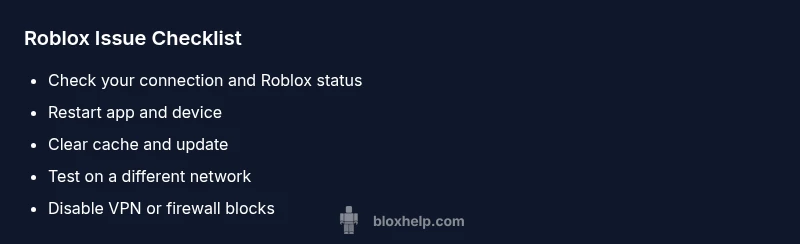
- Confirm Roblox status on the official status page or social channels. If Roblox reports a maintenance window, youll likely see login or matchmaking delays.
- Test your internet connection: try a different network (mobile hotspot) to see if the issue persists.
- Restart the Roblox app and your device. A fresh session clears temporary glitches.
- Clear Roblox cache (on mobile and PC) and ensure youre running the latest client.
- Disable VPNs or firewalls temporarily to rule out blocks, then re-enable them with exceptions for Roblox.
These quick checks help isolate whether the problem is client-side, network-related, or server-side.
Diagnostic approach: symptoms, causes, and quick solutions
Think in triads: symptom → probable cause → best fix. A login failure often points to credential issues or server-side outages; loading errors usually indicate connectivity or client version problems; frequent disconnects may come from network instability or background apps consuming bandwidth. Start with the easiest checks (internet, status, updates) and only then move to more involved steps. Keeping a short incident log helps you track patterns, such as time of day or after a specific update, which improves accuracy when contacting support. This article follows a practical, human-first approach to eliminate guesswork and restore playtime quickly.
Step-by-step fixes for the most common Roblox issues
- Check network and router: run a speed test, reset your router, and ensure youre not on a blocked corporate network. Pro tip: a wired connection can dramatically reduce latency.
- Verify Roblox status and regional outages: visit the official status page; if outages are reported, wait for updates.
- Update the Roblox client and device OS: install any available updates and restart devices.
- Clear cache and data: on mobile, older cache can cause sign-in issues; on PC, clearing cache can fix loading errors.
- Reinstall Roblox if problems persist: ensure you back up saves where applicable, then reinstall the client.
- Test on a different device or network: this isolates device-related causes and confirms if the issue is user-side or server-side.
Safety and common mistakes to avoid
- Do not download third-party patches or fixes from unverified sites; these can steal data or inject malware.
- Avoid sharing your password or authentication codes; always use official Roblox channels for support.
- Do not overshare logs or screenshots with unknown parties unless requested by official support; redact sensitive data.
- Be wary of fake support scams promising instant fixes for a price.
Prevention: reducing future Roblox issues
- Maintain a stable home network with minimal congestion; disable bandwidth-heavy apps when gaming.
- Schedule regular updates for Roblox and your device OS; enable automatic updates if possible.
- Monitor your network for latency and packet loss; run occasional speed tests.
- Bookmark and check the official Roblox status page before troubleshooting to avoid chasing false alarms.
When to contact Roblox Support
If issues persist after following the steps above, gather your device information, Roblox version, error messages, and time of occurrence. Contact Roblox Support with these details to speed up diagnosis. In urgent cases, you can reach them through official channels and social media for real-time guidance.
Steps
Estimated time: 15-25 minutes
- 1
Check network and connectivity
Test your internet with a speed check, try a wired connection if available, and disable any VPNs temporarily to see if they’re blocking Roblox traffic.
Tip: If you share Wi-Fi with others, pause heavy downloads/games while testing. - 2
Verify Roblox server status
Open the official Roblox status page and social channels to confirm whether maintenance or outages are active in your region.
Tip: If a known outage is reported, you don’t need to troubleshoot locally—wait for status updates. - 3
Update Roblox and OS
Install any pending Roblox client updates and ensure your device OS is current; a mismatch can cause sign-in or loading issues.
Tip: Turn on auto-update to prevent this in the future. - 4
Clear cache and data
Clear the app cache on mobile or clear the Roblox cache on PC to remove corrupted temporary files.
Tip: Restart after clearing for the changes to take effect. - 5
Reinstall Roblox if needed
If problems persist, uninstall and reinstall Roblox to fix corrupted components; back up saves if possible.
Tip: Only reinstall from official sources to avoid malware. - 6
Test on another device/network
Trying a different device or network helps identify whether the issue is device-specific or network-related.
Tip: This step often isolates the problem quickly.
Diagnosis: Player reports Roblox won't load or connect
Possible Causes
- highPower issue or unstable internet connection
- mediumRoblox server outage or maintenance
- lowOutdated app or device firmware
Fixes
- easyCheck outlet and test with a different network
- easyRestart Roblox app and device, then clear cache
- easyCheck Roblox status page and official channels for outages
- mediumUpdate Roblox client and device OS
Questions & Answers
Why is Roblox not loading or connecting?
Common culprits include unstable internet, server outages, or outdated apps. Use the diagnostic flow and start with the simplest checks—connection, status, and updates.
Check your connection and Roblox status first, then update if needed.
How can I check if Roblox servers are down?
Visit the official Roblox status page or their social channels for real-time updates and incident details.
Open the official Roblox status page for the latest information.
What should I do if I get disconnected during a game?
Reconnect after confirming network stability and updating the app. If the issue repeats, test on another device or network.
First, check your connection and try again on a different device if possible.
Why do I keep getting login errors?
Verify credentials, ensure two-factor authentication is set up, and confirm you are on the latest Roblox client.
Make sure youre on the latest version of the Roblox app.
Is it safe to reset my router or flush DNS?
Yes, these are safe steps that fix many connectivity problems when done carefully.
Resetting your router or flushing DNS can fix network issues safely.
When should I contact Roblox support?
If issues persist after basic steps, collect device info, error messages, and times; reach Roblox Support with details.
If it still doesnt work after troubleshooting, contact support with details.
Watch Video
The Essentials
- Identify whether the issue is network, server, or client-related.
- Follow the diagnostic flow to cover common causes first.
- Keep Roblox and OS up to date to prevent regressions.
- Avoid unsafe fixes or unverified patches.
- Check the official Roblox status before deep troubleshooting.