How to Fix Roblox: A Step-by-Step Troubleshooting Guide
A comprehensive, step-by-step guide to diagnosing and fixing Roblox problems—from outages to device compatibility—featuring practical tips and safety checks. Learn practical, beginner-friendly troubleshooting from Blox Help to keep Roblox running smoothly.


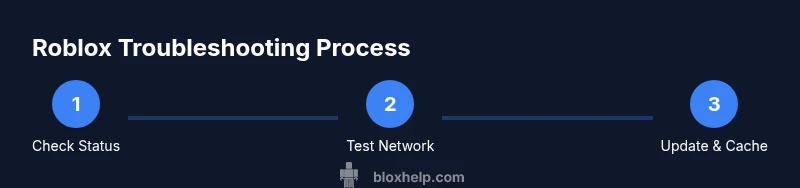
This guide explains how to fix Roblox using a structured, step-by-step approach. You’ll verify outages, check your network and device, update the client, clear caches, adjust settings, and, if needed, reinstall Roblox. Follow the sequence to isolate causes and apply safe, practical fixes quickly.
Why Roblox issues happen and how to approach resolution
Fixing Roblox can feel daunting when games won’t load or screens freeze. According to Blox Help, most problems come down to three areas: service status, network connectivity, and client-software glitches. By approaching the issue as a triage, you can quickly eliminate common causes before diving into deeper troubleshooting. Start with a quick sanity check: is the issue across all games or just one? If it’s global, focus on Roblox’s servers or your network. If it’s game-specific, the problem is likely on the app or your device. This section lays the foundation for a methodical fix-by-fix process that keeps you in control and reduces frustration.
Remember, how to fix roblox often hinges on simple, repeatable steps you can perform yourself. Keep notes of any error messages you see and the exact time of incidents. Over time, you'll notice patterns that point to root causes—such as a recent app update or a router change—that help you prevent reoccurring problems. The goal is to build a reliable routine you can use whenever Roblox acts up.
Diagnosing Roblox issues: quick triage steps
When Roblox behaves abnormally, begin with quick triage checks designed to separate server-side problems from device-side issues. Verify Roblox’s official status pages and social channels for outages or maintenance windows that could affect your region. Next, confirm whether other devices on the same network experience the same symptoms. If multiple devices are affected, the issue is more likely network or server-related rather than a single device. Finally, review local changes like new routers, VPNs, or parental controls that could interfere with connectivity. This triage helps you prioritize fixes and avoid wasted effort on problems outside your control.
In this phase, document: the time of the incident, the affected platform, whether it’s across multiple games, and any error codes shown. This information speeds up support if you need to contact Roblox or your network provider. By following the triage steps consistently, you’ll gain confidence and clarity when addressing Roblox problems, and you’ll be prepared to escalate when necessary.
Verifying server status and account scope
A common culprit for fix attempts failing is a server-side problem that affects many players. Start by checking Roblox’s official status page and their community channels for incident notices. If outages are confirmed, you’ll simply need to wait for Roblox to resolve the issue. If status looks fine, verify that your account isn’t affected by restrictions or security steps—sometimes parental controls, account suspensions, or two-factor authentication prompts can disrupt gameplay. If you’re using a corporate or shared network, ensure that firewall rules aren’t unintentionally blocking Roblox domains. By clarifying service status and your account scope, you can focus your next steps more efficiently.
Ensuring a solid network: connectivity and hardware checks
Connectivity is the backbone of a smooth Roblox experience. Before deep-diving into software tweaks, confirm you have a stable, uninterrupted connection. Test your network for consistency: try a wired Ethernet connection if possible, pause other bandwidth-heavy activities, and verify that your router isn’t performing poorly. If you’re on Wi‑Fi, consider moving closer to the router, restarting it, and checking for interference from other devices. Disable VPNs or proxy services temporarily to see if they interfere with Roblox’s network routing. These checks help distinguish between flaky networks and issues within Roblox itself.
Updating Roblox and clearing caches
Keeping Roblox up to date is a simple yet powerful fix. Check for pending updates on all platforms—PC, mobile, and consoles—and install them. Outdated clients can cause compatibility problems with newer game features and servers. After updating, clear cache and temporary data where appropriate: on PC, use the Roblox app cache; on mobile, clear app data for Roblox if the platform supports it. This clears stale files that might be causing corruption or performance hiccups without affecting your saved progress. If you encounter persistent errors, note the exact error message for reference.
If you use multiple devices, repeat the update and cache-clearing steps on each one to ensure a consistent baseline.
Checking device compatibility and OS requirements
Some Roblox issues stem from incompatibilities between the game client and your device’s operating system or hardware. Confirm that your device meets Roblox’s current requirements for the platform you’re playing on, and consider temporarily disabling resource-heavy features if you’re on lower-end hardware. Check whether your OS has pending updates or known issues that affect Roblox specifically. If you’re using an older device, Roblox’s newer features may still run, but certain game modes could be limited or degraded. Addressing compatibility ensures you aren’t fighting against a built-in limitation.
This step reduces surprise error messages by aligning expectations with your hardware and software environment.
Fine-tuning in-game settings and security checks
Gameplay performance is heavily influenced by in-game graphics and security settings. Lower the graphics quality, disable motion blur, and reduce texture resolution where available to reduce strain on the client. Check for any installed overlays, recording software, or third-party tools that might conflict with Roblox. Temporarily disable antivirus or firewall features if they interfere with Roblox connections, then test again. Also ensure your device’s date and time are correct, as discrepancies can cause authentication failures. These adjustments can often improve stability without a full reinstall.
Reinstalling Roblox: when and how
A clean reinstall often resolves stubborn problems, especially after multiple fixes haven’t stuck. Uninstall Roblox from each affected platform, restart the device, and reinstall the latest version from the official source. During reinstallation, avoid restoring old configuration files that might reintroduce corruption. After reinstalling, launch Roblox with a fresh cache and minimal overlays to verify baseline performance. If issues recur, collect logs or screenshots to help support diagnose more deeply. A reinstall can refresh permissions, dependencies, and cached data that other fixes can’t reach.
When issues persist: advanced troubleshooting and escalation
If Roblox continues to fail after the above steps, consider more targeted experiments. Test with a different user account or on a different device to confirm whether the problem is account-specific or hardware-related. Temporarily disabling all third-party software and running Roblox in a clean boot environment can reveal background processes that block connectivity. If you still can’t fix Roblox, gather your error messages, timestamps, device model, OS version, and steps you’ve already tried, then contact Roblox Support or your internet service provider for specialized help. Persistent problems often require deeper investigation from the official teams.
Preventive habits: building a reliable Roblox troubleshooting routine
To minimize friction in the future, create a short, repeatable checklist you perform before playing. Regularly update Roblox and your device software, monitor your network health, and keep a backup of your saved progress. Document any recurring patterns and note changes after each update or network adjustment. By adopting a proactive approach, you’ll shorten repair time and reduce downtime, keeping your Roblox experience smooth and enjoyable. The habit of proactive maintenance is one of the strongest preventers against recurring issues.
Tools & Materials
- Stable internet connection(Prefer a consistent connection; wired Ethernet is ideal when possible)
- Device with Roblox installed(PC, Mac, iOS, Android, or console; ensure access to app store or installation file)
- Access to router/network settings(Useful for checking DNS, firewall rules, and port forwarding if needed)
- Second device for cross-testing(Helpful to confirm if the issue is device-specific)
- Recent error messages or codes(Record exact wording to speed up troubleshooting)
Steps
Estimated time: 1-2 hours
- 1
Check Roblox status
Open Roblox official status page and social channels to confirm outages or maintenance in your region. Note the time and any incident IDs. If outages are reported, await resolution.
Tip: Document outage times for reference if you need to contact support. - 2
Test your network
Verify your connection is stable by running a quick speed test and checking for packet loss. If on Wi‑Fi, try moving closer to the router or use a wired connection when possible.
Tip: Pause other bandwidth-heavy apps during testing to get a true reading. - 3
Update Roblox client
Check for and install any available Roblox updates on all devices. Updates fix known bugs and compatibility issues with recent game content.
Tip: Restart the device after installing updates to ensure changes take effect. - 4
Clear caches/data
Clear the Roblox cache or app data to remove corrupted files that may cause crashes or login problems. Relaunch Roblox to test a clean start.
Tip: If your saves are linked to cloud storage, ensure you don’t lose progress during clearance. - 5
Check device compatibility
Confirm your device and OS meet Roblox requirements for the platform you’re using. Update the OS if a newer version is available.
Tip: For older devices, consider lighter game modes or alternate devices for testing. - 6
Adjust settings and security
Lower in-game graphics and disable overlays or third-party tools that might interfere. Temporarily disable antivirus/firewall for testing (re-enable afterward).
Tip: Always re-enable security after testing to keep your device protected. - 7
Reinstall Roblox
Uninstall Roblox, restart the device, and reinstall from official sources. Run with minimal extras to verify baseline stability.
Tip: Avoid restoring old configurations that could reintroduce issues. - 8
Test across devices
If possible, test Roblox on another device or account to determine if the issue is account- or device-specific.
Tip: Cross-testing helps pinpoint the root cause faster. - 9
Escalate if needed
If issues persist, collect error messages, times, platform, and steps tried. Contact Roblox Support or your ISP with a clear report.
Tip: A concise report with steps already attempted speeds up resolution.
Questions & Answers
Why is Roblox not loading or stuck at startup?
Startup failures can result from server outages, unstable networks, or client-side glitches. Begin with a status check, then run through a network test and client update before deeper troubleshooting.
If Roblox won't load, start by checking for outages, then test your network and update the app before digging deeper.
What should I do if I see an error code in Roblox?
Note the exact error code and message, check Roblox's status pages, and try updating or reinstalling the client. If the problem persists, gather details for support.
When you see an error code, record it, update or reinstall Roblox, and check status pages. If it continues, contact support with your details.
Is using a VPN likely to cause Roblox issues?
VPNs can interfere with Roblox connectivity and routing. Temporarily disable VPNs or proxies during troubleshooting to see if performance improves.
VPNs can disrupt Roblox; try turning them off during troubleshooting and see if things run smoother.
When should I reinstall Roblox?
Reinstall Roblox after updating and cache clearing if issues remain. A clean install fixes corrupted files and stale configurations and often resolves stubborn problems.
Consider reinstalling after updates and cache clearing if problems persist.
How can I prevent Roblox issues from happening often?
Maintain regular updates for Roblox and your device, monitor network health, and keep backups of progress. A simple troubleshooting checklist helps you stay prepared.
Keep software updated and have a small troubleshooting checklist ready to prevent issues.
Where can I get official Roblox support?
Visit the Roblox Support page and official forums for guidance, or contact your ISP if connectivity problems persist after all client fixes.
Check the Roblox Support page for official help, or contact your internet provider if the issue continues.
Watch Video
The Essentials
- Follow a structured triage to isolate Roblox issues quickly
- Update, clear cache, and test across devices for reliable results
- Document errors and timelines to speed support
- Escalate with a clear report when problems persist