Why is My Roblox Not Loading? Urgent Troubleshooting Guide
Facing Roblox not loading? This urgent guide covers fast, actionable steps to diagnose and fix loading issues across devices, with a clear diagnostic flow and safety tips.


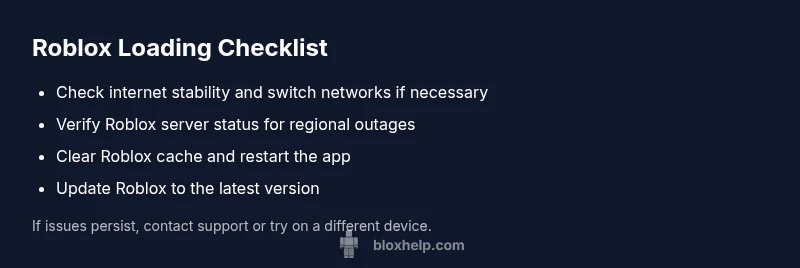
The most likely causes are a flaky internet connection, a temporary Roblox server hiccup, or an outdated app. Quick fixes: verify your connection, restart your router, and clear Roblox cache; then relaunch on the same or a different network. If it still won’t load, check Roblox status and try reinstalling the app. This approach fixes most loading issues fast.
Why Roblox Not Loading? Why This Happens and Why It Matters
Roblox not loading can feel urgent, especially when you’re in the middle of a game jam or trying to test a new script. The problem is rarely one single fault; more often it’s a combination of network performance, device health, and software state. This guide focuses on practical, beginner-friendly steps you can take right away. According to Blox Help, starting with the basics often resolves many loading problems, setting you up for smoother play sessions. Stay calm, follow the steps, and you’ll likely get back to your Roblox world quickly.
Quick Network Readiness Checks
A stable network is the backbone of Roblox loading. Start with simple checks before diving into deeper diagnostics.
- Confirm your device is connected to the internet and has a stable signal. If you’re on Wi-Fi, try moving closer to the router or switching to a wired connection if possible.
- Restart your modem/router. Unplug for 30 seconds, plug back in, and give it a minute to re-establish your connection.
- Temporarily disable bandwidth-heavy apps or games running in the background that could be hogging bandwidth. If you’re on mobile, toggle Airplane mode on and off to refresh network state.
- If available, test Roblox on another device in the same network to see if the issue is device-specific. This quick test helps determine whether the problem is universal or isolated.
Server Status and Regional Outages
Sometimes the problem isn’t on your end—Roblox servers or regional routing can be congested. Check official Roblox status pages and social channels for outage notices or maintenance.
- Visit the Roblox Status page and look for reported incidents in your region. If you see an outage, you’ll need to wait for Roblox to fix it.
- Monitor community channels or Roblox support threads for updates. If multiple players in your area report issues, the fault is likely on Roblox’s side.
- If there’s ongoing maintenance, plan to retry during off-peak hours when load is lighter.
- As a quick sanity check, try loading a different Roblox experience to see if the problem is universal or limited to a specific game.
Cache, Cookies, and Device Health
Cached data and stored cookies can become corrupted and block loading. Clearing them often resolves stubborn issues.
- Clear the Roblox app cache on your device (steps vary by platform). Clearing the browser cache may also help if you’re using Roblox on a PC via a browser.
- Delete optional data for the Roblox app if you’re on mobile, and consider clearing your browser history if you access Roblox in-browser.
- Restart the device after clearing cache to ensure all temporary files are rebuilt fresh.
- Ensure your device has enough free storage; insufficient space can slow or block loading.
Step-by-Step Fixes for the Most Likely Cause
These steps target the most common root causes and are designed to be followed in order.
- Check your internet stability and reboot networking gear. This is the fastest reset and should be done first.
- Verify Roblox status and retry on the same network after a short wait. If outages exist, you’ll need to wait for resolution.
- Clear Roblox cache and reinstall if needed. This resolves corrupted data that often blocks startup.
- Update Roblox to the latest version and retry loading. Updates fix bugs that can prevent games from starting.
- Test on a different device or network to confirm whether the issue persists. If it does, seek deeper support.
If this doesn’t work, try performing the same steps again in a different order or seek professional help if you’re unsure about reinstalling apps.
Advanced Checks: DNS, Firewall, and VPN Considerations
If basic fixes don’t help, network routing or local security settings may be at fault. Proceed carefully and revert changes if they don’t help.
- Check DNS settings; switching to a public DNS (like 1.1.1.1 or 8.8.8.8) can improve resolution speed and reliability. After changing DNS, restart your router and device.
- Review firewall rules on your PC or router to ensure Roblox isn’t blocked. Temporarily disable the firewall (with caution) or add Roblox as an allowed app.
- If you use a VPN, disable it to see if Roblox loads without the VPN; some VPNs degrade performance or cause routing issues.
- Ensure your antivirus isn’t blocking Roblox executables. Add Roblox to your antivirus exceptions if necessary.
Safety, Prevention, and Best Practices
Prevention is the steady partner of quick recovery. Build habits that keep Roblox loading reliably and protect your account from new issues.
- Keep Roblox and device software up to date with automatic updates enabled where possible.
- Regularly clear cache after major game updates or device changes to avoid stale data.
- Use a reliable home network and consider upgrading your router if you frequently see buffering or slow loads.
- Back up important Roblox projects and script work so a loading issue doesn’t cause data loss. Maintain a separate backup for your local files.
How to Verify Fix and When to Contact Support
After completing fixes, verify that Roblox loads consistently across experiences and devices. If problems persist beyond basic checks, contact Roblox Support with a description of the steps you performed and any error codes you encountered. Persistent issues may indicate account or server-side problems requiring specialist assistance.
Steps
Estimated time: 20-40 minutes
- 1
Confirm the issue and collect details
Note when the problem started, the device type, OS version, and whether the issue happens on all games or a specific title. This helps isolate network vs. game data problems.
Tip: Write down error codes or screenshots to share with support. - 2
Test and stabilize your network
Restart your router, switch networks if possible, and ensure a stable connection. If you’re on mobile, try a different cellular network or disable data-saver modes.
Tip: A wired connection is often more reliable for testing than Wi-Fi. - 3
Check Roblox server status
Open the official status page or trusted community sources to see if there are reported outages in your region. If an outage is active, retry later.
Tip: If outages are reported, subscribing to status updates can help you time the fix. - 4
Clear cache and data
On mobile, clear the Roblox app cache; on desktop, clear browser or application cache and cookies if using Roblox in a browser. Then restart the device.
Tip: Clearing data can remove corrupted files that block startup. - 5
Update or reinstall Roblox
Ensure you have the latest version installed. If problems persist, uninstall and reinstall Roblox to replace corrupted installation files.
Tip: Always backup any local scripts or projects before reinstalling. - 6
Test across devices or networks
If Roblox loads on another device or network, the issue is device/network-specific. If it fails everywhere, the problem is broader and may require official support.
Tip: Document the tests you ran for faster support.
Diagnosis: Roblox won't load or gets stuck on startup
Possible Causes
- highUnstable or blocked internet connection
- highRoblox server outage or regional issue
- mediumOutdated Roblox app or game data corruption
- mediumCorrupted cache or cookies on device/browser
- lowFirewall, VPN, or security software blocking Roblox
Fixes
- easyRestart modem/router and test another network if possible
- easyCheck Roblox Status page for outages and wait if needed
- easyUpdate Roblox to the latest version or reinstall the app
- mediumClear Roblox cache/data and relaunch
- mediumTemporarily disable firewall/VPN or add Roblox to allowed apps
Questions & Answers
Why is Roblox not loading on my PC?
Common causes include unstable internet, Roblox server outages, or corrupted cache. Start with a quick network test, check Roblox status, and clear the browser or app cache before reinstalling if needed.
Roblox not loading on PC is usually due to network issues or server outages. Start with a quick test of your connection and check Roblox status.
What should I do first when Roblox won’t load?
First, verify your internet connection and try a different network. Then check Roblox status for outages and clear the cache if needed before reinstalling.
First, check your connection, then Roblox status, and clear cache if issues persist.
How do I clear Roblox cache on mobile?
Go to your device settings, locate Roblox, and clear its cache. Restart the app and try loading Roblox again.
Open your device settings, clear Roblox cache, then restart the app.
Can Roblox server outages cause not loading?
Yes. If Roblox is undergoing maintenance or regional outages, loading failures are expected. Check the official status page for real-time updates.
Outages can cause loading failures; check Roblox status for updates.
Is it safe to disable firewall or VPN to fix loading issues?
Disabling security features can expose you to risks. Only disable temporarily to test, and re-enable or add Roblox as an exception if needed.
Temporarily disable to test, then re-enable or add Roblox as an exception.
When should I contact Roblox Support?
If you’ve tried all basic fixes and the issue persists across devices, contact Roblox Support with your device details, OS version, and any error messages.
If it keeps failing after all basics, reach out to Roblox Support with details.
Watch Video
The Essentials
- Start with network checks and status pages
- Clear cache or reinstall for corrupted data
- Update Roblox and test on multiple devices
- Only disable security features temporarily and safely