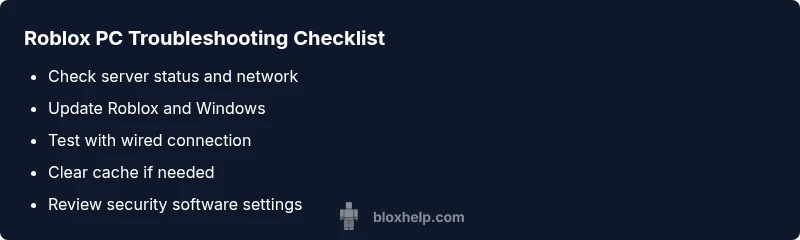
Roblox Not Working on PC: Comprehensive Troubleshooting
Roblox not working on PC? This urgent guide from Blox Help covers quick fixes, diagnostics, and step-by-step solutions to get you back in-game fast. Learn how to diagnose network, client, and PC issues for a smooth Roblox session.


Roblox not working on pc is most commonly caused by network issues, outdated Roblox client, or blocked game access by firewall or antivirus. Start with the simplest fixes: restart your PC, verify your internet, update Roblox, and temporarily disable VPNs or security software to test. If the problem persists, move to advanced steps.
Roblox not working on pc: Quick checks before you dive deeper
According to Blox Help, many PC Roblox problems start with simple, fixable issues rather than deep software faults. If Roblox won’t launch, stays on a splash screen, or you experience frequent disconnections, begin with the basics. Check your internet connectivity: run a speed test, try a wired connection if you’re on Wi‑Fi, and verify that other online services work. Next, restart your PC and router to refresh network stacks. Ensure the Roblox desktop app is up to date, and Windows itself has the latest updates installed. If you use VPNs, proxies, or a firewall with strict rules, temporarily disable them to see if Roblox can connect.
Finally, make sure your computer’s date and time are correct; some services fail to authenticate if the clock is off. Use this block as a fast-pass checklist to reduce guesswork and get back to gaming quickly.
Common causes of Roblox not working on PC
There are several frequent culprits when Roblox doesn’t work on a PC. Outdated Roblox launcher or Windows OS can prevent the game from starting or cause crashes. Security software—antivirus programs and firewalls—can block Roblox’s network access if there’s no explicit exception. Network issues, such as a weak Wi‑Fi signal or restrictive NAT types, can interrupt connections to Roblox servers. Corrupted Roblox cache or game files can lead to abnormal behavior, including stuck on loading screens. In rare cases, hardware drivers (graphics or network) or operating system settings can create compatibility problems. Finally, VPNs or proxies can interfere with authentication and server access. Identifying the right cause is essential to apply the correct fix.
Quick fixes you can try right now
- Update the Roblox client and Windows OS to the latest versions. Restart your PC after updating to ensure all services start cleanly.
- Check your network: switch to a wired connection if possible, or run a speed test to confirm stable bandwidth. Temporarily disable VPNs or proxies to see if that resolves the issue.
- Run Roblox as an administrator and ensure the launcher has proper permissions. Right-click the Roblox shortcut and select 'Run as administrator'.
- Clear Roblox cache: close Roblox, delete the Roblox cache folder, and relaunch. This removes corrupted data that can block startup.
- Temporarily disable firewall or antivirus protection for testing, but only briefly and with protections re-enabled afterward. If Roblox works, add an exception for Roblox in your security software.
If none of these steps work, proceed to deeper diagnostics and consider reinstalling Roblox as a last resort.
How to diagnose with a flow: network, PC, Roblox client
Symptoms to observe guide the diagnosis. Start with the network: can other online services reach the internet normally? If yes, the issue may be Roblox-specific access or a server problem. Next, verify the Roblox client: does the launcher open, and are you able to log in? If you see crash errors, note the exact error message. Finally, PC configuration: check for conflicting software, recent Windows updates, or driver problems. Create a simple flow:
- Is internet working? Yes → continue. 2) Can Roblox connect? Yes → game launches. 3) If no, test with another device on the same network. 4) Check for firewall blocks or antivirus prompts. 5) Review system logs for clues. This process narrows down the root cause and prevents random tweaks.
In-depth step-by-step fixes for the most likely causes
- Update Roblox and Windows: download the latest Roblox player and ensure Windows Update is current. 2) Clear cache and reinstall game files: remove temporary Roblox data from AppData and local packs. 3) Check firewall and antivirus: add Roblox to allowed apps or create explicit rules, then test again. 4) Test network with a wired connection or different router: LAN stability improves latency and reduces packet loss. 5) Reinstall Roblox: uninstall, restart, and install the latest version from the official site. 6) Update drivers: graphics and network drivers should be current to avoid compatibility issues.
Safety tips and prevention to avoid future issues
- Avoid disabling security tools permanently; use explicit exceptions for Roblox instead. - Back up your saved data regularly and ensure cloud saves are enabled where possible. - Keep a stable internet connection and monitor your router settings, firmware, and QoS to ensure Roblox traffic isn’t throttled. - Schedule periodic system maintenance: disk cleanup, malware scans, and driver updates. - Use a wired connection for consistent performance when possible. These practices reduce the chances of future outages and speed up recovery when problems occur.
When to escalate to support and how to preserve data
If Roblox still won’t work after all the above, it’s time to contact support. Gather essential details: your PC specs, Windows version, Roblox version, error messages, steps you tried, and any recent changes to software or hardware. Provide screenshots or logs if available. Before contacting support, back up important progress and note the date of the issues to help technicians reproduce the problem. Blox Help recommends documenting these details to shorten your resolution time and get you back to playing faster.
Steps
Estimated time: 20-60 minutes
- 1
Prepare and save work
Close other apps and save progress. This prevents data loss during fixes and reboots.
Tip: Close background games and downloads to free network bandwidth. - 2
Update Roblox and Windows
Check for updates for both Roblox and Windows. Install and reboot before testing.
Tip: Restart after updates to ensure all services start cleanly. - 3
Check network stability
Run a speed test, try a wired connection, and disable VPNs or proxies temporarily.
Tip: If other devices work fine, the issue may be Roblox-specific. - 4
Run Roblox as administrator
Right-click the Roblox shortcut and choose Run as administrator to grant permissions.
Tip: Avoid permanent admin mode; this is for testing. - 5
Clear Roblox cache
Close Roblox, delete the cache folders, and relaunch.
Tip: Cache corruption is a common startup blocker. - 6
Check security software
Temporarily disable firewall/AV to test; if fixed, add exceptions for Roblox.
Tip: Always re-enable protection after testing. - 7
Reinstall Roblox if needed
Uninstall, reboot, and install the latest Roblox client from the official site.
Tip: This resolves deep-seated file issues.
Diagnosis: Roblox not launching or crashing on PC
Possible Causes
- highOutdated Roblox client or Windows OS
- highWeak or blocked internet connection
- mediumFirewall/antivirus blocking Roblox
- lowVPN/proxy interfering with connection
- mediumCorrupted Roblox cache or game files
- lowDriver issues or conflicting software
Fixes
- easyUpdate Roblox to latest version and reboot PC
- easyTest internet on another device or switch to wired connection
- easyTemporarily disable firewall/antivirus or add Roblox exception
- easyClear Roblox cache and verify game files
- mediumReinstall Roblox if problems persist
- mediumUpdate network or graphics drivers
Questions & Answers
Why won't Roblox launch on my PC?
Common causes include an outdated Roblox client, Windows OS or driver issues, antivirus or firewall blocks, and network problems. Start with updates, then test the network and security settings before moving to deeper fixes.
Roblox might not launch due to outdated software or blocked access. Start with updates, check your internet, and temporarily disable security software to test access.
What should I check first when Roblox is lagging?
First verify your network stability and latency. Then check the Roblox client version and any running background programs that may consume CPU or bandwidth.
For lag, start with the network and the Roblox client version, then close unneeded apps.
Can VPNs cause Roblox not to work on PC?
Yes. VPNs and proxies can block or slow Roblox connections. Disable them temporarily to test connectivity and then add Roblox as an exception if needed.
VPNs can interfere with Roblox. Turn them off to test whether the game runs.
Is antivirus blocking Roblox?
Antivirus or firewall software can block Roblox network access. Add Roblox as an exception or create a firewall rule, then test the game again.
Your antivirus might be blocking Roblox; add an exception and retry.
When should I reinstall Roblox?
If updates and network fixes don’t help, reinstall Roblox to refresh all files and settings. This often resolves persistent startup or connectivity issues.
Reinstall Roblox when other fixes fail; it clears corrupted files.
Watch Video
The Essentials
- Restart devices before deep fixes
- Update both Roblox and Windows regularly
- Test network conditions to isolate issues
- Reinstall Roblox as a last resort