Roblox Outage Troubleshooting Guide: Get Back Online Fast
A practical, urgent Roblox outage troubleshooting guide to diagnose and fix connectivity issues fast. Check status, reset networks, adjust DNS, and know when to contact support.


Roblox outage is most often caused by a platform service disruption or regional routing problems. Start by checking the Roblox status page and social channels for ongoing maintenance. If Roblox reports service, reboot your router and test on another device; if it persists, try DNS changes or temporarily disable VPNs to rule out local blocks.
What causes Roblox outages?
Roblox outages can strike players without warning, and distinguishing between a platform-wide incident and a local connectivity issue is essential for a fast resolution. According to Blox Help, most outages stem from Roblox server maintenance, regional routing problems, or traffic surges that exceed capacity. When the Roblox service itself is down, individual players have little control beyond waiting for engineers to resolve the issue. However, you can still verify the status, monitor official updates, and prepare a fallback plan so you’re ready the moment services come back online. In practice, most outage reports cluster around a few common scenarios: a service-wide alert in the Roblox public status page, a regional outage that affects specific time zones, or a temporary network congestion causing lag and disconnects. Staying informed helps you avoid unnecessary troubleshooting in the wrong direction and aligns your actions with real-time status. For Roblox outage information, keep an eye on the official Roblox Status page and trusted community dashboards.
Is this Roblox outage or local network issue?
A critical skill is distinguishing between a platform outage and something on your end. If you or your friends across different networks experience the same error, a Roblox outage is likely. If only one device or one network is impacted, you’re probably looking at local factors such as router settings, VPNs, firewall rules, or DNS resolution. The Blox Help team recommends a quick triage sequence: check the Roblox status page, confirm other online services work, and compare results across your devices. Additionally, testing on a different network (mobile data, friend’s Wi‑Fi, or a public hotspot) can rapidly confirm whether the issue is platform-wide or device-specific.
How to verify Roblox status and service health
Begin by visiting Roblox’s official status page and their social channels for real-time incident reports. Look for active outages, maintenance notices, or regional advisories. If the status shows a temporary outage, your action is mainly to wait and monitor updates. If no outage is listed, proceed to check your network: ensure your router and modem are functioning, verify there are no ongoing parental controls or firewall blocks, and test other online services to spot patterns. You can also run a simple latency test to see if your connection is unusually slow, which could indicate a local network issue rather than a Roblox outage. Remember to document the exact time and any error codes to streamline support if needed.
Diagnostic flow: symptom to diagnosis
This section maps common symptoms to probable diagnoses and targeted fixes, establishing a repeatable process you can follow quickly. Start with the most obvious signs:
- Symptom: You cannot connect to Roblox or games fail to load.
- Diagnosis: Platform outage or network block.
- Fix: Check Roblox status and restart network to rule out local causes.
- Symptom: You can connect to Roblox but experience lag or disconnects.
- Diagnosis: Network congestion or DNS resolution hiccups.
- Fix: Change DNS, flush DNS cache, or use a wired connection if possible.
- Symptom: Error messages mention login blocks or age restrictions.
- Diagnosis: Account security measures or parental controls.
- Fix: Verify account status and adjust controls if appropriate.
By documenting symptoms and possible diagnoses, you can proceed to the most efficient fixes first and escalate only when necessary.
Step-by-step fixes for the most common cause
This section provides a practical, action-oriented sequence for the top fix most readers will need: verifying status and refreshing local networks. Follow these steps in order, and move to more advanced steps only if the previous ones don’t resolve the issue. For each step, aim to complete within 5–15 minutes before moving to the next.
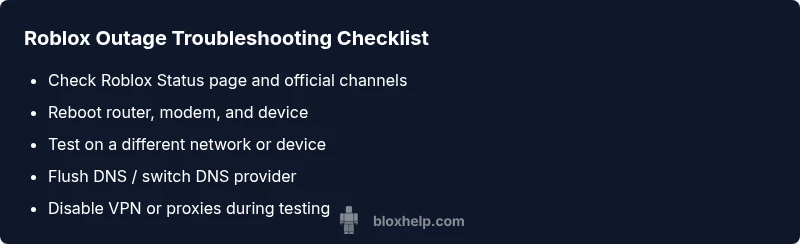
- Check Roblox Status and official channels
- Reboot router, modem, and device
- Test on another network or device
- Flush DNS and/or change DNS provider
- Temporarily disable VPNs or proxies
- Reinstall Roblox or clear cache if necessary
If the problem persists after these steps, escalate to Roblox Support with collected details.
Safety tips and common mistakes
When troubleshooting, stay mindful of safety and data privacy. Never share your password or authentication tokens, and avoid clicking suspicious links purporting to be Roblox updates. Common mistakes include overestimating the impact of a single network change, applying fixes on the wrong device, or skipping status checks in favor of guesswork. Safety-first practices:
- Only use official Roblox channels for status updates.
- Don’t run suspicious tools that claim to “fix Roblox outages.”
- If you’re on a school or work network, inform the IT admin before changing DNS or firewall rules.
- Avoid making permanent network changes without testing the impact across devices.
- If you’re unsure, pause and seek guidance from trusted sources like Blox Help.
Prevention and long-term resilience to outages
Preventing repeated outages relies on a mix of network hygiene and prudent testing habits. Maintain stable router firmware, keep devices updated, and use reliable DNS settings across devices. For players who frequently troubleshoot, consider setting a designated “outage response plan” that includes:
- Pre-built checklists for status checks and device tests
- A backup connection option (mobile hotspot) for critical sessions
- A documented process for reinstallations and cache clearing
- Regular review of parental controls and safety settings to ensure they don’t block legitimate connections
- Encouraging players to report incidents with timestamps to speed up community troubleshooting and official responses. By following these practices, you’ll shorten downtime and stay productive during Roblox outage events.
What to do if it remains unresolved
If the outages persist beyond a reasonable window, the most constructive path is to engage official support channels. Prepare a concise report including your device type, network environment, error messages, timestamps, and steps you already tried. This data helps support teams reproduce and diagnose the issue faster. In the meantime, consider using alternative entertainment or educational Roblox activities that don’t rely on online servers. The key is to minimize downtime by having a plan and knowing when to escalate to Roblox Support and their known outages databases.
Steps
Estimated time: 30-60 minutes
- 1
Confirm outage status
Open the Roblox status page and official social channels to verify whether there is a platform-wide outage or maintenance. If the status shows an active incident, you can time your expectations and prepare to try the fixes once the incident is resolved.
Tip: Note down the incident ID and time; it helps when you contact support later. - 2
Reset your network hardware
Power cycle your router and modem by unplugging, waiting 30 seconds, and plugging back in. Reboot your device as well. A fresh network handshake can clear transient hiccups that cause Roblox to fail to connect.
Tip: If you have multiple devices, try connecting a single device to the network to isolate issues. - 3
Test on alternate network/device
Attempt to run Roblox on a different network (mobile hotspot or another Wi-Fi network) or on a different device. If the issue disappears, the problem is likely local to your original network or device.
Tip: This helps you decide whether to pursue device-level fixes or network-level changes. - 4
DNS checks and VPNs
Flush the DNS cache on your device and consider switching to a reliable DNS provider temporarily. Disable VPNs or proxies during testing to eliminate misrouting as a cause.
Tip: After testing, revert DNS to your usual provider if there’s no persistent outage. - 5
Clear cache or reinstall
For persistent client issues, clear the Roblox cache or reinstall the Roblox client. This can fix corrupted files that prevent the app from loading or connecting.
Tip: Back up important data if needed before reinstalling. - 6
Escalate if unresolved
If the problem remains after all basic steps, contact Roblox Support with a concise incident log and time stamps. They can check backend systems and investigate specific account or device blocks.
Tip: Provide exact error messages and steps already performed to speed up resolution.
Diagnosis: User reports Roblox app or game won’t load, frequent disconnects, or error messages suggesting a service outage.
Possible Causes
- highPlatform outage or maintenance on Roblox's servers
- mediumLocal network issues such as router/modem problems or congested Wi-Fi
- lowDNS resolution issues or VPN/proxy interference
Fixes
- easyCheck the Roblox Status page and official channels for outage notices
- easyRestart router, modem, and device; test on a different network
- easyFlush DNS and consider switching to a public DNS (e.g., 8.8.8.8 / 1.1.1.1); disable VPN/proxy
- mediumClear Roblox cache or reinstall the Roblox client on the device
- hardIf outage persists, contact Roblox Support with logs and timestamps
Questions & Answers
Is Roblox down right now, and how can I confirm it quickly?
The quickest way to confirm is to check the official Roblox Status page and their social channels for current incidents. If the page shows an active outage, focus on status updates rather than troubleshooting your own network. If there’s no outage listed, proceed with local checks.
Check Roblox Status first; if there’s an outage, follow official updates. If not, continue with your network checks.
How do I check Roblox server status without leaving the game?
Use the Roblox Status page and official social feeds. You can also join community streams or forums where players report outages. If you’re seeing error codes, note them for faster support.
Visit Roblox Status and trusted streams to confirm any outage.
What should I do if I can’t log in during an outage?
First, verify there isn’t a platform-wide outage. If the service is up, check your account status and network settings, including DNS and VPNs. Try logging in from a different device or network to isolate the cause.
If you can’t log in, check status and try a different device or network to isolate the issue.
Can using a VPN cause Roblox outages or login issues?
Yes, VPNs or proxies can interfere with Roblox’s connection routing or security checks. Temporarily disable VPNs during troubleshooting to see if that resolves the problem.
VPNs can cause connectivity problems; disable them while testing.
When should I contact Roblox Support for outages?
If you’ve verified the outage is platform-wide or persistent after trying standard fixes, contact Roblox Support with details like device type, network, error messages, and timestamps. They can investigate backend issues or account-specific blocks.
If outages persist after basic steps, reach out to Roblox Support with details.
Watch Video
The Essentials
- Check Roblox status first
- Restart networks/devices to clear glitches
- Switch DNS or disable VPNs if needed
- Escalate to Roblox Support with logs if unresolved