Roblox problem reaching servers: Quick Fixes and Troubleshooting
Struggling with Roblox problem reaching servers? This urgent, step-by-step guide helps you verify outages, diagnose network issues, and fix your connection fast.


Commonly, Roblox problem reaching servers is caused by a local network issue, a Roblox outage, or DNS problems. Start with quick checks: view Roblox Status, reboot router and device, and flush DNS. If the issue persists, follow a diagnostic flow to isolate whether the problem is on your side, your ISP, or Roblox itself. Proceed through guided steps for faster recovery.
Why Roblox problem reaching servers happens
When you see messages like “Unable to reach Roblox servers” or you can’t join a game, the root cause is rarely a single issue. According to Blox Help, most incidents fall into a few broad categories: a Roblox service outage or regional maintenance on the game servers; DNS or cache problems on your home network; a misconfigured router or firewall blocking the traffic; or network congestion during peak times. The key is to distinguish server-side problems from your own gear and settings. Understanding the difference helps you act quickly and avoid chasing rabbits. In many cases, the fix is straightforward, but sometimes you’ll need to coordinate with your ISP or Roblox’s status team. The goal is to regain reliable connectivity while keeping your setup secure and efficient for future play sessions.
Quick Network sanity checks you can perform now
Before diving into deeper troubleshooting, run through a few fast checks. First, verify whether Roblox itself is down by visiting the official Roblox Status page or social channels. Then, test whether other websites or online services load normally on the same device and network. If everything else loads fine, the issue is more likely Roblox-side or network-specific to Roblox’s routing. Additionally, ensure you’re not connected to a VPN or proxy that Roblox might block, and check that parental controls or firewall rules aren’t inadvertently blocking Roblox traffic. If you share a network with others, confirm whether they can connect to Roblox as well—if not, the fault may lie with your router or ISP rather than your device.
How to diagnose network issues at home
Diagnostics help you separate where the problem originates. Start with simple checks: ping roblox.com from your computer to see if there is a basic path to the servers. Use traceroute/tracert to identify where the connection pauses. Check DNS resolution with nslookup/ dig to determine if your DNS provider is returning correct IPs. On Windows, run ipconfig /flushdns to clear the DNS cache. On macOS, use sudo dscacheutil -flushcache and sudo killall -HUP mDNSResponder to refresh DNS caches. If these tests show abnormal delays or failed routes, the issue likely lies with DNS resolution, your router, or your ISP rather than Roblox itself.
Step-by-step fixes for the most common cause: DNS and router cache
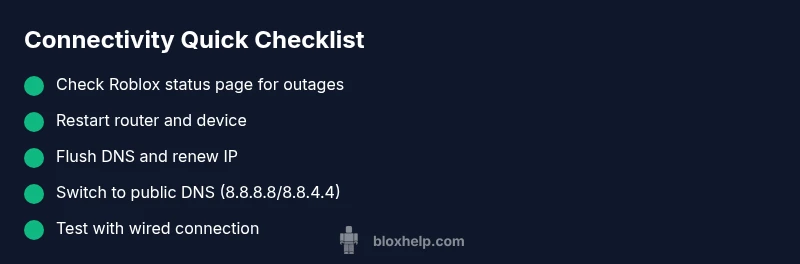
The most frequent fix involves clearing caches and reestablishing clean routes to Roblox servers. Start by power-cycling your router and modem to reset network state. Then flush your DNS cache and renew your IP address. If you still can’t connect, switch to a public DNS service like Google’s 8.8.8.8 and 8.8.4.4 or Cloudflare’s 1.1.1.1, and test Roblox again. Prefer a wired Ethernet connection over Wi‑Fi for stability, and temporarily disable VPNs or proxies to rule them out. Finally, verify that your router firmware is up to date and that port forwarding or UPnP settings aren’t misconfigured for Roblox.
If Roblox outage is real, what to do next
Outages happen, and timing matters. If Roblox status shows an active outage for your region, the best course is patience and monitoring. Use official channels to confirm any planned maintenance windows and follow Roblox’s guidance on when to retry. While waiting, check your local network equipment for signs of problems and ensure your devices are up-to-date. If you must play during an outage, consider testing on a different network or a mobile data connection if available, but understand this is a workaround rather than a fix. When the status changes, re-test connections on all devices.
Long-term connection improvements for Roblox play
To reduce the likelihood of future Roblox problem reaching servers, optimize your home network. Use a wired connection where possible, place the router in a central position, and reduce interference from other electronics. Keep firmware up to date, enable Quality of Service (QoS) rules for gaming traffic if your router supports it, and use a reliable DNS provider. Avoid background downloads or streaming during gaming sessions, close unnecessary programs, and consider upgrading to a router with lower latency and better handling of online gaming.
Safety, pitfalls, and quick reminders
Never disable essential security features as a first resort—this can expose your network to risk. If you test with a VPN or proxy, revert those changes after testing and do not leave them enabled long-term unless you know it’s necessary for your setup. Be cautious of suspicious tools or “one-click fixes” promising to solve all Roblox connectivity issues; most fixes require methodical testing. If you’ve exhausted home fixes and Roblox still won’t connect, contact your ISP for possible path problems or outages in your locality, and reach out to Roblox Support with details of the steps you took and the results.
Steps
Estimated time: 25-45 minutes
- 1
Check Roblox Status
Open the official Roblox Status page and social channels to confirm whether Roblox services are currently experiencing an outage or maintenance. If there is an outage, the recommended action is to wait and monitor for updates. If services look healthy, proceed to the next checks.
Tip: Note the time of outage reports and compare with your local activity window. - 2
Restart Network Equipment
Power off your router and modem, wait 30 seconds, then power them back on. Allow a few minutes for all indicators to stabilize. This can clear minor routing issues and refresh your local path to Roblox servers.
Tip: If you have multiple devices, perform the restart with only one device actively gaming to isolate. - 3
Flush DNS and Renew IP
On Windows, run 'ipconfig /flushdns', then 'ipconfig /release' and 'ipconfig /renew'. On macOS, run 'sudo dscacheutil -flushcache' and 'sudo killall -HUP mDNSResponder'. Reconnect and test Roblox.
Tip: Do this after you disconnect VPNs and proxies to avoid masking real results. - 4
Switch DNS Servers
Change your DNS to a public resolver such as Google DNS (8.8.8.8 and 8.8.4.4) or Cloudflare DNS (1.1.1.1). This can eliminate DNS cache issues that misroute Roblox traffic. Test Roblox after the change.
Tip: Document any DNS changes so you can revert if needed. - 5
Test with a Wired Connection
If possible, connect your device directly to the router with an Ethernet cable. Wired connections reduce packet loss and latency, improving reliability for Roblox gameplay. If you must use Wi‑Fi, ensure you are on a strong 5 GHz channel with minimal interference.
Tip: Place the router in a central, elevated position away from walls and metal objects. - 6
Disable VPN/Proxy Temporarily
Some VPNs or proxies are blocked by Roblox. Disable them temporarily to test a direct connection. If Roblox works without VPN, you’ve identified the interference source; re-enable only when you need it for other services.
Tip: Never leave VPNs enabled for Roblox unless you understand the risks and requirements. - 7
Test on a Different Network
If available, try connecting from a different network (mobile hotspot, neighbor’s network with permission, or a different router). This helps determine whether the issue is network-specific to your home setup or broader.
Tip: Keep security in mind; only use networks you trust and obtain permission where required. - 8
Escalate to Support
If Roblox still cannot be reached after all tests, document your test results (commands run, times, symptoms) and contact Roblox Support or your ISP. Provide the details to speed up the investigation.
Tip: Include timestamps and evidence such as ping/traceroute outputs to help analysts reproduce the issue.
Diagnosis: User cannot reach Roblox servers; game shows connection errors or cannot join games
Possible Causes
- highRoblox service outage or regional maintenance
- highLocal network DNS resolution issues
- mediumISP routing problems or congestion
- lowFirewall/antivirus blocks Roblox traffic
- lowVPN/proxy interference
Fixes
- easyCheck Roblox status page and wait if outage is confirmed
- easyPower cycle router and modem to refresh network state
- easyFlush DNS and renew IP address on affected devices
- easyChange DNS to public servers (8.8.8.8/8.8.4.4) and test connectivity
- easySwitch to a wired connection or move closer to the router
- easyTemporarily disable VPN/proxy or firewall restrictions, then test again
- easyTest on another device or network to localize the issue
- easyIf the problem persists, contact ISP or Roblox Support with tests performed
Questions & Answers
Why can't I reach Roblox servers even though other websites load fine?
If other sites work but Roblox does not, the problem is likely Roblox-side, DNS, or a router path. Start by checking Roblox status and running basic diagnostics like ping and traceroute to Roblox servers. If symptoms persist, proceed with the DNS and router cache fixes outlined in this guide.
If other sites load but Roblox doesn’t, the issue may be Roblox-side, DNS, or your router path. Check Roblox status and run basic tests, then follow the DNS and router steps to fix it.
How do I check if Roblox is down in my region?
Visit the official Roblox Status page and their social channels for outage notices and maintenance windows. If an outage is active, the recommended action is to wait until Roblox confirms service restoration. Regional notices may appear sooner on these platforms.
Check Roblox Status and regional posts to see if the outage affects your area. If it’s down, wait for updates.
Can changing my DNS fix Roblox connectivity issues?
Changing your DNS to public resolvers can resolve caching or misrouting issues that block Roblox. After changing DNS, flush caches and test again. If Roblox connects, you’ve identified DNS as a contributing factor.
Yes, switching to public DNS can fix some Roblox connectivity problems.
Is using a VPN advisable to bypass Roblox outages?
VPNs can improve or worsen connectivity depending on path selection and Roblox’s policies. If Roblox connectivity improves with a VPN, you may have routing issues with your ISP. Use VPN only if you understand the security and policy implications, and revert after testing.
A VPN can help in some routing cases, but use it cautiously and revert after testing.
When should I contact Roblox Support or my ISP?
If you’ve exhausted home troubleshooting and Roblox Status shows no outage, contact Roblox Support with your test results. If the issue seems network-path related or affects multiple devices, reach out to your ISP with timestamps, ping/traceroute data, and affected services.
If home fixes fail and Roblox isn’t down, contact Roblox Support or your ISP with evidence from your tests.
What information should I gather before creating a support ticket?
Collect your device type, OS version, time of the issue, the Roblox game or mode, Roblox Status page observations, ping/traceroute results, DNS server used, and any recent network changes. This helps agents reproduce and diagnose the issue faster.
Note your device, time, tests run, and the results to speed up support.
Watch Video
The Essentials
- Check Roblox status first before deep-diving.
- Restart network gear to clear transient issues.
- DNS fixes often restore connectivity quickly.
- Prefer wired connections for gaming stability.
- Document tests and escalate when needed.