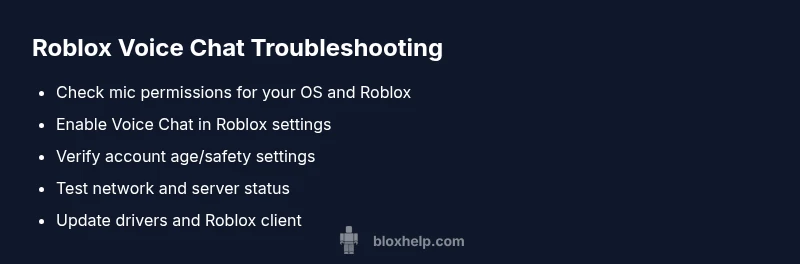
Roblox Voice Chat Not Working: Troubleshooting Guide
Fix Roblox voice chat not working with a practical, step-by-step guide. Learn mic permissions, in-game settings, and network checks to restore voice chat fast.


Most likely, the issue is a mic permission or voice chat setting problem. Quick fix: ensure your microphone is enabled in OS settings, grant Roblox microphone access, and turn on Voice Chat in Roblox settings. If it persists, restart the app or device and check for regional outages.
Check your hardware and OS mic status
Before diving into Roblox-specific settings, confirm your microphone and headset are functioning properly on your device. On Windows, open Settings > System > Sound and choose the correct input device; run the “Test your microphone” option. Make sure the mic is not muted in hardware controls or software mixers. If you’re using a headset with a mute switch, disable mute. Do a quick test in another app (Voice Recorder, Discord) to verify the mic is sending audio. If the mic works system-wide but Roblox still has no input, proceed to the next checks. Some users encounter driver or USB port issues when plugging in new headsets, so try a different USB port if problems persist. Ensure your computer’s privacy settings allow apps to access the microphone; on macOS or Windows, a blocked mic will prevent Roblox from capturing audio, even if the game’s own settings are correct.
Grant Roblox mic permissions and enable Voice Chat
Go through the permission gates: On Windows, Settings > Privacy > Microphone; ensure “Roblox” is allowed and that “Allow apps to access your microphone” is turned on. In the Roblox app, check Home > Settings > Privacy & Safety (or Voice Chat) and toggle Voice Chat on. On mobile devices (iOS/Android): the first prompt asks for microphone access; approve it. If permissions are reset after an update, re-grant them. Restart Roblox and test again in a private game to isolate other players.
Verify account eligibility and safety settings
Voice chat on Roblox has eligibility requirements. If your account is under 13 or parental controls are active, Voice Chat may be disabled. Verify your age on your account page and review safety settings that govern who can voice chat with you. If you’re part of a family group, coordinate with the guardian to adjust permissions; ensure your account is not flagged for safety issues that block audio features. Attempt a test in a private server with a friend to confirm whether the feature is allowed for your account.
Check network, latency, and server status
Voice chat relies on a stable connection with low latency. Test your internet speed and switch to a wired connection if possible; disable VPNs or proxies that might disrupt voice traffic. Check Roblox’s server status page for ongoing outages in your region. Temporarily disabling firewall/antivirus or adding Roblox to allowlist can fix blocks caused by security software. If the network is the bottleneck, try a different network (mobile hotspot) to verify whether the issue is local to your home network.
Update drivers, Roblox client, and devices
Make sure your audio drivers are up to date; visit the manufacturer’s site or use Windows Update to install the latest version. Update Roblox to the latest version from the official launcher or app store. Clear Roblox cache if you notice corrupted assets; in Windows, delete the Roblox folder under AppData/Local; on mobile, clear app data (where applicable). If issues persist, reinstall Roblox to reset all voice-related files while keeping your account intact. After updating, restart your device and re-test.
Test with a controlled setup and escalate if needed
Create a controlled test: join a private server with one friend, confirm you can hear and be heard; if not, swap devices to rule out hardware problems. Collect logs or screenshots of settings; note your device, OS version, Roblox version, and network type. If the issue remains after all steps, contact Roblox Support or Blox Help with a detailed report including steps taken and results. We emphasize safety: never share sensitive data and only reach out to official support channels.
Prevention and best practices to avoid future issues
Enable automatic updates for Windows/macOS and keep drivers current. Regularly check Roblox’s status page for outages. Use a stable network and avoid flaky VPNs when voice chat is enabled. Keep your age verification and parental controls accurate to ensure Voice Chat isn’t blocked by account restrictions. If you frequently use voice chat, consider a dedicated headset with a USB adapter to reduce interference. Finally, run periodic mic tests and privacy checks after major OS or app updates to catch permission changes early.
Steps
Estimated time: 25-40 minutes
- 1
Check hardware and OS mic
Test the microphone in the OS sound settings and a separate app to confirm input works. If you hear audio in other apps but not in Roblox, the issue likely lies with Roblox permissions or in-app settings.
Tip: Use a wired headset if possible to minimize interference. - 2
Grant Roblox mic permissions
Navigate to your OS privacy settings and ensure Roblox has microphone access. In Roblox, enable Voice Chat under Settings > Privacy & Safety. Restart the app after changing permissions.
Tip: If you’re on mobile, respond to the system prompt granting mic access. - 3
Enable Voice Chat in Roblox settings
In Roblox, go to Settings and toggle on Voice Chat. Confirm that input/output devices are correctly selected if you see device options. Test in a private session with no other players to rule out interference.
Tip: Double-check that you’re in a region where voice chat is supported. - 4
Check account age and safety controls
Ensure your account is age-verified for voice chat. Review any parental controls or guardian settings that may block audio features. If restrictions exist, request the guardian to adjust permissions.
Tip: Document your account status and approved devices when contacting support. - 5
Assess network and server status
Run a speed test and switch to a wired connection if possible. Check Roblox’s server status page for outages in your region. Temporarily disable VPNs or security software if they block voice traffic.
Tip: Try a different network (hotspot) to distinguish local vs. service issues. - 6
Update drivers and Roblox client
Update your audio drivers and confirm Roblox is updated to the latest version. Clear cache or reinstall Roblox if problems persist to reset voice-related files.
Tip: Back up personal settings before reinstalling. - 7
Test with a controlled setup and escalate
Join a private test with a trusted friend to verify audio works. Collect logs, device details, and steps taken; contact Roblox Support or Blox Help with a concise report if issues persist.
Tip: Use official channels only when seeking help.
Diagnosis: Voice chat not working in Roblox
Possible Causes
- highMicrophone muted or not selected in Roblox/OS
- highRoblox Voice Chat disabled in settings
- highOS or device mic permissions blocked for Roblox
- mediumAccount age or safety controls restrict Voice Chat
- lowNetwork issues or Roblox server outages
Fixes
- easyGrant microphone access in OS settings and in Roblox permissions, then enable Voice Chat in Roblox
- easyRestart Roblox (and device) and re-test in a private game
- mediumUpdate audio drivers and the Roblox client, clear cache if needed
- easyCheck network, disable VPN/test on different network; verify server status
- mediumVerify account eligibility (age, parental controls) and contact support if blocked
Questions & Answers
Why can’t I hear anyone in Roblox voice chat?
Common causes include muted microphone, wrong input device, or Voice Chat being disabled in Roblox settings. Check permissions, then enable Voice Chat and test in a private session.
If you can’t hear others, start by confirming mic access and turning on Voice Chat in Roblox.
Is Roblox voice chat available on mobile?
Yes, Roblox voice chat is available on supported mobile devices. Ensure microphone permissions are granted and the account age safety checks pass for voice chat use.
Voice chat works on mobile if permissions and age checks are satisfied.
How do I enable Roblox Voice Chat?
Open Roblox settings, go to Privacy & Safety, and toggle Voice Chat on. Confirm your mic is accessible by the system prompts and test in a private game.
Turn on Voice Chat in settings and test in a private game.
What should I do if Roblox says voice chat isn’t available for my account?
This often relates to age verification or parental controls. Update your age on the account page and adjust safety settings with the guardian’s help if needed.
Age or safety restrictions can block voice chat; verify your account.
Could a firewall block Roblox voice chat?
Yes, some security software can block the traffic used by voice chat. Add Roblox to the allowlist and temporarily disable security features to test connectivity.
Security software can block voice chat; adjust firewall settings to test.
Watch Video
The Essentials
- Verify mic hardware and OS permissions first
- Enable Voice Chat in Roblox and check age/safety settings
- Inspect network, server status, and drivers
- Test in controlled scenarios before escalating
- Document steps when seeking official support