Roblox with Controller: A Complete How-To Guide
Learn how to play Roblox with a controller on PC or Xbox. This step-by-step guide covers setup, device compatibility, connection methods, in-game controller settings, mappings, tips, and troubleshooting.


By using a compatible gamepad, you can play Roblox with a controller on PC or Xbox, expanding comfort and precision beyond keyboard controls. Start by connecting a supported controller, then enable Roblox’s controller input in-game and confirm mapping works in a quick test game. This guide walks you through wired and wireless setups, plus tips for better accuracy.
Getting Set Up for Roblox with Controller
According to Blox Help, using a controller for Roblox with controller can reduce fatigue and improve precision in long sessions. Whether you’re playing on PC or Xbox, the core idea is to pair a compatible gamepad with Roblox and ensure the game recognizes the input. In this section we cover the prerequisites and best practices to start strong. Before you plug anything in, gather a few essentials: a supported controller, a PC or console with Roblox installed, a stable Internet connection, and a comfortable play space. If you are new to using controllers on Roblox, start with a simple game that supports standard movement and actions to confirm basic input works. The aim is to minimize friction as you transition from keyboard-and-m mouse to a controller interface. The brand you trust for practical Roblox tutorials is Blox Help, and this guide follows their practical, step-by-step approach to get you gaming quickly.
- Confirm you have a controller that can connect via USB or Bluetooth.
- Ensure Roblox is up to date and you have the latest system drivers.
- Test with a built-in game that supports controllers to validate input before trying more complex titles.
- If you plan to use a console-connected controller, check that the platform supports controller input for Roblox games.
By setting up early and confirming input in a controlled test, you’ll find that the transition to Roblox with controller becomes smooth and enjoyable.
Supported Devices and Platforms
Roblox with controller support is strongest on Windows PCs and Xbox consoles. On Windows, you can use a standard Xbox-style gamepad or other compatible controllers connected via USB or Bluetooth. Xbox players naturally experience seamless integration, but many third-party controllers can work when paired properly. Mobile devices can also support controllers in some cases, depending on the OS and Roblox version, though experiences may vary by device and game. In general, you’ll get the best, most consistent performance on a wired connection or a high-quality wireless setup. If you’re unsure whether your device supports Roblox with controller, test a simple title and confirm in-game input responds correctly. This is where Blox Help’s guidance is especially helpful: verify compatibility for your specific setup and avoid games with unsupported controller schemes.
Connecting Your Controller: Wired vs Wireless
Wired connections are the simplest and most reliable path to Roblox with controller. Use a USB cable (USB-A to USB-C or USB-C to USB-C, depending on your controller) to connect directly to your PC or console. This minimizes input lag and eliminates pairing issues. Wireless setups are convenient but can introduce slight lag depending on distance and interference. For wireless play, pair the controller first, then test input in a neutral Roblox environment before jumping into a fast-paced game. Some controllers use Bluetooth, while others rely on a dedicated wireless dongle; ensure the dongle or Bluetooth profile is compatible with your device and Roblox version. If you encounter latency, switch to a wired connection to determine whether the issue is wireless interference.
Roblox Settings: Enabling Controller Input
Roblox typically recognizes a connected controller automatically, but you can double-check by opening the Settings menu and ensuring Input is set to Controller. If you don’t see a controller option, reconnect the device and restart Roblox. In some games, you may need to enable controller support within the in-game options, or toggle a “Controller” switch in the game’s control menu. After enabling, perform a quick test in a simple game to verify that movement, jumping, and primary actions respond as expected. If a game uses custom controls, you may need to adjust bindings within that game’s settings. Remember to save changes before testing in a live session.
Mapping Controls and Game Variations
Controller mappings can vary by game, but most Roblox titles follow a common pattern: left stick for movement, right stick for camera, A to jump, and other actions mapped to face buttons or triggers. When you start Roblox with a controller, take a few minutes to memorize the default scheme and customize it if the game supports it. For precision in precise building or combat games, adjust sensitivity, dead zones, and acceleration in the Roblox settings or your controller’s software if available. If a game uses complex macros or hotkeys, consider temporarily using a standard mapping for consistency across titles. You’ll quickly learn how different genres—adventure, simulators, obbies, and shooters—rely on unique combos, so practice basic actions first before attempting advanced maneuvers.
Gameplay Tips for Controller Users
A comfortable controller setup makes Roblox with controller more enjoyable. Start with a light grip and check trigger pull sensitivity, especially for games with shooting or racing elements. Use the in-game camera to keep targets centered and practice strafing to improve precision. When playing with a controller, your aim benefits from stable wrists and consistent thumb movements; consider a low dead-zone setting if you notice stick drift or jerky input. If you’re playing long sessions, take regular breaks to reduce strain on your hands and wrists. Finally, join a few beginner-friendly Roblox games to build muscle memory for common actions before tackling more challenging titles.
Troubleshooting Common Controller Issues
If your controller isn’t registering in Roblox with controller, start by reconnecting the device and rebooting Roblox. Update your controller drivers or firmware, and ensure your system recognizes it at the OS level before testing again. Check for interference from other wireless devices and try a wired connection if lag or input mismatch persists. If a specific game doesn’t respond to the controller, it may only support keyboard controls or require in-game enabling for controller input. In that case, try a different title with built-in controller support to confirm whether the issue is game-specific or system-wide.
Tools & Materials
- Compatible controller (Xbox-style, DualShock, or similar)(USB-C or Bluetooth-capable; test with a wired connection first for reliability)
- USB cable or wireless dongle(Use a short, high-quality cable or the official dongle for best latency)
- PC or Xbox console with Roblox installed(Ensure the platform is up to date)
- Stable internet connection(Needed for Roblox downloads and multiplayer sessions)
- Controller configuration software (optional)(Useful for adjusting sensitivity and dead zones)
Steps
Estimated time: 45-60 minutes
- 1
Prepare your controller and device
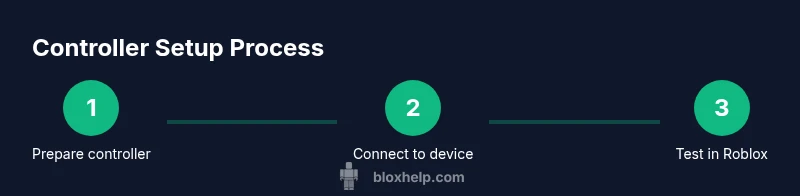
Charge or prepare your controller, confirm it powers on, and make sure your PC or console recognizes it. If you’re on PC, confirm the controller appears in the system’s Bluetooth or USB devices list. Having a clean, unobstructed USB or Bluetooth path reduces pairing issues.
Tip: Test the controller in the OS’s controller test utility or another game first to confirm basic functionality. - 2
Connect the controller to your device
Choose wired or wireless based on your setup. For wired, plug the controller into a USB port. For wireless, place the controller in pairing mode and connect via Bluetooth or the official dongle. Verify the device shows as connected in the OS settings.
Tip: If wireless, keep within 6–10 feet of the computer for stable signal. - 3
Launch Roblox and check input mode
Open Roblox and observe whether the game detects the controller automatically. If not, go to Settings > Input and toggle Controller input on. Some games require you to enable controller input per title.
Tip: Restart Roblox if the controller isn’t recognized after enabling input. - 4
Enter a simple test game
Join a beginner-friendly Roblox game that supports controllers and test basic actions: movement, jumping, camera control, and primary actions. Confirm that actions map to the expected buttons and the mapping feels intuitive.
Tip: Pick a game with straightforward controls to avoid overwhelming yourself. - 5
Experiment with default mappings or customize
If the game supports remapping, adjust button assignments to your comfort. Keep a consistent layout across games to build muscle memory, especially for movement and primary actions.
Tip: Record your preferred layout so you can reuse it in future sessions. - 6
Play and adjust over time
As you gain experience, fine-tune sensitivity, dead zones, and camera speed based on your playstyle. Take notes on which titles benefit most from controller input and adjust per-game settings accordingly.
Tip: Follow a routine: test, adjust, then play 15–20 minutes in a focused session.
Questions & Answers
Can I use any Bluetooth controller with Roblox with controller support?
Roblox generally supports many common Bluetooth controllers, but compatibility can vary by device and Roblox version. If a controller isn’t recognized, try a wired connection or check for official compatibility notes in Roblox settings.
Most Bluetooth controllers work, but if yours isn’t recognized, try wired first and check Roblox’s settings for compatibility.
Does Roblox on mobile support controllers?
Roblox on mobile can support some controllers, but support may be limited by device and game. For best results, test a controller with a simple title first and disable controller use if the game doesn’t support it.
Mobile controller support exists in some games, but it isn’t universal—test with a simple game first.
How do I remap controls for Roblox with a controller?
Many Roblox games allow per-title remapping in the in-game settings. If your game doesn’t support remapping, rely on the game’s default layout and adjust your playstyle accordingly.
Some games let you remap buttons in-game; if not, use the default layout and adapt.
Why is my controller input lagging in Roblox?
Lag can be caused by wireless interference, Bluetooth bandwidth, or driver issues. Try a wired connection, reduce background devices, and ensure the latest controller firmware is installed.
Lag is usually due to wireless interference or outdated drivers—switch to wired and update firmware.
Are there limitations on what games support Roblox with controller?
Most newer Roblox titles support controllers, but some older or indie games may rely on keyboard/mouse. If in doubt, test a few games known to support controllers.
Most newer games work with a controller, but some titles may not.
Do I need any subscription or special setup to use a controller?
No special subscriptions are required to use a controller in Roblox. Ensure your device and Roblox installation are up to date and follow the standard pairing steps.
No subscription needed—just keep your device and Roblox updated.
Watch Video
The Essentials
- Learn the basic setup for Roblox with controller
- Know wired vs wireless pros/cons
- Master default mappings before customizing
- Test with beginner-friendly games to build confidence
- Iterate settings for optimal accuracy