Roblox Won’t Let Me Sign In: Troubleshooting Guide
Urgent, practical guide to fix Roblox won't let me sign in issues. Learn common causes, quick checks, and step-by-step fixes to regain access safely with tips to prevent future problems.


Roblox sign-in problems are usually caused by outages, incorrect credentials, or account security blocks. Quick fix: check Roblox’s server status, verify your username and password, and confirm your email or phone is verified. If the problem continues, reset your password and review recent account activity. In most cases, these steps restore access within minutes.
Why sign-in issues happen
Signing in to Roblox can fail for a few predictable reasons. When you see the error message that Roblox won't let me sign in, the root causes usually fall into outages, credential problems, or account-security blocks. According to Blox Help, most sign-in failures are solvable with a small, methodical checklist. Start by confirming whether Roblox is undergoing maintenance by visiting the official status page or the platform's official social channels. If the service is up, proceed to credential checks: make sure you’re using the exact username and password, and verify that your email and phone are linked to your account for recovery. Finally, check client-side factors like an outdated app, a cluttered browser, or conflicting extensions that could interrupt the login flow. Understanding the category of the problem lets you apply the right fix quickly and confidently.
Quick checks you can run before changing settings
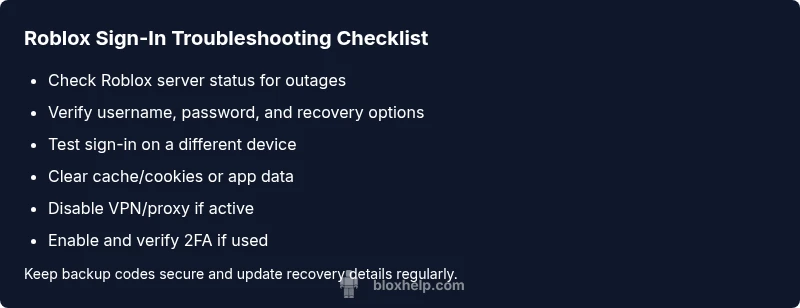
Before diving into settings, perform a few quick checks that resolve most sign-in snags. Ensure you have a stable internet connection and that your device clock is set to the correct time zone. Try signing in from a different device or network to rule out local issues. Log out of any other Roblox sessions, then attempt sign-in again with the official app or website. Double-check that you are entering the correct, case-sensitive username and password, and confirm you’re not using a saved password from a wrong account. If you’re using a VPN or proxy, temporarily disable it and attempt again. These low-effort steps catch the majority of basic problems.
Check Roblox server status and account safety
If you’re still stuck, check the Roblox status page for outages or ongoing incidents. Roblox outages can prevent sign-in entirely or affect specific regions. While outages are rare, they happen and are usually fixed quickly. Next, assess account safety: if a security block or suspicious activity is suspected, you might be halted from signing in until you verify ownership or reset credentials. Review recent login activity from the official account page and ensure your recovery options (email, phone) are up to date. If you suspect your account is locked or compromised, use the official recovery flow and contact Roblox Support when needed. This step protects your account and helps restore access safely.
Common mistakes that block sign-in
Many sign-in failures are caused by simple mistakes. Common issues include typing errors in the username or password, stray spaces, or accidentally activating caps lock. Password managers can autofill wrong fields in the login form; disable autofill for the Roblox login page if needed. Using multiple Roblox accounts on the same device can create confusion, so sign out of other accounts before attempting sign-in. Finally, avoid saving credentials on shared devices and clear any stale cookies that might have cached old login data. Recognizing these missteps helps you avoid repeated troubles.
Step-by-step: fix for password/verification problems
If the problem is tied to credentials or verification, follow this practical process to reassert access. Start with a password reset, then verify your recovery options and re-enter 2FA details if required. Use a trusted device and avoid auto-fill from password managers that might input wrong data. Always sign out from other sessions after updating credentials to prevent conflicting login attempts. After updates, sign back in on a known device and monitor for any further prompts. Tip: keep backup codes in a safe place.
Step-by-step: fix for device/app issues
Outdated Roblox apps or improper device settings can impede sign-in. Update the Roblox client to the latest version on your PC, console, or mobile device. If updating doesn’t help, reinstall the app to clear corrupted files. Check date/time settings on your device and ensure you aren’t running conflicting background apps. Test sign-in on a different device to see if the issue is device-specific. After confirmation, migrate back to the primary device with a clean install. This step often resolves stubborn login errors.
Step-by-step: cache and cookies clearing
Clear browser cookies and cache on web sign-ins, or clear app data on mobile. On browsers, open the privacy settings and choose to clear cached data for Roblox, then reload the sign-in page and attempt again. On mobile apps, go to the app settings and choose 'Clear Cache' or reinstall the app if needed. After clearing, reboot the device and try signing in once more. This technique eliminates stale login data that blocks access.
How to secure your account after sign-in restores
Once you regain access, strengthen account security to prevent future problems. Enable two-factor authentication and set up backup codes. Review your account recovery options and ensure your alternate email and phone number are current. Check recent login history for unfamiliar activity and sign out of sessions you don’t recognize. Consider updating your password to something long and unique and store it in a trusted password manager. Proactive security reduces risk and future sign-in interruptions.
Preventive habits to reduce future sign-in problems
To minimize future sign-in issues, adopt a few daily habits. Keep Roblox and your device OS updated. Use strong, unique passwords and store them securely. Avoid signing in on public networks or shared devices. Regularly review your account settings, security options, and recovery methods. If you encounter another sign-in block, follow this guide’s steps in order and reach out to Roblox Support if problems persist. Consistency is key to reliable access in 2026 and beyond.
Steps
Estimated time: 30-40 minutes
- 1
Check Roblox server status
Visit the official Roblox status page and official social channels to confirm whether Roblox is currently experiencing an outage or maintenance that could block sign-in.
Tip: If there’s an outage, you may only need to wait; keep checking back every 15-30 minutes. - 2
Verify credentials
Double-check your username and password, ensuring there are no extra spaces and that Caps Lock is off. If you’re unsure, try copying from a password manager.
Tip: Use a password manager with a unique, strong password for Roblox. - 3
Reset password and recover account
If credentials are uncertain, use Forgot Password and follow the recovery steps. Confirm recovery email/phone is accessible.
Tip: Check spam/junk folders for reset emails. - 4
Check 2FA and backup codes
If 2FA is enabled, enter the code from your authenticator app or use a backup code if available.
Tip: Store backup codes in a secure location. - 5
Test on a different device/network
Try signing in from another device or network to isolate whether the issue is device- or network-related.
Tip: If it works on another device, focus on the primary device’s settings. - 6
Clear cache/cookies or reinstall
On browser, clear cookies and cache; on mobile, clear app data or reinstall the Roblox app.
Tip: Restart the device after clearing data. - 7
Contact Roblox Support
If the issue persists after all steps, contact Roblox Support with your account details and recent activity.
Tip: Provide verification information to speed up resolution.
Diagnosis: User reports Roblox won't sign in despite correct credentials.
Possible Causes
- highOutage or maintenance on Roblox servers
- highIncorrect login credentials or unverified recovery options
- mediumAccount security block due to suspicious activity
- mediumBrowser/app cache or cookies causing sign-in issues
- lowTwo-factor authentication issues or SMS verification failures
Fixes
- easyCheck Roblox status page for outages and wait if there’s a live incident
- easyReset password and verify recovery options (email/phone)
- mediumReview account activity and secure the account if suspicious
- easyClear browser cache/cookies or reset app data
- easyDisable VPN or proxy and ensure correct region
- hardIf needed, contact Roblox Support for locked/compromised accounts
Questions & Answers
Why can't I sign in to Roblox right now?
Outages or maintenance can prevent sign-in. Check the official Roblox status page and trusted sources before trying again.
There might be a Roblox outage—check the status page and try again soon.
I forgot my password. How do I recover my Roblox account?
Use the Forgot Password option on the sign-in page and follow the recovery steps. Check your email and spam folder for the reset link, and update your password.
If you forgot your password, use the reset option and check your email for the link.
How do I fix sign-in issues related to two-factor authentication?
Enter the code from your authenticator app or backup codes. If you can’t access codes, use backup options or contact support.
If 2FA is causing trouble, use backup codes or the authenticator app to sign in.
What should I do if my Roblox account is locked or hacked?
Follow the official recovery flow, verify ownership, and contact Roblox Support if needed. Update passwords and recovery options after access is restored.
If your account is locked, use the recovery flow and contact support if needed.
Can VPNs or proxies affect sign-in?
Yes, VPNs or proxies can interfere with sign-in. Disable them and try again from a direct connection.
A VPN can block sign-in; try signing in without it.
Why is my sign-in slow or stuck on the loading screen?
Check your internet connection, update the Roblox app, and clear cache/cookies. If the problem persists, try a different device.
Sign-in can drag if the network is slow; try a different device or network.
Watch Video
The Essentials
- Check for outages first to rule out service problems
- Verify credentials and recovery options before drastic changes
- Clear caches/cookies to remove stale login data
- Enable and secure 2FA to prevent future lockouts
- Follow a step-by-step flow to diagnose sign-in issues