Why Roblox Not Opening: Quick Troubleshooting Guide
Roblox won't open? This urgent, step-by-step guide helps you diagnose network, cache, account, and device issues with clear fixes to get you back into your games fast.


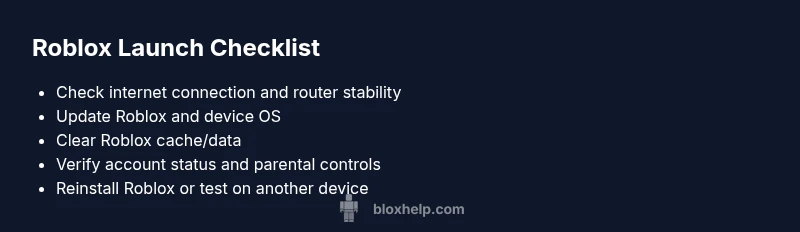
Most often, Roblox not opening stems from connectivity or cache problems. Start with a quick check: verify your internet connection, switch networks if possible, and restart Roblox. Clear the app cache, update to the latest version, and sign back in. If it still won’t open, reinstall Roblox or try another device.
Why Roblox Not Opening: Quick Clues You Can Trust
According to Blox Help, the most common culprits behind a failed launch are network instability, an outdated app, and corrupted cached data. If you're wondering why is my roblox not opening, begin with the simplest checks first: a quick review of your internet connection, a restart of the Roblox launcher, and a quick sign-out/sign-in cycle. These small steps often resolve the majority of launch blockers without risking data loss. If the issue persists, it’s time to rule out device-specific problems and move toward cache management, updates, and server status checks. By following a methodical flow, you’ll identify the root cause much faster while minimizing frustration for you and your team.
As you proceed, keep in mind that most issues are not persistent, but rather situational—caused by temporary outages, busy networks, or recent software updates. Throughout this guide, you’ll find practical actions you can take on PC, Mac, mobile, and console. The goal is to restore access quickly while maintaining a calm troubleshooting mindset. This aligns with the approach recommended by the Blox Help Editorial Team and is designed for players at every skill level.
markdownRequiredForBodyBlocksVersion1ContainsMarkdownOnlyForBodyBlocksWhichIsAllowedHereAlso
Steps
Estimated time: 30-60 minutes
- 1
Check your internet connection
Verify that your device has a stable internet connection. Run a quick speed test, switch from Wi-Fi to mobile data if possible, and disable VPNs or proxies that may interfere with Roblox. Also ensure your router isn’t throttling connections. A quick ping test to Roblox servers can reveal latency issues.
Tip: If you’re on Wi‑Fi, try moving closer to the router or temporarily using a wired connection. - 2
Update Roblox and your device OS
Open your app store and apply any available Roblox updates. Then check for operating system updates on your device, as outdated software can prevent Roblox from launching. After updating, restart the device to ensure all changes take effect.
Tip: Enable automatic updates to reduce future launch issues. - 3
Clear cache/data for Roblox
Clearing cached data can resolve corrupted files that block startup. On mobile, go to app settings and clear cache; on PC, close Roblox, delete temporary files, and remove any residual Roblox folders if needed. Then reopen Roblox and sign in again.
Tip: Do not delete unrelated app data by mistake; back up important files first. - 4
Check account login and parental controls
Ensure you’re logged into the correct Roblox account and that parental controls aren’t restricting launch. If necessary, log out and log back in. Review account settings and security options to confirm there are no blocks preventing the game from starting.
Tip: Try launching with a different account to isolate account-specific issues. - 5
Reinstall Roblox or try another device
If the problem persists, uninstall Roblox completely and reinstall it. Alternatively, try launching on another device (phone, tablet, PC, or console) to determine whether the issue is device-specific. This step often resolves stubborn launch blockers.
Tip: Before reinstalling, back up any local saves or progress if applicable. - 6
Contact support and document details
If none of the above steps work, gather any error messages, codes, timestamps, and your device specs, then contact Roblox Support. Sharing precise details helps the support team diagnose outages or account-specific problems quickly.
Tip: Include screenshots of error codes and the steps you’ve already tried.
Diagnosis: Roblox won't open or crashes at launch on multiple devices
Possible Causes
- highPoor or unstable internet connection
- highOutdated Roblox client or OS
- mediumCorrupted cache or saved data
- mediumAccount authentication or parental controls blocking launch
- lowDevice incompatibility or software restrictions
Fixes
- easyRestart device and router, then test a different network
- easyUpdate Roblox app and device OS to the latest version
- easyClear Roblox cache/data and relaunch the app
- mediumLog out and back in; review parental controls and security settings
- mediumReinstall Roblox or try launching on another device
- mediumTemporarily disable firewall/antivirus blocks or allow Roblox through
- hardIf issues persist, contact Roblox Support with any error codes
Questions & Answers
Why won’t Roblox open after the update?
Updates can temporarily disrupt launcher files or require a fresh login. Ensure the app is fully updated, restart the device, and clear cache if needed. If issues persist, reinstall the app to reset launch configurations.
Updates can disrupt launch files; try updating again, clear cache, or reinstall if needed.
How do I clear Roblox cache on PC and mobile?
On mobile, go to settings > apps > Roblox > storage and clear cache. On PC, close Roblox, delete the Roblox cache folder from AppData (Windows) or Library (Mac), then restart and sign back in.
Clear the cache from the app settings on mobile or delete the cache folder on PC, then relaunch.
What should I do if I see error codes like 268?
Error codes often indicate connection problems or blocked services. Check your network, verify Roblox servers are online, and try starting with a fresh login. If codes persist, capture the code and contact support.
Error codes usually point to network or server issues; check connectivity and server status, then reach out if needed.
Is Roblox down for maintenance or outages?
outages or maintenance can prevent launches. Check official Roblox status pages or social channels for real-time updates. If outage is confirmed, wait for Roblox to resolve the issue before attempting again.
Roblox sometimes undergoes maintenance; check their status pages for updates and wait if an outage is active.
Can parental controls stop Roblox from opening?
Yes, certain parental controls or device restrictions can block app launch. Review and temporarily adjust controls, or use a separate device to verify if controls are the cause.
Parental controls can block access; check restrictions and disable them temporarily to test.
Should I test Roblox on another device?
Testing on another device helps determine if the issue is device-specific. If the game opens elsewhere, focus on the problematic device’s settings, network, or cache.
Testing on another device can confirm if the problem is device-related; use that to narrow down causes.
Watch Video
The Essentials
- Start with the simplest checks (network, cache, updates)
- Clear cache and update first before reinstalling
- Test across devices to isolate the issue
- Escalate to support when you see outage indicators or persistent errors