Status Roblox: Real-Time Status and Troubleshooting Guide
Understand Roblox status, what it means for players, and practical troubleshooting steps. Learn how to check real-time incidents, differentiate outages from device issues, and stay productive during maintenance windows with expert guidance from Blox Help.


Roblox status is typically online for most players, with outages occurring only during maintenance or regional network issues. To verify real-time conditions, visit the official Roblox Status page, which lists incidents, start times, affected regions, and current impact. If you’re offline, use that page to distinguish server problems from device or connection troubles.
What does status roblox really mean for players?
Status Roblox refers to whether the platform is online and accessible from a given location at a specific time. In practice, a healthy status means you can log in, join friends, and play games with minimal latency. During outages or maintenance, players might see login prompts fail, pages fail to load, or in-game features temporarily unavailable. According to Blox Help, real-time status updates are a critical tool for understanding whether issues are on Roblox's side or rooted in local setups. This distinction helps avoid unnecessary troubleshooting steps and speeds up restoration of normal access. When you search for status Roblox, you're often looking for incident reports, start times, and affected regions—information that the Roblox Status page posts publicly. If you notice ongoing issues across multiple devices or regions, that’s a strong signal to investigate broader outages rather than isolated device problems.
The Blox Help team found that users who check the official status page first tend to have shorter downtimes and clearer next steps. In practice, this means starting your troubleshooting with status checks, then moving through device checks if the incident page shows localized or limited impact.
How Roblox reports status and incidents
Roblox uses a centralized status dashboard to communicate incidents, maintenance windows, and service degradations. Each incident includes a description, start time, regions affected, and an ETA for resolution. The dashboard also shows historical data, which helps developers and players gauge how often outages occur and how quickly Roblox typically recovers from disruptions. For developers, the status page often links to developer forums or Twitter updates, where ongoing incidents are discussed in more detail and where workarounds may be proposed.
From a reliability standpoint, Roblox categorizes incidents by severity and service area, which helps users understand the scope of impact. The dashboard is designed to be searchable and filterable by platform (PC, mobile, console) and by region. If you’re trying to determine whether a platform issue is localized to your location, the incident map and regional tags on the status page are especially useful. The information is updated in near real time, with new entries added as soon as they are identified.
Common outage scenarios and quick fixes
Outages on Roblox typically fall into a few common scenarios: server-side maintenance, regional network issues, DNS propagation delays, and rare bugs in the authentication flow. While waiting for Roblox to restore service, you can perform quick checks to rule out local problems: verify your internet connection, restart your router, try a different device, and clear cached data for the Roblox app or browser. If you’re seeing a specific error, like a login failure or a timeout, search the Roblox Status page for that error code or message—often there is a known workaround or temporary workaround documented by Roblox or the community.
During regional outages, the most reliable approach is to monitor the Roblox Status page and regional social updates. If the status page confirms an incident in your area, you can plan your playtime around the estimated resolution window and use this downtime to review in-game content, tools, or scripting projects you can do offline or in Roblox Studio.
Troubleshooting across devices: PC, mobile, and console
Different platforms can behave differently during an outage or maintenance window. On PC, ensure your firewall or antivirus settings aren’t blocking Roblox, and try flushing DNS if you suspect routing issues. On mobile devices, toggle flight mode to reset the network, or switch between Wi‑Fi and mobile data to see if the issue is network-related. Consoles may require a power cycle or router reboot to reestablish a clean connection. A structured approach helps: first confirm Roblox Status; second, test basic connectivity (ping a server or load a web page); third, try alternate networks; fourth, clear cache and reinstall if necessary. If problems persist after status confirmation and account checks, consult official support channels.
For developers using Roblox Studio, outages can disrupt asset publishing or game testing. In such cases, track the incident timeline and prepare workarounds—like local testing in Studio offline mode or queuing scripts for later compilation when Roblox services resume.
How to monitor status during an outage: official sources and community signals
Real-time monitoring is essential during outages. Start with the official Roblox Status page for authoritative incident details, affected regions, and ETA updates. Social channels from Roblox and Roblox developers can provide rapid updates and workarounds. Third-party outage trackers offer an additional cross-check, but they should be used cautiously and not replace official announcements. Setting up status alerts or subscribing to updates can keep you informed without repeatedly visiting the page. If you notice discrepancies between what you’re experiencing and what the page displays, document exact error messages, timestamps, and device details to help Roblox Support diagnose the issue more efficiently.
Developer considerations during status events
Developers relying on Roblox for live experiences should monitor the status dashboard during planned maintenance windows and outages. Build resilience by implementing graceful error handling, preparing offline-capable workflows, and setting expectation messages within your games when services are degraded. Consider queuing operations that require server validation until Roblox resumes normal operations, and communicate with players through in-game notices or social channels about expected downtimes. In worst-case scenarios, have a rollback or staging environment ready to test-critical updates after a restoration to ensure a smooth redeployment.
Collecting diagnostic data and when to contact support
When issues persist beyond initial status updates, gather diagnostic data before reaching out to Roblox Support. Useful data includes exact timestamps, device type and OS version, Roblox app version, network type, and any error codes displayed. Screenshots or screen recordings of the failure can be invaluable. If you have a reproducible bug in Roblox Studio or a game you published, include steps to reproduce, asset IDs, and your game’s port configuration if applicable. With this information, Roblox Support can more quickly isolate server-side problems from client-side issues and provide targeted guidance.
Roblox status indicators during outages
| Status indicator | Typical cause | Recommended action |
|---|---|---|
| Login failures | Server-side outage or DNS routing issue | Check Roblox Status page; attempt re-login; wait and retry |
| Gameplay lag or latency | Regional congestion or ISP routing | Test connection, switch networks, close background apps |
| In-game features unresponsive | Recent update or bug | Review official notes; clear cache; restart app |
| Chat or UI errors | Temporary UI glitch | Reload UI, re-authenticate, contact support if persists |
Questions & Answers
Where can I check Roblox's real-time status?
Roblox's real-time status is published on the official Roblox Status page. It lists any active incidents, regions affected, start times, and estimated resolution. For fast troubleshooting, start there before chasing device-related fixes.
Check the Roblox Status page for real-time incidents and affected regions.
Why is Roblox offline even though my internet is working?
If Roblox shows offline while your connection works, the issue is often on Roblox's side or regional networks. Verify the status page, then test other services to confirm if the problem is platform-wide or specific to Roblox.
If your internet works but Roblox is offline, check the Roblox Status page first.
How long do outages typically last?
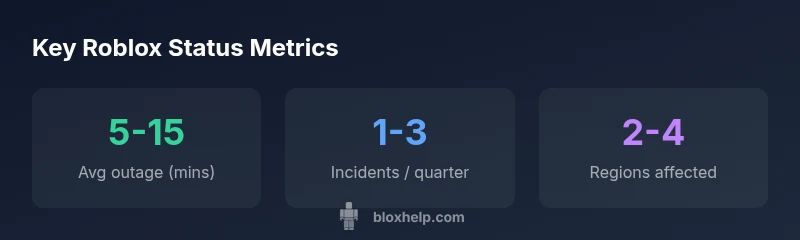
Outage durations vary by incident, but most are resolved within minutes to a couple of hours. Always refer to the status page ETA for the most accurate timeline and plan your play or development work accordingly.
Most outages resolve within minutes to a few hours; check the status page for ETA.
What should I do if I suspect a regional outage?
If you suspect a regional outage, check the Roblox Status page and regional social updates. Try alternate networks, and avoid performing critical actions until the status page confirms recovery.
For regional outages, verify the status page and try a different network.
Can developers get status updates for their games?
Developers should monitor status pages and Roblox developer channels for incident notes that may affect publishing and testing. Prepare offline tasks during outages and communicate with players via in-game notices when services are degraded.
Developers should watch status pages and communicate with players during outages.
“Reliable status communication is the backbone of a smooth user experience during outages. The official status page helps separate server problems from client-side issues, enabling faster recovery.”
The Essentials
- Check the Roblox Status page first for real-time incidents
- Differentiate server issues from device problems before troubleshooting
- Follow official guidance to minimize downtime during outages
- Document errors and times when contacting support
- Plan around maintenance windows to optimize play or development