Where Roblox Captures Go on Mobile: A Step-by-Step Guide
Discover where Roblox captures save on iOS and Android, how to locate them, and practical tips for managing mobile storage and backups.


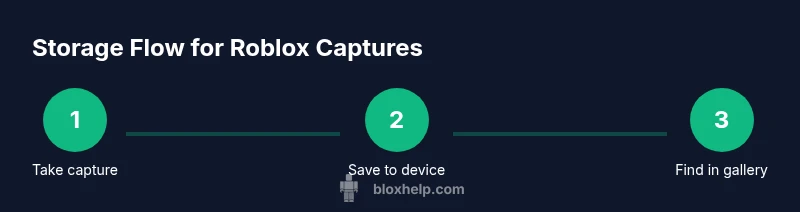
You can usually find Roblox captures saved to your device’s photo gallery on mobile. On iOS, look in the Photos app; on Android, check your Gallery or Photos app. If you enabled 'Save to device' in Roblox, your captures may appear under Recently Added or a Roblox album. This guide explains where to look and how to adjust settings to keep copies.
How mobile stores Roblox captures
The question where do roblox captures go on mobile is answered by understanding how iOS and Android save media. Generally, Roblox captures — which includes screenshots and short video clips — are saved to your device’s photo library. The exact path depends on your OS and settings, not inside the Roblox app itself. This separation helps you manage, edit, and share captures with native tools.
On most devices, a capture is named with a Roblox prefix or date stamp, and appears in your main Photos or Gallery feed. If you used the in-app button to capture, Roblox may prompt you to save, or default to auto-saving. Your memory settings, app permissions, and OS updates can affect whether new captures appear right away or require a manual refresh.
Useful to note: if you enable 'Save to device' in Roblox settings, you give the game permission to export new images directly to your gallery. Without this, captures may stay in Roblox's own cache or require you to export manually. This section will help you trace where to look and how to adjust settings so you always keep a copy.
Locating captures on iOS
On iOS devices (iPhone and iPad), most Roblox captures show up in the Photos app. Start by opening Photos and checking the Recents tab, then look in Albums for any Roblox-specific collection. If you recently used Roblox capture tools and don’t see an image, try the search bar and type “Roblox” or “Screenshots” to locate related items.
If you don’t find new captures, confirm the device has granted Roblox permission to access Photos. You can adjust this in Settings > Privacy > Photos, then select Roblox and set access to “All Photos” or “Add Photos Only” depending on your privacy preferences. Finally, ensure Save to device is enabled in Roblox settings so future captures export automatically.
Locating captures on Android
Android users typically find Roblox captures in the device’s Gallery or Google Photos app. Open the app and explore common folders like “Pictures,” “Camera,” or “Screenshots.” If Roblox created a dedicated album, look there as well. Use the app’s search function to query “Roblox” or “capture” to speed up the search.
If you still can’t locate a capture, verify that the app has Storage permissions in Android Settings. Some manufacturers segregate media into user-accessible folders differently, so a quick check of the permissions and a restart may help the file appear in the Gallery after saving.
Adjusting save settings and privacy
To ensure captures are stored where you want, enable the Save to device option in Roblox settings. This setting exports new media to your device’s photo gallery and can be toggled on or off as needed. If you prefer to manage copies manually, leave this off and export selectively.
For privacy, review who can see your captures after you’ve saved them. If you share devices or use cloud backups, consider creating a separate Roblox album or renaming files to clearly indicate their source and date. Staying organized makes later sharing easier.
Troubleshooting missing captures
If a capture doesn’t appear, start with permissions: verify Roblox has access to Photos (iOS) or Storage (Android). Next, confirm the Save to device toggle is active in Roblox settings. If needed, perform a quick device restart and re-take a capture to verify the process works.
Check storage space; low space can prevent saving new media. Finally, ensure you’re logged into the same Roblox account you used to create the capture, as cross-account saves may create confusion about where files were saved.
Best practices for organizing and backing up captures
Develop a simple filing system for Roblox captures: create a dedicated folder or album with year-month naming conventions. Regularly back up important captures to a cloud service to prevent loss from device failure or resets. Consider exporting key captures to a PC or external drive for long-term archiving.
Pro tip: periodically review saved captures and delete duplicates or low-quality images to maintain a clean library. This not only saves space but makes it easier to locate significant moments later.
Tools & Materials
- Mobile device (iOS or Android)(With Roblox installed and captures enabled)
- Roblox app settings access(Navigate to capture options in Roblox)
- Photos app / Gallery(For viewing and saving captures)
- File manager or cloud backup app(Optional for moving or backups)
Steps
Estimated time: 15-25 minutes
- 1
Open Roblox on your mobile device
Launch the Roblox app and sign in to the account you used to capture media. Ensure you’re on a stable internet connection so settings sync correctly.
Tip: Keep Roblox updated to access the latest capture options - 2
Open Settings
Tap your profile or the gear icon to open Settings, then locate the Captures or Save settings. This is where you control how captures are stored.
Tip: If you don’t see Capture options, update the app - 3
Enable Save to device
Toggle the option to Save to device (your gallery). This ensures new captures are exported to Photos/Gallery automatically.
Tip: Only enable this if you’re comfortable storing media on your device - 4
Take a new capture
Use Roblox’ capture button or the device’s screenshot function if supported. Confirm you want to save to your device when prompted.
Tip: Test with a small capture first - 5
Check your device gallery
Open Photos/Gallery and look under Recents, Albums, or Roblox-created album to locate the new capture.
Tip: If you don’t see it, try refreshing the app or rebooting the device - 6
Move or back up
If needed, move the file to a dedicated Roblox album or back it up to cloud storage using the device’s share options.
Tip: Backups prevent accidental loss if you reset the device - 7
Review permissions
Ensure Roblox and Photos/Gallery have the necessary permissions (Storage/Photos access) to export media.
Tip: Denied permissions will prevent saving to the device
Questions & Answers
Where do Roblox captures go on iPhone?
On iPhone, captures typically save to the Photos app. Check the Recents, Albums, or Roblox-created album. If missing, ensure Save to device is on and Photos access is allowed.
Captures usually save in the Photos app on iPhone; check Recents and Roblox albums. Make sure Save to device is on and Photos access is allowed.
Are Roblox captures saved automatically on Android?
Android devices usually save to the Gallery or Photos app, depending on the device. Ensure Save to device is enabled in Roblox and check the Photos or Gallery app.
Typically saved to your Android Gallery or Photos app; enable saving in Roblox settings.
Can I change where Roblox saves captures?
Yes. In Roblox settings, enable Save to device and, if available, select a preferred album or gallery path within your device’s photo manager.
You can adjust by turning on Save to device and choosing where your device stores photos.
What should I do if I can't find a capture?
First check the device’s Photos/Gallery, then verify Roblox has storage permissions. If still missing, re-take a capture and confirm the save prompt.
If you can’t find it, check the gallery and permissions, then try again.
How can I transfer captures to a PC?
Use a USB transfer or cloud backup to move the file from your device to your computer, then organize in a Roblox folder.
You can transfer your media via USB or cloud backups.
Watch Video
The Essentials
- Know where Roblox captures save on mobile.
- Enable Save to device to keep copies.
- Check app permissions if saves don’t appear.
- Back up captures to avoid loss.