Why Can't Roblox Open? Urgent Troubleshooting Guide
Struggling to open Roblox? This urgent troubleshooting guide covers common causes and fast fixes to get you back into your games quickly.


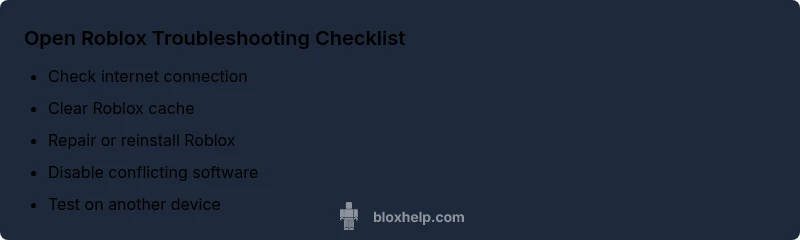
Most Roblox launch failures stem from connectivity, cache, or a corrupted client. Start with the easiest fixes: check your internet, restart the device, and close other apps that might hog resources. If Roblox still won't open, clear the cache, run the installer as administrator, and reinstall if necessary. This quick guide helps you regain access fast.
Why Roblox Won't Open: Quick Diagnosis
If you’re reading this, you’re likely seeing a failure when launching Roblox. Why can't roblox open? In many cases, the cause is simple: network hiccups, a stale cache, or a corrupted launcher. According to Blox Help, most launch blocks come from connection quality, or the Roblox process not having permission to run. The Blox Help team found that a quick triage of three areas—internet access, app integrity, and system permissions—will usually reveal the culprit. This section guides you through a fast diagnostic you can perform in under ten minutes, with safe, actionable steps you can undo if something goes wrong. Stay calm and follow the steps; you will likely regain access soon.
blockedByPolicy":false}
Common Causes at a Glance
Here are the most frequent reasons Roblox won’t open. - Network outages or unstable internet connection. - Cached data or corrupted Roblox files. - Outdated Roblox client, OS, or device drivers. - Security software blocking Roblox. - Server-side outages or maintenance. - Account or parental controls restricting launch. According to Blox Help analysis, connectivity issues and client integrity problems are among the most common culprits, but any of the listed causes can block opening Roblox. Use this list to guide your next steps, not as a guarantee—every setup is unique.
blockedByPolicy":false}
Check Your Internet Connection
A stable connection is essential for Roblox to launch. Start by testing basic connectivity: visit a web page on the same device and see if it loads quickly. If you use a VPN or proxy, disable it temporarily to rule out interference. Try switching networks (mobile hotspot or a different Wi-Fi) and avoid strict firewall rules that block Roblox. After changes, retry opening Roblox. If it still won’t launch, continue with the next troubleshooting steps. This approach respects your time and helps you identify if the problem is local or global.
blockedByPolicy":false}
Verify Roblox Client and System Requirements
Make sure your Roblox client is up to date. Run the Roblox installer or app updater to repair any damaged files. Check your device meets minimum requirements and update your operating system if needed. Outdated graphics drivers can also block the launcher, so update those as well. If the launcher still refuses to start after updates, proceed to clear caches and repair installations in the next steps.
blockedByPolicy":false}
Clear Cache and Repair Install
Clearing cached data can resolve startup hiccups caused by partial downloads or corrupted files. On Windows, close Roblox, then rename or delete the Roblox folders in AppData and LocalAppData; on Mac, remove Roblox cache from the Library folder. After clearing, run the Roblox installer again to repair the installation. If you still can’t open Roblox, a full reinstall might be necessary, but ensure you back up essential settings first. This step often resolves stubborn launch failures.
blockedByPolicy":false}
Check for Software Conflicts
Security software, firewalls, or other background apps can block Roblox from launching. Temporarily disable antivirus or add Roblox as an exception in firewall settings. Close overlay software, screen recorders, or other apps that hook into Roblox at startup. If you recently installed a new security tool, test Roblox after adjusting its rules. If the problem persists, consult the software’s support resources for proper exceptions.
blockedByPolicy":false}
Device-Specific Troubleshooting: PC, Mac, iOS, Android, Xbox
PC/Windows: Run as administrator, disable UAC prompts if they interrupt startup, and ensure Roblox launcher has permission to run. Mac: Allow apps from identified developers and check Gatekeeper settings to permit Roblox. iOS: Confirm Roblox has necessary device permissions and is updated from the App Store. Android: Clear app cache, ensure the Play Store version is current, and disable battery optimization for Roblox. Xbox: Check console firmware, ensure Roblox is installed correctly, and verify parental controls are off for the account.
blockedByPolicy":false}
Safe Mode and Permissions
For Windows, run Roblox as Administrator to bypass permission issues. On Mac, adjust Gatekeeper settings to allow Roblox; ensure you’re logged into an account with admin rights. Mobile devices should have necessary storage unlocked and app permissions granted. If you’ve recently changed security settings, revert them temporarily to test launching Roblox. Seek official guidance if you’re unsure about making these changes.
blockedByPolicy":false}
When to Reinstall vs Repair
If Roblox still won’t open after repairs, a full reinstall can clear stubborn issues. Try repairing first, but if the problem recurs, uninstall Roblox completely, delete residual folders, and reinstall from the official site. Back up important data such as saved games or settings where applicable. After reinstall, launch Roblox before restoring any backups to confirm the issue is resolved.
blockedByPolicy":false}
Proactive Maintenance to Prevent Future Failures
Keep Roblox and your device software up to date to minimize startup failures. Regularly clear cache after major updates and periodically review security software settings to avoid false positives. Maintain stable internet by using a reliable router and limiting crowded networks. If you’re sharing a device, create a separate Roblox profile to avoid cross-app conflicts. With these practices, you reduce the odds of future openings becoming a headache.
blockedByPolicy":false}],
diagnosticFlow_reference":null},
diagnosticFlow":{"symptom":"Roblox won't open on device or returns a launcher error","causes":[{"cause":"Power or network connectivity issues","likelihood":"high"},{"cause":"Corrupted Roblox cache or launcher data","likelihood":"medium"},{"cause":"Outdated Roblox client or OS drivers","likelihood":"low"},{"cause":"Security software blocking Roblox","likelihood":"low"},{"cause":"Server-side outage or maintenance","likelihood":"low"}],"fixes":[{"fix":"Check internet connection and disable VPN/proxy if used","difficulty":"easy"},{"fix":"Clear Roblox cache and repair installation","difficulty":"easy"},{"fix":"Run installer as administrator and update drivers","difficulty":"easy"},{"fix":"Reinstall Roblox or temporarily disable conflicting software","difficulty":"medium"},{"fix":"Check firewall/antivirus exceptions and permissions","difficulty":"easy"}]},
Steps
Estimated time: 45-60 minutes
- 1
Check for updates and run repair
Open the Roblox launcher or installer and look for update or repair options. Run any available repair to replace damaged files. Make sure you launch the program as an administrator if prompted.
Tip: Running as administrator can bypass permission-related launch blocks. - 2
Test network and disable VPNs
Disconnect any VPN or proxy and test loading a simple webpage on the same device. If you switch networks, compare both results; a failing network is a common cause of Roblox not opening.
Tip: A quick network change can reveal if the problem is local to your current connection. - 3
Clear cache and temporary data
Clear Roblox cache and temporary files following the platform-specific steps. This removes corrupted data that can prevent startup.
Tip: Only delete cache folders; keep other data intact to avoid losing saved games. - 4
Reinstall Roblox
Uninstall Roblox completely, clear residual folders, then reinstall from the official site. Launch once to confirm the issue is resolved before restoring backups.
Tip: Back up important settings before a full reinstall. - 5
Check security software settings
Disable or configure antivirus/firewall to allow Roblox. Add exceptions and ensure no security rule blocks the launcher.
Tip: Security software can misclassify Roblox as suspicious during startup. - 6
Device-specific checks
For PC/Mac, try running with elevated permissions; for mobile consoles, ensure permissions and storage are available. Each device may have unique blockers.
Tip: Device-specific steps often resolve issues after general fixes.
Diagnosis: Roblox won't open on device or returns a launcher error
Possible Causes
- highPower or network connectivity issues
- mediumCorrupted Roblox cache or launcher data
- lowOutdated Roblox client or OS drivers
- lowSecurity software blocking Roblox
- lowServer-side outage or maintenance
Fixes
- easyCheck internet connection and disable VPN/proxy if used
- easyClear Roblox cache and repair installation
- easyRun installer as administrator and update drivers
- mediumReinstall Roblox or temporarily disable conflicting software
- easyCheck firewall/antivirus exceptions and permissions
Questions & Answers
What is the first thing I should try if Roblox won't open?
Start with basic checks: verify internet connection, restart your device, and close other apps that may be using resources. If it persists, move on to cache clearing and a repair install.
Start with basic checks like your internet and a quick restart; if it still won’t open, proceed to cache clearing and a repair install.
Why does Roblox keep crashing on launch after updating?
Crashes after updates are often caused by conflicts with security software or outdated drivers. Check for updates to your antivirus, graphics driver, and OS, then try launching Roblox again.
Crashes after an update usually point to software conflicts or outdated drivers; update them and try again.
Can a corrupted cache cause Roblox not to open?
Yes. A corrupted cache can block startup. Clearing the cache and repairing the install often resolves the problem.
Cache corruption can stop Roblox from opening; clearing cache and repairing the install usually fixes it.
Does Roblox outage affect opening even if my device is fine?
Yes. Server outages or maintenance can prevent Roblox from opening. Check official status pages or social channels for announcements.
Sometimes outages stop launches; check the Roblox status pages to confirm.
Should I reinstall Roblox or repair the installation first?
Always try repair first; if issues persist, proceed with a full reinstall while backing up important data.
Repair first, then reinstall if needed—to minimize data loss.
How can I prevent Roblox opening issues in the future?
Keep Roblox and your device up to date, clear caches periodically, and configure security software to avoid false positives.
Keep things updated and set proper exceptions in security software to prevent future issues.
Watch Video
The Essentials
- Start with simple fixes: internet, cache, and permissions.
- Clear cache before reinstalling to avoid data loss.
- Reinstall only if repair doesn’t work.
- Keep software up to date to prevent future issues.