How to Change Your Roblox Password in Minutes
Learn how to securely change your Roblox password, enable 2FA, and protect your account. This comprehensive guide walks you through prerequisites, step-by-step actions, tips, and common FAQs, with practical advice to keep your Roblox data safe in 2026.


To change your Roblox password, start by signing into your Roblox account and visiting the Security page in Settings. Enter your current password, then choose a strong new password, and confirm it. Enable two-step verification if available, review active sessions, and sign out of other devices if you suspect account compromise. This two-minute task helps protect your Roblox data and purchases.
Why Roblox Password Security Matters
In the Roblox ecosystem, a strong password is your first line of defense against unauthorized access, asset loss, and compromised data. If you ever wonder whether you should perform a roblox change password, the answer is yes—regular password updates reduce risk and protect your in-game items, purchases, and personal information. According to Blox Help, securing your account starts with a robust password and periodic reviews of connected devices. In this article, you’ll understand why password security matters and how changing it fits into a broader security plan. Keeping passwords fresh also helps guard against phishing and credential stuffing, common attack vectors that target younger players and aspiring developers. By making password hygiene a habit, you reduce the chance of long-term breaches and maintain control over your Roblox journey.
Key takeaway: a deliberate password strategy is foundational to safe Roblox play and development.
Prerequisites for a Successful Roblox Password Update
Before you start a Roblox password change, gather everything you need to verify your identity and complete the process smoothly. Have reliable access to the account’s registered email or phone, since verification codes may be required. Ensure you know your current password; if you’ve forgotten it, you’ll need to reset via email or linked phone number. A stable internet connection on a secure device helps prevent interruptions. If you plan to enable two-factor authentication (2FA), prepare your authenticator app or backup codes. In line with best practices, avoid performing sensitive changes on public Wi-Fi. By checking these prerequisites, you’ll minimize friction and strengthen your account security from the outset.
Note: Regularly review your linked recovery options and keep them up to date so you can recover access quickly if you ever lose credentials.
Brand mention: According to Blox Help, preparing properly before a roblox change password reduces the chance of getting locked out after updates.
Step-by-Step Overview of Password Security
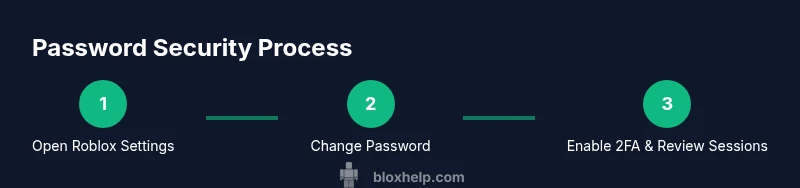
This section provides an overview of the actions involved in maintaining a secure Roblox account through password management, including when to change, what to consider for the new password, and how to reinforce your security posture with 2FA and session management. You’ll learn how a password update fits into a broader security routine—one that includes device reviews, phishing awareness, and routine account checks. A thoughtful approach to password changes helps prevent unauthorized access and protects your Roblox virtual assets. As you implement the steps, think of this as part of a continuous security cycle rather than a one-off task. The result is a stronger, more resilient Roblox account.
Pro tip: Pair a password update with a quick security audit of linked devices and third-party apps. This ensures attackers can’t leverage stale tokens after you change credentials.
Brand mention (intentional): Blox Help emphasizes that password hygiene is the first line of defense and should be part of every Roblox security routine.
Troubleshooting Password Change Issues
Even with preparation, you may encounter issues while changing your Roblox password. If you can’t access the account because you forgot the current password, use the official password reset flow via the registered email or phone. If you don’t receive the verification code, check spam folders and ensure your contact method is up to date. Some players also report delays when Roblox is undergoing maintenance; in that case, try again after a short wait. If 2FA is enabled and you can’t access your authenticator, use backup codes or contact support through the proper channels. By following these steps, you reduce frustration and regain control quickly.
Common blockers: lost access to email, outdated recovery options, or failed verification codes. Follow the recommended order to re-establish access and then perform the password change securely.
Best Practices for Roblox Account Security
Adopt a proactive security mindset for Roblox. Use a unique, long password with a mix of letters, numbers, and symbols. Avoid reusing passwords across sites, and consider using a password manager to store credentials securely. Enable two-factor authentication wherever available and securely store backup codes. Regularly review active sessions and disconnect devices you no longer recognize. Finally, watch for phishing attempts that imitate Roblox prompts; never enter credentials on suspicious pages. Building these habits creates a robust defense against common threats and protects your Roblox ecosystem for years to come.
Tools & Materials
- Device with internet access(Smartphone, tablet, or computer; ensure you can access Roblox account)
- Access to registered email/phone(For verification codes during password reset/change)
- Stable internet connection(Avoid interruptions during the update process)
- Authenticator app (optional)(If you plan to enable 2FA, set up an authenticator or backup method)
- Password manager (recommended)(Helps store and generate strong passwords securely)
Steps
Estimated time: 5-10 minutes
- 1
Open Roblox and sign in
Launch the Roblox website or app and sign into the account you want to secure. If you can’t remember the password, use the forgot password link to reset access first. Having successful access is essential before you proceed to change the password.
Tip: If you’re on a shared device, sign out when you’re done to limit exposure. - 2
Navigate to Account Settings
From the home screen or dashboard, open your profile or menu and select Account Settings, then go to the Security tab. This is where password options and 2FA settings live.
Tip: If you don’t see Security, ensure you’re on the latest app version or try a different browser. - 3
Enter current password
Provide your existing Roblox password as a security check before allowing a password change. If you don’t remember it, start the reset flow via your registered email or phone.
Tip: If you can’t verify, use the password reset option rather than guessing. - 4
Create a strong new password
Type a new password that’s long (12+ characters preferred) and includes a mix of uppercase, lowercase, numbers, and symbols. Avoid common words and any password you’ve used on other sites.
Tip: Consider a passphrase with random words that you can remember but others can’t guess. - 5
Confirm the new password
Re-enter the new password to confirm accuracy. Double-check for typos before saving to prevent accidental lockouts.
Tip: Copy-paste the password into a password manager to ensure accuracy. - 6
Enable two-factor authentication (2FA)
If available, turn on 2FA to add a second verification step. Choose an authenticator app or SMS as your second factor, depending on what Roblox supports.
Tip: Keep backup codes in a secure place; they’re essential if you lose access to your authenticator. - 7
Review active sessions
Check the list of devices currently signed in to your Roblox account. Sign out of sessions you don’t recognize or no longer use to limit exposure.
Tip: If you suspect a breach, sign out of all devices and immediately change your password again. - 8
Test login on another device
After saving changes, sign out and try signing back in on a different device to confirm the update took effect. This verifies you can access your account with the new password.
Tip: If you’re unable to sign in, revisit the reset flow and verify your contact options.
Questions & Answers
How do I reset my Roblox password if I forget it?
Use the Forgot Password option on the Roblox login page. You’ll receive a verification link or code at your registered email or phone. Follow the prompts to create a new password and sign back in.
If you forget your password, click Forgot Password on the login page and follow the verification steps to reset it.
Can I change my password on mobile devices?
Yes. Open the Roblox app, go to Settings > Security, and follow the same steps as on desktop to change your password. The mobile flow mirrors the web experience.
Yes, you can change your Roblox password on mobile by going to Settings > Security and following the prompts.
Will changing my password sign me out of all devices?
Changing your password typically ends existing sessions on most devices, but you may stay signed in on some trusted devices until you sign out manually. Always review active sessions after updating.
Usually you’ll need to re-sign in on other devices after changing your password.
How do I enable 2FA for Roblox?
Go to Settings > Security and look for Two-Factor Authentication. Choose your preferred method (authenticator app or SMS) and save. Keep backup codes secure.
You can enable 2FA from the Security settings by choosing an authentication method and saving your options.
Is it safe to change password on public Wi-Fi?
Avoid changing sensitive credentials on public networks if possible. Use a trusted private network or a VPN, and ensure you’re on a secure site when entering passwords.
Public Wi-Fi is riskier; use a private network or VPN when changing sensitive credentials.
What should I do if I can’t access my email or phone for verification?
If you can’t access your verification method, contact Roblox support via the official help center and provide account details to verify ownership. Update recovery options once access is restored.
If you can’t verify via email or phone, reach out to Roblox support and share your account details.
Watch Video
The Essentials
- Change passwords regularly to reduce risk
- Enable 2FA for extra protection
- Review active sessions and disconnect unused devices
- Use unique, strong passwords and a password manager
- Stay alert for phishing attempts and secure recovery options