How to Redeem Roblox Gift Cards: A Step-by-Step Guide
Discover how to redeem Roblox gift cards quickly with our step-by-step guide, troubleshooting tips, and best practices from Blox Help to help you add Robux or items.


To redeem a Roblox gift card, sign in to Roblox, select the Redeem Gift Card option, enter the code exactly as shown, and confirm. You can choose to add Robux or convert the credit for items. The funds appear immediately in your account once confirmed.
What you can redeem and where to redeem
Roblox gift cards convert to Robux or to a credit you can use for avatar items. You can redeem codes on Roblox via the website or the mobile app. This section explains the scope of redemption, including region considerations and where to find the Redeem Gift Card option on different devices. For a smooth experience, make sure you are logged into the account you want to fund, and keep your code handy. If you're wondering how to redeem gift card on roblox, the process remains straightforward across platforms: sign in, locate Redeem Gift Card, enter your code exactly, and confirm. The moment you submit, the funds or credit are ready for use.
Step-by-step overview
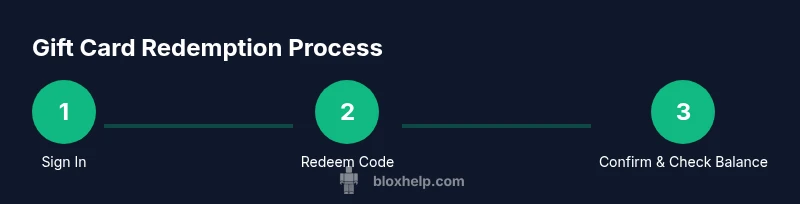
This guide follows a clear sequence you can apply on PC or mobile. You will sign in, access the redeem feature, input the code accurately, choose Robux or credit for items, and confirm. Finally, check your balance to verify the update. We'll provide full steps in the next section.
Locating and entering your code accurately
Gift card codes are typically 12–16 characters long and can include letters and numbers. Enter the code exactly as shown, without spaces. If your keyboard or device suggests auto-correct, turn it off while you type to avoid changes. On mobile, you may paste the code from a clipboard to minimize errors.
Troubleshooting common errors
Common errors include codes already redeemed, codes not valid for your region, or expired codes. Double-check the code for typos, confirm you are redeeming on the correct account, and ensure your device has a stable internet connection. If problems persist, try again later or contact Roblox support.
Best practices for safety and balance management
Store gift card codes securely, and never share them publicly. Redeem codes promptly after purchase to avoid expiration or regional restrictions. Regularly check your Robux balance and keep your account recovery information up to date.
Tools & Materials
- Stable internet connection(Reliable wifi or ethernet throughout redemption)
- Roblox account(Active and verified login)
- Gift card code(12-16 characters, alphanumeric; keep it secure)
- Device for access(PC, smartphone, or tablet with Roblox app or site)
Steps
Estimated time: 5-10 minutes
- 1
Sign in to Roblox
Open the Roblox site or app and log in with your username and password. This ensures you redeem funds into the correct account.
Tip: If you forgot your password, use the account recovery flow to regain access. - 2
Open the Redeem Gift Card page
On desktop, navigate to the main menu and select Redeem Gift Card. On mobile, tap the menu icon and choose Redeem Gift Card.
Tip: In some layouts, Redeem Gift Card is under Settings or a similar section. - 3
Enter the exact gift card code
Type the code exactly as shown, including any hyphens, and avoid extra spaces. Copy-pasting can help reduce typos.
Tip: If you’re unsure, paste from a clipboard rather than typing by hand. - 4
Click Redeem
Submit the code and wait for the confirmation message. If the code is invalid, recheck digits and try again.
Tip: Double-check for common errors like missing characters or swapped letters. - 5
Choose Robux or item credit
Decide whether you want Robux added to your balance or use the credit for items, depending on card terms and your needs.
Tip: Not all gift cards offer the same redemption outcomes; read the card terms. - 6
Confirm the transaction
Review the selected option and confirm. Ensure you’re funding the correct type (Robux vs. item credit) before finalizing.
Tip: Make sure you did not accidentally select the wrong option before pressing confirm. - 7
Check your updated balance
Open your Robux balance or inventory to verify the update. If it doesn’t appear, refresh or sign out/in and try again.
Tip: If balance doesn't update, try redeeming again after a short wait. - 8
If you run into problems
Use the troubleshooting steps or contact Roblox support. Keep the code and receipt handy for faster assistance.
Tip: Capture screenshots of errors and note the exact code used.
Questions & Answers
Can I redeem Roblox gift cards on mobile, PC, and console?
Yes. You can redeem Roblox gift cards on mobile apps and the desktop site. The Redeem Gift Card option appears in the main menu on all supported platforms. Make sure you’re signed into the account you want to fund.
You can redeem gift cards on mobile and desktop. Look for Redeem Gift Card in the menu after signing in.
What should I do if the code says invalid?
First, re-check the code for typos and ensure there are no extra spaces. Confirm you’re redeeming on the right account and try again. If it still fails, verify the card terms and region, then contact Roblox support.
If the code is invalid, re-check for typos and try again on the correct account. Contact support if it still fails.
What happens after successful redemption?
Upon successful redemption, Robux or item credit is added to your account immediately, depending on the card terms. You can use Robux to purchase items or upgrade your avatar, or apply credit to eligible purchases.
Redeem and the balance updates instantly; you can use Robux or credit for items.
Can I transfer Robux from one account to another?
Robux is tied to the account that redeemed the card and cannot be transferred between accounts. If you need to use Robux with a different account, you must redeem on that account directly.
Robux can’t be moved between accounts; redeem on the target account.
What if my card has regional restrictions?
Some gift cards are only valid in certain regions. If your card isn’t accepted, check the card’s region terms and ensure you are redeeming in a supported region.
Regional terms can block redemption; check the card details and region.
Watch Video
The Essentials
- Sign in to the correct Roblox account before redeeming.
- Enter the gift code exactly to avoid typos.
- Decide Robux vs. item credit before confirming.
- Verify your updated balance immediately after redeeming.