Redeeming Roblox Cards: Step-by-Step Guide
Master redeeming Roblox cards to add Robux or Premium. This educational guide covers where to find codes, platform-specific steps (PC, mobile, consoles), troubleshooting, safety, and optimization tips for maximum value.


Redeeming Roblox cards lets you add Robux or upgrade to Premium without a bank card. This quick answer shows you where to find the code and how to redeem it across PC, mobile, and consoles. According to Blox Help, following these steps minimizes errors and saves you time during redemption.
What is Roblox Gift Card Redemption?
Redemption is the process of exchanging a Roblox gift card code for an account balance of Robux or an active Roblox Premium subscription. Gift cards provide a convenient way to add value to your Roblox wallet without linking a bank or credit card. The amount you receive depends on the denomination of the card and the option you choose during redemption. For newcomers and guardians guiding younger players, redemption is one of the simplest, safest methods to control spending and learn about in-game purchases. According to Blox Help, understanding where the code lives, and how to paste correctly, helps prevent common mistakes that waste time or lead to unsuccessful redemption. In this guide, we cover PC, mobile, and console redemption, plus troubleshooting tips and best practices for saving and managing Robux or Premium benefits.
Where to Find and Read the Gift Card Code
Roblox gift card codes are printed on the back of physical cards or provided in the digital order email. The code is typically a 12–16 character alphanumeric string hidden under a scratch-off area on physical cards. For digital cards, you’ll see the code in your Roblox email or account purchase history. Handle codes carefully and avoid sharing them publicly, as anyone with the code could redeem it. Always read the card’s terms and regional notes to understand any limitations that could affect redemption. This section also explains common mistakes like extra spaces or misreading characters that cause the code to be rejected.
Redeeming on PC or Mac: Step-by-Step
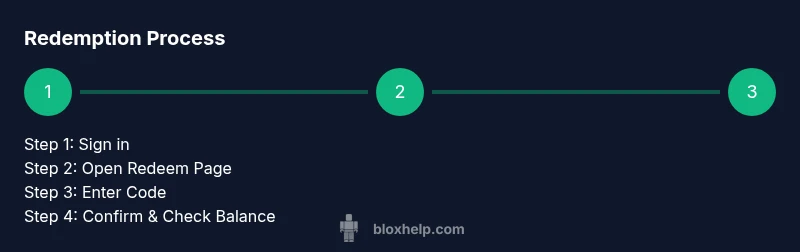
To redeem on a computer, sign in to Roblox and open the Redeem Roblox Code page. Enter the code exactly as shown, avoiding spaces at the ends. Confirm your selection if you’re prompted to choose between Robux and Premium, then click Redeem. After the system processes the code, your Robux or Premium entitlement appears on your account. If you encounter errors, double-check the code and your account region, and try again. This section walks you through handling multi-card redemptions and verifying updates in your balance.
Redeeming on Mobile Devices (iOS & Android)
Mobile redemption follows the same principle as desktop, but you’ll use the Roblox app or a mobile browser. Sign in, navigate to the Redeem page from the menu, and input your code carefully. Choose Robux or Premium as your redemption option, then confirm. Once redeemed, refresh the app and verify your balance in the Robux tab or Premium status. Be mindful of small screens and copy-paste mistakes; use the in-app keyboard to reduce errors.
Robux vs Premium: How Card Value Is Applied
A Roblox gift card can typically be redeemed for Robux or to start/extend a Roblox Premium subscription, depending on the redemption flow you choose. The denomination on the card is the amount added to Robux or applied toward Premium after you complete the redemption. The interface clearly shows the available Robux or Premium options tied to your card’s value. If you want to convert the card to Robux first and then upgrade later, you’ll need to repeat redemption with a different card or adjust the purchase flow accordingly.
Regional Restrictions and Card Validity
Some cards may be restricted by region, language, or storefront availability. If you attempt to redeem from an incompatible region, you might see an error or a notice about regional limitations. Always verify that the card matches your account region and that you’re using the official Roblox redemption page. If a card is not accepted, check the card’s terms and try again from a supported region. When in doubt, contact Roblox support through the official help center.
Troubleshooting Common Redemption Issues
Common issues include invalid codes, codes already redeemed, or region-restriction errors. First, retype the code carefully, watching for similar-looking characters (0 vs O, 1 vs I). If the problem persists, try redeeming from a different device or network, and ensure you are signed into the correct account. If you still cannot redeem, contact Roblox support with your card details and timestamps to expedite help. This section outlines a structured approach to diagnose and fix each scenario.
Security and Safe Handling of Gift Cards
Treat gift cards like cash: don’t share codes publicly or store them in unsecured notes. Only redeem codes on official Roblox sites or apps. If you suspect a card was tampered with or your code was stolen, report it immediately and consider requesting a replacement from the retailer. The best practice is to redeem soon after purchase and store any remaining codes securely for future use.
Checking Your Balance After Redemption
After a successful redemption, check your Robux balance or Premium status in your Roblox account. On PC, view the Robux balance in the top bar or your account page; on mobile, open the menu and inspect your Robux or Premium section. If you adopted Robux, your new balance should reflect immediately or after a quick page refresh. For Premium, verify the subscription status and renewal date in your account settings.
Gift Cards vs Other Payment Methods: Pros and Cons
Gift cards are a convenient, card-free payment method that helps control spending and avoid credit cards. They are often a safer choice for younger players who may be more mindful about purchases. Compared to direct card payments or PayPal, gift cards can reduce the risk of unauthorized charges if kept secure. However, they are limited by regional availability and card denominations, so you may need multiple cards to reach a desired amount.
Tips to Maximize Card Value and Stretch Your Robux
Plan ahead by mapping out how many gift cards you’ll need for Robux bundles or Premium. Keep an eye on seasonal events or Roblox promotions that might offer bonus Robux with certain purchases. If you have multiple cards, redeem them in a single session to minimize time and avoid regional prompts. Record codes securely and avoid redeeming more than one card per session to reduce the risk of errors.
What to Do Next: Learning Resources from Blox Help
If you want deeper guidance or run into persistent issues, visit Blox Help’s troubleshooting hub for Roblox gift cards. They provide practical tips, common error codes, and safe redemption practices to help you continue your Roblox journey with confidence. Remember, the official Roblox help center is the best source for platform-wide updates and changes to redemption rules.
Tools & Materials
- Roblox gift card or digital code(Physical card or digital code you received from purchase or gifting)
- Stable internet connection(Wi-Fi or ethernet for smooth redemption on any device)
- Device for redemption(PC, smartphone, or game console with Roblox access)
- Web browser or Roblox app(Redeem via Roblox site or app; ensure you are on official channels)
- Account credentials(Username and password to sign in during redemption)
- Two-factor authentication (optional)(May prompt for 2FA depending on account settings)
Steps
Estimated time: 5-15 minutes
- 1
Sign in to Roblox
Open Roblox and sign in with your username and password. This is essential to apply any gift card value to your account. If you use multiple accounts, ensure you’re signing into the correct one that will receive Robux or Premium.
Tip: Use a secure password and enable 2FA if available. - 2
Open the Redeem page
Navigate to the official Roblox Redeem page from the account menu or a direct link. This page is the starting point for converting the card code into Robux or Premium.
Tip: Bookmark the official page for quick future access. - 3
Enter the gift card code
Carefully type or paste the code exactly as shown on the card. A single mistyped character will cause redemption to fail.
Tip: Copy-paste when possible, but double-check for spaces at the ends. - 4
Choose what you redeem for
Select Robux or Roblox Premium as the redemption option, depending on your goal. The UI will display the available denomination for each choice.
Tip: If you want Robux now but plan Premium later, redeem Robux and reuse another card for Premium. - 5
Confirm and redeem
Click Redeem to finalize the transaction. The system should confirm a successful redemption and immediately reflect in your balance or subscription status.
Tip: If an error occurs, retry on a different device and verify the code again. - 6
Verify your balance
Check your Robux balance in the avatar header or account page, or confirm Premium status in the account settings. This confirms the redemption took effect.
Tip: Refresh the page or app if the balance doesn’t update right away. - 7
Secure your remaining codes
Store any remaining codes somewhere safe and private to prevent misuse. Do not share them publicly or take screenshots in insecure environments.
Tip: Use a password manager or encrypted notes for storage. - 8
Consider regional constraints
If you encounter region-based errors, double-check that the card matches your account’s region and try again from a supported location or device.
Tip: If traveling, redeem after confirming region compatibility. - 9
Document any issues
If problems persist, note error messages, timestamps, and the cards involved. This helps support diagnose your case quickly.
Tip: Keep receipts or order confirmations handy.
Questions & Answers
What can I redeem Roblox gift card for?
Roblox gift cards can be redeemed for Robux or to start/extend a Roblox Premium subscription, depending on the chosen option during redemption. The card’s denomination determines the value applied to Robux or Premium.
Roblox gift cards redeem for Robux or Premium, based on your selection during redemption.
Do Roblox gift cards expire?
In most regions, Roblox gift cards do not expire. Check the card’s terms for regional specifics and any regional restrictions that may apply to redemption.
Usually they don’t expire, but always check the card terms for your region.
Can I redeem cards on mobile devices?
Yes. You can redeem Roblox gift cards on iOS and Android using the Roblox app or a mobile browser. The steps are similar to desktop, with navigation adjusted for mobile menus.
Yes, you can redeem on mobile devices using the Roblox app or mobile browser.
What if the code is invalid or already redeemed?
If a code is invalid or already redeemed, re-check the code for accuracy and region. If the problem persists, contact Roblox support with the code and redemption details.
If the code is invalid or used, double-check, then contact Roblox support with details.
Will redeeming Robux affect real money balance?
Redeeming a card adds Robux or Premium to your Roblox account, depending on the option you choose. It does not involve real money directly beyond the card’s value.
Redeeming adds Robux or Premium to your account, per the chosen option.
How do I contact Roblox support for gift card issues?
Use the official Roblox Help Center to report card issues. Provide your card code, time of purchase, and device details to speed up the process.
Use Roblox Help Center to report issues and share your card details for faster help.
Watch Video
The Essentials
- Redeem codes accurately to avoid errors
- Know platform-specific redemption steps
- Check your balance after redemption
- Safeguard gift card codes and receipts