How to Check Roblox Gift Card Balance
Learn how to check Roblox gift card balance across web and mobile, redeem codes correctly, and troubleshoot common issues with our step-by-step guide from Blox Help.


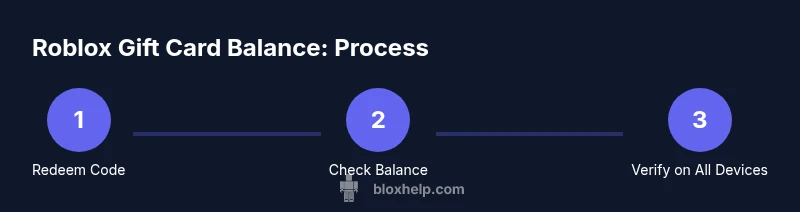
According to Blox Help, you can determine the value of a Roblox gift card by redeeming the code to your account and then checking your Robux balance. Use web or mobile access to sign in, navigate to the Redeem page, and confirm the updated balance. This quick guide outlines both methods and highlights common mistakes to avoid.
How to check roblox gift card balance
How to check roblox gift card balance is a common question for new players and returning users. According to Blox Help, the most reliable way to verify the value of a Roblox gift card is to redeem the code to your account and then view your Robux balance. The balance shown after redemption reflects the amount the card adds to your account. If you haven’t redeemed the card yet, there isn’t a separate, public ‘card balance’ value—your current Robux total is the key indicator. This section breaks down the concept, differences between web and mobile experiences, and terminology in plain language to help you avoid confusion. You’ll also find practical tips to ensure the process goes smoothly the first time, and how to handle common hiccups that come up for beginners.
What is a Roblox gift card balance and what does it represent?
A Roblox gift card balance represents the amount of Robux that will be added to your account once the card is redeemed. Gift cards are a prepaid way to convert real money into Robux, Roblox’s virtual currency. The balance is not cash you can withdraw; it’s a store credit you spend inside Roblox for Robux purchases, game passes, or items. Understanding this helps when you compare card values (for example, a $10 card equals a certain amount of Robux depending on current exchange rates inside Roblox). Always remember that the balance you see after redemption is tied to your specific account, not transferable to another account.
Understanding VAT, pricing, and regional differences
Roblox gift cards are typically priced in local currencies, and the Robux you receive may vary by region due to promotional offers or currency exchange rules. Blox Help emphasizes checking the regional storefront if you travel or use a different country’s device. When you redeem, Roblox may adjust the Robux amount to reflect regional pricing or tax considerations. If you’re exploring gift cards for a family member or friend, keep in mind that gift cards are non-returnable in most cases after redemption, so double-check the code before redeeming.
Why you might want to check balance regularly
Regularly checking your balance helps prevent surprises when you’re about to make in-game purchases. If you suspect a mismatch after a redemption, reviewing your recent purchases and receipts can help identify if the card was applied correctly. The habit of checking balances also helps you manage your Roblox spending and plan purchases for avatar items, games, or passes. This is especially useful for younger players who are budgeting their Robux across multiple games and experiences.
The two main paths: web vs mobile
On the web, you’ll typically sign in and view Robux balance in the header area or on your account page, depending on the UI. On mobile, you can use the Roblox app to view your balance in the account or shop sections. Both paths converge on the same underlying balance tied to your login, so whether you use a desktop browser or a smartphone, the balance shown after redemption should reflect the amount added by the gift card. Consistency across devices is a good sign that the card redeemed successfully.
Summary of key terms you’ll see
- Robux: the virtual currency earned or purchased with gift cards.
- Gift card code: the alphanumeric sequence you redeem to receive Robux.
- Redeem page: the official Roblox page where you enter the gift card code.
- Balance: the current amount of Robux in your account after redemption.
Understanding these terms helps you navigate the process with confidence and reduces confusion if you encounter errors.
Tools & Materials
- Roblox account(Use an active account you can sign into on web or mobile.)
- Valid Roblox gift card code(The code is usually 16 characters alphanumeric; redeem exactly as shown.)
- Device with internet access(A computer, tablet, or smartphone will work.)
- Web browser or Roblox mobile app(Access the official redemption page through a trusted channel.)
Steps
Estimated time: 10-15 minutes
- 1
Sign in to Roblox
Open Roblox on your web browser or mobile app and sign in with your username and password. This ensures you view the balance on the same account that will receive the Robux from the gift card.
Tip: If you share a device, use a private session or log out after finishing to protect your account. - 2
Navigate to the Redemption page
Go to the official redemption page (roblox.com/redeem) or access it via the account menu in the app. This is where you’ll enter your card code to add Robux to your balance.
Tip: Bookmark the official redemption URL to avoid phishing sites. - 3
Enter the gift card code exactly
Type the code precisely as it appears on the card, including any hyphens. A single character error can prevent redemption.
Tip: Copy-paste if possible to minimize typos, and double-check before submitting. - 4
Redeem and confirm the balance
Click Redeem, confirm any prompts, and wait for the confirmation message indicating the Robux have been added to your account.
Tip: Take a quick screenshot of the confirmation in case you need to verify later. - 5
Check your Robux balance
Return to your account page or header to verify the Robux amount. The new balance should reflect the card’s value.
Tip: Refresh the page or reopen the app if the balance doesn’t update immediately. - 6
If it doesn’t update, retry or contact support
If the balance doesn’t appear after redeeming, try redeeming again or sign out and back in. If problems persist, contact Roblox Support with your code and transaction details.
Tip: Avoid multiple rapid attempts to reduce the risk of an accidental lockout or code exhaustion.
Questions & Answers
Can I check the balance without redeeming the gift card?
No. The balance shown is tied to your account only after you redeem the gift card. Before redemption, you can only see your current Robux total.
No, you must redeem the code to see the added Robux balance on your account.
What should I do if the code is invalid or already used?
Double-check the code for typos, ensure you’re using the exact sequence, and verify it hasn’t been redeemed previously. If it still fails, contact Roblox Support with the code and purchase details.
If the code doesn’t work, recheck the characters and try again; if it still fails, reach out to Roblox Support.
Why doesn’t my balance update after redemption?
Sometimes the page needs a refresh or you may need to sign out and back in. Ensure you’re viewing the balance on the same account you redeemed the card to. If it still doesn’t update, wait a few minutes and try again.
If the balance doesn’t update, refresh or sign out and back in, and retry after a few minutes.
Is the balance the same on mobile and web?
Yes. The Robux balance is tied to your Roblox account, so your balance should be the same whether you view it on mobile or web after a successful redemption.
Your Robux balance should match across devices after redemption.
How long does it take for the balance to appear after redeeming?
In most cases, the balance updates instantly, but in some cases it may take a minute or two. If it’s still missing after that, retry redeeming or contact support.
Usually instant, but if not, wait a moment and try again or contact support.
Watch Video
The Essentials
- Redeem the card to add Robux to your account.
- Check balance on the official Roblox page or app.
- If problems occur, refresh or contact support with details.
- Use secure networks and keep codes private.