How to Update Roblox on Mac: A Complete Guide
Learn how to update Roblox on Mac with a beginner-friendly, step-by-step approach. Verify macOS compatibility, download the official installer, reinstall when needed, and optimize performance for smoother gameplay.


According to Blox Help, updating Roblox on Mac is often automatic when you launch the game, but there are times when a manual install is required to fetch the latest build. This guide walks you through verifying your macOS version, downloading the official Roblox installer, and performing a clean update that covers both Roblox Player and Roblox Studio. You’ll learn quick checks, troubleshooting, and best practices to minimize downtime.
Why updating Roblox on Mac matters
Keeping Roblox up to date on macOS is important for compatibility, security, and access to the latest features. Updates fix bugs, improve launcher stability, and ensure that both the Roblox Player and Roblox Studio run smoothly on recent macOS versions. While many updates occur automatically when you start Roblox, there are times when a manual reinstall is necessary to fetch the newest build. The Blox Help team found that users who perform a quick manual check after updating report fewer launcher errors and less lag when loading assets. Regular updates also help mitigate issues with newly released Roblox games that rely on the latest engine changes. By staying current, you reduce the chance of encountering your typical update blockers, such as permission prompts or outdated caches. In short, an up-to-date Roblox on Mac leads to a better overall experience and fewer interruptions during play sessions.
Blox Help analysis shows that reliable manual reinstall procedures significantly reduce recurring update failures in macOS environments, particularly when automatic updates stall. In practice, following a structured update flow helps you avoid common culprits like leftover installer files or stale cache data. The goal is to have Roblox launch cleanly with the latest features and assets. When you’re updating on a Mac, think of the process as both a software update and a quick system health check. If you encounter repeated failures, it’s often because the system blocked the installer or the old version remains mounted in Applications. In those cases, a dedicated reinstall can reset the update state and set you on a smooth path forward.
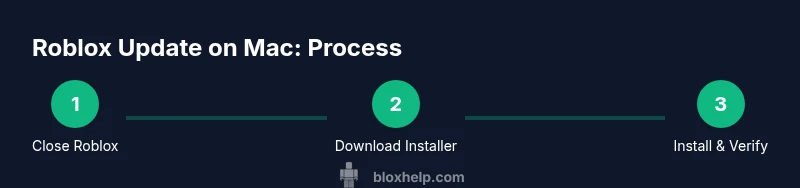
The Blox Help team recommends a deliberate, repeatable approach to updates: confirm prerequisites, download only from the official site, run the installer, and verify the update by launching Roblox. This method minimizes surprises and keeps your progress intact. By implementing these practices, you’ll maintain a stable Roblox environment on macOS and reduce time lost to troubleshooting.
Tools & Materials
- Mac computer with internet access(Stable connection is recommended for downloads and updates.)
- Official Roblox installer (.dmg)(Download from roblox.com/download to ensure you get the latest build.)
- Web browser (Safari, Chrome, or Firefox)(Used to access roblox.com and initiate downloads.)
- Sufficient disk space (at least 2 GB free)(Helpful to store the installer and temporary cache during update.)
- Administrative access on macOS(You may be asked to enter your password during installation.)
Steps
Estimated time: 15-25 minutes
- 1
Close Roblox fully
Quit the Roblox app from the Dock if it’s running. Check Activity Monitor for any lingering Roblox processes and quit them to prevent the updater from encountering open files.
Tip: If Roblox won’t quit, use Force Quit (Cmd+Option+Esc) and end the Roblox processes before starting the update. - 2
Check macOS compatibility
Open the Apple menu, choose About This Mac, and confirm you’re on a supported macOS version. Update macOS if necessary to improve compatibility with the latest Roblox build.
Tip: A fresh macOS security update often helps avoid Gatekeeper blocks during installation. - 3
Download the official Roblox installer
Visit roblox.com/download with your web browser and click Download Now to fetch the latest Roblox installer (.dmg). Verify the download completes before proceeding.
Tip: Ensure you download only from the official Roblox site to avoid potentially unsafe copies. - 4
Install Roblox from the downloaded disk image
Open the .dmg file and drag the Roblox launcher icon to the Applications folder. If macOS prompts a security warning, approve the installation in System Preferences.
Tip: If Gatekeeper blocks the app, go to System Preferences > Security & Privacy > General and allow apps downloaded from Roblox. - 5
Launch Roblox and sign in
Open Roblox from the Applications folder and sign in with your account. The updater should run automatically or prompt you to update if a newer build is detected.
Tip: First launch after updating may take longer due to asset cache optimization; be patient and let it finish. - 6
Verify the update
Check that Roblox launches with the latest build by starting a game or checking the in-game settings for version information if available. If you see issues, run the installer again or perform a clean install.
Tip: If problems persist, reset Roblox cache by quitting Roblox and removing the Roblox folder from Library/Application Support. - 7
Optional clean reinstall if problems persist
If updating still fails, delete the existing Roblox Applications entry and reinstall from the official site to reset all components.
Tip: A clean reinstall resolves stubborn update failures due to corrupted files or misconfigured permissions.
Questions & Answers
Do I need to quit Roblox before updating on Mac?
Yes. Quitting Roblox ensures the updater can replace files without conflicts. If the app is running, the installer may fail to overwrite components.
Yes, quit Roblox before updating to avoid conflicts with the updater.
Can I update Roblox on Mac without reinstalling?
Often Roblox updates automatically when you launch the game, but if you encounter persistent problems, a manual reinstall from the official site is the most reliable fix.
Usually update automatically, but a manual reinstall can fix stubborn issues.
Where can I download the latest Roblox installer for Mac?
Get the latest Roblox installer directly from roblox.com/download. This ensures you receive the newest build and avoids unsafe sources.
Download the latest installer from roblox.com/download.
Why is Roblox update taking long on my Mac?
Update times vary with asset size and cache handling. A slow connection or full disk can extend the process. If it stalls, cancel and retry the download after clearing space.
Long updates can be due to large assets or cache; try again after clearing space.
Is Roblox update supported on newer macOS versions?
Roblox supports a range of macOS versions; check Roblox’s official system requirements if you’re on an older release.
Most macOS versions are supported; check system requirements if unsure.
What should I do if Gatekeeper blocks the installer?
Open System Settings > Security & Privacy, then allow apps from Roblox or identify developers. If needed, run the installer again after approving the prompt.
If Gatekeeper blocks it, approve Roblox in Security & Privacy and try again.
Watch Video
The Essentials
- Verify macOS compatibility before updating.
- Download the official Roblox installer from roblox.com.
- Reinstall when an update stalls or fails to apply.
- Keep macOS and Roblox updated for best performance.