Getting Started Creating on Roblox: A Beginner's Guide
Learn how to start creating on Roblox with Roblox Studio. This step-by-step guide covers essential tools, safe practices, and publishing basics for beginners.


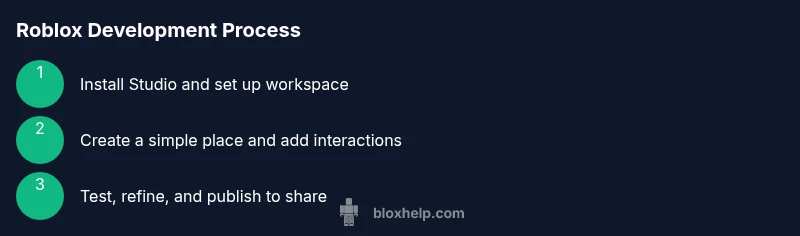
By following Roblox Studio steps, you will learn how to create your first place, test it, and publish. Start with installing Roblox Studio, set up a basic workspace, and build a simple scene. Then add a tiny script to make an object interactive and publish your project for friends to try.
Why Roblox Creation Matters for Beginners
According to Blox Help, embracing Roblox creation early can turn curiosity into practical skills like spatial design, basic programming, and project planning. Roblox serves as a friendly sandbox where beginners move from guided tasks to original experiences. The platform’s community and publishing options provide real-world feedback that accelerates learning. This section explains why starting now helps you accumulate transferable game-development habits while keeping learning enjoyable and goal-oriented.
- Accessibility: Roblox Studio runs on multiple operating systems and is free to use, lowering the barrier to entry for new developers.
- Iterative learning: Small, testable projects teach you debugging, user experience, and iteration, which are core to most software work.
- Community feedback: Sharing your place invites feedback from players, guiding you toward practical improvements.
As you embark, remember that every successful creator started with a single, simple project. The Blox Help team recommends staying curious and building gradually—your future game ideas often begin as tiny experiments.
Getting the Right Tools: Roblox Studio and System Requirements
Before you create, you need the right tools and a computer that supports Roblox Studio. Roblox Studio is the primary editor for building places, scripting with Lua, and testing interactions. A stable internet connection ensures smooth downloads and updates. The system requirements aren’t overly strict, but a modern CPU, sufficient RAM, and a reasonable graphics capability help your workflow run smoothly. This section covers installing Studio, verifying your setup, and preparing a workspace that minimizes friction during development.
- Install Roblox Studio from the official Roblox site.
- Ensure your computer meets minimum memory and graphics requirements.
- Create a dedicated development folder to organize assets and scripts.
- Enable auto-save to prevent data loss during long sessions.
Tip: If you’re on a slower machine, close other programs during heavy editing to keep Studio responsive. The goal is a stable, predictable environment for experimentation.
Setting Up Your Roblox Studio Workspace
A well-organized workspace reduces friction and speeds iteration. In Roblox Studio, you’ll manage the Explorer, Properties, and the 3D Viewport. Start with a simple base plate, add a few parts, and lay out a basic scene to practice navigation and object manipulation. This section guides you through creating a new project, naming conventions, and a starter layout that you can reuse for future projects.
- Create a new place: open Studio, select New, and choose a template that fits your plan.
- Name your project clearly (e.g., “FirstScene_Garden”) to avoid confusion later.
- Use folders in Explorer for Organization: Models, Scripts, Textures, and Audio.
- Save frequently and use Version History so you can revert if needed.
Note: Start with a clean scene to learn core controls before layering complexity like lighting, terrain, or dynamic objects.
Your First Project: Create a Simple Place
A practical first project helps you see tangible results quickly. In this section, you’ll build a small, interactive scene—perhaps a park with a bench, a tree, and a sign that reacts when touched. You’ll learn how to place parts, adjust their size and color, and create a simple interaction using a script. The goal is to move from passive viewing to hands-on editing.
- Add basic parts: a block for ground, a few decorative items, and a doorway.
- Adjust properties: color, material, and collision so players can walk through or stand on items as intended.
- Create a simple touch event: when the player taps the sign, display a message.
- Save and test frequently to verify behavior and visuals in runtime.
Keep scripts minimal at first; focus on meaningful interactions that reinforce cause-and-effect thinking.
Basic Building: Parts, Materials, and Terrain
Beyond simple blocks, Roblox Studio offers a range of parts and materials. This section covers how to combine shapes, apply textures, and create more interesting terrain using the Terrain editor. You’ll experiment with alignment, anchoring, and grouping to build coherent environments. Understanding these fundamentals provides a strong base for more complex design later on.
- Use the Scale tool to proportion parts accurately; keep your design consistent.
- Apply Materials to convey texture (e.g., Wood, Grass, Metal).
- Group related parts into a Model to simplify scene management.
- Use Snap-to-Grid to keep elements aligned.
Pro tip: Start with a rough layout and refine geometry incrementally; precision grows with repeated practice and feedback.
Intro to Scripting: Lua Basics for Roblox
Lua is the lightweight scripting language used in Roblox. This section introduces essential concepts: variables, functions, and a simple event-driven pattern. You’ll create a tiny script that runs when a player interacts with an object. As you gain confidence, you’ll extend scripts to drive animations, spawn items, and respond to player actions.
- Create a Script in the object: insert a Script under a part and write basic code.
- Learn to print debug lines to understand script flow during testing.
- Use events like Touched to trigger actions.
- Keep scripts readable with clear variable names and comments.
Key idea: Start with small, visible effects; complexity grows as you learn to compose multiple scripts.
Making It Interactive: Events and Simple Scripts
Interactivity differentiates a static scene from a playable experience. This section demonstrates how to wire events to objects and respond with simple behaviors, such as a door that opens on touch or a panel that displays information. You’ll see how event listeners, conditions, and basic state management come together to create a responsive world.
- Attach a Script to a door: when Touched, change its CFrame to open.
- Implement a toggle state to prevent repeated actions from triggering unexpectedly.
- Use print statements to verify event timing and order.
- Test interactions in Play mode to observe real-time behavior.
Remember to keep interactions intuitive and consistent with player expectations.
Testing and Debugging Locally
Testing is essential to confirm that changes behave as intended. This section guides you through running your place inStudio’s Play mode, diagnosing layout issues, and validating scripts in a controlled environment. You'll learn to use output windows, pause points, and step-through debugging to isolate problems efficiently.
- Run Play mode to simulate a player’s view and interactions.
- Check the Output window for errors or warnings and fix syntax or logic issues.
- Break complex tasks into smaller tests to identify the root cause.
- Validate multi-step sequences by tracing each action from start to finish.
Frequent, incremental testing saves time later and reduces frustration during more complex builds.
From Local Test to Public: Publishing Your Game
Publishing makes your project accessible to others. This section explains the steps to publish a place, set basic permissions, and share a link with friends. You’ll also learn about versioning, basic monetization concepts, and how to gather feedback to improve future releases.
- Publish your place: give it a descriptive name, add a short description, and set a reasonable privacy level.
- Create a thumbnail and title that clearly convey the game’s theme.
- Share feedback prompts in-game to gather player opinions for future updates.
- Review analytics and performance metrics to guide improvements for next releases.
Tip: Start with a small audience who can provide constructive critique before opening to a wider audience.
Safety and Best Practices for Young Developers
Working with young developers means prioritizing safety and healthy practices. This block covers moderation, respectful community interaction, and how to avoid common pitfalls like copying assets or attempting advanced features before you’re ready. It also offers guidance on scheduling and balancing learning with other activities.
- Respect copyright and use only assets you’ve created or have permission to use.
- Keep your project within Roblox Community Standards and report any issues.
- Plan your learning path with achievable milestones to prevent burnout.
- Use official resources and trusted communities to verify guidance.
Practice patience; mastery builds over consistent effort and careful study of best practices.
Learning Path: Next Steps and Resources
This section maps out an ongoing learning path that grows with your skills. You’ll explore official Roblox tutorials, community templates, and curated starter projects. The aim is to provide a clear sequence from Lua basics to more complex gameplay mechanics, UI design, and collaborative development workflows.
- Follow a structured curriculum: Lua basics → scripting patterns → UI → physics and animation.
- Work on a small portfolio of places to show progression and learning.
- Participate in community challenges to compare approaches and improve.
- Save, document, and reflect on what you learned after each project.
Common Pitfalls to Avoid and Time Savers
Even seasoned creators face common mistakes. This final section highlights easy-to-mix up issues and practical shortcuts to keep you progressing. You’ll learn to manage scope, avoid over-engineering, and leverage templates or existing assets to accelerate your first projects without compromising your learning.
- Pitfall: Overly ambitious features early on; solution: start small and layer in features.
- Time saver: Reuse a starter scene as a template for future projects.
- Pitfall: Inconsistent naming; solution: adopt a simple naming convention from day one.
- Time saver: Regular backups and version history to prevent data loss.
Conclusion and What You’ll Take Away
This guide equips you with a practical, repeatable workflow to get started creating on Roblox. You’ve learned how to set up Roblox Studio, build a simple place, add interactivity, test, and publish. The best way to grow is through consistent practice and reflecting on what works. The Blox Help team’s recommendation is to start small, maintain a journal of progress, and share your work with the community to receive constructive feedback.
Tools & Materials
- Roblox account(Needed to access Roblox Studio and publish your places.)
- Roblox Studio software(Download from Roblox official site; install on supported OS.)
- A computer with internet(Ensure adequate RAM and a modern browser for Studio.)
- Text editor(Helpful for script notes and planning; not strictly required.)
- Digital assets plan(Sketches or notes for scene layout and feature ideas.)
- Headphones or speakers(Enable clear testing of sound assets and cues.)
Steps
Estimated time: 2-6 hours
- 1
Install Roblox Studio
Download and install Roblox Studio from the official site. Open the app, sign in with your Roblox account, and complete the initial setup prompts. This first step establishes the workspace where you will build and test your places.
Tip: Choose a simple default workspace to get familiar with the interface before customizing layouts. - 2
Create a New Place
In Studio, select New and pick a template that matches your plan (e.g., Baseplate). Rename the project to something descriptive so you can locate it easily later.
Tip: Give your project a concise, consistent name to simplify organization across future projects. - 3
Add Basic Parts
Place a ground plane and a few basic parts (block, wedge, cylinder). Use the Move, Rotate, and Scale tools to arrange them into a small scene.
Tip: Enable Snap-to-Grid for cleaner alignment and easier positioning. - 4
Apply Materials and Color
Experiment with materials like Wood or Grass and adjust colors to create a visually cohesive scene. Materials affect how light interacts with surfaces.
Tip: Aim for a simple color palette to keep visuals readable at different distances. - 5
Create a Simple Interaction
Insert a Script under a part (e.g., a sign). Write a basic script that prints a message when the object is touched or clicked.
Tip: Start with a minimal script and test frequently to confirm behavior. - 6
Test in Play Mode
Run the scene in Play mode to simulate a player’s experience. Check movement, collisions, and whether interactions trigger as expected.
Tip: Test with different player poses or speeds to catch edge cases. - 7
Add a Basic Camera and UI
Set a simple camera angle and create a small UI label to display feedback when interactions occur.
Tip: Keep UI unobtrusive so it doesn’t distract from gameplay. - 8
Publish Your Place
Prepare a publish-ready version by naming the place clearly and providing a short description. Set visibility and share the link with friends.
Tip: Test the published version on another device to ensure accessibility. - 9
Iterate Based on Feedback
Collect feedback from testers, note suggested improvements, and implement at least one new feature or polish in the next session.
Tip: Document changes to track progress and avoid repeating past mistakes.
Questions & Answers
What is Roblox Studio and why do I need it to create games on Roblox?
Roblox Studio is the official editor used to build places, script interactivity with Lua, and test gameplay. It provides tools for modeling, terrain, lighting, and publishing. Beginning with Studio helps you translate ideas into playable experiences.
Roblox Studio is the editor you use to make and test your games, and it’s the starting point for Roblox creation.
Do I need programming experience to start creating on Roblox?
No prior programming experience is required. You’ll start with simple scripts in Lua and gradually learn more complex patterns as you build. The platform is designed for beginners, with many tutorials and examples to copy and adapt.
You can begin with no coding background; you’ll pick up Lua basics as you go.
What kind of projects should beginners aim for first?
Aim for small, self-contained projects like a simple interactive scene or a single mini-game. These help you learn core mechanics, testing, and publishing without getting overwhelmed by scope.
Start with small, stand-alone projects to learn the basics before tackling larger experiences.
How do I publish my first Roblox place?
Publishing involves naming your place, adding a description, setting privacy, and sharing the link with friends. Keep expectations realistic and review feedback to plan future updates.
Publish your first place with a clear title, description, and share it with friends to get feedback.
What safety practices are important for young creators?
Follow Roblox Community Standards, avoid using unauthorized assets, and be mindful of sharing personal information. Use parent controls if applicable and seek guidance when needed.
Always follow Roblox safety guidelines and ask for help when you encounter something unfamiliar.
Watch Video
The Essentials
- Plan before you build.
- Start small and iterate often.
- Organize your assets and scripts from the start.
- Publish early to get feedback and improve.