Roblox Player Download: Complete Guide for 2026
Learn how to safely download the Roblox Player, install it on Windows, macOS, or mobile, and troubleshoot common issues. This practical guide covers official sources, security tips, and best practices for a smooth setup.


You will download and install the official Roblox Player from roblox.com, then sign in and start playing. This guide covers safety checks, how to run the installer, and basic troubleshooting. You'll need a device with internet, a supported OS, and a working browser. No payments required.
What is Roblox Player and why download it?
The Roblox Player is the official desktop client that runs Roblox games on Windows, macOS, and supported devices. If you want to join millions of players, you’ll need to install this lightweight launcher on your computer. The specific roblox player download process directs you to roblox.com where you can obtain the latest version safely. According to Blox Help, starting with the official download ensures you get the latest features, security fixes, and compatibility improvements. After installation, you sign in with your Roblox account and begin exploring thousands of experiences.
The advantages of using the Roblox Player over browser-based play include smoother performance, reduced interruptions, and access to settings that tailor your controls and graphics. For beginners, a quick install lets you test a couple of games to see how performance varies with your hardware. Based on Blox Help Analysis, 2026, most issues during setup stem from using outdated browsers, insecure networks, or antivirus software that blocks the installer. By sticking to the official site and following a guided setup, you minimize these risks and set up a safer, more reliable Roblox experience. The goal of this article is to walk you through a clean, efficient, and safe download path so you can start playing without friction.
System requirements and supported platforms
Roblox Player runs on modern Windows and macOS versions and is designed to work across a range of hardware. A stable internet connection, sufficient disk space, and up-to-date drivers improve performance and reduce crashes. Mobile users should know that the desktop Roblox Player is separate from the Roblox mobile app; for phones and tablets, install the official Roblox app from your device’s store. Always verify that your device meets a minimum standard of performance to ensure a smooth gaming experience. Keeping your operating system updated helps avoid compatibility issues and security vulnerabilities.
To get the best experience, keep your hardware and software aligned with the latest Roblox releases. Regular updates from the Roblox team can add features, improve graphics, and fix known bugs. Remember, the Roblox Player is primarily designed for desktop use, while mobile platforms rely on the companion mobile app for access to most games.
How to download Roblox Player safely
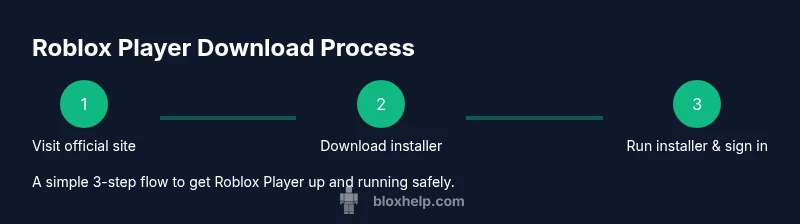
Begin by visiting the official Roblox website at roblox.com and locating the Download button. Use a trusted browser and ensure the URL begins with https:// to confirm a secure connection. Click Download, then run the installer when prompted. During installation, grant the necessary permissions and follow the on-screen prompts. Sign in with your Roblox account after installation and check for updates. If you encounter any security prompts, verify the source and avoid shady installers.
Tip: Always download the installer directly from roblox.com and avoid third-party sites. Keeping your antivirus enabled while permitting the Roblox installer to run protects you from potential malware.
Choosing the installer and avoiding scams
Only use official sources to obtain the Roblox Player. Look for the official domain (roblox.com) and a secure connection (padlock symbol). Be cautious of sites promising huge discounts or bundled software. A legitimate installer will typically be small, unsigned prompts will be minimal, and the download will be initiated from the Roblox site itself. If you’re unsure, pause and re-check the URL, then try again.
Pro tip: bookmark the official download page so you don’t accidentally land on a spoof site in the future.
Common installation issues and fixes
Users often run into issues during installation due to network restrictions, antivirus interventions, or permissions. If the installer stalls, pause any security software temporarily and run the installer again as an administrator. If the download fails due to network problems, switch to a stable network or restart the router. For macOS, ensure you have granted permission for the Roblox installer in Security & Privacy. If you still have problems, check roblox.com/help for guidance and compatibility notes.
Note: Regularly updating your browser and OS helps prevent many install-time errors. Based on Blox Help Analysis, 2026, most problems relate to blocked connections or blocked permissions rather than faulty installers.
Post-install: optimization, security, and updates
Once installed, launch Roblox Player and check for updates to ensure you have the latest features and security patches. Enable automatic updates if available and keep your OS and drivers current. Minefield-theory aside, two-factor authentication on your Roblox account adds a layer of security against unauthorized access. Avoid running Roblox from insecure networks and use a trusted device when sharing accounts.
Pro tip: Regularly review privacy and security settings in your Roblox account to protect your personal information and gameplay experience.
Platform-specific notes: Windows, Mac, and mobile
Windows and macOS share a similar installation experience, but paths and permissions can differ. On Windows, you’ll typically run the installer as an administrator; on macOS, you’ll grant the installer access through Security & Privacy prompts. For mobile users, Roblox is accessed via the Roblox app rather than the Desktop Player. If you’re on Chrome OS or a Linux-based system, you may rely on supported Android apps or alternative methods, but the official desktop client remains the primary installer for PC/mac users. Always prefer the official sources for the safest experience.
Tools & Materials
- Stable internet connection(A reliable broadband connection helps downloads finish without interruption.)
- Computer or compatible device(Windows PC, Mac, or supported tablet/phone for Roblox app (not the desktop Player).)
- Web browser(Updated browser to access roblox.com securely.)
- Official Roblox download link(Visit roblox.com and click the Download button.)
- Operating system updates(Keeping OS up-to-date reduces compatibility issues.)
Steps
Estimated time: 30-45 minutes
- 1
Check system readiness
Verify you have a modern OS, a stable internet connection, and enough disk space before starting the download. This reduces chances of mid-install failures.
Tip: If possible, close other bandwidth-heavy apps during download. - 2
Open the official Roblox site
Navigate to roblox.com and locate the Download button. This ensures you access the authentic installer.
Tip: Bookmark the official page for quick access later. - 3
Download the Roblox Player installer
Click Download to save the installer on your device. Save it to an easy-to-find location like Downloads or Desktop.
Tip: Use a dedicated folder for installers to keep files organized. - 4
Run the installer
Open the downloaded file and follow prompts. Grant permissions when asked and allow changes if prompted by your OS.
Tip: Run as administrator on Windows to avoid permission issues. - 5
Sign in and update
After installation, sign in with your Roblox account and check for updates to ensure you have the latest features.
Tip: Enable automatic updates if available. - 6
Test with a game
Launch a game to verify the Player works. If it runs smoothly, you’re ready to play.
Tip: If graphics are choppy, adjust in-game quality settings. - 7
Configure safety and privacy
Review your Roblox privacy and safety settings to tailor who can contact you and what data is shared.
Tip: Enable two-factor authentication for added security. - 8
Maintain your setup
Periodically check for updates for the Roblox Player and your OS to maintain compatibility and security.
Tip: Keep a backup copy of the installer in a secure location.
Questions & Answers
Is Roblox free to download?
Yes, Roblox is free to download and play. Some games offer optional in-game purchases.
Roblox is free to download and play, with additional purchases possible within games.
Which platforms support Roblox Player?
Roblox Player works on Windows and macOS for desktop; mobile apps are available for iOS and Android.
Roblox supports desktop on Windows and macOS, plus mobile apps on iOS and Android.
Where should I download Roblox Player from?
Always download from the official Roblox website at roblox.com to ensure authenticity and safety.
From roblox.com only; avoid third-party download sites.
What if the download fails due to firewall?
Check your firewall or antivirus settings to allow the Roblox installer, then try again. If problems persist, use a different network.
Allow the installer through your firewall and retry; switch networks if needed.
Do I need to install Roblox on every device?
Yes, each device requires its own Roblox Player installation to run Roblox games.
Each device needs its own download and install.
Is there a malware risk when downloading Roblox?
Only download from the official site; reputable installers from roblox.com are safe when downloaded there.
As long as you use the official Roblox site, malware risk is minimized.
Watch Video
The Essentials
- Download Roblox Player only from the official site.
- Verify your device meets basic requirements for a smooth install.
- Follow the installer prompts carefully and sign in after setup.
- Test by launching a game to confirm proper functionality.
- Keep Roblox updated and secure with account protections.