Flicker Roblox: Quick Troubleshooting Guide
A practical, urgent guide to diagnosing and fixing Roblox flicker issues quickly, covering graphics settings, driver updates, and Roblox-specific tweaks for smoother gameplay.


The most likely cause of flicker roblox is a graphics setting mismatch or outdated drivers. Start with verifying Roblox and Windows graphics settings, updating your GPU drivers, and testing in a clean startup to rule out background apps. If the issue persists, proceed through the diagnostic flow below for deeper fixes and safety precautions. This quick path helps you regain steady visuals fast.
Understanding flicker roblox: what it means and why it happens
Flicker roblox occurs when the game’s visuals briefly disappear, flash, or shimmer during play. This can be caused by a mismatch between Roblox’s rendering pipeline and your GPU, outdated graphics drivers, or conflicting software. In many cases, the issue isn’t about your hardware breaking; it’s about settings, drivers, and background processes interacting poorly with Roblox. By understanding common culprits—driver versions, V-Sync settings, and display refresh rates—you can quickly reduce or eliminate flicker while preserving performance.
When you see flicker, you’re not alone. Roblox players frequently report this problem after system updates or when moving from high to medium graphics presets. The key is to isolate the variable you can control: drivers, Roblox graphics presets, and system startup processes. The goal is to stabilize the frame output so Roblox runs consistently across scenes, menus, and game modes. This guide mirrors real-world troubleshooting steps used by the Blox Help Editorial Team to diagnose and fix flicker roblox efficiently.
Quick checks you should do before diving deeper
Before you invest in deeper fixes, perform these low-effort checks. They catch the most common causes and are often enough to restore stable visuals.
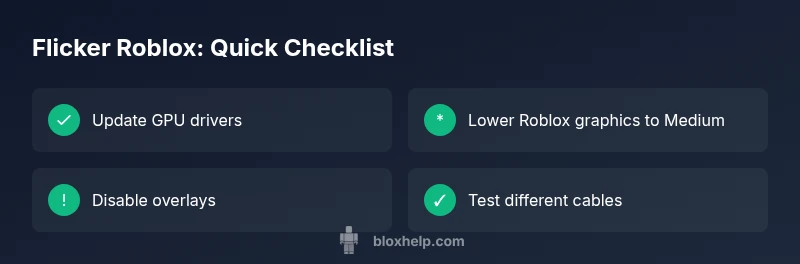
- Update GPU drivers: Visit the manufacturer site (NVIDIA, AMD, or Intel) and install the latest stable driver.
- Verify Roblox graphics settings: Set to a medium preset, disable ultra features like ray tracing if available, and enable V-Sync if you’re experiencing tearing without flicker.
- Close background overlays: Disable game recording, screenshot utilities, and GPU control panels that run overlays.
- Check display settings: Confirm your monitor’s refresh rate matches Roblox’s supported values and that Windows refresh rate is set to the same value.
- Perform a clean startup: Boot with minimal startup apps to rule out third-party software conflicts.
- Test with a different display or cable: Faulty HDMI/DisplayPort cables can cause flicker that looks like game issues.
If you still see flicker after these steps, you’re ready to move into deeper diagnostics.
Common causes of flicker roblox and how to identify them
Flicker can stem from several sources. Distinguishing between them helps you apply the right remedy quickly.
- Outdated GPU drivers (high likelihood): Driver updates fix rendering issues and improve compatibility with Roblox.
- In-game graphics settings too high or misconfigured (medium likelihood): Excessive settings can push your GPU beyond what it can render consistently, causing flicker or stutter.
- Background processes and overlays (medium likelihood): Recording software, overlays, or third-party utilities can interfere with the Roblox rendering pipeline.
- V-Sync and frame-traction problems (low likelihood): Improper V-Sync settings can create input lag, tearing, or flicker under certain conditions.
- Hardware limitations or monitor issues (low likelihood): A tired GPU, failing RAM, or a defective cable can mimic software glitches but require hardware checks.
To identify the root cause, test each variable in sequence: update drivers, adjust Roblox presets, and monitor the behavior after each change. This method ensures you catch the culprit without unnecessary changes.
Diagnostic-flow preview: symptom → diagnosis → solutions
This section outlines a practical path from the moment you notice flicker to concrete fixes. It’s designed to be easy to follow and to escalate only when needed.
- Symptom: Screen flicker occurs during Roblox gameplay, especially when switching scenes or entering new game modes.
- Diagnosis: Likely a driver/setting issue, with possible interference from overlays or mismatched refresh rates.
- Solutions: Update drivers, adjust Roblox visuals to a mid-range preset, disable overlays, and verify display settings. If unresolved, consider a clean boot and driver rollbacks as additional options.
This flow helps you logically narrow down causes and apply targeted remedies without guessing. If the issue persists after attempting these steps, you should escalate to deeper fixes in the next sections.
Step-by-step fix for the most likely cause: graphics driver or settings
Below is a structured, front-loaded fix focused on the most common culprits: GPU drivers and graphics presets.
- Update your GPU driver to the latest stable release. Reboot after installation. Tip: Use the driver’s “Clean Install” option to remove old traces.
- Open Roblox, navigate to Settings > Graphics Quality, and set to Medium. Save changes and restart Roblox to test. Tip: If flicker persists, try Low and re-test.
- Enable V-Sync in the GPU control panel and in Roblox if available. Test for stability. Tip: V-Sync can reduce tearing but may introduce a touch of input latency.
- Ensure a consistent refresh rate: In Windows display settings, set the same refresh rate as Roblox. Reboot and test again. Tip: Use a fixed rate rather than “Adaptive” where possible.
- Run Roblox in windowed mode then back to fullscreen to reset the rendering pipeline. Tip: This can clear transient graphics hiccups without full reinstallation.
- Temporarily disable any overlays or recording software. Re-test with a simple desktop setup. Tip: Some apps offer a “do not record while playing” option—enable it.
- If you still see flicker, perform a clean boot to rule out third-party software. Tip: Disable non-Microsoft services in msconfig and test one-by-one.
Total time: about 30-45 minutes for initial fixes. If the issue remains, proceed to advanced adjustments in the next sections.
In-depth Roblox-specific tweaks that can stabilize visuals
Roblox has its own nuances that can interact with system-level settings. The tweaks below address Roblox-specific rendering behavior and can help you achieve steadier visuals.
- Reset Roblox to default graphics: In Settings, choose “Automatic” and let Roblox pick a balanced preset during boot. Then manually adjust if needed.
- Toggle quality of textures and effects: Reducing texture quality and disabling post-processing effects can alleviate flicker on lower-end GPUs.
- Check for Roblox client updates: Ensure you’re running the latest Roblox client since older builds may have known rendering flaws.
- Disable fullscreen optimizations for Roblox: Right-click the Roblox launcher, go to Properties > Compatibility, and uncheck Fullscreen optimizations. This can stabilize frame pacing.
- Test with different lighting settings in-game: Some lighting scenarios accentuate flicker; adjusting scene lighting can reduce perceived flicker.
- Evaluate anti-virus and background scanners: Real-time scanning can intermittently spike GPU load; schedule scans off-hours during testing.
By applying these Roblox-centric changes, you tailor the environment to Roblox’s rendering pipeline and reduce the likelihood of flicker during intense scenes.
When to seek professional help and safety considerations
If flicker persists despite exhaustive testing, it may indicate deeper hardware or software conflicts that require professional help. Consider consulting with a tech specialist to inspect GPU health, memory integrity, and display adapters. Do not ignore warning signs like persistent screen artifacts, excessive heat, or system crashes. Safety notes:
- Back up important data before performing advanced driver operations or hardware tests.
- Avoid beta drivers unless you’re testing in a controlled environment.
- If you’re under warranty, contact the manufacturer support team first to avoid voiding coverage.
Professional help can quickly diagnose issues such as GPU overheating, RAM faults, or monitor defects, and often provides a faster return to stable Roblox play.
Prevention tips to avoid flicker roblox in the future
Prevention is the best cure for flicker roblox. Implement a routine to keep your system healthy and Roblox-ready.
- Schedule regular driver updates and Windows updates to stay aligned with Roblox’s rendering demands.
- Create a clean startup profile specifically for gaming to minimize software conflicts.
- Maintain stable hardware temperatures with proper cooling and dust management.
- Keep cables and monitors in good condition; replace faulty HDMI/DisplayPort cables promptly.
- Periodically verify Roblox settings after big game updates or system changes.
- Use a gaming-specific power plan to maximize GPU and CPU efficiency during play.
These proactive steps help minimize flicker risks and keep Roblox visuals steady across sessions.
Steps
Estimated time: 30-45 minutes
- 1
Update GPU drivers
Go to the GPU manufacturer site and download the latest stable driver. Install, reboot, and test Roblox again to see if flicker reduces.
Tip: Choose a clean install option to remove old driver remnants. - 2
Adjust Roblox graphics and V-Sync
Set Graphics Quality to Medium, enable V-Sync if available, and test gameplay. If flicker continues, try Low then retest.
Tip: Use Roblox’s auto-graphics feature as a baseline. - 3
Check display settings
Ensure the monitor refresh rate matches Roblox’s supported rates and that Windows is set to the same rate.
Tip: A mismatch is a common flicker cause. - 4
Close overlays and background apps
Disable screen recorders, overlay tools, and other background utilities that could interfere with rendering.
Tip: Some apps run as services—check task manager for suspects. - 5
Run a clean boot
Disable non-Microsoft services to rule out third-party conflicts. Test Roblox after each change.
Tip: Re-enable services one-by-one to identify the culprit. - 6
Test with different hardware
If possible, test Roblox on another GPU/PC or with a different cable to rule out hardware faults.
Tip: A different setup can quickly pinpoint hardware issues.
Diagnosis: Screen flicker during Roblox gameplay
Possible Causes
- lowPower issue
- highOutdated GPU drivers
- mediumConflicting background software/overlays
Fixes
- easyUpdate GPU driver to latest stable release
- easyLower Roblox graphics quality to a mid preset
- easyDisable overlays and background recording utilities
Questions & Answers
What causes flicker in Roblox on Windows 10 or 11?
Flicker can come from outdated drivers, mismatched display settings, or overlays interfering with Roblox. Updating drivers and adjusting Roblox presets often resolves it. If still present, test other monitors and cables to rule out hardware issues.
On Windows, Roblox flicker is usually caused by driver or display setting conflicts that you can fix by updating drivers and adjusting graphics.
Should I switch Roblox to a lower graphics setting permanently?
If flicker persists on high settings, using Medium or Low graphics can stabilize visuals without a major performance hit. You can switch back after a successful test to find a balance.
Try a medium setting to see if the flicker stops, then adjust as needed.
Can a faulty HDMI cable cause Roblox screen flicker?
Yes. A faulty or loose HDMI/DisplayPort cable can cause flicker or intermittent signal loss. Replacing or reseating cables often fixes the issue.
A bad cable might be the culprit, so swap it out and test again.
Is V-Sync always the right fix for flicker?
V-Sync helps with tearing and can reduce flicker in some cases, but it may introduce input lag. Enable it as a test and compare performance.
Try turning on V-Sync to see if it stabilizes Roblox visuals without adding lag.
When should I seek professional help for Roblox flicker?
If you’ve exhausted software fixes and still see flicker, it may indicate hardware issues or a system-wide problem. A tech pro can diagnose GPU, RAM, or monitor faults.
If software tweaks don’t work, consider professional diagnostics for hardware problems.
Will hardware upgrades fix flicker Roblox?
Potentially. If the GPU is old or overheating, a replacement or improved cooling can resolve persistent rendering issues. Start with a diagnostic to confirm.
Upgrading or properly cooling hardware can help if the current setup struggles with Roblox.
Watch Video
The Essentials
- Start with driver and Roblox graphics settings
- Disable overlays to rule out software conflicts
- Use a clean boot to isolate problems
- Test across displays/cables to rule out hardware faults
- If unresolved, seek professional help before hardware replacement