Fix Glitches in Roblox: A Practical Troubleshooting Guide
Urgent guide to diagnose and fix glitches in Roblox, from lag to avatar issues. Learn quick checks, a step-by-step fix path, and how to report bugs effectively.


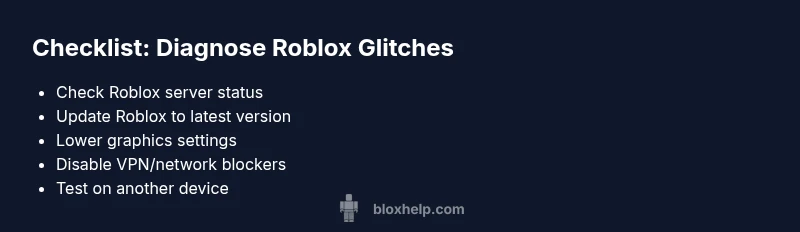
Most glitches in roblox stem from mismatched client-server data, an outdated client, or network hiccups. Quick fixes: check Roblox server status, update the app, lower graphics, and disable VPN if active. If issues persist, test on another device and reproduce steps to report the bug. This covers the majority of glitches in roblox.
Why glitches in roblox happen
Glitches in roblox can feel random, but they usually have a few reproducible root causes. In many cases, the problem originates from mismatched data between your client and the game's server, which can cause rubber-banding, teleporting, or texture pop-ins. Another frequent culprit is an outdated Roblox client that lacks bug fixes and performance improvements introduced by recent patches. Third, network issues — such as high latency, jitter, or occasional packet loss — can manifest as lag or stuttering even when hardware is capable. Finally, conflicts with background software (security tools, VPNs, or firewalls) can interfere with the game’s connection. By recognizing these patterns, you can triage glitches in roblox quickly and avoid chasing phantom symptoms.
According to Blox Help, glitches in roblox are often caused by client-server data mismatches and outdated clients, making early checks essential for fast resolution.
Quick checks you should perform
Start with the simplest steps first. Check if Roblox is experiencing server outages by visiting the official status page or third-party outage trackers. If the service is up, ensure you are on the latest Roblox client and that automatic updates are enabled. Lower the in-game graphics from Settings > Graphics Quality to reduce GPU load. Disable any VPN or firewall that could be blocking Roblox traffic, then reconnect to the game. If you see the same glitch after these steps, test on another device or network to determine if the issue is device- or network-related. Finally, clear Roblox cache on your device to ensure you are loading the freshest assets.
Consider your network and device setup
Your network quality directly influences glitches in roblox. A slow or unstable wifi connection can cause lag even when hardware is fine. Prioritize a wired Ethernet connection where possible or move closer to the router. Running other bandwidth-heavy apps simultaneously can also worsen in-game hiccups. On devices, make sure drivers are up to date, especially GPU and network adapters. If you’re on mobile, ensure you have enough free storage and that background apps are limited. These checks often resolve many common glitches by stabilizing the data flow between client and server.
How to reproduce and report a bug
For persistent glitches in roblox, reproduce the problem consistently with a clear sequence of actions. Note the exact game, location, device, and Roblox version. Take screenshots or screen recordings showing the issue and any error messages. Visit the Roblox Support or Bug Report page to submit your report, including steps to reproduce, expected behavior, and observed behavior. The more precise your report, the faster responders can verify and fix the issue. If you’re sharing in forums or social channels, link to your recordings and describe the conditions (time, location, player count).
Common culprits by category
- Client: Outdated app, corrupted local files, or misconfigured graphics could cause glitches. Update, repair, or reinstall as needed.
- Network: Router problems, VPNs, or firewall settings can block game data; test different networks or disable VPNs.
- System/Device: Low RAM, overheating, or outdated graphics drivers can lead to stuttering and frame drops; keep drivers current and ensure adequate cooling.
- Game-specific: Some glitches are caused by particular game assets or scripts; check official forums for game-specific patches.
- Platform differences: Windows, macOS, iOS, Android, and Xbox can have platform-specific quirks; use platform-appropriate settings.
Next steps if none of the fixes work
If you’ve exhausted basic troubleshooting and still see glitches in roblox, escalate. Confirm you can reproduce the issue on a different account to rule out account-specific problems. Collect logs or screenshots and submit them to Roblox Support with your device specs and network details. Consider waiting for a game patch or a Roblox client update if the issue is widespread. You can also explore community-provided workarounds, but avoid unsafe software or unverified patches.
Steps
Estimated time: 45 minutes
- 1
Verify server status and update Roblox
Check if Roblox servers are operational and ensure your game client is the latest version. If an update is available, install it and restart the app. This often resolves glitches that stem from server or client mismatches.
Tip: Enable auto-update to catch future fixes automatically. - 2
Tune graphics and disable VPN
Lower the Graphics Quality and disable any VPNs or proxies that might interfere with traffic. Re-launch Roblox and test if the issue persists with reduced GPU load.
Tip: Test with the lowest settings to isolate GPU-related issues. - 3
Test on another device/network
If possible, log into Roblox on a different device or network to see if glitches persist. A difference between environments helps pinpoint the culprit.
Tip: If it works elsewhere, your original device or network is likely the bottleneck. - 4
Clear cache and repair installation
Clear the Roblox cache or reinstall the app to remove corrupted files. This step fixes many asset-related glitches and ensures clean loading.
Tip: Back up any saved data if applicable before reinstalling. - 5
Reproduce with precise steps
Document exact actions that trigger the glitch, including game name, location, device, and steps to reproduce. Screenshots or clips improve clarity.
Tip: A reproducible sequence speeds up bug triage. - 6
Report and monitor
Submit a bug report with your reproduction steps and attach media. Monitor for replies and be ready to provide additional logs if requested.
Tip: Include device specs and network type in your report.
Diagnosis: User reports glitches in roblox such as lag, rubber-banding, or texture pop-ins
Possible Causes
- highServer-side issues/outages
- highOutdated Roblox client
- mediumPoor network connectivity / VPN interference
- lowHigh graphics settings or hardware strain
- low corrupted local files or cache
Fixes
- easyCheck Roblox server status and update to the latest Roblox client
- easyLower graphics quality and disable VPN/firewall conflicts
- easyTest on another device/network to isolate the issue
- easyClear Roblox cache and reinstall if necessary
- easySubmit a detailed bug report with reproduction steps
Questions & Answers
Why do glitches in roblox occur?
Glitches in roblox are usually due to client-server data mismatches, outdated software, or network issues. Reproducing steps helps identify root causes.
Glitches in roblox are usually caused by mismatched data, old software, or network problems.
How can I tell if it’s server-related?
Check Roblox's server status and try another game or location within Roblox. If issues occur across multiple games, server problems are likely. Otherwise, the issue is more likely client-side or network-related.
Check server status and try a different game to see if the problem is server-related.
Does updating Roblox fix glitches?
Yes. Updating Roblox often resolves known glitches by pulling in bug fixes and performance improvements. Ensure automatic updates are enabled for ongoing protection.
Updating Roblox often fixes glitches by bringing in bug fixes.
Can antivirus or VPNs cause glitches?
Yes. Some security tools or VPNs can block game data. Temporarily disable them to test if glitches improve, but re-enable after testing.
Security tools or VPNs can block game data and cause glitches.
If issues persist, should I reinstall?
Reinstalling Roblox can fix deep-seated data corruption. If possible, back up saves, then perform a clean install and test again.
Reinstalling can fix stubborn issues; back up saves first.
Is there a known widespread glitch right now?
Widespread issues are usually reported by Roblox on their status pages or official forums. Check those sources for confirmed outages or patches before deep troubleshooting.
Check official status pages for any widespread Roblox issues.
Watch Video
The Essentials
- Start with simple fixes and verify server status.
- Always update Roblox to the latest version.
- Test across devices/networks to isolate causes.
- Document steps and evidence when reporting bugs.