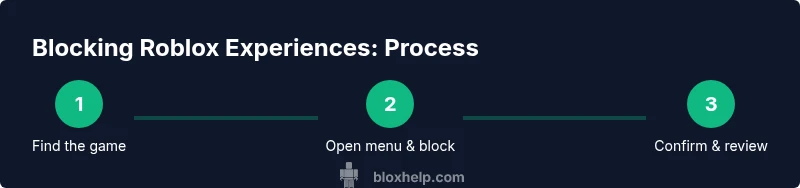
How to Block a Roblox Experience: A Practical Guide
Discover practical steps to block a Roblox experience on desktop and mobile, plus safety tips and best practices from Blox Help for safer gameplay.


Block a Roblox experience by hiding or blocking the game from your Discover feed on desktop or mobile. Use the game’s page menu to apply the block, then review your blocked list in Settings. This quick guide walks you through steps, safety considerations, and how to manage or unblock later.
What blocking a Roblox experience really means
Blocking a Roblox experience is a personal safety tool that lets you curate what you see in-game. If a particular game disrupts your focus, shows inappropriate content for your age, or simply isn’t your cup of tea, blocking it can improve your overall Roblox experience. In this guide from Blox Help, we cover the what, why, and how of blocking experiences across desktop and mobile, plus best practices for keeping your block list clean and effective. Before you begin, note that blocking is per account and will affect your own feed and recommendations rather than the entire platform; you and anyone who shares your device can still access the game if they sign in with a different account. The most important part is to have a plan: identify why you’re blocking and how you’ll review the results after a few weeks. According to Blox Help, a thoughtful approach to blocking balances personal choice with ongoing learning about content safety.
Safety-first: why you might block experiences
Blocking is not punishment; it's a preventive tool that helps players avoid unwanted content, distractions, or negative interactions. If you’re teaching younger players, set clear guidelines about which games are acceptable and explain how blocking works so they understand you’re curating their Roblox experience for safety and focus. Also consider your own learning curve with new Roblox features—blocking can be adjusted as you gain familiarity with the platform’s privacy options and content controls. By keeping your goals in mind, you’ll use blocking more effectively and avoid over-restricting your play space. This mindful approach aligns with best practices recommended by the Blox Help Editorial Team.
Desktop steps to block a Roblox experience
On a computer, sign in to Roblox and navigate to the Roblox experience page you want to block. Open the menu next to the game title (often represented by three dots or a gear icon). Choose Block or Hide, then confirm your choice. After blocking, go to Settings > Privacy to verify the blocked experiences list and adjust Discover preferences if needed. If you don’t see a Block option, look for an Options or More menu that includes content controls and moderation settings. Your desktop workflow should take about 5–10 minutes for initial blocking, plus a few minutes to review the list periodically.
Mobile steps to block a Roblox experience
Using the Roblox mobile app, search for the experience, open its page, and tap the menu (three dots or More). Select Block or Hide, then confirm. Return to your account settings and check your blocked list to ensure the game is listed. On mobile, you may also adjust content filters in the app’s Privacy settings to reduce recommendations from disallowed experiences. A typical blocking action on mobile takes roughly 5–8 minutes, with a quick follow-up check after you’ve blocked several titles.
Managing blocked experiences and lists
Keep a clean, useful blocked list by reviewing entries every few weeks. If you block a game accidentally or you later change your mind, you can remove it from the Blocked Experiences list. Some players prefer to add notes to entries (where supported) to remember why a game was blocked. Regular maintenance helps prevent over-blocking and ensures you retain access to favorites. Remember that changes you make are tied to your Roblox account and will sync across devices when you sign in.
What to do if you can’t block an experience
If the game lacks a direct Block option, you can still limit exposure by adjusting your Discover preferences and enabling stricter privacy controls. You can also report content that seems inappropriate or violates Roblox policies, which can influence moderation. For younger players, parental controls can restrict who can join your games, how content is presented, and what gets recommended. If blocking remains unavailable, consider using a secondary account under supervision for trial-and-error testing of new games before adding them to your watchlist.
Impact on social features and friends
Blocking an experience primarily affects your personal feed and recommendations; it does not automatically remove interactions with other players who regularly play that game. If the experience is popular among your friends, you may still see announcements or invites, which is why it’s important to communicate boundaries. For younger players, discuss how blocking can help keep playtime positive and focused. The goal is to reduce exposure to distractions while maintaining healthy social interactions within Roblox.
Safety tips for parents and guardians
Parents should explain blocking and privacy settings as part of digital safety conversations. Use Roblox’s parental controls to set account restrictions, enable content filters, and review blocked lists with your child. Encourage regular check-ins to discuss what’s blocked and why. Keeping settings aligned with your child’s age and maturity level reduces friction and fosters responsible online behavior. Always pair blocking with ongoing education about online safety and respectful online conduct.
How to unblock a Roblox experience when you change your mind
If you need to unblock later, revisit the Blocked Experiences list, locate the game, and select Remove or Unblock. The change should take effect immediately on all devices where you’re signed in. It’s a good idea to re-evaluate your blocked list after a few days to ensure you still want the block or if the game’s content has shifted in a positive direction. As you experiment with blocking, remember that flexibility is part of building a safer Roblox experience.
Tools & Materials
- A Roblox account(Your own account to manage blocked experiences.)
- Device with internet access(PC, smartphone, or tablet with Roblox app or web access.)
- Roblox app or browser(Ensure you have the latest version or an updated browser.)
- Password and 2FA(Enable two-factor authentication for security.)
- Notes for tracking decisions(Optional: keep a short log of blocks for review.)
Steps
Estimated time: 15-25 minutes
- 1
Sign in to Roblox on desktop or mobile
Open the Roblox app or website and sign in with your account. This ensures your block choices are saved to the correct profile and synchronized across devices.
Tip: If you share a device, use a personal account or enable biometric sign-in to prevent cross-user changes. - 2
Find the Roblox experience you want to block
Use the search or browse to locate the exact game you want to block. Having the URL handy can speed this up on desktop.
Tip: Double-check the game title to avoid blocking a similarly named experience. - 3
Open the options menu on the game page
Click or tap the three-dots menu or More options near the game title to reveal content controls.
Tip: On some devices, the menu may be labeled differently; look for icons indicating options or safety settings. - 4
Choose Block or Hide
Select Block or Hide from the menu and confirm your choice. Blocking hides the game from recommendations.
Tip: If you don’t see Block, look for a privacy or content control option in the same menu. - 5
Verify the block in Settings > Privacy
Open your Roblox settings and navigate to Privacy to confirm the game appears in your Blocked Experiences list.
Tip: If blocked items aren’t visible, refresh the app or sign out and back in. - 6
Repeat on mobile if needed
If you also use Roblox on mobile, repeat the steps on the mobile app to ensure consistency across devices.
Tip: Mobile UX may vary slightly; look for the same Block or Hide options in the game page menu. - 7
Review your Blocked Experiences periodically
Set a reminder to review blocked items every few weeks to keep the list relevant and avoid over-blocking.
Tip: Keep notes to remember why you blocked specific games. - 8
Unblock when you reconsider
If you change your mind, go to Blocked Experiences, select the game, and remove the block.
Tip: Unblocking can restore normal recommendations and access quickly. - 9
Consider parental controls for younger players
For children, enable parental controls and age-appropriate filters to safeguard content beyond individual blocks.
Tip: Use a shared safety plan with your child for transparency.
Questions & Answers
Can blocking a Roblox experience prevent my friends from playing it with me?
Blocking affects only your personal feed and recommendations. Your friends can still play the game unless they block it themselves or you block the developer in a broader parental control setting. It does not remove the game from their accounts.
Blocking changes only your view and suggestions, not your friends’ access.
Will blocking delete the game from my device?
Blocking hides the game from recommendations; it does not uninstall or delete the game from your device. You can unblock later to regain visibility.
Blocking hides it, you can unblock later if you want to play again.
Can I block an experience on mobile and desktop separately?
Yes. You can block the same experience on each device by repeating the steps on that device. The block will sync to your account for consistent filtering.
Yes, you block per device, but changes sync to your Roblox account.
What if the game owner updates content and I want to unblock it?
If content changes, you can unblock the game to see new content again. Regularly reassess blocks to keep your feed relevant.
You can unblock anytime if you want to revisit the game after updates.
Is there a difference between blocking and reporting a game?
Blocking hides the game from your feed, while reporting addresses policy violations. You can combine both for safety—block for personal filtering and report for moderation actions.
Block for filtering yourself, report if you think there’s a policy issue.
Watch Video
The Essentials
- Block experiences to tailor your Roblox feed.
- Use desktop and mobile steps to block consistently.
- Review and adjust blocked items regularly.
- Pair blocking with parental controls for safer play.
- Unblock carefully to restore access when needed.