Why Roblox Won’t Install: Troubleshooting Guide
Solve Roblox installation problems quickly with a structured troubleshoot guide. Learn common causes, step-by-step fixes, and prevention tips to get Roblox running on Windows, macOS, and mobile.


Most Roblox install failures come from a bad installer, blocked permissions, or missing system resources. Quick fix: restart your device, run the installer as administrator, ensure you have enough disk space, and temporarily disable antivirus if safe. If the issue persists, reinstall Roblox from the official site and clear caches. Check network settings and system updates if needed.
Why Roblox Won't Install: Common Causes and Quick Distinctions
If you’re asking why roblox won t install on Windows, macOS, or mobile, you’re not alone. According to Blox Help, most install failures fall into a handful of common culprits: a broken or incomplete installer, blocked permissions, insufficient disk space, or a corrupted cache. Your device’s operating system version and security software can also block the launcher. By identifying the primary cause, you can apply a targeted fix instead of guessing. Below are the main categories and how to test them quickly:
- Broken or incomplete installer that fails midway through the process
- Insufficient disk space on the drive used for Roblox
- Antivirus or firewall blocking the installer or updater
- Outdated Roblox launcher or operating system
- Network issues (VPNs, proxies, DNS filtering)
- Parental controls or account restrictions on the device or network
Quick Checks You Can Do Right Now
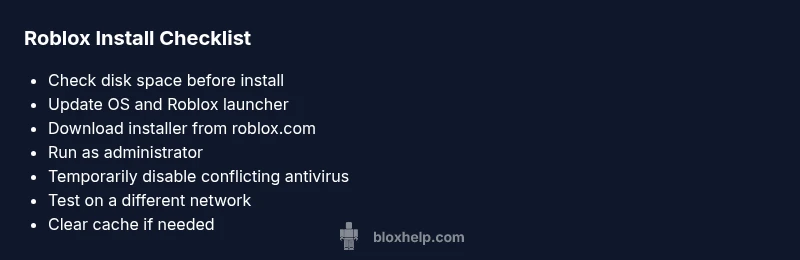
These quick checks cover the most frequent blockers and can be done without advanced tools. Start with the easiest, then move to more involved steps if needed. According to Blox Help, ruling out software conflicts and network problems early saves time and frustration.
- Verify there is ample free disk space on the installation drive. Low space often causes a stall or a failed install.
- Ensure your operating system and the Roblox launcher are up to date. Updates fix known compatibility issues.
- Run the Roblox installer with administrator or root privileges to grant required access.
- Always download the installer from the official Roblox site to avoid corrupted or tampered files.
- Temporarily disable antivirus or firewall protection to test if they’re blocking the installer (re-enable afterward).
- If on a managed network, try a different network or disable VPN/proxy to rule out network filtering.
- Restart your device to clear temporary glitches that interfere with the installer.
- Clear Roblox cache by deleting the Roblox cache folders in your user profile, then reinstall from the official site.
Reinstall and Cache Clearing: What to Do If Issues Persist
If the basic checks don’t resolve the issue, a clean reinstall can remove lingering corrupted components. Start by uninstalling Roblox, then delete leftover Roblox folders from your user directory (both local and roaming caches if present). Download the latest installer from roblox.com and run it with proper permissions. After installation, launch Roblox and grant any required permissions. If you’re on macOS, you may need to move the app to Applications and run from there. Re-enable security software after install and test again.
Edge Cases: Parental Controls, Regions, and Corrupted Profiles
Some problems aren’t software bugs but policy and environment issues. Parental controls on school or home networks can block app installations or updates. Regional restrictions or device management (common in corporate or school devices) can also prevent Roblox from installing. A corrupted user profile or conflicting third-party software can mimic installation failures. If the problem persists, try a new user profile or contact your device administrator. Always verify you’re using a Roblox-supported device and OS version.
Steps
Estimated time: 30-60 minutes
- 1
Check prerequisites
Confirm device meets Roblox requirements, there is sufficient space, and you are on a supported OS version. This prevents wasted effort on incompatible setups.
Tip: Document the OS version and available space before you begin. - 2
Prepare the installation environment
Close other apps, disable VPNs, and temporarily disable antivirus to test for conflicts. This ensures the installer can access necessary components.
Tip: If you have to disable security software, do so only long enough to test. - 3
Re-download and install
Delete the old installer, download a fresh copy from Roblox official site, and run the installer with elevated privileges.
Tip: Use a stable network to avoid partial downloads. - 4
Clear caches if needed
If the install stalls, clear Roblox caches by removing local Roblox folders, then retry installation.
Tip: Back up important data if you store game files elsewhere. - 5
Test post-install launch
Launch Roblox, accept any prompts, and verify the game starts correctly. Check for crash messages or error codes for further troubleshooting.
Tip: If errors appear, note the exact code for lookup. - 6
Escalate if unresolved
If Roblox still won’t install after all steps, contact Roblox support with your OS, version, and error messages.
Tip: Provide screenshots and exact error codes to speed up help.
Diagnosis: Roblox won’t install on Windows, macOS, Android, or iOS
Possible Causes
- highInsufficient disk space
- highOutdated OS or launcher
- highCorrupted installer or cache
- mediumAntivirus/firewall blocking
- mediumNetwork blocks (VPN/proxy/DNS)
- lowParental controls or account restrictions
Fixes
- easyFree up disk space on the installation drive
- easyUpdate OS and the Roblox launcher to the latest versions
- easyRe-download the installer from the official Roblox site and reinstall
- easyRun the installer as administrator or with root privileges
- mediumTemporarily disable antivirus/firewall to test installation (re-enable after)
- easyTest installation on a different network or after disabling VPN/proxy
- mediumReset or create a new user profile if corruption is suspected
Questions & Answers
Why does Roblox fail to install after a software update?
Updates can change system requirements or security settings that block installers. Check for compatibility notes, update the launcher, and re-run the installation. If it still fails, revert to a previous driver or roll back the update if possible.
Software updates can change compatibility. Review notes, update the launcher, and try reinstalling; if needed, consider rolling back the update.
How do I know if disk space is the real issue?
Open your file manager and check the free space on the drive Roblox will install to. Roblox needs several hundred megabytes to several gigabytes depending on the launcher and game assets. Clear unnecessary files if space is tight.
Check the drive's free space; clear out unused files if space is low.
Can antivirus blocking Roblox be resolved quickly?
Yes. Temporarily disable it to test installation, then add Roblox as a trusted program if supported. Re-enable protection immediately after testing and ensure the installer is from an official source.
Temporarily disable antivirus to test the install, then re-enable and trust Roblox.
What should I do if Roblox still won’t install after all steps?
Document all attempted steps, note exact error messages, and contact Roblox support with your system specs. They can provide device-specific guidance or identify outages affecting installation.
If the problem persists, gather details and contact Roblox support.
Is network-related help required for install issues?
Yes. If VPN or proxies are used, disable them. Switch to a stable network and retry the installation. DNS or firewall blocks can also cause failures.
Network settings can block installs, try a stable connection without VPNs.
Should I reinstall Roblox on mobile devices too?
Mobile installs follow similar principles: clear cache, ensure storage, and reinstall from the app store. If issues persist, check device permissions and OS compatibility.
Mobile fixes include clearing cache and reinstalling from the app store.
Watch Video
The Essentials
- Verify disk space and system compatibility first
- Re-download installer from official source
- Run as administrator and test with security software temporarily disabled
- If problems persist, check network settings and contact support