How to Fix Roblox Ping: Practical Latency Tips
Learn how to reduce Roblox ping and lag with wired connections, DNS tweaks, and safe network optimizations. A complete, beginner-friendly guide from Blox Help to improve latency across devices.


According to Blox Help, to fix Roblox ping start by testing your connection, then switch to a wired Ethernet when possible and minimize background traffic. Adjust router settings, update network drivers, and select a nearby Roblox server region. If latency remains high, disable VPNs, use a fast DNS, and reduce other online activities. These steps reduce lag and improve responsiveness.
What influences Roblox ping and why it matters
Ping, or latency, is the round-trip time for data to travel from your device to Roblox servers and back. In gaming terms, lower ping means faster input responses and a smoother experience, while high ping causes lag, stuttering, and delayed actions. Several factors shape your ping: your own internet bandwidth, the quality of your router and network hardware, and how many devices share the same connection. Physical distance to Roblox data centers and the current health of the route your data takes through your ISP’s network also play major roles. Software on your device can also steal bandwidth—antivirus scans, system updates, and background syncing can push latency higher. Understanding these influences helps you target fixes where they matter most. The Blox Help team finds that most latency issues stem from a mix of local network setup and server routing, so starting with a stable wired connection, reducing background activity, and tweaking DNS and router settings yields reliable gains.
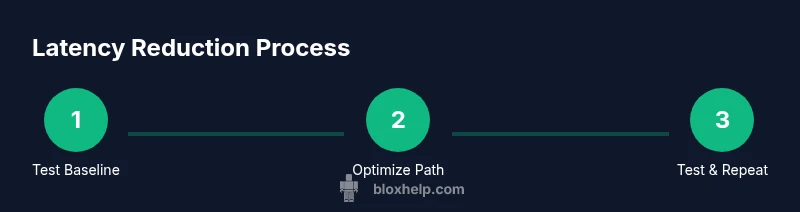
A stable baseline is essential. Before changing anything, run a quick speed test and ping test to Roblox servers, note the results, and compare after each adjustment. This makes it clear which fixes move the needle and which do not. If you’re playing from a shared home network, communicate timing to others to minimize simultaneous bandwidth-heavy activity during gaming sessions. Remember, latency is a composite of several factors, and addressing multiple layers often yields the best results.
Quick checks to measure ping and isolate issues
Start with some simple measurements to identify whether the issue is local or elsewhere. Run a speed test to gauge your download and upload performance, then ping Roblox servers from your computer or console:
- On Windows, open Command Prompt and run: ping -n 4 roblox.com
- On
Step-by-step fixes to reduce ping
-
Test baseline and close background apps: Close unnecessary programs, pause cloud backups, and disable auto-updates during gaming sessions. This reduces competing bandwidth and CPU load that can contribute to jitter. Why: Your device’s resources are finite, and background activity can spike latency even when download speeds look fine.
-
Switch to wired Ethernet or optimize wireless: If you can, connect via a wired Ethernet cable for the most stable connection. If you must use Wi-Fi, place the router higher, closer to your device, reduce interference from microwaves or Bluetooth devices, and switch to a clear channel on 5 GHz where available. Why: A solid, low-latency link dramatically lowers ping and reduces packet loss.
-
Update drivers and firmware: Ensure your network adapter drivers are current and your router firmware is up to date. Why: Updated software can fix bugs, optimize routing, and improve throughput.
-
Change DNS and disable VPNs: Use a fast, reliable DNS (e.g., Cloudflare or Google DNS) and disable VPNs or proxies during gaming. Why: DNS resolution time and VPN routing can add significant latency and jitter; direct routing typically wins for Roblox.
-
Optimize router settings and QoS: Enable Quality of Service (QoS) for gaming, port-forward Roblox traffic if needed, and ensure no bandwidth-hogging features are active during play. Why: QoS prioritizes gaming packets and reduces delays during congestion.
-
Region selection and re-testing: In Roblox, select a game server region near you and retest. If latency remains stubborn, test during off-peak hours and compare. Why: Proximity to servers shortens travel distance and reduces routing complexity.
Estimated total time: 60-90 minutes. Pro tips: Run tests after each change to quantify improvements and avoid over-tuning.
Network optimization for gaming
Networking for gaming is best served by a calm, predictable pipeline rather than raw speed alone. Prioritize consistency over peak throughput. Start with Ethernet if possible, as wired connections dramatically reduce packet loss and jitter compared to Wi-Fi. If you must use wireless, use 5 GHz where supported, minimize physical obstacles, and consider upgrading to a router that supports the latest Wi-Fi standards or beamforming. DNS matters too; switching from your ISP’s default resolver to a fast public DNS can shave valuable milliseconds off each lookup. Keep in mind that VPNs and proxies almost always increase latency for gaming because they add an extra hop in the data path. If you must use a VPN for other reasons, test Roblox without it to gauge the impact and only keep it on if necessary for other tasks. Finally, monitor background bandwidth consumers (cloud backups, streaming services) and pause them during Roblox sessions. A calm network is a faster network for gaming.
Roblox-specific considerations and regional tips
Roblox is global, and latency can vary by region and server availability. When latency is repeatedly high, try selecting the nearest server region within the game’s settings, and if possible, test different regions to identify the best route to Roblox data centers. Some ISPs route traffic through congested peering points; if you notice consistent lag from a specific region, you may benefit from switching to a different DNS provider or temporarily routing around the congested path. For mobile devices, switch from cellular data to a stable Wi‑Fi network when playing on games that require low latency, and ensure power saving modes aren’t throttling your network interface during gameplay. If high ping persists, consider temporarily using a backup network or a more direct, fiber-based connection when available. As always, track improvements with repeat tests so you know which changes truly help.
Authority sources and further reading
For deeper context on latency and network optimization, consult these reputable sources:
- FCC: https://www.fcc.gov/ (general consumer info on internet services and speed tests)
- Cloudflare learning: https://www.cloudflare.com/learning/dns/what-is-dns/ (DNS basics and impact on latency)
- CNET guide: https://www.cnet.com/tech/gaming/how-to-fix-lag-in-online-games/ (practical gaming lag fixes)
These resources provide foundational explanations for latency, routing, and DNS that complement the Roblox-specific guidance in this article. Remember: iterative testing is essential to confirm what works best for your setup.
Authority sources (continued)
- Additional notes: If you want more structured testing, consider documenting ping values before and after each change and tracking your average latency over several gaming sessions. This helps you quantify improvements and decide when to upgrade hardware or your internet plan.
Tools & Materials
- Ethernet cable(Cat6 or better recommended; avoid old CAT5 if possible)
- Router with QoS(Prefer models with gaming or prioritization features)
- Computer or console(Ensure hardware supports current Roblox requirements)
- Reliable DNS options(Examples: Cloudflare 1.1.1.1; Google DNS 8.8.8.8)
- VPN/proxy(Only disable if troubleshooting latency; keep off during gaming)
Steps
Estimated time: 60-90 minutes
- 1
Test baseline and close background apps
Begin with a fresh baseline: run Roblox and a single browser, then close any nonessential apps. Pause cloud backups, file synchronization, and software updates to ensure they don’t steal bandwidth during tests. This gives you a clear starting point for latency.
Tip: Use Task Manager (Windows) or Activity Monitor (macOS) to spot bandwidth-heavy processes. - 2
Switch to wired Ethernet or optimize Wi‑Fi
If you can, plug in with an Ethernet cable for the most stable connection. If wireless is mandatory, position the router higher, away from interference, and switch to a 5 GHz band for better throughput and lower interference.
Tip: Avoid streaming devices on the same network path during gaming; use a dedicated router port for gaming devices if possible. - 3
Update drivers and firmware
Check for the latest network adapter drivers and router firmware. Install updates, then reboot both devices to ensure changes take effect. Updated software can fix routing inefficiencies and improve stability.
Tip: Back up your router settings before updating so you can restore if needed. - 4
Change DNS and disable VPNs
Set a fast DNS resolver (e.g., 1.1.1.1 or 8.8.8.8) and disable any active VPNs or proxies while gaming. DNS resolution time and extra hops from a VPN can add noticeable latency.
Tip: Test Roblox latency with each DNS option to identify the fastest repeatable result. - 5
Tune router QoS and port handling
If your router supports QoS, prioritize gaming traffic and reduce scheduling delays. Confirm Roblox traffic isn’t blocked by parental controls or firewall rules; open required ports if your setup calls for manual port forwarding.
Tip: Label your QoS rules clearly so you can adjust them later if needed. - 6
Test, compare, and decide
Run latency tests again after each change to quantify improvements. Compare results across different regions, DNS options, and connection types to identify the most effective combination.
Tip: Keep a simple log of latency numbers to track progress over time.
Questions & Answers
Why is my Roblox ping higher on Wi-Fi than Ethernet?
Wi-Fi is more susceptible to interference, distance, and congestion. Ethernet provides a direct, stable path with lower latency, which commonly reduces ping in Roblox. If Ethernet isn’t an option, optimize your Wi‑Fi by moving closer to the router and reducing interference.
Wi-Fi can add latency due to interference and distance. Ethernet almost always lowers ping for Roblox.
How can I tell whether the issue is my network or Roblox servers?
Compare latency on multiple devices within the same network and check Roblox server status if available. If several devices show similar latency and other games lag, the issue is likely network-related. If Roblox alone lags on all devices, it may be server-side or regional routing.
If several devices share latency, the network is the likely culprit; if Roblox lags everywhere, it could be server-side.
Will resetting my router help with ping?
Resetting can clear temporary routing issues and apply firmware updates. Do this only if you’ve saved settings and understand your configuration; a misconfigured reset can worsen performance.
Resetting can fix temporary routing glitches if you’ve saved your settings first.
Does Roblox use UDP or TCP, and why does that matter for ping?
Roblox uses UDP for gameplay traffic because it handles real-time data more efficiently with less overhead. TCP can add latency due to retransmission mechanics, so ensuring UDP-based paths are favorable can improve latency.
Roblox uses UDP for low-latency gameplay, so UDP routing quality matters for ping.
Can a VPN cause ping spikes in Roblox?
Yes, a VPN adds extra hops and encryption overhead, which can increase latency and jitter. Disable VPNs while gaming to see if ping improves.
VPNs often raise ping due to extra routing; disconnect to test improvements.
When should I consider upgrading my internet plan?
If latency remains high during peak usage times despite optimizations, consider upgrading to a higher bandwidth plan or a service with better peering to Roblox data centers.
If latency stays high after fixes, an upgrade could be worth it for steadier performance.
The Essentials
- Test baseline latency before changes
- Prefer wired connections for stability
- Disable VPNs during gaming to reduce hops
- Tune DNS and router QoS for best routes
- Re-test to confirm improvements