Why is My Roblox Ping So High? A Troubleshooting Guide
Struggling with high Roblox ping? This step-by-step guide helps you diagnose network, device, and server-related causes to restore smooth gameplay and lower latency—fast.


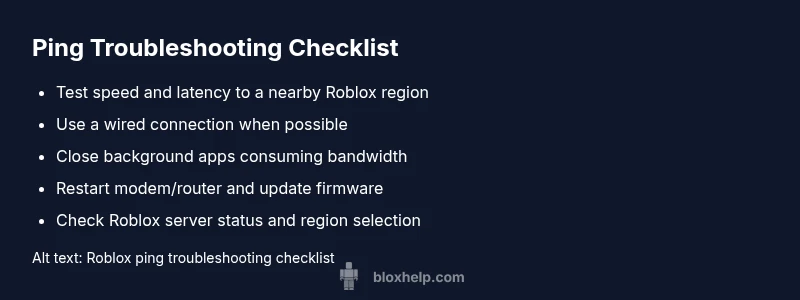
The most common cause is a weak or unstable internet connection causing Roblox to stall while packets travel to the game servers. Start by running a quick speed test, restarting your router, and checking Roblox server status. If problems persist, switch to a wired connection or a nearer server region.
Why Roblox Ping Fluctuates
Ping, or latency, is the time it takes for a data packet to travel from your device to Roblox servers and back. When players ask, <em>why is my roblox ping so high</em>, the answer often points to a mix of local network issues, device throughput, and Roblox server routing. High ping isn’t always a single culprit—it’s usually a combination of factors. Jitter (fluctuations in latency) can make the experience feel unstable even if the average ping seems reasonable. This guide breaks down the most common causes and practical fixes so you can quickly bring ping back down to a comfortable range. According to Blox Help, most ping-related issues are solvable with targeted checks and changes to your home network and settings.
Check Your Internet Speed and Latency
Before diving into deeper fixes, verify your baseline. Run a speed test to measure download and upload speeds and ping to a server near your location. Compare results with the plan you pay for and Roblox’s recommended requirements. If latency spikes consistently beyond what your plan should handle, the problem is likely outside the game and within your local network or ISP routing. Record the numbers for a quick before/after comparison later. Also look for packet loss or frequent disconnects, which are red flags that your connection isn’t stable enough for real-time multiplayer.
Tip: Run tests on multiple devices and at different times of day to identify patterns. This provides a clearer picture of whether the issue is local or service-wide.
Switch to a Wired Connection When Possible
Wi‑Fi is convenient, but it’s susceptible to interference from walls, appliances, and other wireless networks. If you’re experiencing high ping, switch to a wired Ethernet connection. A direct cable reduces interference and improves stability, often cutting ping by tens of milliseconds. If a wired connection isn’t feasible, try placing the router closer to your gaming device, minimizing obstructions, and using the 5 GHz band when available (and compatible).
Note: Power-cycle your modem and router after switching to wired connections to refresh your network state.
Optimize Your Router and Network Equipment
Router QoS (Quality of Service) settings can prioritize Roblox traffic and reduce latency under load. Check your router’s admin page for QoS rules and set Roblox to a higher priority if available, or temporarily disable QoS to test impact. Ensure firmware is up to date and that you’re not overloading the router with other devices or streaming services during gameplay. If you’re sharing with others, ask them to pause nonessential downloads during play sessions. A modern router with good antenna placement can dramatically decrease latency in many homes.
Always use strong Wi‑Fi passwords to prevent unauthorized devices from consuming bandwidth.
Roblox Server Regions and Timing
Sometimes the problem isn’t your home network but Roblox’s own servers or the route your ISP uses to reach them. Check whether Roblox server regional outages or maintenance impact latency, which can cause ping spikes that are outside your control. If possible, adjust your in-game region or choose a closer server. In some cases, playing during off-peak hours reduces congestion and lowers ping. Tracking server status via official Roblox channels or third-party status pages helps you decide whether to wait or switch regions.
Minimize Background Traffic and System Tasks
Background software, cloud sync, automatic software updates, or other devices on the same network can steal bandwidth and spike ping. Close any unnecessary programs, pause cloud backups, and schedule large updates for post-game hours. If you’re on Windows, check the Task Manager for processes using network bandwidth and end or pause the ones you don’t need during Roblox play. On macOS, use Activity Monitor to identify bandwidth hogs and quit them. A lean system and clean network often translate directly into lower latency.
Device-Specific Tips (PC, Mac, Mobile, Console)
Each device has unique bottlenecks. On PCs, ensure network drivers are current and disable VPNs or proxies while gaming unless required for a reason. On consoles, ensure you’re connected to your home network with minimal interference and check for any firmware updates. Mobile users should switch from cellular data to a trusted Wi‑Fi network when possible, and consider enabling a game-optimized mode if the device offers one. If you use a VPN to access Roblox, test both with and without it—the VPN can sometimes increase ping due to longer routing paths.
Diagnostic Flow: Isolate the Cause
A systematic approach helps you quickly identify the root cause. Start with basic checks, then escalate to targeted fixes based on symptoms. For example, if a wired connection still shows high ping, the issue is likely server-side or ISP routing. If Wi‑Fi testing improves ping, focus on home network optimization. This flow mirrors real-world troubleshooting: observe, hypothesize, test, and iterate until ping stabilizes.
Step-by-Step Fixes for the Most Common Cause
If you’re dealing with a consistently high Roblox ping, follow these fixes in order. Begin with the simplest actions (checking connection, restarting devices) and move toward more involved steps (QoS adjustments, region changes, ISP contact) only if necessary. Each fix is designed to be easy to implement and quick to test, so you can confirm improvements before moving on. Remember to re-test after each change to gauge impact on latency.
Safety, Warnings, and Common Mistakes
Never disable security software or firewall protections as a quick fix and forget to re-enable them after testing. Avoid endlessly rebooting devices without identifying the root cause; repeated reboots without data don’t solve the underlying issue. If you’re uncomfortable performing network changes, seek help from a trusted friend or professional. Always back up router configurations before making significant changes to QoS or port forwarding.
Prevention and Long-Term Latency Management
To keep Roblox ping low over time, implement a routine: run periodic speed tests, monitor for background updates, and keep devices and firmware current. Consider a reliable wired setup for gaming and a router that supports stable QoS and modern Wi‑Fi standards. If latency resurges, revisit server status and regional choices, and confirm there are no ongoing ISP-wide issues. Consistent maintenance reduces future spikes and improves gameplay reliability.
Steps
Estimated time: 45-60 minutes
- 1
Define the problem and collect data
Describe the issue, note the times it happens, and gather baseline numbers from speed tests and in-game latency readings. This helps you measure improvements later.
Tip: Document before-and-after results for clarity. - 2
Test your internet connection
Run a speed test to check download/upload speed and ping to a nearby server. Compare with your plan and Roblox’s typical requirements to gauge if the issue is local.
Tip: Test at different times to identify patterns. - 3
Switch to a wired connection
If you’re on Wi‑Fi, connect with an Ethernet cable. Wired connections typically deliver much lower and more stable latency.
Tip: Power-cycle your modem/router after connecting the cable. - 4
Optimize router settings
Enable QoS for gaming traffic if available, update firmware, and ensure you’re not overloading the router with other devices.
Tip: Test ping after each setting change to isolate impact. - 5
Close bandwidth-heavy background tasks
Pause software updates, cloud backups, and streaming on other devices during gaming sessions.
Tip: Disable unnecessary background processes on your PC/Mac. - 6
Check Roblox server status and region
Verify Roblox server health and try switching to a nearer region if the option exists in-game or in your account settings.
Tip: Note if latency improves after a region switch. - 7
Test again and escalate if needed
Re-run speed tests and in-game pings to compare against your initial data. If ping remains high, escalate to ISP support or Roblox help.
Tip: If you suspect a persistent route issue, ask your ISP for traceroute data. - 8
Document fixes and establish a routine
Keep a log of what fixes helped and when. Create a maintenance plan for your home network to prevent future spikes.
Tip: Regularly verify device firmware and app updates.
Diagnosis: Player reports high Roblox ping/latency during play (e.g., visible lag, rubber-banding, or stuttering).
Possible Causes
- highNetwork congestion on the local connection
- highWeak Wi-Fi signal or interference
- mediumISP routing issues or peak-hour congestion
- mediumRoblox server region distance or regional outages
- lowBackground downloads or updates consuming bandwidth
Fixes
- easyRun an internet speed test and compare to your plan; look for jitter and packet loss
- easySwitch to a wired Ethernet connection if possible
- easyRestart modem/router and verify there are no misconfigured QoS rules
- easyClose background apps and limit other devices using bandwidth during gaming
- mediumChange Roblox region or server, if feasible, and check server status
- mediumContact your ISP to investigate routing paths or outages affecting your area
Questions & Answers
What is considered high ping in Roblox and how does it affect gameplay?
High ping means longer travel time for data between your device and Roblox servers, which can cause lag, rubber-banding, and delayed actions in-game. The impact varies by game, but noticeable latency usually manifests as stuttering or delayed inputs.
High ping causes lag and delayed actions in Roblox gameplay, making controls feel slow or unresponsive.
Why does Roblox ping differ from other games I play?
Roblox shares your network path with many users and games, so routing quality and server load significantly influence ping. Other games may use different servers or routing paths, causing distinct latency behavior.
Roblox routes traffic differently, so ping can vary compared with other games.
Can changing Roblox server regions improve ping?
Yes, switching to a nearer Roblox region can reduce ping if the current route is congested or far away. Check in-game options or account settings for region selection where available.
Switching to a closer Roblox region can help reduce ping.
Should I use a VPN to fix Roblox ping?
In many cases, VPNs add extra hops and increase ping. Only use a VPN if you have a clear routing issue confirmed by your ISP, and test with and without VPN to compare.
A VPN can sometimes worsen ping; test both with and without.
When should I contact Roblox or my ISP?
If multiple fixes fail and latency remains high, contact Roblox support to check server status and routing issues, and your ISP to verify there are no outages or regional routing problems.
Contact support if fixes don’t improve ping and latency persists.
Is ping the only factor in Roblox performance?
No—FPS, packet loss, jitter, and local device performance also affect play quality. A holistic check of network health and device performance yields the best results.
Ping is important, but other factors like FPS and packet loss also matter.
Watch Video
The Essentials
- Diagnose in sequence: local network first, then server routing.
- Wired connections significantly reduce ping for Roblox.
- Router QoS and firmware updates can stabilize latency.
- Server region and Roblox status influence ping more than you think.
- Track changes with before/after tests to confirm fixes.