How to Stop Roblox Music from Turning Off
Learn practical steps to keep Roblox music playing. This beginner-friendly guide from Blox Help covers in-game settings, platform checks, and troubleshooting to fix music turning off across PC, mobile, and console.


You can stop Roblox music from turning off by checking in-game audio settings, your device volume, and background/app permissions. This guide walks you through platform checks, how to adjust settings, and practical troubleshooting steps to keep music playing during Roblox sessions.
Understanding Roblox Music Behavior
Music in Roblox is managed by a mix of in-game scripts, global audio settings, and platform-level controls. If music suddenly stops as you play, it’s usually not a single fault but a combination of factors such as the game’s script logic, your device’s volume (including OS-level mute), and whether you’ve switched tabs or apps. According to Blox Help, understanding these layers helps you diagnose issues quickly and keep music playing during your Roblox sessions. In practice, this means checking both the in-game options and system settings, then testing across different games to see whether the problem is universal or game-specific. By approaching the problem in layers, you can identify whether the issue is caused by the individual game, the device, or Roblox itself. This section lays the groundwork so you can apply targeted fixes with confidence.
Common Triggers That Turn Music Off
There are several common culprits when Roblox music unexpectedly stops. First, game scripts may pause or mute audio when certain events happen (like a new scene or an ad break). Second, platform-level restrictions can mute background audio if the Roblox app loses focus or if the device switches to a background task. Third, the user’s own device settings—especially the volume mixer, system mute switches, or accessibility options—can silence Roblox audio. Finally, some games use separate audio assets that aren’t synchronized with global settings; when those assets end or fail to load, music may stop or skip. By recognizing these triggers, you can systematically test and fix the root cause without guessing.
Platform-Specific Checks to Run
Different platforms (PC, Mac, iOS, Android, consoles) have distinct audio handling. On PC, ensure the Roblox app has permissions to access audio and that the system volume isn’t muted. On mobile, check that in-app permissions and background activity settings allow sound playback while the app runs in the foreground. Consoles often have a separate audio routing path; verify the console’s volume, any game-specific audio overrides, and whether another app is stealing audio focus. The process is similar across platforms: confirm that the music toggle is enabled, the volume sliders are above zero, and that the issue persists across multiple games. If it does not, the problem may be game-specific rather than platform-wide.
Adjust In-Game Audio Settings to Keep Music On
Within Roblox, dedicated audio settings let you control music behavior. Start by locating the in-game settings menu and ensure the music option is enabled and not muted. Increase the music volume to a comfortable level and test playback in different scenes. If the game offers separate music tracks, check whether the track selection resets after events or transitions. Avoid lowering the overall game volume to zero—this would mute music as well. Enabling “Sound Effects” and “Background Music” toggles where available can also prevent unintentional muting during gameplay. Regularly re-check these settings after major game updates, as developers may adjust default audio presets.
Testing Across Games and Platforms
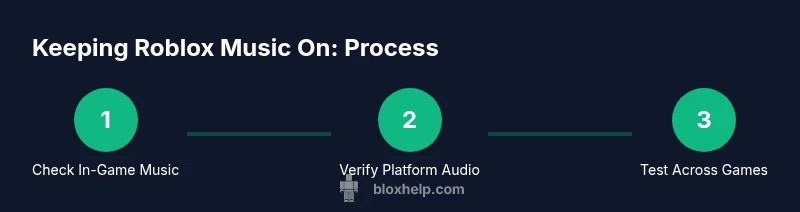
A robust test strategy helps determine whether the issue is universal or game-specific. Start by launching a few different Roblox titles with varying audio implementations. If music stays on in some games but not others, focus troubleshooting on the problematic games: check for updates, reset on-device/app settings, and review any game-specific audio toggles. Repeat tests across devices when possible — for example, compare PC results with mobile or console outcomes. Document when the issue occurs (e.g., after ads, during cutscenes, when tabbing out) to identify a pattern. This data-driven approach reduces unnecessary changes and clarifies where the fault lies.
Managing Audio Assets and Permissions
Some music playback hinges on the way a game loads audio assets. Ensure you’re compliant with Roblox’s audio policies and that any user-generated content doesn’t conflict with the game’s music track. If you’re a player, you don’t usually control asset loading, but you can avoid issues by avoiding third-party audio apps that might pause or override Roblox audio. For developers, embed audio correctly and test in multiple environments to ensure asset loading doesn’t silence music unexpectedly. If you suspect a bug with audio assets, note the game’s name, version, and steps to reproduce when reporting it.
Troubleshooting Checklist and Next Steps
Before seeking help, run through a concise checklist: (1) verify in-game music toggles and volume, (2) test across several games, (3) check platform audio permissions and background activity, (4) update Roblox and device OS, (5) clear cache or reinstall if needed, (6) try a different headset or speakers. If the issue persists, collect screenshots or screen recordings showing the moment music stops, and prepare your device model and Roblox version. This preparation helps support teams diagnose faster and provide targeted fixes.
Authoritative References and Next Steps
For deeper technical context, consult established audio standards and Roblox resources. The Web Audio API (a core standard for modern browsers) provides background on how audio routing works in complex apps. Roblox’s own audio documentation outlines how in-game music interacts with assets and events. When you’re ready to escalate, reach out to Roblox Support, and reference the documented steps you’ve already taken. This approach reduces back-and-forth and accelerates a resolution. References you may find helpful include the Web Audio API spec, Roblox audio docs, and official Roblox support resources. Note: these references help explain the principles behind audio behavior rather than provide a guaranteed fix for every game.
Authoritative Sources
- https://www.w3.org/TR/webaudio/
- https://developer.roblox.com/en-us/articles/Audio
- https://support.roblox.com/hc/en-us
Tools & Materials
- Roblox-enabled device(PC, Mac, iOS, Android, or console with Roblox app)
- Working headphones or speakers(For accurate testing of music playback)
- Stable internet connection(Prevents audio streaming interruptions)
- Updated Roblox app(Ensures the latest audio fixes are present)
- OS volume control access(To verify system-wide audio isn’t muted)
Steps
Estimated time: 30-60 minutes
- 1
Open the Roblox game and locate audio controls
Launch a game known to have music. Open the in-game settings and locate the music toggle and volume slider. Confirm music is enabled and set to a non-zero level. This ensures you’re testing the baseline audio behavior before making changes.
Tip: If the music option is missing, note the game version and check for updates. - 2
Check system and app volume
On your device, verify the global volume is up and not muted, and that Roblox has permission to play audio in the background. Adjust OS-level audio sliders and confirm the Roblox app is not muted by the system.
Tip: Test music playback after toggling the mute switch on the device itself. - 3
Test across multiple games
Open a second Roblox title with a different music implementation. If music stays on in some games but not others, the issue is likely game-specific. Document which titles are affected.
Tip: Use a mix of genres (platformers, simulators) to sample typical audio behavior. - 4
Reset audio settings in the problematic game
In the game’s audio menu, reset to default, re-enable music, and adjust volume again. This can clear corrupted preferences that cause music to stop.
Tip: If a reset option isn’t available, manually toggle music off and back on. - 5
Update or reinstall Roblox
Check for Roblox client updates; if the issue persists, reinstall Roblox to clear cached audio data that could be causing playback failures.
Tip: Back up any saved settings before reinstalling. - 6
Test after a clean cache
Clear application cache or temporary files if your platform supports it, then re-test audio playback. This helps remove stale audio data that can interfere with music.
Tip: On some devices, clearing cache is done in the system settings or app management area. - 7
Check for game-specific audio scripts
If you’re a developer or testing a specific game, inspect scripts that may pause music during transitions, ads, or cutscenes. Adjust or remove problematic blocks if you own the game.
Tip: Document any events that coincide with music shutdown to identify culprits. - 8
Reach out to support with evidence
If the issue persists across titles, collect logs, screenshots, and a short video showing the problem. Contact Roblox Support with details about your device, Roblox version, and affected games.
Tip: Include exact steps to reproduce and the timestamps of failures.
Questions & Answers
Why does Roblox music turn off after I switch tabs?
Music stopping after tab-switching is often due to the app losing audio focus or the game pausing audio during transitions. Check in-game settings and ensure the Roblox app is allowed to run in the background on your device. If the issue persists across games, it may be a broader audio focus problem on the platform.
Music stopping when you switch tabs is usually due to audio focus or background activity rules. Check in-game settings and device background permission; try the test across games to confirm the issue.
Is this issue the same on mobile and PC?
The cause often varies by platform. Mobile devices may restrict background audio when the app isn’t active, while PC may rely more on OS volume and app permissions. Test across both to identify whether the problem is platform-wide or game-specific.
On mobile, background audio might be restricted; on PC, OS level settings matter more. Test both to see where the problem lies.
Could a game script pause music by design?
Yes, some games include scripts that pause music during specific events (like cutscenes). If you own or mod a game, inspect the audio-related scripts; otherwise flag this with the developer if you suspect it’s a game design choice.
Some games pause music on events; if you own the game, review the audio scripts. If not, report it to the developer.
What should I do if music still won’t stay on after all fixes?
Collect evidence (screenshots or a video), note device and Roblox version, and contact Roblox Support with a clear description of steps to reproduce. Persisting issues after multiple steps often require a bug fix from Roblox.
If it still fails after fixes, gather evidence and contact Roblox Support with steps to reproduce.
Are there any safety or copyright considerations with Roblox music?
Some music assets may be restricted by Roblox’s policies. Always use audio you have rights to and follow the platform’s guidelines to avoid playback interruptions or policy issues.
Use audio you have rights to and follow Roblox guidelines to avoid playback issues.
Is there a permanent fix for all cases?
Because music behavior can depend on specific games and devices, a universal fix is unlikely. A consistent approach involves updating, testing across games, and following step-by-step troubleshooting until the issue is isolated.
There isn’t a universal fix; diagnose across games and devices, then apply targeted steps until the issue is isolated.
Watch Video
The Essentials
- Verify in-game music toggles and OS volume first
- Test multiple games to distinguish game-specific issues
- Update and reinstall if necessary to clear cache
- Document steps and outcomes for faster support
- Use authoritative sources for deeper understanding