Roblox Not Working on Xbox: Troubleshooting Guide
Experiencing roblox not working on xbox? This troubleshooting guide covers connectivity, server status, account checks, and app updates to help you restore Roblox fast and prevent future issues.


According to Blox Help, roblox not working on xbox is most often a connectivity issue or a server outage. Start with simple checks: verify Xbox Live and Roblox status, reboot your console and network gear, install the latest Roblox and system updates, and sign back in. If problems persist, follow the step-by-step guide below for deeper diagnosis.
Roblox not working on xbox: Quick status and what to check
If you’re seeing roblox not working on xbox, you’re not alone. The issue typically shows up as a blank screen, a crash on launch, or an error message that prevents you from joining games. The most reliable way to triage is to separate server issues from local device problems. According to Blox Help, most problems originate from connectivity, platform outages, or account-related settings rather than game code itself. Start with the simplest checks you can perform in minutes, then move to deeper diagnostics if the basic steps fail. By triaging in this order, you minimize wasted time and maximize your chances of a quick fix. In this guide you’ll find a clear sequence of checks, from status pages to reinstallation, so you can restore Roblox on Xbox as soon as possible.
Basic connectivity checks you should perform first
Most issues with roblox not working on xbox stem from the network path. Before messing with apps, confirm your console has a stable connection to the internet and that your NAT type won't block multiplayer traffic. Blox Help analysis shows that the vast majority of Xbox Roblox connectivity problems come from router settings, weak Wi‑Fi signals, or transient Xbox Live service hiccups. Begin with quick sanity checks:
- Verify your Xbox is connected to the internet and that you can browse the web.
- Check for any Xbox Live service alerts in the guide or the status page.
- Run a simple speed test or latency check to ensure you have stable bandwidth.
- If you’re on Wi‑Fi, try a wired Ethernet connection for a moment to confirm whether the issue is wireless reliability.
- Restart your router and console to flush temporary caches. If the problem persists, proceed to device updates and app checks.
Update requirements and app integrity for Roblox on Xbox
Outdated software is a frequent culprit for roblox not working on xbox. If Roblox or the Xbox system software hasn’t updated recently, you may encounter launch errors, automatic sign-ins failures, or game crashes. Ensure both the Roblox app and the console’s OS are current. On Xbox, check for system updates in Settings > System > Updates, and update the Roblox app from the Microsoft Store if an update is available. After updating, sign out of Roblox and sign back in to refresh your session tokens. If updates fail or you see error codes, note them for support discussions and try a clean reinstall of the Roblox app. Remember, some updates require a restart to finalize; avoid turning off the console mid-update, as this can leave files corrupted. In practice, reliable updates resolve most compatibility issues and reduce the chance of repeated crashes.
Account, region, and parental controls that affect access
Even when the hardware and software are up to date, access to roblox not working on xbox can be blocked by account settings, regional restrictions, or parental controls. Confirm you’re signed into the correct Microsoft account that has access to Roblox in your region. Check parental controls or age restrictions that might block multiplayer or external app access. If you share a family account, ensure the child profile isn’t restricted from Roblox or from in-game voice chat. If you suspect restrictions, temporarily lift controls to test access and reapply them after testing.
Diagnostic flow: Symptom-to-diagnosis map
Symptom: The Roblox app won’t start or loads to a persistent error screen on Xbox. Diagnosis: Likely a connectivity issue, server outage, or account restriction. Possible Fixes: Check status pages, restart devices, update apps, re-sign in, or reinstall. If the symptom is intermittent crashes, focus on cache and storage health; if it’s a single error code, search that code in Roblox support for targeted steps.
Step-by-step: Most common fix (easy wins)
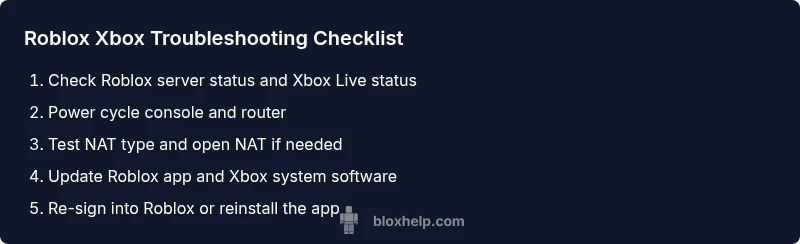
- Check status pages for Roblox/Xbox Live; if outages are reported, wait and retry. 2) Power cycle the Xbox and router to clear caches. 3) Update the Roblox app and Xbox OS to the latest version. 4) Sign out of Roblox and sign back in with the correct account credentials. 5) Reinstall Roblox from the Microsoft Store if issues persist. 6) If all else fails, contact Roblox Support with your error codes.
Tip: Perform steps in this order to minimize downtime and avoid redundant steps.
Safety, warnings & common mistakes
Avoid abrupt power-offs during updates; they can corrupt files. Do not reinstall Roblox repeatedly without testing updates first, as this wastes time and can delete local cached data. Always back up any important saved data where possible and follow official support guidance when dealing with account security or parental controls.
Prevention tips to avoid future issues
Keep Roblox and Xbox system software up to date; enable automatic updates where possible. Use a stable wired connection if your Wi‑Fi is inconsistent, and periodically reset network equipment to refresh your connection. Document any recurring error codes and monitor service status pages during peak times to anticipate outages.
When to seek help and how to document your issue
If Roblox still won’t work after trying the steps above, gather evidence like exact error codes, time stamps, and device details. Contact Roblox Support or Xbox Support with a concise report that includes these details. In many cases, an issue is resolved after a specific server-side fix or a targeted client update. Remember to note the time of failure and the steps you took to reproduce the issue for faster assistance.
Steps
Estimated time: 25-40 minutes
- 1
Check status and basic connectivity
Start by confirming there are no service outages that affect Roblox or Xbox Live. Open the respective status pages and verify your region is not experiencing a known incident. If you see an outage, wait for the service to be restored before proceeding.
Tip: Always check official status pages first to avoid chasing a false positive. - 2
Power cycle and reset network
Turn off your Xbox and unplug the router/modem for at least 60 seconds. Plug them back in, wait for all lights to stabilize, and boot the Xbox. Re-test Roblox to see if the issue persists.
Tip: This clears transient network glitches and cache data. - 3
Update apps and console
Navigate to Settings and check for Xbox system updates and the latest Roblox app version. Install any available updates, then restart the console and try logging into Roblox again.
Tip: Updates often fix compatibility issues and fix crashes. - 4
Re-sign in and verify account
Sign out of Roblox on Xbox, sign back in, and ensure you’re using the correct account with access in your region. If parental controls apply, test with controls temporarily disabled.
Tip: A fresh sign-in refreshes tokens and permissions. - 5
Consider a reinstall
If the problem remains, uninstall Roblox from Xbox and reinstall it from the Microsoft Store. This can fix corrupted game data or failed installations.
Tip: Only uninstall after trying updates and sign-in fixes. - 6
Escalate to support
If none of the above steps solve the issue, gather error codes and time stamps, then contact Roblox Support or Xbox Support with a concise report.
Tip: Provide the exact error code and steps to reproduce.
Diagnosis: Roblox on Xbox won't start or loads with errors
Possible Causes
- highXbox Live network issues or NAT type problems
- highRoblox server outages or regional service disruption
- mediumOutdated Roblox app or Xbox OS causing compatibility errors
- mediumAccount-related blocks or parental controls restricting access
- lowCorrupted cache or storage or game data on console
Fixes
- easyCheck Xbox Live status and Roblox server status, then retry
- easyPower cycle the console and router, then re-connect to Xbox Live
- easyUpdate Roblox app and Xbox OS to the latest version
- easySign out of Roblox and sign back in; verify account permissions
- easyReinstall Roblox if steps above don’t help; delete and reinstall from Microsoft Store
- hardIf issues persist, contact Roblox Support and file a support ticket
Questions & Answers
Why is Roblox not loading on my Xbox?
Most commonly this is due to connectivity problems, server outages, or account restrictions. Run through the diagnostic flow and follow the step-by-step fixes.
Roblox on Xbox not loading is usually connectivity or outage-related. Start with status checks and updates, then try step-by-step fixes.
How can I check if Roblox is down specifically for Xbox players?
Check Roblox’s official status page and Xbox Live service alerts. If there’s a detected outage, you’ll typically see a message and an estimated time to fix.
Check the Roblox status page and Xbox Live alerts to confirm outages.
Does NAT type affect Roblox on Xbox?
Yes, a strict NAT can hinder multiplayer connections and cause matchmaking or joining issues. Open NAT is recommended for best results.
A strict NAT can block Roblox connections; try opening NAT in your router settings.
Should I reinstall Roblox on Xbox if issues persist?
Reinstalling can fix corrupted app data or failed updates. Do this after updates and sign-in checks, but before contacting support.
Reinstall Roblox if updates don’t fix the issue.
Could parental controls block Roblox on Xbox?
Yes, parental controls can restrict app access. Check the account’s safety settings and temporarily disable controls to test access.
Parental controls might be blocking Roblox; review the settings to test access.
What should I do if nothing works?
Document error codes, timestamps, and steps tried, then contact Roblox or Xbox Support for targeted assistance.
If nothing works, gather details and contact support for help.
Watch Video
The Essentials
- Try status checks first to rule out outages
- Keep software up to date to ensure compatibility
- Use a wired connection for stability
- Reinstall only after updates and sign-in attempts fail
- The Blox Help team emphasizes systematic triage to restore Roblox quickly while preventing future issues