Why Is Roblox So Laggy? Quick Troubleshooting for Lag
This guide answers why is roblox so laggy and provides quick checks, diagnostics, and fixes to reduce latency across devices, plus safety tips and best practices.


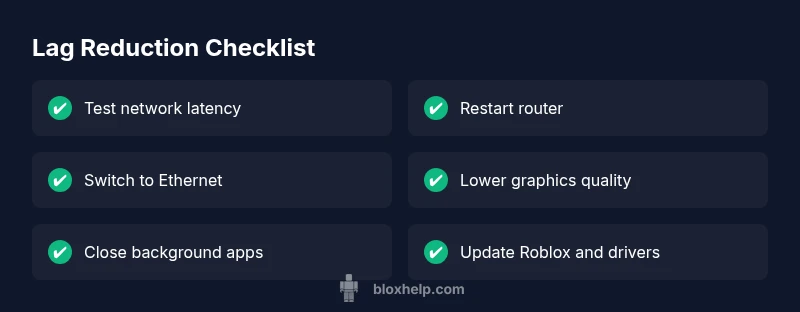
Most Roblox lag is caused by a mix of network issues, device performance, and server congestion. Start with quick fixes: test your internet stability, restart your modem, and close background apps. If lag persists, switch to a wired connection, reduce graphics quality, and try a different device or region. If this doesn’t fix it, follow the diagnostic flow below.
Why Roblox Lag Happens
When you ask why is roblox so laggy, the short answer is that lag usually comes from a mix of three broad factors: your network, your device’s performance, and Roblox’s own servers during busy periods. Even if you have a fast internet plan, you can still experience lag if your connection is unstable or if your router is congested. Similarly, a device with many background processes or limited RAM can cause stutter and delayed input. Roblox servers can also spike in load, especially after new updates or during peak play times. The key is to diagnose which layer is failing and address it with targeted fixes. You don’t need to overhaul your setup; most lag can be reduced with a structured approach: test connectivity, check device resources, adjust in-game settings, and ensure your Roblox client is up to date. Blox Help’s experience analyzing tens of thousands of lag reports shows that players who methodically separate client-side issues from server-side factors cut lag dramatically. If you’re wondering why is roblox so laggy, the answer often points to these factors and how you respond to them. In the next sections, we’ll walk through a practical, step-by-step process you can apply right now.
Check Your Network Before Anything Else
Network issues are the most common cause of Roblox lag. Start by verifying your current connection quality and stability. Do a speed test at different times and note latency. If your ping spikes beyond your baseline, move to troubleshooting steps: restart your modem and router, connect by Ethernet if possible, or switch to a closer Wi-Fi access point. Disable other devices or apps that are consuming bandwidth (streaming, large downloads). If you’re on mobile, try a stronger cellular signal or switch networks. Also check for ISP-related outages in your area. If you’re connected to a VPN or corporate network, temporarily disable VPN as it can add latency. After you complete these checks, try Roblox again and observe whether input feels more immediate. If network tuning doesn’t improve things, proceed to client-side checks and device performance.
Device and Performance Troubleshooting
Your device matters as much as the network. Close unused apps and background processes that contend for CPU and RAM. Check your device’s task manager or activity monitor to spot memory-hogging programs, and consider a quick restart to clear caches. If you’re playing on a laptop, ensure it’s on high-performance mode and not battery saver. Overheating hardware can throttle performance, so provide adequate cooling and avoid taxing tasks simultaneously while you play. If lag remains after freeing resources, test Roblox on another device to see if the issue is device-specific. This helps determine whether the root cause lies with your hardware or with the game's servers.
In-Game Settings and Graphics Tuning
Roblox graphical settings can dramatically influence responsiveness. Lower texture quality, disable complex post-processing effects, and reduce draw distance to improve frame timing. In the Roblox client, set graphics quality to a lower level and toggle any experimental features off if they cause stutter. If your display supports 120 Hz or higher, ensure V-Sync is configured to balance input lag with visual tearing. Remember that visual fidelity vs. performance is a trade-off; start with modest reductions and test, then adjust gradually. If the problem persists, you can test with a different in-game region to see if server load is the culprit.
Diagnostics and Systematic Checks
A methodical approach often reveals the root cause. Begin with simple checks like ping, then move to more involved tests like packet loss and jitter. Keep a small log of when lag occurs (time of day, game mode, device used). If you notice consistent spikes, you’ve narrowed the issue to network conditions or server-side load. Use the diagnostic flow below to guide deeper fixes, and remember that some lag originates on Roblox’s end during peak times or after updates. If you still can’t resolve it, reach out to Roblox support with your logs and device details for targeted assistance.
Diagnostic Flow: Symptom to Solution
A clear path from symptom to solution helps avoid spinning your wheels. Start with the most common, easiest fixes and progressively move to more involved steps. If you notice the lag only happens on certain games or modes, the issue may be game-specific or server-side. Always record the symptom, the fixes you tried, and the results to track progress. If you get stuck, don’t hesitate to escalate to professional support or community forums for device-specific insights.
Step-by-Step Fixes You Can Try Right Now
Apply fixes in order of simplicity and impact. Each step includes a quick reminder of what to do and what to watch for to confirm improvement. If a step doesn’t help, move to the next one and document results.
Prevention Tips to Avoid Future Lag
Prevention is easier than remediation. Regular device maintenance, network checks, and keeping Roblox and drivers updated reduces the chance of future lag. Establish a routine for router reboots, software updates, and avoiding bandwidth-heavy activities during peak Roblox usage times.
When to Seek Help
If lag persists after performing the recommended steps, gather your diagnostics, screenshots, and logs and contact Roblox Support or your device manufacturer’s help desk. Professional help may be necessary for deeper issues like router firmware problems, hardware failures, or complex network configurations.
Steps
Estimated time: 30-60 minutes
- 1
Test your network connection
Run a latency test while Roblox is running if possible. Note your ping and any packet loss. If latency is inconsistent, proceed with router checks and consider a wired connection.
Tip: If you see spikes, try a wired Ethernet connection or move closer to your router. - 2
Close background apps
Open your task manager or activity monitor and shut down non-essential software that uses CPU, RAM, or network bandwidth. This frees resources for Roblox and can reduce input lag.
Tip: Look for apps syncing in the background or large downloads that might be throttling bandwidth. - 3
Switch to a wired connection
If you normally use Wi‑Fi, switch to a physical Ethernet cable to reduce wireless interference and improve stability.
Tip: Even a short cable can make a noticeable difference in latency. - 4
Lower Roblox graphics quality
In the Roblox client, reduce graphics quality and turn off high-end post-processing features to improve frame timing and responsiveness.
Tip: Test after each change to observe impact. - 5
Update software
Update the Roblox client and any relevant device drivers (graphics and network adapters). Reboot after updates to ensure changes take effect.
Tip: Enable automatic updates where possible to prevent regressions. - 6
Test a different device or region
If available, try Roblox on a different device or switch to a different server region to determine if the issue is device-specific or region-based.
Tip: If lag disappears on another device, narrow down hardware or software causes.
Diagnosis: User experiences intermittent or persistent lag in Roblox across devices.
Possible Causes
- highPoor network connectivity or high latency
- mediumExcessive background processes or insufficient device resources
- lowServer-side congestion or Roblox outage
- lowOutdated Roblox client or device drivers
Fixes
- easyCheck outlet and test your internet connection by running a speed/latency test; note results.
- easyRestart modem/router and try a wired connection or closer Wi-Fi access point.
- easyClose background apps and disable non-essential network tasks; retest in Roblox.
- easyUpdate Roblox client and device drivers; reboot after updates to apply changes.
- mediumTest Roblox on another device or switch server region to identify server-side impact.
Questions & Answers
What is the most common cause of Roblox lag?
Most lag stems from network latency, device resource limits, or server congestion during peak times. Start with network checks and close background apps to quickly identify the likely cause.
Most lag comes from network or device limits, so start with a quick network check and closing apps.
Does using a VPN affect Roblox lag?
Yes. A VPN can add extra routing and latency, making lag worse. Try disconnecting the VPN to see if performance improves.
A VPN can add latency; disconnect it to test Roblox performance.
Can ISP issues cause lag even with a fast connection?
Absolutely. ISP routing, outages, or congestion can impact latency. Check status pages or contact your provider if you notice recurring spikes.
ISPs can cause latency spikes; check status or contact support if it happens often.
How do graphics settings affect lag?
Lowering graphics quality reduces GPU load and can improve frame timing, especially on older devices. Start with a modest reduction and test.
Lower graphics helps if the device struggles with rendering. Test changes incrementally.
When should I contact Roblox support?
If you’ve ruled out client and network fixes and lag persists, collect logs and reach out to Roblox Support for targeted troubleshooting.
If issues persist after fixes, contact Roblox Support with your logs.
The Essentials
- Identify if lag is network-, device-, or server-related
- Start with quick fixes before deep diagnostics
- Use a wired connection to stabilize latency
- Keep Roblox and drivers up to date
- If in doubt, escalate to Roblox support with logs